Navigation drawer
The navigation drawer component is a slide-in menu that lets users navigate to various sections of your app. Users can activate it by swiping from the side or tapping a menu icon.
Consider these three use cases for implementing a Navigation Drawer:
- Content organization: Enable users to switch between different categories, such as in news or blogging apps.
- Account management: Provide quick links to account settings and profile sections in apps with user accounts.
- Feature discovery: Organize multiple features and settings in a single menu to facilitate user discovery and access in complex apps.
In Material Design, there are two types of navigation drawers:
- Standard: Share space within a screen with other content.
- Modal: Appears over the top of other content within a screen.

Example
You can use the ModalNavigationDrawer composable to implement a
navigation drawer.
Use the drawerContent slot to provide a ModalDrawerSheet and provide
the drawer's contents, as in the following example:
ModalNavigationDrawer(
    drawerContent = {
        ModalDrawerSheet {
            Text("Drawer title", modifier = Modifier.padding(16.dp))
            HorizontalDivider()
            NavigationDrawerItem(
                label = { Text(text = "Drawer Item") },
                selected = false,
                onClick = { /*TODO*/ }
            )
            // ...other drawer items
        }
    }
) {
    // Screen content
}
ModalNavigationDrawer accepts a number of additional drawer parameters. For
example, you can toggle whether or not the drawer responds to drags with the
gesturesEnabled parameter as in the following example:
ModalNavigationDrawer(
    drawerContent = {
        ModalDrawerSheet {
            // Drawer contents
        }
    },
    gesturesEnabled = false
) {
    // Screen content
}
Control behavior
To control how the drawer opens and closes, use DrawerState. You should
pass a DrawerState to ModalNavigationDrawer using the drawerState
parameter.
DrawerState provides access to the open and close functions, as
well as properties related to the current drawer state. These suspending
functions require a CoroutineScope, which you can instantiate using
rememberCoroutineScope. You can also call the suspending functions in
response to UI events.
val drawerState = rememberDrawerState(initialValue = DrawerValue.Closed)
val scope = rememberCoroutineScope()
ModalNavigationDrawer(
    drawerState = drawerState,
    drawerContent = {
        ModalDrawerSheet { /* Drawer content */ }
    },
) {
    Scaffold(
        floatingActionButton = {
            ExtendedFloatingActionButton(
                text = { Text("Show drawer") },
                icon = { Icon(Icons.Filled.Add, contentDescription = "") },
                onClick = {
                    scope.launch {
                        drawerState.apply {
                            if (isClosed) open() else close()
                        }
                    }
                }
            )
        }
    ) { contentPadding ->
        // Screen content
    }
}
Create groups within a navigation drawer
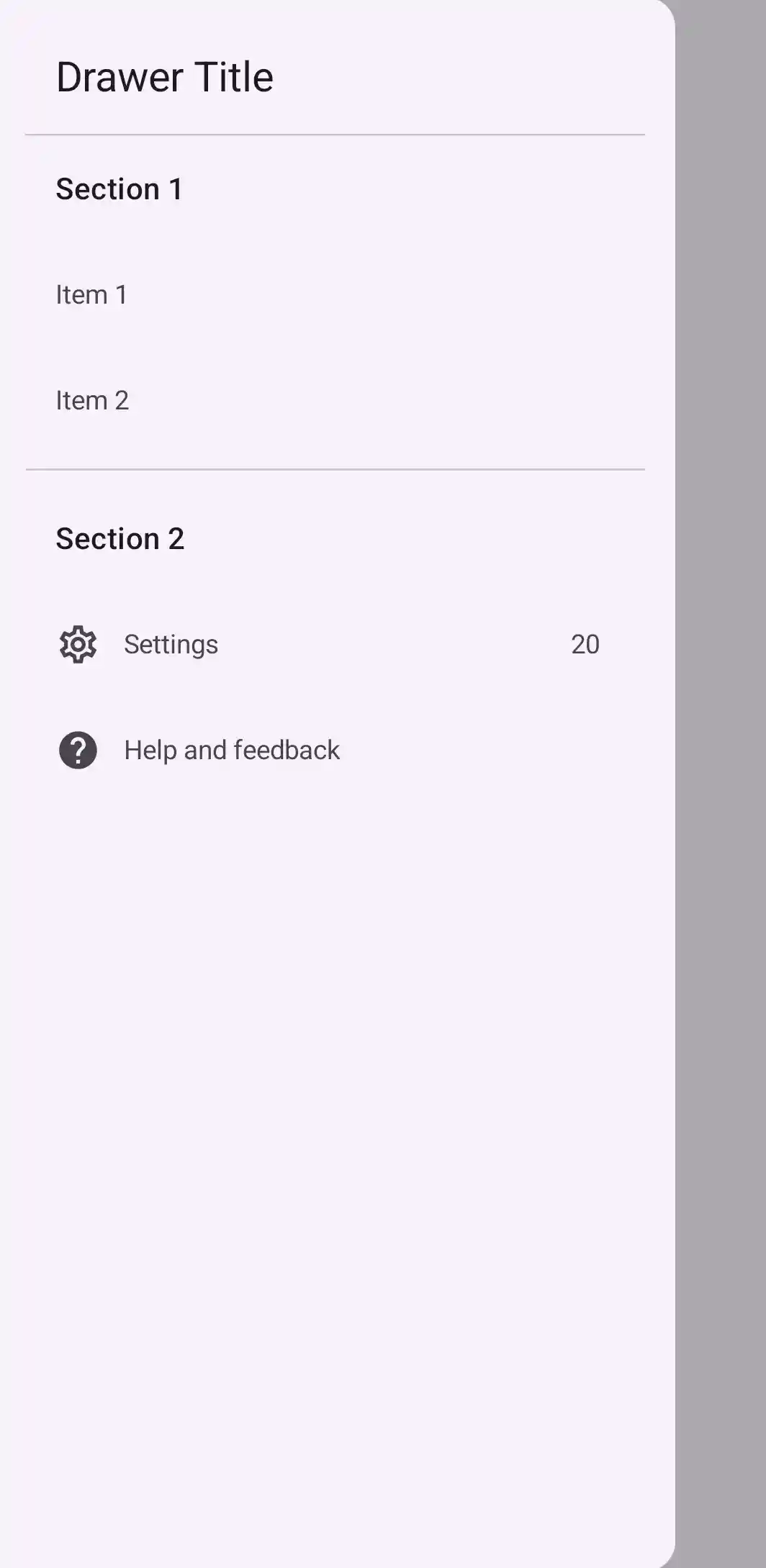
The following snippet shows how to create a detailed navigation drawer, with sections and dividers:
@Composable
fun DetailedDrawerExample(
    content: @Composable (PaddingValues) -> Unit
) {
    val drawerState = rememberDrawerState(initialValue = DrawerValue.Closed)
    val scope = rememberCoroutineScope()

    ModalNavigationDrawer(
        drawerContent = {
            ModalDrawerSheet {
                Column(
                    modifier = Modifier.padding(horizontal = 16.dp)
                        .verticalScroll(rememberScrollState())
                ) {
                    Spacer(Modifier.height(12.dp))
                    Text("Drawer Title", modifier = Modifier.padding(16.dp), style = MaterialTheme.typography.titleLarge)
                    HorizontalDivider()

                    Text("Section 1", modifier = Modifier.padding(16.dp), style = MaterialTheme.typography.titleMedium)
                    NavigationDrawerItem(
                        label = { Text("Item 1") },
                        selected = false,
                        onClick = { /* Handle click */ }
                    )
                    NavigationDrawerItem(
                        label = { Text("Item 2") },
                        selected = false,
                        onClick = { /* Handle click */ }
                    )

                    HorizontalDivider(modifier = Modifier.padding(vertical = 8.dp))

                    Text("Section 2", modifier = Modifier.padding(16.dp), style = MaterialTheme.typography.titleMedium)
                    NavigationDrawerItem(
                        label = { Text("Settings") },
                        selected = false,
                        icon = { Icon(Icons.Outlined.Settings, contentDescription = null) },
                        badge = { Text("20") }, // Placeholder
                        onClick = { /* Handle click */ }
                    )
                    NavigationDrawerItem(
                        label = { Text("Help and feedback") },
                        selected = false,
                        icon = { Icon(Icons.AutoMirrored.Outlined.Help, contentDescription = null) },
                        onClick = { /* Handle click */ },
                    )
                    Spacer(Modifier.height(12.dp))
                }
            }
        },
        drawerState = drawerState
    ) {
        Scaffold(
            topBar = {
                TopAppBar(
                    title = { Text("Navigation Drawer Example") },
                    navigationIcon = {
                        IconButton(onClick = {
                            scope.launch {
                                if (drawerState.isClosed) {
                                    drawerState.open()
                                } else {
                                    drawerState.close()
                                }
                            }
                        }) {
                            Icon(Icons.Default.Menu, contentDescription = "Menu")
                        }
                    }
                )
            }
        ) { innerPadding ->
            content(innerPadding)
        }
    }
}
Key points about the code
- Populates the
drawerContentwith aColumncontaining sections, dividers, and navigation items. ModalDrawerSheetprovides Material Design styling for the drawer.HorizontalDividerseparates sections within the drawer.ModalNavigationDrawercreates the drawer.drawerContentdefines the content of the drawer.- Inside the
ModalDrawerSheet, aColumnarranges the drawer elements vertically. NavigationDrawerItemcomposables represent individual items in the drawer.- The
Scaffoldprovides the basic structure of the screen, including theTopAppBar. - The
navigationIconin theTopAppBarcontrols the drawer's open and close state.
Result
The following image shows how the drawer appears when opened, with sections and items displayed:
Additional resources
- Material Design: Navigation drawer