Use BigQuery ML to predict penguin weight
-
In the Google Cloud console, on the project selector page, select or create a Google Cloud project.
Roles required to select or create a project
- Select a project: Selecting a project doesn't require a specific IAM role—you can select any project that you've been granted a role on.
-
Create a project: To create a project, you need the Project Creator role
(
roles/resourcemanager.projectCreator), which contains theresourcemanager.projects.createpermission. Learn how to grant roles.
-
Verify that billing is enabled for your Google Cloud project.
-
Enable the BigQuery API.
Roles required to enable APIs
To enable APIs, you need the Service Usage Admin IAM role (
roles/serviceusage.serviceUsageAdmin), which contains theserviceusage.services.enablepermission. Learn how to grant roles.
Required permissions
To create the model using BigQuery ML, you need the following IAM permissions:
bigquery.jobs.createbigquery.models.createbigquery.models.getDatabigquery.models.updateDatabigquery.models.updateMetadata
To run inference, you need the following permissions:
bigquery.models.getDataon the modelbigquery.jobs.create
Create a dataset
Create a BigQuery dataset to store your ML model.
Console
In the Google Cloud console, go to the BigQuery page.
In the Explorer pane, click your project name.
Click View actions > Create dataset
On the Create dataset page, do the following:
For Dataset ID, enter
bqml_tutorial.For Location type, select Multi-region, and then select US.
Leave the remaining default settings as they are, and click Create dataset.
bq
To create a new dataset, use the
bq mk --dataset command.
Create a dataset named
bqml_tutorialwith the data location set toUS.bq mk --dataset \ --location=US \ --description "BigQuery ML tutorial dataset." \ bqml_tutorial
Confirm that the dataset was created:
bq ls
API
Call the datasets.insert
method with a defined dataset resource.
{
  "datasetReference": {
     "datasetId": "bqml_tutorial"
  }
}
BigQuery DataFrames
Before trying this sample, follow the BigQuery DataFrames setup instructions in the BigQuery quickstart using BigQuery DataFrames. For more information, see the BigQuery DataFrames reference documentation.
To authenticate to BigQuery, set up Application Default Credentials. For more information, see Set up ADC for a local development environment.
Create the model
Create a linear regression model using the Analytics sample dataset for BigQuery.
SQL
You can create a linear regression model by using the
CREATE MODEL statement
and specifying LINEAR_REG for the model type. Creating the model includes
training the model.
The following are useful things to know about the CREATE MODEL statement:
- The
input_label_colsoption specifies which column in theSELECTstatement to use as the label column. Here, the label column isbody_mass_g. For linear regression models, the label column must be real-valued, that is, the column values must be real numbers. This query's
SELECTstatement uses the following columns in thebigquery-public-data.ml_datasets.penguinstable to predict a penguin's weight:species: the species of penguin.island: the island that the penguin resides on.culmen_length_mm: the length of the penguin's culmen in millimeters.culmen_depth_mm: the depth of the penguin's culmen in millimeters.flipper_length_mm: the length of the penguin's flippers in millimeters.sex: the sex of the penguin.
The
WHEREclause in this query'sSELECTstatement,WHERE body_mass_g IS NOT NULL, excludes rows where thebody_mass_gcolumn isNULL.
Run the query that creates your linear regression model:
In the Google Cloud console, go to the BigQuery page.
In the query editor, run the following query:
CREATE OR REPLACE MODEL `bqml_tutorial.penguins_model`
OPTIONS
  (model_type='linear_reg',
  input_label_cols=['body_mass_g']) AS
SELECT
  *
FROM
  `bigquery-public-data.ml_datasets.penguins`
WHERE
  body_mass_g IS NOT NULL;
It takes about 30 seconds to create the
penguins_modelmodel.To see the model, follow these steps:
In the left pane, click Explorer:

If you don't see the left pane, click Expand left pane to open the pane.
In the Explorer pane, expand your project and click Datasets.
Click the
bqml_tutorialdataset.Click the Models tab.
BigQuery DataFrames
Before trying this sample, follow the BigQuery DataFrames setup instructions in the BigQuery quickstart using BigQuery DataFrames. For more information, see the BigQuery DataFrames reference documentation.
To authenticate to BigQuery, set up Application Default Credentials. For more information, see Set up ADC for a local development environment.
It takes about 30 seconds to create the model. To see the model, follow these steps:
In the left pane, click Explorer:
In the Explorer pane, expand your project and click Datasets.
Click the
bqml_tutorialdataset.Click the Models tab.
Get training statistics
To see the results of the model training, you can use the
ML.TRAINING_INFO function,
or you can view the statistics in the Google Cloud console. In this
tutorial, you use the Google Cloud console.
A machine learning algorithm builds a model by examining many examples and attempting to find a model that minimizes loss. This process is called empirical risk minimization.
Loss is the penalty for a bad prediction. It is a number indicating how bad the model's prediction was on a single example. If the model's prediction is perfect, the loss is zero; otherwise, the loss is greater. The goal of training a model is to find a set of weights and biases that have low loss, on average, across all examples.
See the model training statistics that were generated when you ran the
CREATE MODEL query:
In the left pane, click Explorer:
In the Explorer pane, expand your project and click Datasets.
Click the
bqml_tutorialdataset.Click the Models tab.
To open the model information pane, click penguins_model.
Click the Training tab, and then click Table. The results should look similar to the following:

The Training Data Loss column represents the loss metric calculated after the model is trained on the training dataset. Since you performed a linear regression, this column shows the mean squared error value. A normal_equation optimization strategy is automatically used for this training, so only one iteration is required to converge to the final model. For more information on setting the model optimization strategy, see
optimize_strategy.
Evaluate the model
After creating the model, evaluate the model's performance by using the
ML.EVALUATE function
or the
score BigQuery DataFrames function
to evaluate the predicted values generated by the model against the actual data.
SQL
For input, the ML.EVALUATE function takes the trained model and a dataset
that matches the schema of the data that you used to train the model. In
a production environment, you should
evaluate the model on different data than the data you used to train the model.
If you run ML.EVALUATE without providing input data, the function retrieves
the evaluation metrics calculated during training. These metrics are calculated
by using the automatically reserved evaluation dataset:
    SELECT
      *
    FROM
      ML.EVALUATE(MODEL bqml_tutorial.penguins_model);
Run the ML.EVALUATE query:
In the Google Cloud console, go to the BigQuery page.
In the query editor, run the following query:
  SELECT
    *
  FROM
    ML.EVALUATE(MODEL `bqml_tutorial.penguins_model`,
      (
      SELECT
        *
      FROM
        `bigquery-public-data.ml_datasets.penguins`
      WHERE
        body_mass_g IS NOT NULL));
BigQuery DataFrames
Before trying this sample, follow the BigQuery DataFrames setup instructions in the BigQuery quickstart using BigQuery DataFrames. For more information, see the BigQuery DataFrames reference documentation.
To authenticate to BigQuery, set up Application Default Credentials. For more information, see Set up ADC for a local development environment.
The results should look similar to the following:
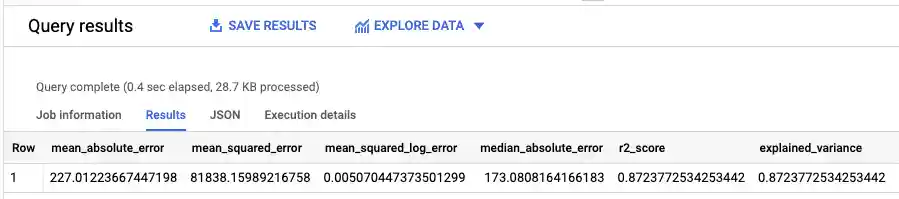
Because you performed a linear regression, the results include the following columns:
mean_absolute_errormean_squared_errormean_squared_log_errormedian_absolute_errorr2_scoreexplained_variance
An important metric in the evaluation results is the
R2 score.
The R2 score is a statistical measure that determines if the linear
regression predictions approximate the actual data. A value of 0 indicates
that the model explains none of the variability of the response data around the
mean. A value of 1 indicates that the model explains all the variability of
the response data around the mean.
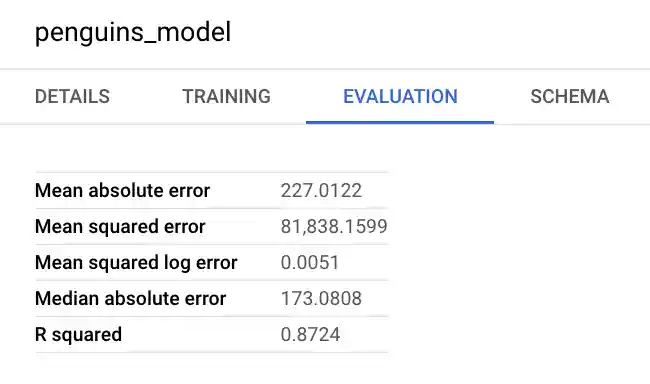
You can also look at the model's information pane in the Google Cloud console to view the evaluation metrics:
Use the model to predict outcomes
Now that you have evaluated your model, the next step is to use it to predict
an outcome. You can run the
ML.PREDICT function
or the
predict BigQuery DataFrames function
on the model to predict the body mass in grams of all penguins that reside on
the Biscoe Islands.
SQL
For input, the ML.PREDICT function takes the trained model and a dataset that
matches the schema of the data that you used to train the model, excluding the
label column.
Run the ML.PREDICT query:
In the Google Cloud console, go to the BigQuery page.
In the query editor, run the following query:
SELECT
*
FROM
ML.PREDICT(MODEL `bqml_tutorial.penguins_model`,
  (
  SELECT
    *
  FROM
    `bigquery-public-data.ml_datasets.penguins`
  WHERE island = 'Biscoe'));
BigQuery DataFrames
Before trying this sample, follow the BigQuery DataFrames setup instructions in the BigQuery quickstart using BigQuery DataFrames. For more information, see the BigQuery DataFrames reference documentation.
To authenticate to BigQuery, set up Application Default Credentials. For more information, see Set up ADC for a local development environment.
The results should look similar to the following:

Explain the prediction results
SQL
To understand why the model is generating these prediction results, you can use
the
ML.EXPLAIN_PREDICT function.
ML.EXPLAIN_PREDICT is an extended version of the ML.PREDICT function.
ML.EXPLAIN_PREDICT not only outputs prediction results, but also outputs
additional columns to explain the prediction results. In practice, you can run
ML.EXPLAIN_PREDICT instead of ML.PREDICT. For more information, see
BigQuery ML explainable AI overview.
Run the ML.EXPLAIN_PREDICT query:
- In the Google Cloud console, go to the BigQuery page.
- In the query editor, run the following query:
SELECT
  *
FROM
  ML.EXPLAIN_PREDICT(MODEL `bqml_tutorial.penguins_model`,
    (
    SELECT
      *
    FROM
      `bigquery-public-data.ml_datasets.penguins`
    WHERE island = 'Biscoe'),
    STRUCT(3 as top_k_features));
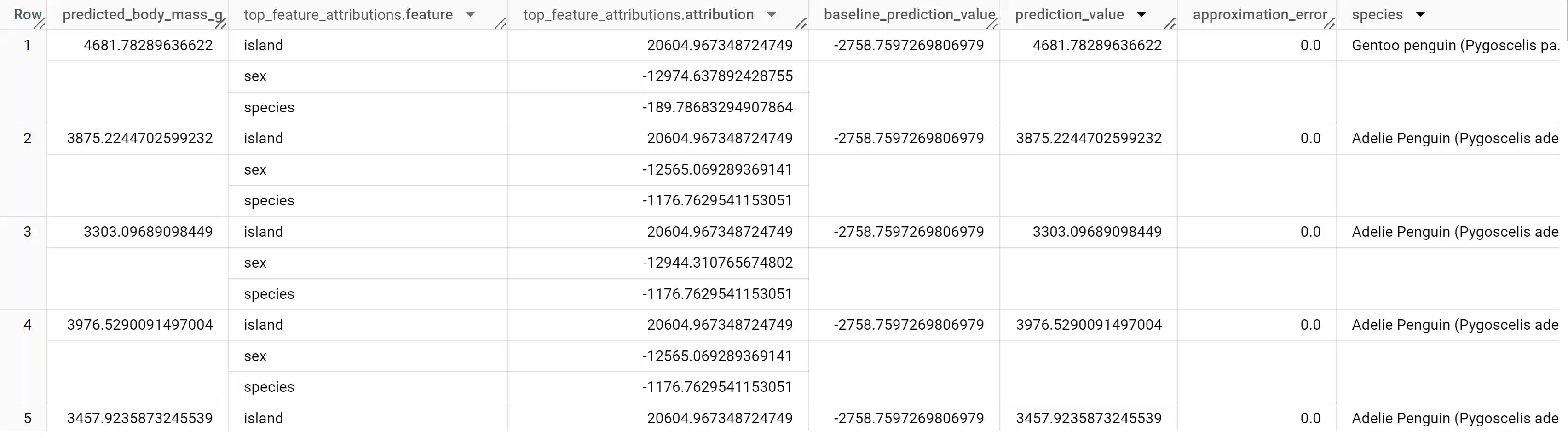
The results should look similar to the following:
BigQuery DataFrames
Before trying this sample, follow the BigQuery DataFrames setup instructions in the BigQuery quickstart using BigQuery DataFrames. For more information, see the BigQuery DataFrames reference documentation.
To authenticate to BigQuery, set up Application Default Credentials. For more information, see Set up ADC for a local development environment.
For linear regression models, Shapley values are used to generate feature
attribution values for each feature in the model. The output includes
the top three feature attributions per row of the penguins table because
top_k_features was set to 3. These attributions are sorted by
the absolute value of the attribution in descending order. In all examples, the
feature sex contributed the most to the overall prediction.
Globally explain the model
SQL
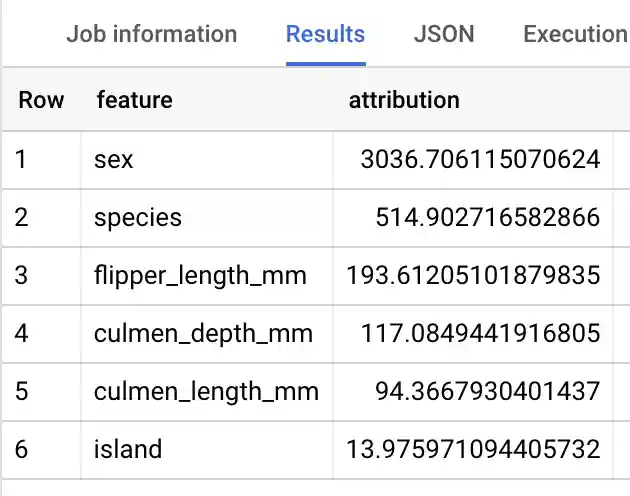
To know which features are generally the most important to determine penguin
weight, you can use the
ML.GLOBAL_EXPLAIN function.
In order to use ML.GLOBAL_EXPLAIN, you must retrain the model with the
ENABLE_GLOBAL_EXPLAIN option set to TRUE.
Retrain and get global explanations for the model:
- In the Google Cloud console, go to the BigQuery page.
In the query editor, run the following query to retrain the model:
#standardSQL
CREATE OR REPLACE MODEL `bqml_tutorial.penguins_model`
OPTIONS (
  model_type = 'linear_reg',
  input_label_cols = ['body_mass_g'],
  enable_global_explain = TRUE)
AS
SELECT
*
FROM
`bigquery-public-data.ml_datasets.penguins`
WHERE
body_mass_g IS NOT NULL;
In the query editor, run the following query to get global explanations:
SELECT
*
FROM
ML.GLOBAL_EXPLAIN(MODEL `bqml_tutorial.penguins_model`)
The results should look similar to the following:
BigQuery DataFrames
Before trying this sample, follow the BigQuery DataFrames setup instructions in the BigQuery quickstart using BigQuery DataFrames. For more information, see the BigQuery DataFrames reference documentation.
To authenticate to BigQuery, set up Application Default Credentials. For more information, see Set up ADC for a local development environment.