Unity - Scripting API: EditorGUILayout.ObjectField
Success!
Thank you for helping us improve the quality of Unity Documentation. Although we cannot accept all submissions, we do read each suggested change from our users and will make updates where applicable.
Submission failed
For some reason your suggested change could not be submitted. Please <a>try again</a> in a few minutes. And thank you for taking the time to help us improve the quality of Unity Documentation.
Declaration
public static Object ObjectField(Object obj, Type objType, bool allowSceneObjects, params GUILayoutOption[] options);
Declaration
public static Object ObjectField(string label, Object obj, Type objType, bool allowSceneObjects, params GUILayoutOption[] options);
Declaration
public static Object ObjectField(GUIContent label, Object obj, Type objType, bool allowSceneObjects, params GUILayoutOption[] options);
Parameters
| Parameter | Description |
|---|---|
| label | Optional label in front of the field. |
| obj | The object the field shows. |
| objType | The type of the objects that can be assigned. |
| allowSceneObjects | Allow assigning Scene objects. See Description for more info. |
| options | An optional list of layout options that specify extra layout properties. Any values passed in here will override settings defined by the style.
Additional resources: GUILayout.Width, GUILayout.Height, GUILayout.MinWidth, GUILayout.MaxWidth, GUILayout.MinHeight,
GUILayout.MaxHeight, GUILayout.ExpandWidth, GUILayout.ExpandHeight. |
| targetBeingEdited | Optional object used to filter selection criteria. If the target object is persistent, scene objects are available for selection. If the target object is a GameObject or Component, the selection is limited to objects within the same scene as the target. |
Returns
Object The object that has been set by the user.
Description
Make a field to receive any object type.
You can assign objects either by drag and drop or by selecting an object using the Object Picker.
Ensure that the allowSceneObjects parameter is false if the object reference is stored as part of an asset, since assets can't store references to objects in a Scene.
If the ObjectField is part of a custom Editor for a script component, use EditorUtility.IsPersistent() to check if the component is on an asset or a Scene object.
See the example in the Editor class for further information.

Search for a help page by selecting the GameObject in the Object Field.
You can also use the options parameter to change the look of the control. The following example changes the look of a Sprite ObjectField that is displayed with a large field format.
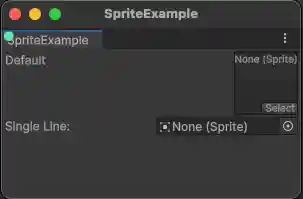
Two different layout options for a sprite field.
Declaration
public static void ObjectField(SerializedProperty property, params GUILayoutOption[] options);
Declaration
public static void ObjectField(SerializedProperty property, Type objType, params GUILayoutOption[] options);
Description
Make a field to receive any object type.
Obsoleted. Use the overloads at the top of the page, with the allowSceneObjects parameter.