Unity - Scripting API: EditorDialog.DisplayComplexDecisionDialog
Success!
Thank you for helping us improve the quality of Unity Documentation. Although we cannot accept all submissions, we do read each suggested change from our users and will make updates where applicable.
Submission failed
For some reason your suggested change could not be submitted. Please <a>try again</a> in a few minutes. And thank you for taking the time to help us improve the quality of Unity Documentation.
Declaration
public static DialogResult DisplayComplexDecisionDialog(string titleText, string messageText, string defaultButtonText, string altButtonText, string cancelButtonText, DialogIconType iconType);
Parameters
| Parameter | Description |
|---|---|
| titleText | The title of the dialog box. If left null, defaults to "Unity". |
| messageText | The message to display in the dialog box. |
| defaultButtonText | The text to display on the default button. If left null, it defaults to "Yes". |
| altButtonText | The text to display on the alternate button. If left null, it defaults to "No". |
| cancelButtonText | The text to display on the cancel button. If left null, it defaults to "Cancel". |
| iconType | The icon to display in the dialog box. Defaults to DialogIconType.Warning. |
Description
Displays a complex decision dialog box with a title, icon, message, and three buttons.
If messageText is null or whitespace, an ArgumentNullException is thrown.
If messageText is longer than 512 characters, it is truncated and the full message is logged to the console in markdown format.
If any button's text is longer than 64 characters, an ArgumentException is thrown.
If the user presses the enter key (return key on macOS), the default button is clicked. The alternate button is for additional actions, or to provide a different choice than the default button. The cancel button closes the dialog box without taking any further actions. If the user presses the escape key or closes the dialog, the cancel button is clicked. On macOS, the orientation of the buttons might be horizontal or vertical depending on the length of the message. Additionally, if the layout is horizontal, the button layout is different from Windows or Linux, with the default button on the right and the alternate button on the far left.
The following example demonstrates how to display a complex decision dialog box with a warning icon, a title, a message, and Yes, No, and Cancel buttons:
Produces the following dialog boxes on Windows 11 and macOS:
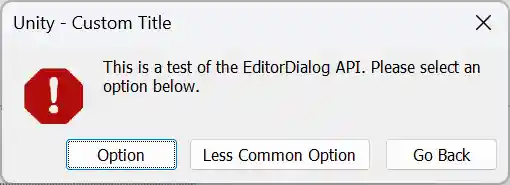
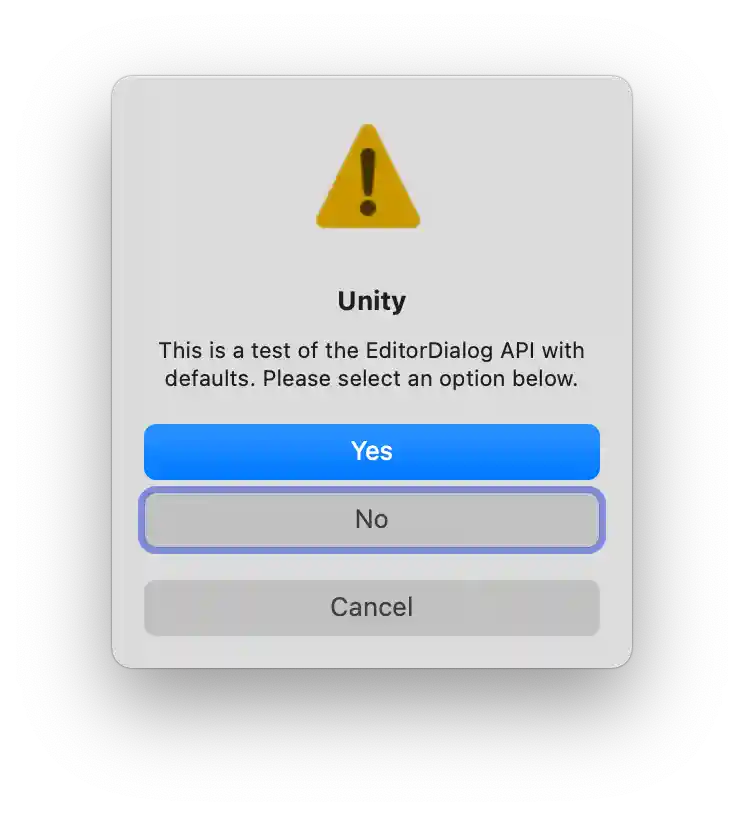 .
.