Unity - Scripting API: LoadStoreActionDebugModeSettings
class in UnityEngine.Rendering
/
Implemented in:UnityEngine.CoreModule
Success!
Thank you for helping us improve the quality of Unity Documentation. Although we cannot accept all submissions, we do read each suggested change from our users and will make updates where applicable.
Submission failed
For some reason your suggested change could not be submitted. Please <a>try again</a> in a few minutes. And thank you for taking the time to help us improve the quality of Unity Documentation.
Description
Whether to show undefined areas of the display that might cause rendering problems in your built application.
If you create a RenderTexture, it might have undefined ('invalidated') pixels. Rendering to the render texture might fail or produce artefacts, because undefined pixels in the depth texture cause depth testing to fail.
Undefined pixels can be caused by the following:
- You don't load the previous frame into the render texture - for example, because you use RenderBufferLoadAction.DontCare
- For performance reasons, the platform or API doesn't load the previous frame into the render texture - for example, on mobile platforms or the Vulkan graphics API.
- You use RenderBufferStoreAction.DontCare, RenderBufferStoreAction.Resolve or RenderTexture.DiscardContents to discard the render buffer's contents after rendering.
- You don't initialize the render texture after you create it.
If you set LoadStoreActionDebugModeSettings.LoadStoreDebugModeEnabled to true, Unity highlights undefined areas with INVALIDATED. The highlights appear only in the Game view, and your built application if you select Development Build in Build settings.
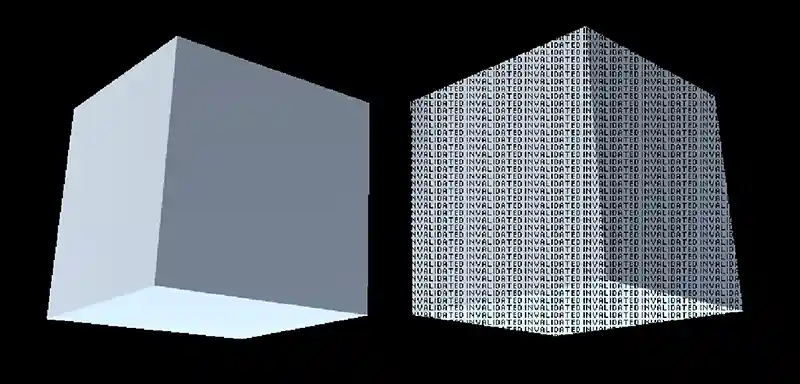
The cube on the right has failed depth testing and might not render in your built application, so Unity highlights the area with INVALIDATED. The cube on the left ignores depth testing and renders correctly.
You shouldn't enable this parameter if you're profiling your project, because it might reduce rendering performance.
You can also control this setting in Player settings. You can use the API at runtime to override the value in Player settings, but Unity resets the value if you restart Play Mode or build your project.
You can fix undefined areas in the following ways:
- Check you use the correct RenderBufferLoadAction and RenderBufferStoreAction.
- Check you initialize your render texture - for example, you use GL.Clear or CommandBuffer.ClearRenderTarget.
- Use ZTest Always in shaders you use in Materials and Graphics.Blit.
Static Properties
| Property | Description |
|---|---|
| LoadStoreDebugModeEnabled | Enables or disables Unity highlighting undefined areas of the display. |