Getting Started with R
To install R on your Windows, just follow these steps:
- Install VS Code
- Download the R Installer File
- Run the Installer
- Install R
- Add R to the PATH Environment Variable Manually
- Verify the Installation
Here is a detailed explanation of each of the steps:
Step 1: Install VS Code
Go to the VS Code Official website and download the Windows installer. Once the download is complete, run the installer and follow the installation process.
Click Finish to complete the installation process
Step 2: Download the R Installer File
Go to the official official R Project website and download the latest version of R for Windows.
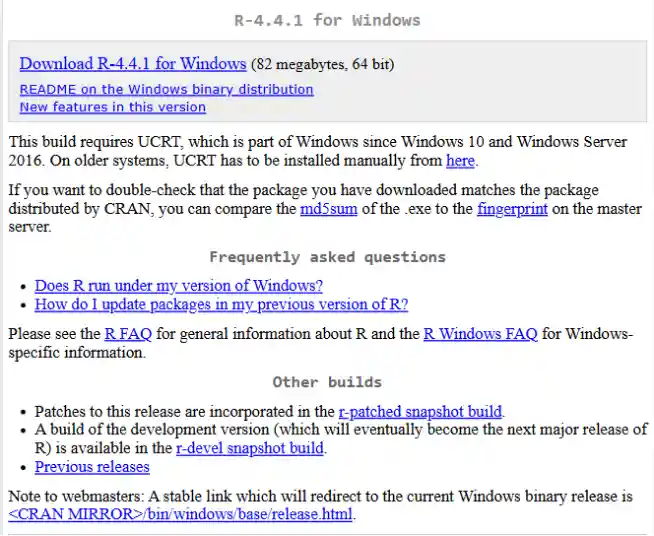
Step 3: Run the Installer
Go to your download folder and run the installer you just downloaded. Depending on your security settings, you might be prompted to allow access.
Simply allow it and proceed.
Step 4: Install R
Once you have run the installer, you will come across this screen.
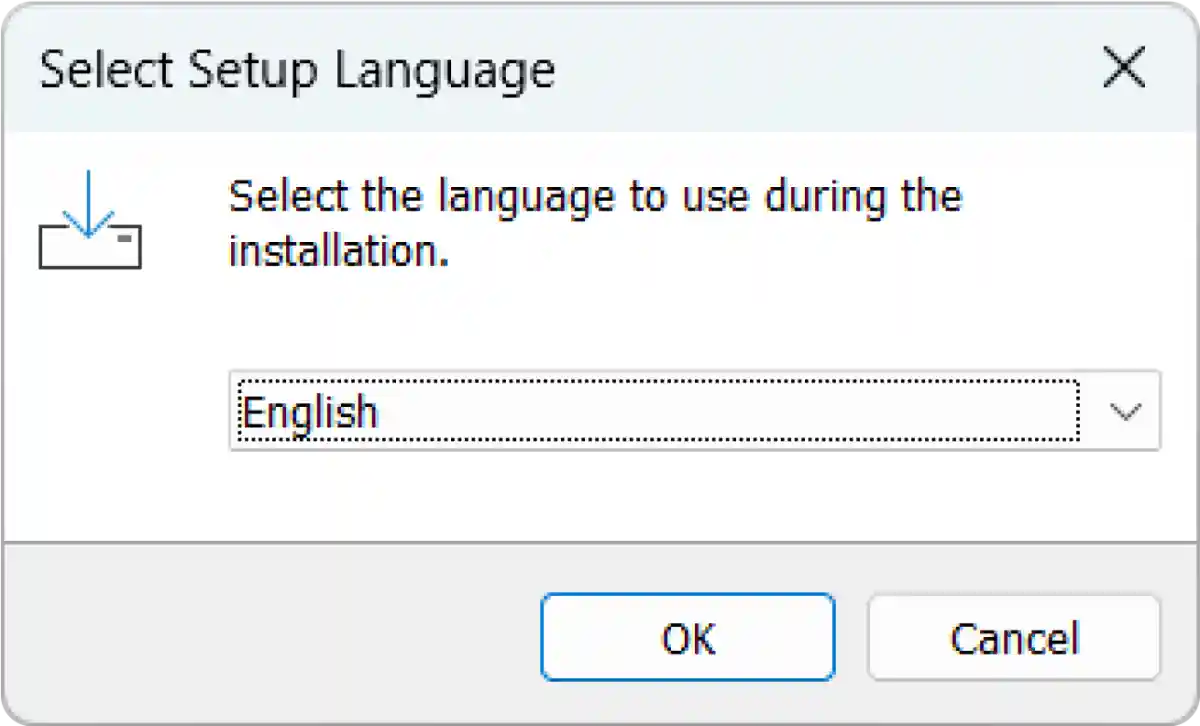
Choose your preferred language.(here English)
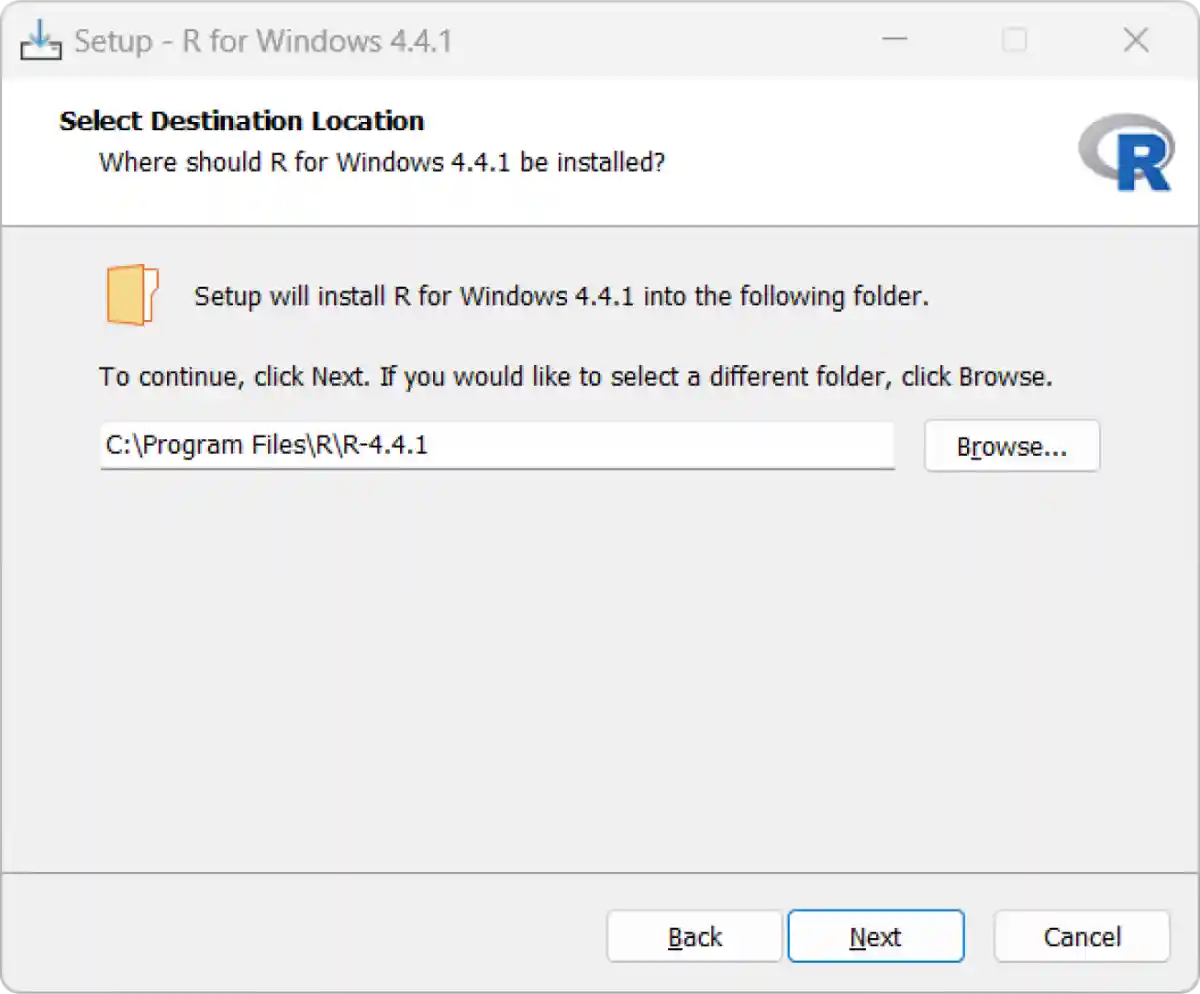
You will be asked to choose the installation path. By default, it will install in
C:\Program Files\R\. You can leave this as it is and proceed with the installation.
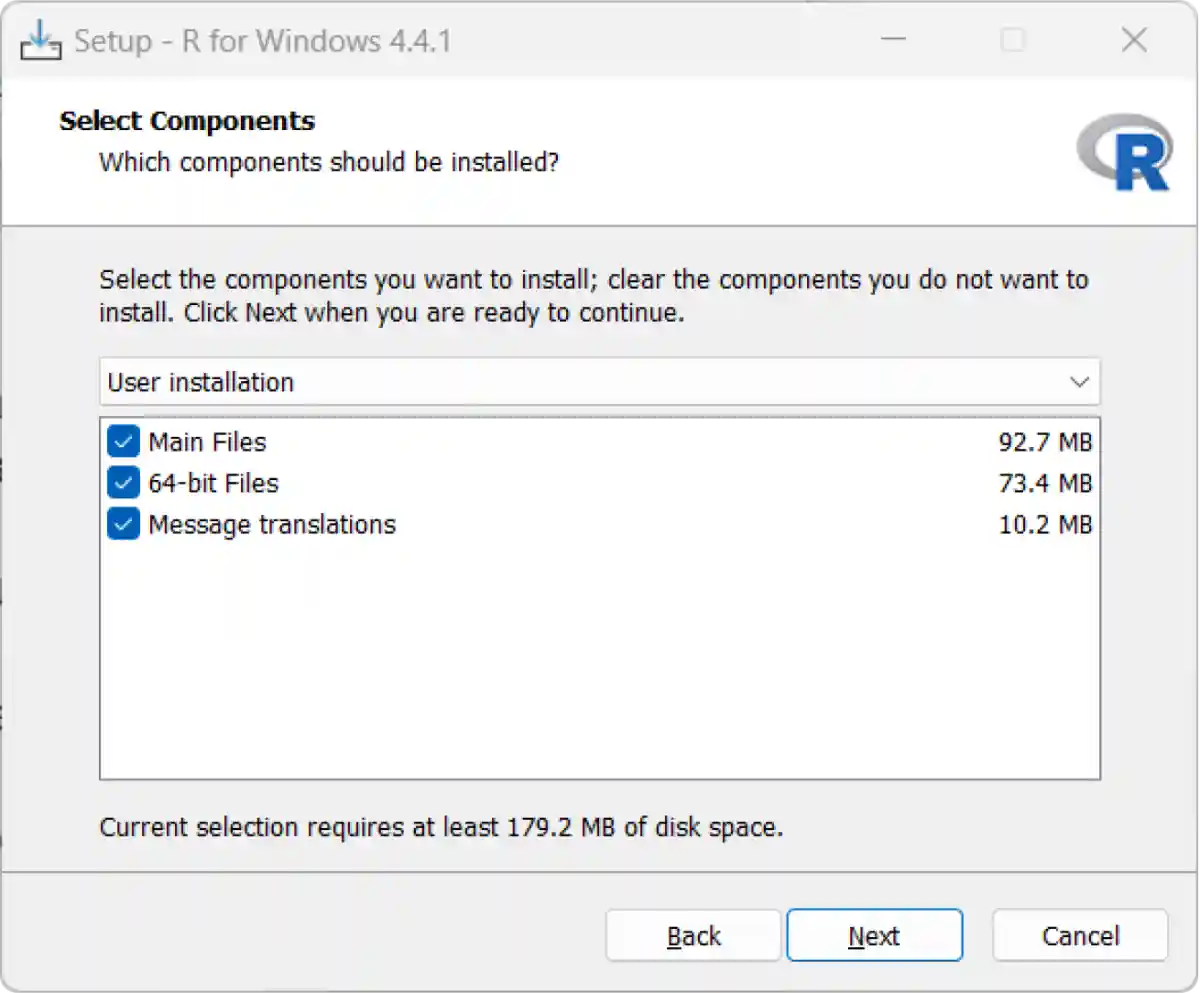
The installer will then prompt you to choose components and where to place shortcuts. Click Next for each step to proceed with the default options for a standard setup.
Finally, click Install to start the installation. The process may take a few minutes to complete.

After the installation is complete, you will see this screen:
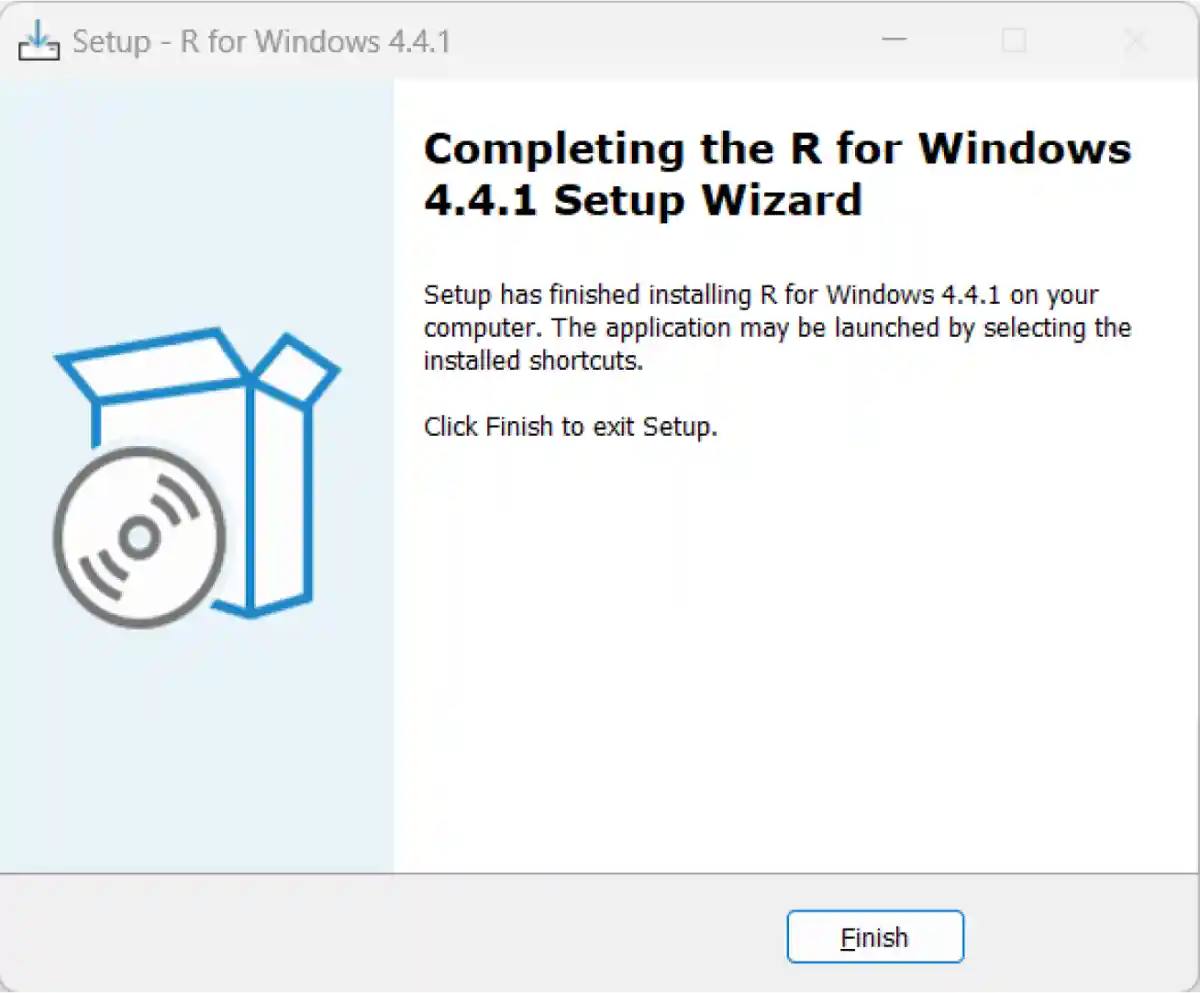
Click Finish to exit the installer.
Step 5: Add R to the PATH Environment Variable Manually
You must manually ensure your system's PATH environment variable is set correctly. Follow these steps to add the PATH environment variable.
1. Copy the path where R is installed to the bin folder. (usually, it is in
C:\Program Files\R\R-x.x.x\bin)
2. Right-click on This PC and select Properties.
3. Click on Advanced System Settings and then Environment Variables.
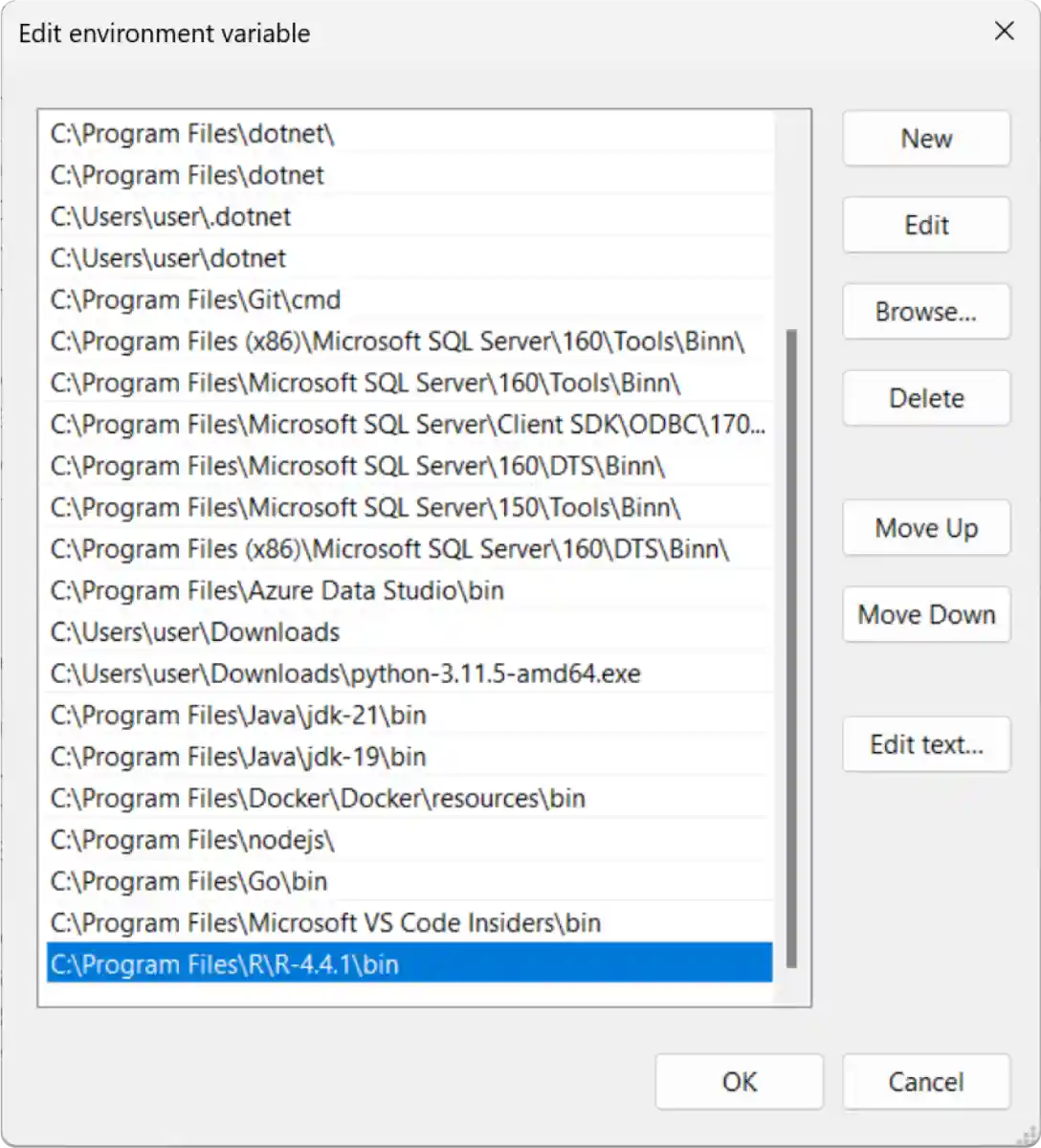
4. Under System Variables, find and select Path, then click Edit.
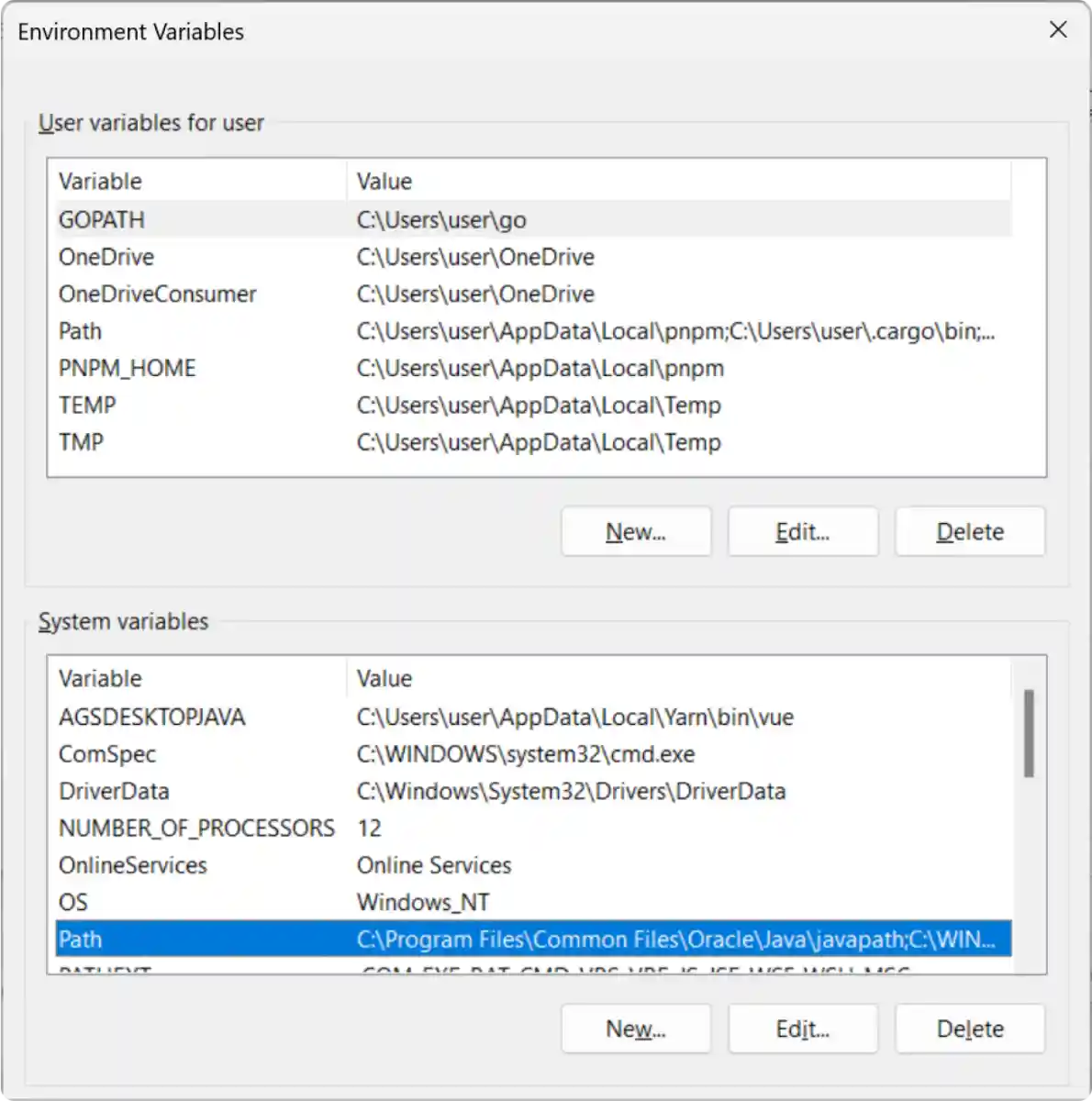
5. Click New and paste the path.
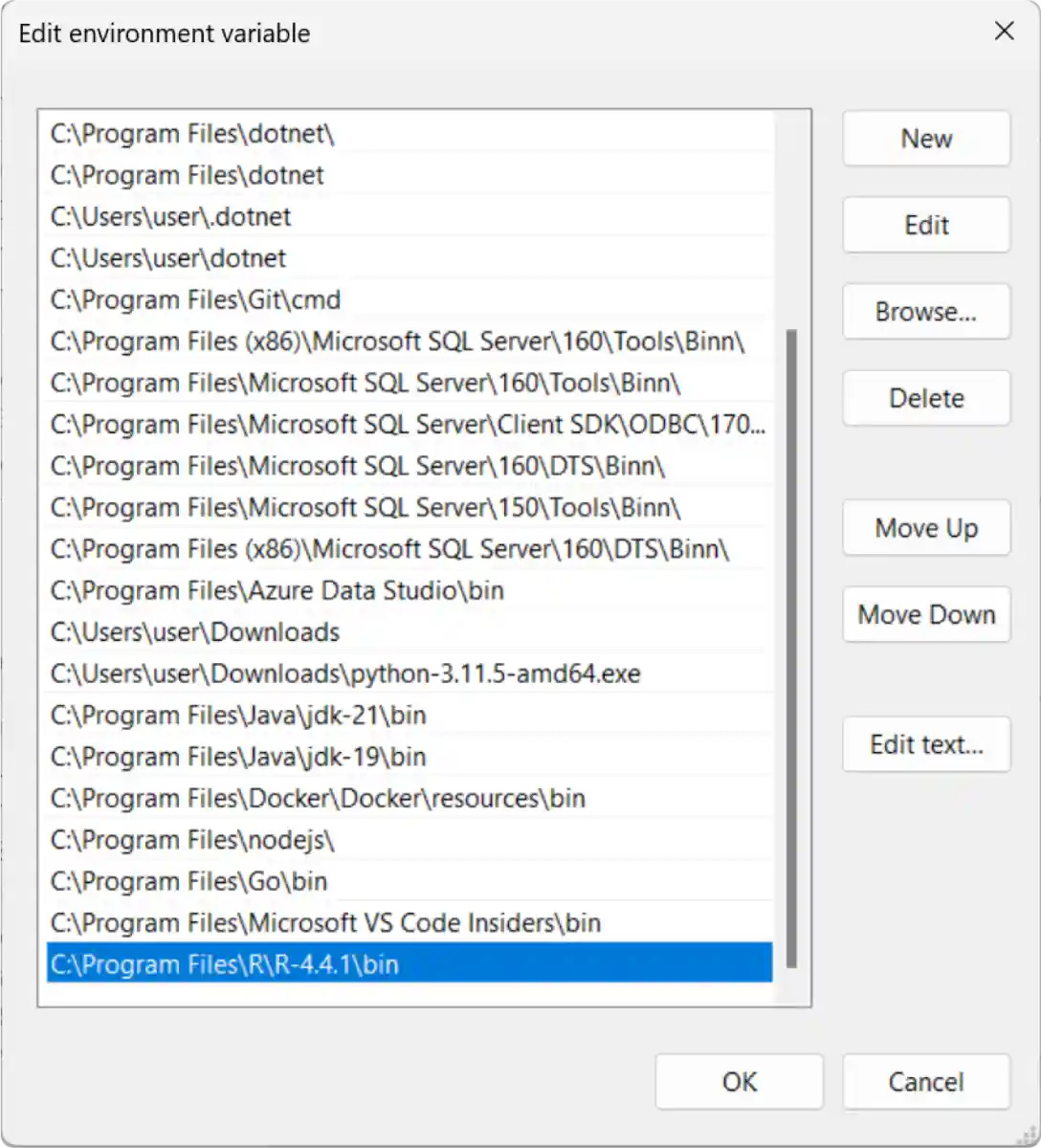
6. Click OK to close all dialogs and apply the changes.
Step 6: Verify the Installation
Once the installation is complete, you can verify that R is installed successfully by opening a command prompt (cmd) and typing the following command:
R --version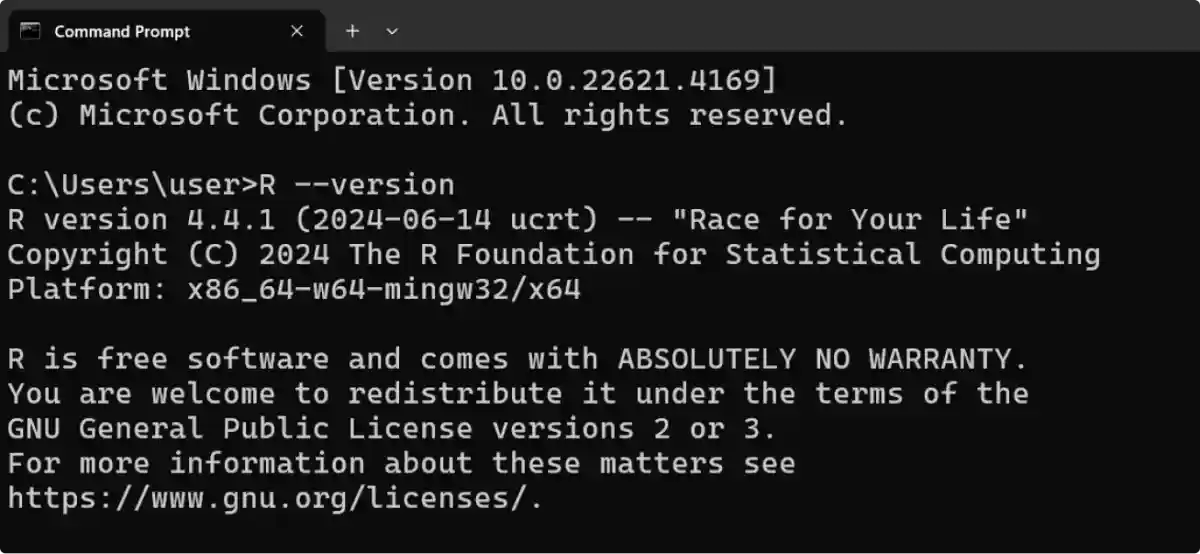
Now, you are all set to run R programs on your device.
To install R on your Mac, just follow these steps:
- Install VS Code
- Install Homebrew (if not installed)
- Install R
- Verify your installation
Here is a detailed explanation of each of the steps:
Step 1: Install VS Code
Go to the VS Code official website and download the zipped file. Once the download is complete, open the zipped file.
In Finder, open a new window and navigate to the Applications folder. To install the VS Code application from the zip file, drag it into the Applications folder.
You can now launch VS Code directly from the Applications folder.
Step 2: Install Homebrew
Homebrew is a package manager that simplifies the installation of software on macOS. Open the Terminal app and type the following command to install Homebrew (if it's not already installed):
/bin/bash -c "$(curl -fsSL https://raw.githubusercontent.com/Homebrew/install/HEAD/install.sh)"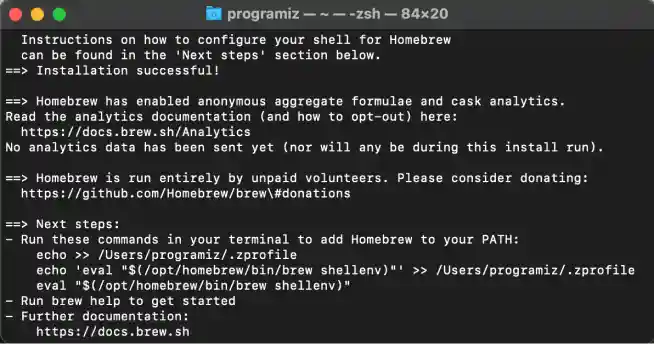
When this installation is complete, we will use homebrew to install R.
Step 3: Install R
Now that Homebrew is installed, you can easily install Rust. In the Terminal, enter the following command:
brew install r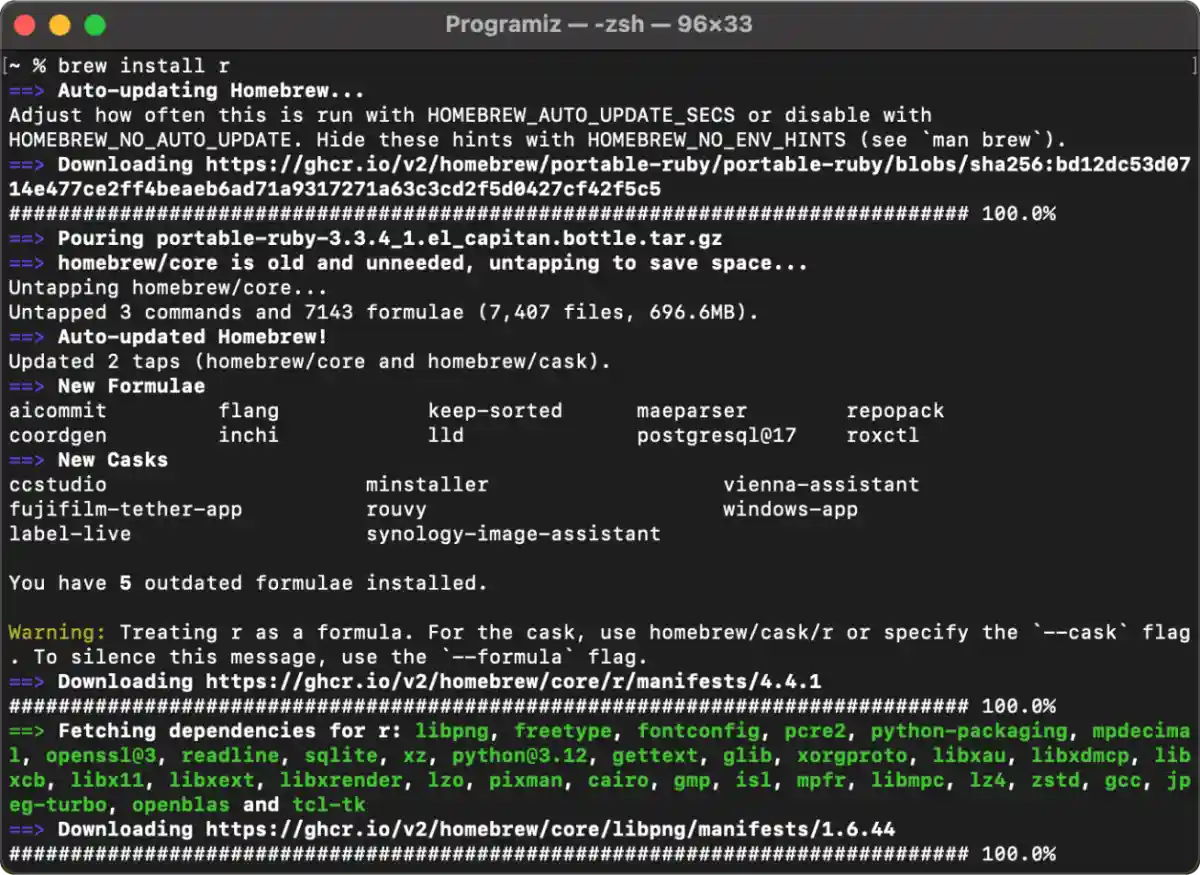
This command will download and install the latest version of R on your macOS system.
Step 5: Verify your installation
Once the installation is complete, you must verify that R is correctly installed. In the Terminal, type the following command:
R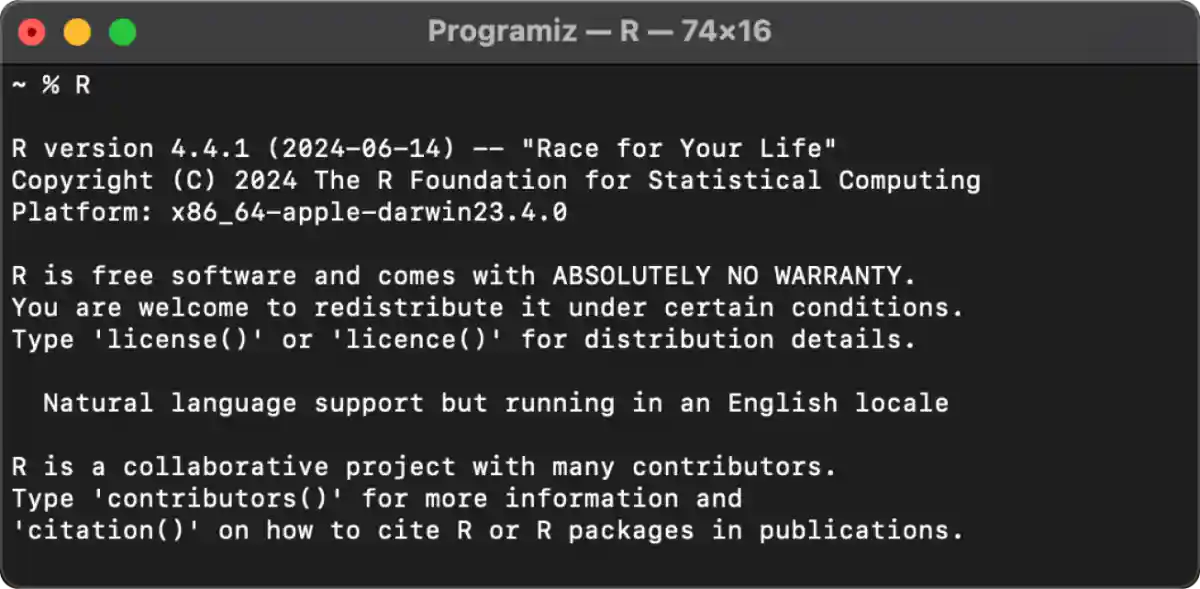
Note: The version number might differ from the one above, depending on your installed version.
Linux has various distributions, and the installation process differs slightly from one to the next. For now, we will focus on the Ubuntu distribution.
Most Linux distributions come pre-installed with Python. However, if you need to install or upgrade, follow these steps:
- Install VS Code
- Add CRAN Package
- Add CRAN gpg Key
- Install r-base
- Verify Installation
Here is a detailed explanation of each of the steps:
Step 1: Install VS Code
Open the Terminal and type
sudo apt updateThis command updates your package lists to ensure you get the latest versions of your software.
Proceed to install VS Code with
sudo snap install code --classicStep 2: Add CRAN Package
We first need to add the CRAN package to our system to install R. Use the following command to do so,
echo "deb https://cloud.r-project.org/bin/linux/ubuntu noble-cran40/" | sudo tee /etc/apt/sources.list.d/r.list
Step 3: Add the CRAN gpg Key
After the CRAN package is added, we need to add the CRAN gpg key; use the following command to do so,
wget -qO- https://cloud.r-project.org/bin/linux/ubuntu/marutter_pubkey.asc | sudo tee -a /etc/apt/trusted.gpg.d/CRAN_ubuntu_key.asc
Step 4: Install r-base
Now to install the complete R system, use the following command.
sudo apt install y r-base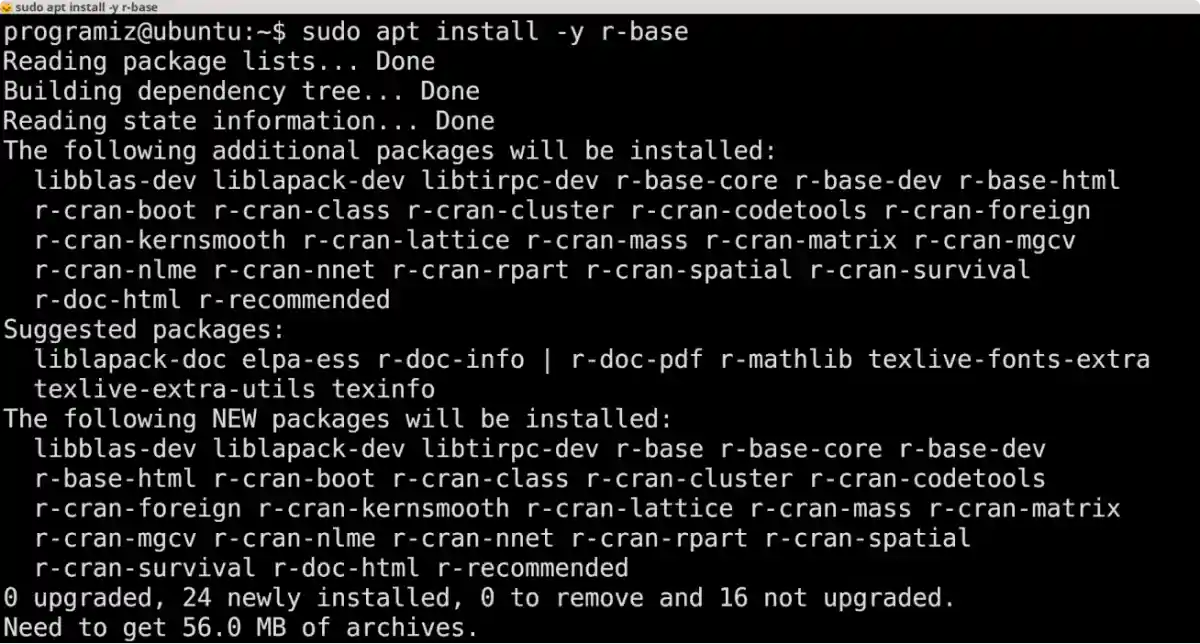
Step 5: Verify Installation
To verify that R has been installed successfully, use the following command,
R
Now, you can run the R program on your device.