Welcome to Didact!
Welcome to the vscode-didact project! Here you’ll find a description of how to use Didact, write Didact files, construct Didact links and more.
What is Didact?
Didact is a project designed to fill a void in Visual Studio Code, but what exactly is this thing? And more importantly, why should you care?
Essentially Didact combines these three elements:
- A simple markup language (such as Markdown or AsciiDoc)
- The ability to render the markup as HTML using the VS Code Webview
- And a way to invoke the commands we create for each VS Code extension
What you get is a way to create simple, powerful files that can do any of these with a click:
- Access hundreds of pre-defined commands in the VS Code IDE
- Download and uncompress files into the VS Code workspace
- Quickly send commands to a VS Code terminal
- Scaffold entire folders with predefined content
And much, much more!
Installing the extension
The vscode-didact extension is available in the VS Code Extension Marketplace and the Open VSX Registry as well as available for use in Eclipse Che.
Didact can be installed in the Microsoft VS Code or VSCodium IDEs locally.
Steps
- Open your VS Code (IDE).
- In the VS Code Activity Bar, select
Extensions. (Alternately, pressCtrl+Shift+X). - In the search bar, type Didact
- In the vscode-didact box, click Install.
Accessing Didact in the workspace.
With Didact installed, there are three main ways to open a Didact file.
- To access Didact, access the Command Palette (
View->Command Palette,Ctrl+Shift+P, orF1) and type Didact. SelectOpen Didactand it will open with the default Didact Markdown file specified in the Didact Extension Settings under Default Url. - To open a Didact file from the workspace directly, Right-click on the Didact Markdown file (
*.didact.mdor*.didact.adoc) and select Start Didact Tutorial from File from the context menu.
If a particular Didact file has been registered to appear in the Didact Tutorials view, you can quickly access it there as well.
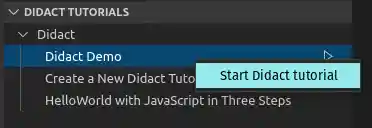
- With the tutorial highlighted, click the triangle to the right to quickly open the tutorial in a new Didact window.
- Or you can right-click on a tutorial (such as “Didact Demo”) and select the
Start Didact Tutorialmenu, which opens the Didact window.
For more about how to register new tutorials for access in the Didact Tutorials view, see Registering Tutorials.
About this documentation
These docs are here to help you learn how to use Didact files as a user in addition to helping you learn how to create new Didact files yourself; simple Markdown (.didact.md) or AsciiDoc (.didact.adoc) files with a layer on top to process links that get to VS Code commands!
Let’s get started!
Table of Contents
- How do you use Didact?
- How to write a simple Didact tutorial?
- Didact Extension Settings
- Using Autocomplete
- How do you construct Didact links?
- What Didact Commands are available?
- How does Scaffolding work?
- Registering Tutorials
- Adding Time Estimates to Tasks
- Troubleshooting
- FAQ
- Technical Details
- Available Demos and Examples