Use the password generator to change and strengthen your passwords
Step 1: Sign in to your account
Sign in to the website where you want to change your password, then find the “change password” page. For example, on Twitter, go to “Settings and privacy”, then choose Change your password.
Step 2: Copy your password
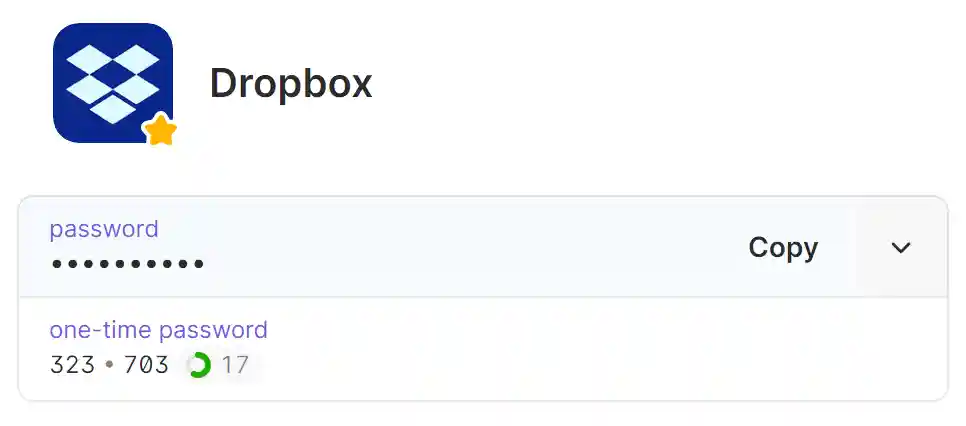
Before you change your password, copy the current one if you need it:
- Open and unlock 1Password.
- Find the item, then select the password field to copy it.
- Paste the password where you need it, like a website’s change password page.
Step 3: Create your new password
To create a new password for an item:
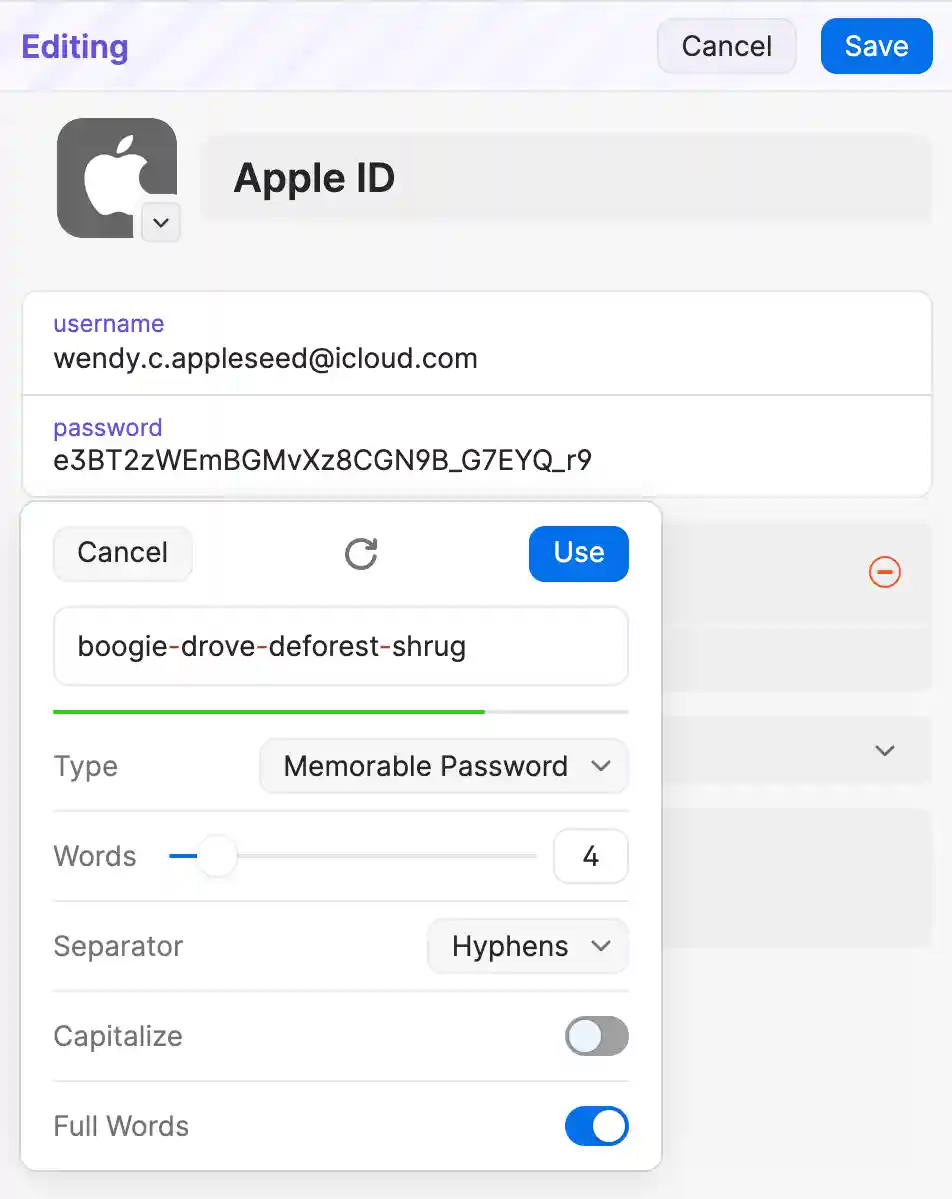
- Choose an item, then select Edit.
- Select the password field, then select Create a New Password.
- Adjust the settings based on the website requirements, then select Use.
- Select Save, then select the password field to copy it.
- Paste the password where you need it, like a website’s change password page.
Before you change a password in the app, you’ll need to set up Autofill on your iPhone or iPad.
Step 1: Sign in to your account
Sign in to the website where you want to change your password, then find the “change password” page. For example, on Twitter, go to “Settings and privacy”, then choose Change your password.
Step 2: Enter your current password
If the website asks for your current password, use Autofill to fill it.
If you can’t fill the current password, copy and paste it.
Step 3: Create your new password
To create a new password for an item:
- Open and unlock the 1Password app.
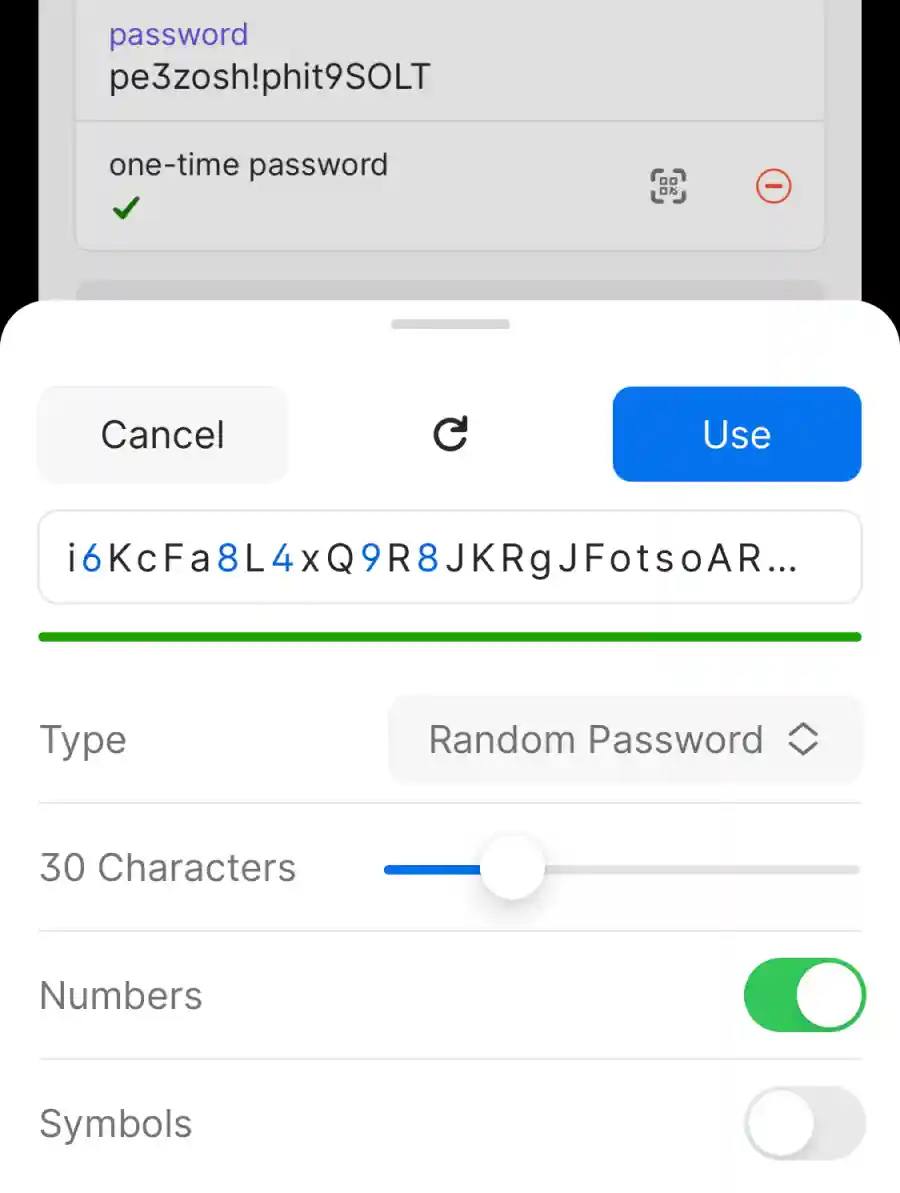
- Choose an item, then select Edit.
- Select the password field, then select Create a New Password.
- Adjust the settings based on the website requirements, then select Use.
- Select Save, then select the password field to copy it.
- Paste the password where you need it, like a website’s change password page.
Step 1: Sign in to your account
Sign in to the website where you want to change your password, then find the “change password” page. For example, on Twitter, go to “Settings and privacy”, then choose Change your password.
Step 2: Copy your password
Before you change your password, copy the current one if you need it:
- Open and unlock 1Password.
- Find the item, then select the password field to copy it.
- Paste the password where you need it, like a website’s change password page.
Step 3: Create your new password
To create a new password for an item:
- Choose an item, then select Edit.
- Select the password field, then select Create a New Password.
- Adjust the settings based on the website requirements, then select Use.
- Select Save, then select the password field to copy it.
- Paste the password where you need it, like a website’s change password page.
Before you change a password in the app, you’ll need to set up Autofill on your Android device.
Step 1: Sign in to your account
Sign in to the website where you want to change your password, then find the “change password” page. For example, on Twitter, go to “Settings and privacy”, then choose Change your password.
Step 2: Enter your current password
If the website asks for your current password, use Autofill to fill it.
If you can’t fill the current password, copy and paste it.
Step 3: Create your new password
To create a new password for an item:
- Open and unlock the 1Password app.
- Choose an item, then select Edit.
- Select the password field, then select Create a New Password.
- Adjust the settings based on the website requirements, then select Use.
- Select Save, then select the password field to copy it.
- Paste the password where you need it, like a website’s change password page.
Step 1: Sign in to your account
Sign in to the website where you want to change your password, then find the “change password” page. For example, on Twitter, go to “Settings and privacy”, then choose Change your password.
Step 2: Copy your password
Before you change your password, copy the current one if you need it:
- Open and unlock 1Password.
- Find the item, then select the password field to copy it.
- Paste the password where you need it, like a website’s change password page.
Step 3: Create your new password
To create a new password for an item:
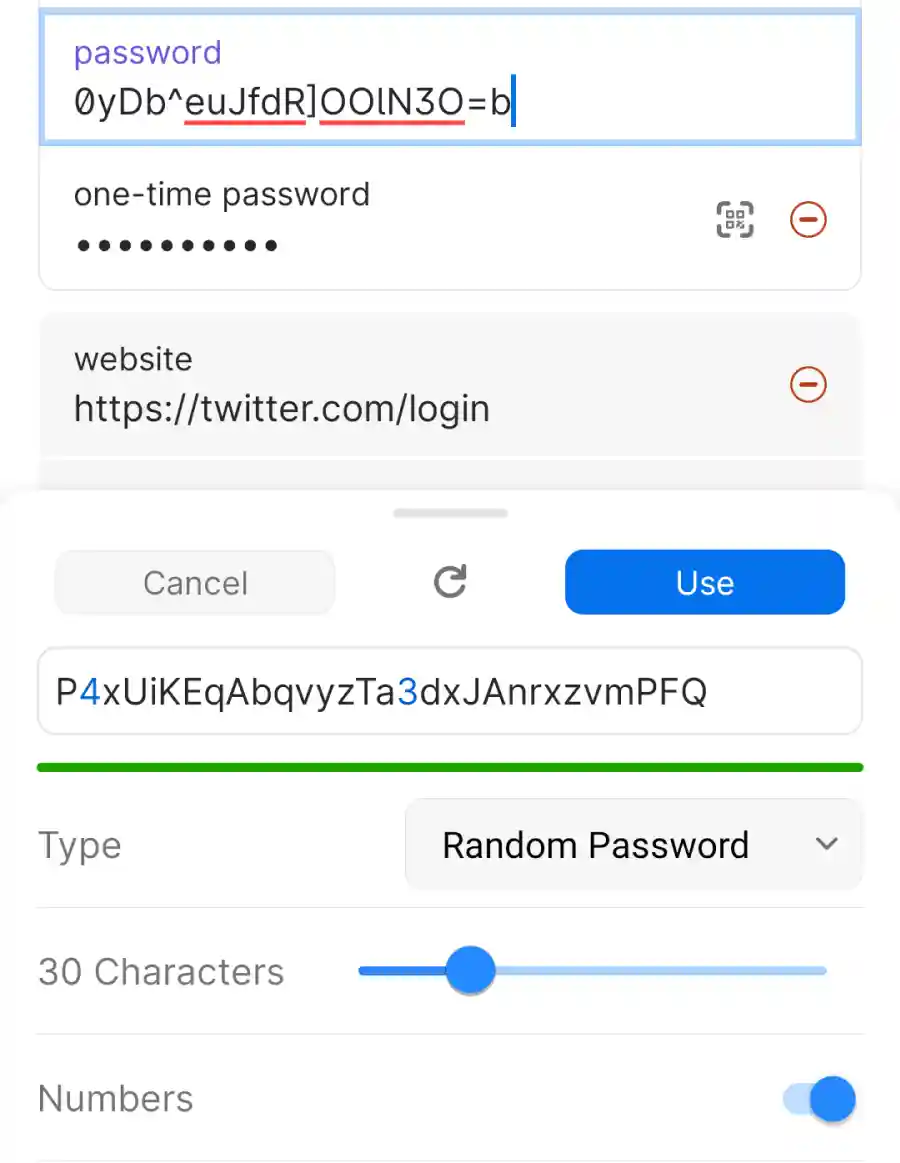
- Choose an item, then select Edit.
- Select the password field, then select Create a New Password.
- Adjust the settings based on the website requirements, then select Use.
- Select Save, then select the password field to copy it.
- Paste the password where you need it, like a website’s change password page.