Chatty Help
Chatty (Version: 0.28)
Title and Tabs [back to menu]
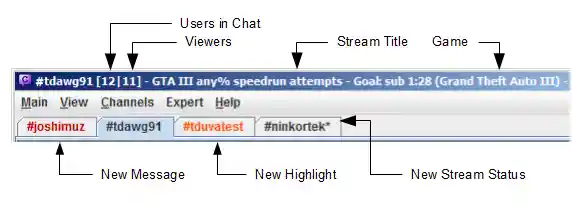
When in a channel, Chatty shows some information about that channel
in the titlebar, e.g.:
[40|59] - GTA:SA Speedruns (Grand Theft Auto: San Andreas)
The first number is the number of people in the chat, the second is the viewercount, followed by the current stream title and game. Anything other than the number of people in the chat is requested from the Twitch API about every two minutes.
In addition, the titlebar will also show additional information, if enabled:
Subfor Subscriber-Only ModeSlow: <time>for SlowmodeR9kfor R9Kbeta ModeEmoteOnlyfor Emote-Only ModeShieldif Shield Mode is enabled (moderators only)- A language code if Broadcaster Language Mode is enabled
[FM]indicates a websocket connection (Ffor FrankerFaceZ,Mfor PubSub/Modlogs)
You can toggle showing some information under View - Options - Titlebar.
Note that the stream status (title/game, offline) can take a few minutes to update, since it has to be requested from the Twitch API (which is also heavily cached).
Layouts and Tabs [back to menu]
A layout is the arrangement of tabs in the Chatty window and popouts, which can be saved and restored later. Other GUI elements that aren't a tab (e.g. the Settings Dialog or Emotes Dialog) are not considered a part of a layout in this sense, so their location and size is determined in other ways.
You can open several tabs, which can be of basicially two different types:
- Channels and Whisper Tabs, which open as tabs by default.
- Docked Dialogs, which open as a separate dialog by default, but can
be docked as a tab through their context menu (usually right-click).
This includes for example the Channel Info, Admin Panel and more.
Note that these will only be considered as being part of the layout when in their docked state. When not docked, these dialogs will use the old system, which is affected by the settings under "Main - Settings - Window - Dialogs Location/Size".
You can use drag&drop on tabs in various ways:
- Move a tab within the same tab pane to change their order.
- Move a tab to another tab pane.
- Drop a tab in the middle of another tab pane to move it to that tab pane.
- Drop a tab on the side of another tab pane to create a split pane, containing two tab panes side-by-side.
- Drop a tab outside of any Chatty window to open it in a popout (depending on the settings under "Main - Settings - Tabs").
You can also open the tab context menu (right-click) to perform various actions such as opening a popout or closing the tab.
Save and Load Layouts
You can save the current tabs, splits and popouts in a layout under "View - Layouts". Saving a layout is a snapshot of the current state, so if you make any changes that you wish to be saved, you'll have to save it again (add a new layout or overwrite an existing one).
If enabled ("Main - Settings - Main") the layout will automatically be restored when restarting Chatty, which is separate from saving layouts manually.
Aside from loading layouts through the menu, you can also use commands:
/layouts add <name>- Add a new layout with the current state. If the layout already
exists, you will be asked whether you want to overwrite it. Example:
/layouts add abc /layouts save <name>- Adds a new layout with the current state or overwrites it if the layout already exists (without asking).
/layouts remove <name>- Removes the given layout.
/layouts load [-clm] <name>- Loads the given layout.
- If no options are given (e.g.
/layouts load abc) it will open the load layout dialog. - Options can be given to define how to load the layout, which also
loads the layout immediately without showing the dialog. The options
are equivalent to what you can select in the dialog:
cto keep the current channels openlto open the channels from the layoutmto load the main window location/size
/layouts load -c abckeeps the current channels open, but does not join the channels in the layout. The options can also be empty, for example/layouts load - abcwill not open any channels or keep any channels open (but the rest of the layout such as docked dialogs is still loaded). - You can use
/layouts load -- -abcif your layout name begins with a-(in this case "-abc"), which opens the dialog just as if you hadn't provided any options at all.
Hotkeys [back to menu]
Default hotkeys which can't be changed:
- PageUp/PageDown - Scroll up or down in chat
- Arrow Up/Down (with Ctrl for multline) - Go through Input History
- TAB - For TAB Completion
The following default hotkeys can be changed in the Settings:
- F1 - Open help
- Ctrl-F - Find text in chat
- Ctrl-L - Open Live Channels window
- Ctrl-J - Open dialog to join channel
- Ctrl-E - Open/close the Emoticon dialog
- Ctrl-Tab/Ctrl-Shift-Tab - Switch to next/previous tab
- Ctrl-W - Leave/close the active channel/close the popout
- Ctrl-Space - Toggle User Selection Mode
- F10 - Toggle Menubar
- Ctrl-F10 - Toggle Inputbar
- Shift-F10 - Toggle Userlist
- F11 - Toggle "Fullscreen"-Mode (actually only removes the menubar and maximizes the window)
In the Settings you can configure hotkeys for many more functions than are listed here.
Commands [back to menu]
This has been moved to it's own page
Twitch Login [back to menu]
The login data consists of a username (your account name) and most importantly an access token, which is sort of a revokable password that can also have different types of access (scopes) associated with it. You can see the full list of associated scopes under "Main - Account" (hover over each entry for more information if available).
If getting login data fails, read this guide. If your login was determined invalid, read down below.
Add or remove access
To change what Chatty is allowed to do, you need to request a new
access token. Go to <Main - Account>,
delete the login and request it again with the access scopes that you
want.
Security
The access token is saved in the login file in the settings
directory and can thus be accessed
by anyone having access to your computer.
It allows anyone who obtains it to chat in your name and do the other things
that you have allowed Chatty to do. If you think the token may have been
compromised, please immediately go to your Twitch Settings subsection
Connections
and revoke the accesss there. This will make all tokens previously
requested for Chatty associated with that account invalid. You can then
request a new one for which Twitch will ask you to authorize Chatty again.
Invalid Login
If your login is determined invalid (either by checking it manually or when Chatty performed an automatic check), this can mean one of two things:
- Your login is actually still valid, Twitch is just derping:
- Sometimes the Twitch API won't recognize any login as valid, for a while. This is likely the reason if other users have the same issue at the same time.
- How to proceed:
- In this case, requesting new login data from Twitch probably
won't help at all. Go to
<Main - Account>to open theLogin configurationand click on[Verify login]a few times (with a few minutes in between attempts). - If you are already connected to chat, you can just stay
connected. Just try
[Verify login]a bit later to be able to use the features that require Twitch authorization again. - If
[Verify login]keeps returning invalid, even after a while (especially without other users having the same issue), your login may actually be invalid.
- In this case, requesting new login data from Twitch probably
won't help at all. Go to
- Your login is actually invalid:
- You have just requested login data and something went wrong, or it wasn't loaded properly from the settings.
- The token was invalidated for some other reason.
- How to proceed:
- Go to
<Main - Account>to open the login configuration (if you don't already have it open), click[Remove login]and create a new login.
- Go to
What happens when your login is no longer valid:
- You can't connect to chat anymore. If you are already connected, you probably stay connected though.
- Various features that require authentication may not work anymore, such as showing live streams you follow or changing your stream title.
Joining Channels [back to menu]
There are various ways of joining channels:
- The "Settings - Main - On start" setting for when Chatty is started
- The "Main - Connect" dialog when connecting
- The "Channels - Join Channel" dialog
- The "Channels - Favorites / History" dialog
- The
/joincommand - The "Channels - Live Channels" dialog context menu or (if configured that way) via double-click or space while a stream is selected
- Right-clicking a Stream Status Notification
- The user context menu
- Loading a Layout
Channel list format
In places where you can enter a channel name you can specify several
channels by separating them with a comma. Channels can be entered with
or without leading #. A lot of Twitch links should also
work.
Various special elements can be added that are turned into channels:
- Can include Addressbook categories,
e.g.
[vip]to join all entries associated with the "vip" category. Can restrict to just channel entries[vip #](would only get Addressbook entries such as "#joshimuz") or non-channel entries[vip !#](entries such as "joshimuz"). Note that both channel entries and non-channel entries are otherwise handled the same, both would join "#joshimuz" in this example. - Instead of Addressbook categories
[*]can be used for all favorited channels (favorited under "Channels - Favorites / History"). - Can also restrict to just live channels e.g.
[vip live],[vip # live]or[* live](only works for live channels Chatty already knows the status for, such as followed channels).
Example: /join #joshimuz, esl_csgo, [mod], https://twitch.tv/esamarathon, [* live]
#joshimuz, #esl_csgo, any entries
associated with the mod Addressbook category, #esamarathon
and any favorited channels that are live and followed)
User Status Symbols [back to menu]
There are a few special symbols that are used for users in chat. These are displayed in the userlist and - if usericons are disabled - also in chat:
| ~ | The Broadcaster |
| @ | Moderator |
| + | Turbo/Prime |
| % | Subscriber |
| $ | Donated Bits |
| ^ | Bot (as recognized by local setting, FFZ API and BTTV API) |
| * | Global Moderator |
| ! | VIP |
| & | Staff, Admin |
When you copy&paste a message from chat that contains Badges, you may also encounter the following symbols:
| ' | Addon Usericon |
| ? | Unknown Badge (for example special Twitch Badges that may only be available for some time or in some channels) |
FrankerFaceZ provides a custom mod icon for some channels. You can disable this in the settings if you want to keep the default one for all channels.
Userlist [back to menu]
The userlist on the side of the channel shows all users currently considered to be in the channel.
- A user gets added to the userlist..
- ..when the user says something in chat.
- ..when Chatty receives a JOIN from Twitch Chat for that user (or that user is on the received NAMES list).
- A user gets removed from the userlist..
- ..when Chatty receives a PART from Twitch Chat for that user.
- The userlist gets cleared entirely..
- ..when you close the channel (close the Tab).
- ..when you rejoin the channel (e.g. when reconnecting).
In order to receive JOIN/PART messages, the setting Correct Userlist
under Settings - Advanced - Connection has to be enabled.
Note: The userlist is not very reliable and should only be taken as a rough estimate of who is currently in the channel. This is because:
- JOIN/PART messages are sent in batches and can be pretty delayed, so so it may happen that a user who only just started showing up in the userlist joined half a minute ago (or even already left again).
- It can take some time for Twitch to send the userlist when you join a channel. In big channels it may not be sent at all.
- MOD/UNMOD messages are unreliable as well, so mod status in the userlist may not always be correct. Twitch Chat has also been known to sometimes spam MOD/UNMOD messages.
Also note that the userlist doesn't necessarily have to do with who watches your stream. A user can be logged into chat without watching the stream and vice versa. Overall, just don't take the userlist too seriously.
TAB Completion [back to menu]
When typing in the inputbox, you can use the following keys by default (this can be changed in the Completion settings):
- TAB to complete usernames
- Shift-TAB to complete Emoticons
Once a completion is initiated, TAB and Shift-TAB cycle forwards and backward through the results, or use the mouse.
Some prefixes always force a certain completion type (whether you use TAB or Shift-TAB):
- Prefixing
@completes usernames (e.g.@jo) - Prefixing
/completes command names - Prefixing
:completes Emoji codes, and by default also Twitch Emotes (can be changed in the settings) - Prefixing
.performs Custom completion - Certain commands such as
/bancomplete usernames for their first parameter - Setting commands such as
/setcomplete setting names for their first parameter
Additionally, some prefixes will automatically initiate completion (this too can be changed in the settings).
Further usage
- Use TAB to cycle forward through results and Shift-TAB to cycle backwards through results
- Continue typing, send the message or move the cursor to end completion
- Click on a result to choose it, or Shift-Click to insert several results
- Press ESC to go back to before completion
The found matches are all ordered alphabetically, except for nickcompletion for which you can choose different types of sorting. By default nicknames use predictive sorting, which means users who recently wrote a message or highlighted you have a higher priority, increasing the chance that the users you want to address appear as the first few matches.
Example: Nick Completion
- Enter
zin the editbox - Press TAB to complete as a nickname (assuming the setting is that)
- On default settings, this may complete to
ze_ttwith two other results
- On default settings, this may complete to
- Cycle through to
zMASKmby:- Pressing TAB, which cycles fowards to
zMASKm - Or press Shift-TAB to cycle backwards to
zebloverand Shift-TAB again to cycle tozMASKm
- Pressing TAB, which cycles fowards to
Example: Emote Completion
- Enter
datin the editbox - Press Shift-TAB to complete as an emote (assuming the setting is that)
- On default settings, this may complete to
DatHasswith two other results
- On default settings, this may complete to
- Cycle through to
DatSheffyby:- Pressing TAB, which cycles fowards to
DatSaunceand TAB again to cycle toDatSheffy - Or press Shift-TAB to cycle backwards
to
DatSheffy
- Pressing TAB, which cycles fowards to
Input History [back to menu]
Chatty provdes an input history for the chat input box that allows you to call up lines you entered previously, to make it easier to e.g. repeat commands with similiar parameters, repeat messages you send to chat or just look up what you wrote before. You can even save messages to the history that you haven't send yet to be able to send them later.
Note: On a multiline inputbox you have to hold Ctrl to navigate through the Input History (changeable in Chat Settings).
- How lines are saved in the history:
- Send a message or enter a command
- Press Down-Arrow after entering/editing a message (which saves it to the history, but also clears the input box)
- Identical lines already in the history are removed (or you can think of it being moved to the latest position)
- Using the history:
- You can navigate backwards and forwards through the history by pressing Up-Arrow and Down-Arrow.
- Pressing Up-Arrow when you already entered some text replaces that with the latest history item.
- Pressing Down-Arrow when you already entered some text clears the input box and but also saves what you entered to the history (as mentioned above).
- When you navigated to a history item and edited it:
- Pressing Up-Arrow will move to the previous history item, allowing you to then press Down-Arrow again to go back to the unedited history item
- Pressing Down-Arrow will act as if you entered a completely new line and add the edited item to the history and clear the input box
Joining more than one channel [back to menu]
This does not apply anymore since Twitch changed their system to use IRCv3 capabilities. Joining several channels does not have any drawbacks.
Favorites / History [back to menu]
If enabled, the history automatically saves channels you join and when you last joined them. By default channels expire from the history after 30 days of not joining them (can be changed).
You can also add channels from the history or any you enter manually to the favorites, which will always be kept until you remove them yourself.
Highlight [back to menu]
The highlight system allows you to add words or phrases that make chat
messages appear in another color and appear in a separate window, which you can
open under View - Highlights (you can clear the highlights window
in it's context menu).
Ignore [back to menu]
The ignore system works very similiar to the highlight system, just that
it hides messages instead of highlighting them. They however also get
added to a separated window, which you can open under View - Ignored
(you can clear the messagess in the window in it's context menu).
Right-click on a user in chat to open the User Context Menu, where you
can ignore or unignore that user from the Miscellaneous
submenu. You can view and edit the list of ignored users in the settings.
User Colors [back to menu]
The color of a user is displayed in the User Info Dialog. Color Names are used where possible, HTML Color Codes are displayed in the Tooltip. Colors with asterisk (*) are default colors (the user hasn't set one or hasn't said anything during this session yet). A color in parentheses means it's the original color, while the other color is the corrected one that is actually displayed.
Corrected Colors
Chatty attempts to make colors more readable automatically by changing them to increase contrast. This doesn't work very well though, although it should work for extreme cases like white on white or black on black.
Custom Colors
You can also specify custom colors for certain users or types of users in the settings. Custom colors are indicated by two asterisks (**) in the User Info Dialog.
Emoticons / Emote Dialog [back to menu]
Chatty supports the following types of emoticons:
- Twitch Emoticons (Global, Turbo, Subscriber)
- FrankerFaceZ Emoticons
- Global and Channel-specific Emotes
- Feature Friday Emotes
- Featured Emotes (usually available in Speedrunning Marathons)
Note: These emotes require being connected to the FFZ Socket Server to be updated. There is an issue where reconnecting to the server sometimes doesn't work. If you enter the command/ffzwsand it is stuck atConnecting..for a longer period of time, you may have to restart Chatty for it to work again.
- BetterTTV Emoticons
- Global and Channel-specific Emotes
Note: BTTV can also contain GIF emotes, some of which don't work very well in Chatty. (You also have to opt-in to show them in the settings in the first place.) - Not supported are Personal Emotes
- Global and Channel-specific Emotes
- Emoji, turns the Unicode Emoji character into an image (you can
enter Emoji either by pasting the character directly, or by entering
a shortcode (e.g.
:thinking:) into the inputbox, which will be turned into the character when you press Enter to send it.
Tip: You can use TAB Completion for Emoticon codes (Shift-TAB by default) and Emoji shortcodes.
You can enable/disable Emoticons in general (displaying the images instead
of the text) in the settings under Emoticons. You can also
ignore specific emotes in the same place in the settings.
In chat you can right-click on an emoticon to show some info about it.
Click on the emote code (e.g. FrankerZ) in the context menu
to insert the emote in the inputbox. If it is a subscriber emote, you
also have some more options.
Emote Dialog
Use Extra - Emoticons or press Ctrl-E to open
the Emote Dialog, which has various pages:
- The
Favoritespage lists emotes you have added to the favorites via the Emote Context Menu (right-click on an emote in the dialog or chat and chooseFavorite, emotes that already are favorited can be removed from favorites the same way). - The
My Emotespage lists the emotes you paid for (Subemotes/Turbo). - The
Channelpage lists the emotes that are specific to the current channel (FFZ and BTTV, if there are any). It also includes the subscriber emotes of the current channel (if it has any), whether you can use them or not (but it displays a message if you are not subscribed). - The
Twitchpage shows all free global Twitch emotes - The
Otherpage shows all global FZZ/BTTV emotes
Click on an emote to insert it into the current channel inputbox. Double-click on an emote to also close the Emote Dialog in the process, or press ESC or Ctrl-E to close it. Right-click on an emote to show a context menu with some more information/options.
Right-click on an emote and choose Show Details to open the
Detail View in the Emote Dialog, which shows the emote in different sizes
and some information about it. Clicking on an emote in chat also opens the
Detail View.
Note that you need to have joined at least one channel for your subemotes/turbo emotes to show up, because only then does Twitch Chat send that information to the client.
Custom Emotes (local) [back to menu]
You can add your own local emotes by creating a file called emotes.txt
in the settings directory (enter /dir in Chatty to find the
settings directory, /openDir to directly open it). The
file can have one emote on each line, for example:
D:      aww.png     size:18x18
re:Gr[e|a]yface Kappa.png
# Switching Kappa and MiniK
Kappa   http://static-cdn.jtvnw.net/emoticons/v1/3287/1.0
MiniK   http://static-cdn.jtvnw.net/emoticons/v1/25/1.0     set:793 id:3287
This can be used to replace existing emotes, since custom emotes are checked first and thus take precedence. This is not intended to replace FFZ or BTTV emotes, just to help configure emotes to your personal preference. For example you could also add an image for you own name to have it highlighted in chat in a different way.
Note: The emotes.txt should be saved in the
UTF-8 encoding (or ASCII I guess).
Syntax
The syntax per line is (you can use as many spaces or TABs as seperators as you want):
[settings] <code> [settings] <image> [settings]
Settings can be in any of the shown places, but are always optional. Available settings are:
set:<setid>to specify a Twitch emote set. This will only affect messages you write yourself.id:<emoteid>to specify a Twitch emote id to replace. This will only affect incoming messages.chan:<channel>to restrict the emote to the given channel.size:<width>x<height>to specify the size of the emote (you can omit this if you want to use the image size).
Required:
- The code can be prefixed with
re:to specify a regular expression. Otherwise it is interpreted as plain text (the same as regular Twitch emotes, case-sensitive and usually separated by space from other characters). - The image file is relative to the settings directory (where you created
the
emotes.txtin), so just put them in the same directory. You should also be able to use URLs to load the image from the internet.
Lines starting with # are ignored and can be used for comments.
The emotes.txt file is loaded when you start Chatty, so if you edit the file
while Chatty is running, you have to use the /reloadCustomEmotes
command for it to take effect.
Emote images may be cached, so if you change the image, you MAY have to
clear the cache (/clearemotecache CUSTOM).
Addressbook [back to menu]
This has been moved to it's own page
User/Line Selection Mode [back to menu]
With this feature, you can select a user in chat with keyboard shortcuts (if the window is active). So you can e.g. timeout a user with your keyboard alone.
Press Ctrl-Space (can be changed in the settings) to enter this mode. If there are any user messages in chat, then the newest message will get another background color which shows that it is selected. In that mode, the focus is on the textpane, which enables more shortcuts:
- W to move up a user
- S to move down a user
- A to move up twice
- D to move down twice
- Q to quit out of the mode
- E to open the User Dialog for the currently selected user
When you move up and down, it actually switches to the next user instead of to the next line. So if the same user send 10 messages in a row, it will jump to the first message of the next user above it.
In addition to the currently selected message, it will also highlight all other messages by the same user. You can also hold AltGr and click on a username in chat to highlight all that users messages (and enter User Selection Mode).
You can also click and hold in an empty area of the textpane, which puts and holds the focus there, so you can just use the shortcuts in the list above to enter the User Selection Mode and switch between messages. However if you let go of the mouse key, it will immediately leave the mode again.
Using Global Hotkeys
You can also configure global hotkeys with some User Selection actions. However, if the focus is not on the chat, then the usual shortcuts won't work, so you'll have to define additional global hotkeys to e.g. timeout the currently selected user. See the hotkey settings for what actions are available.
Stream Chat [back to menu]
Stream Chat is a separate dialog, opened via the /openStreamChat
command or the Extra menu, which is different from normal chats:
- Can contain messages from one or several channels at once (only regular chat messages, no info messages)
- Messages can be automatically removed after a certain time
Getting started
For chat messages to appear in the Stream Chat, you have to both enable the channel and join the channel in Chatty normally.
You can enable channels in the Stream Chat context menu (which will offer to enable currently joined channels) or use the following setting commands (channel all-lowercase):
/set streamChatChannels #<channel>- To set the channel to only this one/add streamChatChannels #<channel>- To add a channel/remove streamChatChannels #<channel>- To remove a channel
Other settings
/set streamChatLogos <size>- Set the channel logo size (pixels). Set to
0to disable. - Logos are only shown for channels that have been live during the current session. Changes only affect new messages.
/set streamChatMessageTimeout <seconds>- How long messages are displayed before they disappear. Set to
-1to disable. /set streamChatBottom <0/1>- Disable so messages start being inserted at the top.
- Restart required to apply changes.
/set streamChatResizable <0/1>- Whether Stream Chat dialog should be resizable.
In addition, make sure you have Settings - Window - Restore dialogs
set to at least Restore dialogs from last session in order
to keep the position/size of the Stream Chat dialog between sessions.
Commands
/openStreamChat- Opens the Stream Chat dialog/setStreamChatSize <width>x<height>- Set the exact size of the Stream Chat dialog in pixels/getStreamChatSize- Shows the size of the Stream Chat dialog in pixels/clearStreamChat- Removes all messages/streamChatTest [message]- Adds a test message to the Stream Chat dialog, if you don't specify a message a default one is used
Custom Names [back to menu]
You can give people in chat custom names that will appear in chat and in the userlist instead of the regular Twitch username and in the User Info Dialog in addition to the regular Twitch username. In other places (like the User Context Menu) the regular Twitch username is used.
TAB Completion also allows you to complete Custom Names and by default also includes the original name in the results.
The following commands are used to set custom names:
/setname <username> <custom name>- to set a custom name/resetname <username>- to remove a custom name
In addition to these commands, you can also view and change Custom Names
via the Settings GUI under Names. You can also right-click
on a user in chat to open the User Context Menu and choose
Miscellaneous - Set name to open the Settings with the name
preset.
Pause Chat / One-click moderation [back to menu]
If enabled in the settings under Main - Settings - Chat you
can stop the chat from scrolling down while you move the mouse over chat.
This can prevent misclicks when the chat is moving. The chat will resume
scrolling down as soon as you stop moving the mouse or move it out of
the chat area. When the chat is already paused, you can also hold
Ctrl to keep the chat paused even without moving the mouse.
Optionally, you can set it to require Ctrl being pressed in conjunction with moving the mouse to initiate pausing. You can let go of Ctrl as soon as pausing is started and it will stay paused as long as you move the mouse inside the chat area.
A little popup in the top-right will indicate that the chat is paused.
Please note: This only works when the chat area is already filled, so the scrollbar is actually used. In addition, there may be instances where something you want to click will move anyway, for example if a message is deleted due to a timeout/ban, causing other messages to move.
Scroll up to stop scrolling
Another way of preventing scrolling down is scrolling up. Once you are manually scrolled up, chat will stop scrolling down automatically. However messages may still be removed from the buffer causing the chat to move despite it not actively scrolling down. It will stop removing messages to get moving to a minimum as long as you keep holding Ctrl.
A certain time after not moving the scroll position, it will scroll down automatically (unless Ctrl is still being pressed).
One-click moderation
Holding Ctrl and clicking on a user in chat can execute a ban
or timeout on that user. Enable this feature and define what it does in
the settings (Main - Settings - Chat).
It is recommended to enable the pause chat feature if you are using this, or else misclicks could be very common.
AutoMod [back to menu]
AutoMod is a Twitch feature that filters messages before they are send to the chat clients. As mod in the channel you can review and either approve or deny those filtered messages in different ways:
- The AutoMod Dialog under
Extra - AutoMod - Enable
Settings - Moderation - Show messages rejected by AutoModto show rejected messages directly in chat and..- Right-click on the username of a filtered message and approve/reject from the context menu
- Click on the username of a filtered message to open the User Info Dialog and click the approve/reject button (settings)
AutoMod Dialog
In the dialog you will see filtered messages of the current channel (if you are mod). Open the context menu on a message (usually right-click) to approve or deny that message. Double-click on a message to open the User Info Dialog for that user to be able to see his previous messages or ban/timeout the user.
Shortcuts available when you have a message selected:
- A to approve, D to deny message
- W to move up in the list, Alt+W to jump over already handled messages
- S to move down in the list, Alt+S to jump over already handled messages
Messages can have different prefixes depending on their status:
- No prefix - The message has not been approved/denied yet
Approved- You have approved the messageDenied- You have denied the messageHandled- The message has been handled already, probably by another mod (the API does not return whether it's been approved or denied)Pending- Your action is being sent to the Twitch APIN/A- The message is no longer available to be approved or denied (this seems to be the case after a few minutes)Error- An error occured sending your action to the Twitch API
Messages that have already been handled or that are older than 5 minutes (and can thus probably not be approved/denied anymore) are shown greyed out.
Channel Info / History [back to menu]
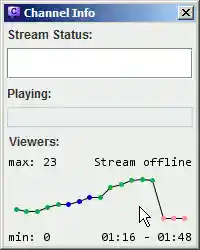
The Channel Info Dialog shows the current stream status of the active stream. The data is requested from the Twitch API in a semi-regular interval, so it can take some time to update.
Stream Uptime
If the stream is online, the Live: 1h 30m
shows how long ago the stream was started. That time comes directly from the
Twitch API, so it is able to show the correct online time, even if you started
Chatty after the stream started.
If there is a time in parentheses
(like 1h 30m (2h)), then that time denotes how long the stream
was online, but including small offline periods (PICNICs) of at most 10 minutes,
which means that this time is more of a guess of what might be expected as
stream online time and also depends on when Chatty got the data (if you join
the channel after a PICNIC, then it won't include the time before, because it
never received the data for it).
History Graph
The History is a graph that shows the development of the viewers of the currently active channel and also indicates stream status changes (online/offline/title/game) by different colors.
Hover over points to display the stream status and viewercount at that time. Right-click for a context-menu.
|
There are two ways to change which time range is being displayed:
|
|
The History is recorded while you have the channel open in Chatty as well as for all followed channels, if you have that feature enabled.
The shown data usually fits to the available vertical space
(so if the min/max viewercounts were 341/403 then only this
range is shown). If you choose Toggle Vertical in
the context-menu, you can switch between the shown range
(min/max) and the full range (0-max).
Live Streams / Notifications [back to menu]
Chatty can show Notifications when the status of a stream changes.
There is also a Live Streams window (Channels - Live Channels)
that shows the currently live streams. Both these features always include channels you have
joined and - if enabled - channels you have followed. Streams that are
no longer online, or whose channels you have left and you don't follow,
are added to a list that you can open in the Live Streams window context
menu (Removed streams..).
Notifications
Chatty Notifications are little info boxes that can be shown for stream status changes and highlighted messages. When you left-click on a notification it is closed immediately, right-clicking closes it as well and in addition also joins the associated channel.
Followed Streams
Chatty can request a list of streams you follow on a regular basis, so you have both an overview of currently live streams as well as be informed about status changes (offline -> online, title change, game change). This is always available for streams whose channels you have joined in chat, but with this feature enabled, this works for all streams you follow even without joining their channel.
This feature requires Show followed streams access, so Chatty can
request your followed streams. Read the section about login
to learn more about login data and access.
You can enable/disable this feature in the Settings under Notifications.
Admin Dialog [back to menu]
This has been moved to it's own page
Followers/Subscribers List [back to menu]
You can open a list of the Followers of a channel by joining that channel
and then opening the Followers Dialog via Extra - Followers.
It always opens on the currently active channel, or if you are in no channel
at all, your own channel.
You can open a list of your Subscribers by opening the Subscribers Dialog
via Extra - Subscribers. It always opens on your own channel,
because you can only display the Subscribers of your own channel. If you don't
have any Subscribers, it will simply show an empty list (and an error). You
also need to have selected the necessary access when
requesting login data.
You can save the current list to a file by right-clicking on the dialog (not the list) and selecting the format.
Usage
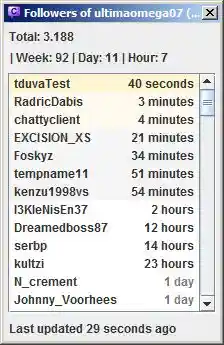
Both the Followers and Subscribers Dialog otherwise work in pretty much the same way. Data is only requested as long as you have the dialog open. It is requested in a semi-regular interval and then displays that data in the list (and some stats).
If followers/following is mentioned below, then the same applies for subscribers/subscribing in the appropriate dialog.
|
At the top it shows some stats:
There are different background colors for some entries:
The time has different colors for older entries:
At the bottom, it shows approximately how long ago data was last received, or a short error message if an error occured. |
 |
About New Followers/Refollows
Everything that determines whether a follower is new or a refollow is saved per session. So if you restart Chatty, it assumes that all followers except from the first request are new. So if you start Chatty, open the Followers Dialog on your channel, it will load the followers for the first time and show none of them as new. Now if it updates a minute later, and there are users it hasn't seen as having followed before, then it assumes these users as new followers.
Now a user of course might have been a follower for a year, then unfollow and follow again. Chances are that Chatty won't notice that and assume a new follower. What it however does is that it only shows each user as new follower once per session. So if someone follows and Chatty shows that user as a new follower, then that user unfollows and follows again, Chatty will notice that the first and the second follow time are different, and will show this user as a refollow (the name slightly grey).
So this basicially just prevents the same user from e.g. making a sound go off (if you have that enabled) several times just by refollowing several times. At most that will happen once per session. Other than that the data is mostly shown just as it comes in from Twitch. It will still show refollows on the top of the list.
Stream Highlights / Markers [back to menu]
Chatty can help you with creating Highlights of your stream by recording the stream time (how long the stream has been online) using a command or hotkey. When you add a Stream Highlight in Chatty, it is written to a file which you can then view later.
The following commands are available:
/addStreamHighlight [comment]- Adds a highlight at the current time, with a comment if you want to./openStreamHighlights- Opens the file where the stream highlights are stored in your default text editor.
You can also add a hotkey to add stream highlights, so you can also do it yourself while streaming out of a game (given that global hotkeys work in the game).
The highlights are written to the file stream_highlights.txt
in the exported subfolder of the settings directory (which
you can open with the /openDir and show with the
/dir command).
Chat Command
You can also let users in chat (e.g. Mods/VIPs) add Stream Highlights
(!highlight [comment]), which you can configure under
Main - Settings - Stream Highlights.
Stream Markers
Twitch offers a way to add
Stream Markers
which show up when creating Highlights on the website. You can use the
/marker command or add a Stream Marker automatically when
adding a Stream Highlight (changeable in the Stream Highlights settings).
For creating Stream Markers you need the Edit broadcast
scope, so if you don't have that yet, you have to
request a new login token.
Ignore joins/parts [back to menu]
Both the ignore joins/parts and Twitch Client Version 3 option have been removed. You can now disable the Correct Userlist setting to not get any joins/parts if you think it could improve performance.
Run custom processes [back to menu]
Using the /proc command you can start processes directly out
of Chatty. An example of where this is already integrated into Chatty is
starting Streamlink, however this is a more basic implementation.
You should only use this if you know what you are doing, running system processes can be dangerous if done wrong. Take special care when unsafe/unpredictable text is being used, for example from chat messages, which may need to be properly quoted/escaped depending on context.
/proc exec <command and parameters>- Try to start a process on your computer. The command and parameters are split by spaces, unless enclosed by quotes.A quote can be escaped by adding a backslash in front
\"(note that if there is no closing quote, the last quote, even if escaped, is used as closing quote). Adding another backslash, e.g.\\"will still escape the quote. The debug log shows both the original command text and how it was split up./proc execEcho <command and parameters>- Same as above, but prints the output of the process to the current tab./proc list- List of processes currently running out of Chatty./proc kill <id>- Forcefully end the process with the given id (get the id from the list of processes).
Example: /proc exec notepad H:\hl.txt will start Notepad
and open the given file.
Note: Commands and output of the process is logged in the Debug Log which
is written to file and output to Extra - Debug window.
Launch options [back to menu]
There are a few options you can launch Chatty with, that will override settings loaded from the settings file or change how Chatty is started. You need to run Chatty from the commandline or Create a shortcut to use these. If you're using the Standalone version you can also specify launch options in the Chatty.cfg.
-server <host/ip>- Specify a different server to connect to
-port <port>- Specify a different port to use for connecting
-user <username>- Your username
-password [password]- Login with password instead of access token, optionally also the actual password to use. Twitch doesn't allow password login anymore.
-token [token]- Login with the given token.
- The username currently saved in Chatty must match the account
associated with the given token. If no login data is currently
saved in Chatty or the username is different, you have to use
-userto set the correct username. -connect- Connect immediately when starting Chatty
-channel <channel>- The channel to join (you can specify more than one channel by separating them with a comma)
-ds- Don't save settings automatically (they can still be saved manually via "Main - Save..")
-cd- Use current working directory as settings directory. This can be useful to make Chatty more portable or use several different setting files on the same computer. More information..
-d <dir>- Same as
-cd, except that you directly specify the settings directory to use. The specified directory has to already exist (even if you just created an empty directory for it). -portable- Creates a directory called "portable_settings" next to where the "Chatty.jar" is located and uses that as settings directory.
-debugdir <dir>- Specify the debug log directory. The specified directory has to
already exist, same as with
-d. -set:<settingName> <setting value>- Change any setting that can be edited via the
/setcommand (see Setting Commands). -single [port]- Run in single instance mode, which means if you start Chatty while
it's already running the parameters are forwarded to the already
running instance instead of starting another one. You have to
specify the
-singleparameter with the same port (or no port to use the default one) for all instances that you want to have run in the same single instance mode. - The port is listened to locally to check if any instance is already running and to forward the commandline parameters. If you don't supply a port a default one is used. If the used port is already taken by another program you have to specify one that works or else no instance of Chatty will be able to start.
- Currently only the
-channeland-ccparameters are forwarded to an already running instance. -cc <name> [parameters]- Execute the Custom Command with the given name on start. The
parameters are optional. When used in combination with
-single, the command will be executed on the already running instance.
Setting commands [back to menu]
Setting files [back to menu]
Contact [back to menu]
- Website: https://chatty.github.io
- E-Mail: chattyclient@gmail.com
- Twitter: @ChattyClient
- Bluesky: @chattyclient.bsky.social
- Mastodon: mstdn.social/@chattyclient
- Discord: Chatty Discord Invite
If you are reporting an issue, please read the page on Reporting Issues.
If you are referring to a specific version of Chatty, please provide the
actual version number, which you can find on the top of the main help page in Chatty
(this one if you are reading this in Chatty, otherwise go to Chatty and open
Help - About/Help or press F1). You can also use the
/appinfo command.