Visual Studio Code 1.113
Release date: March 25, 2026
Downloads: Windows: x64 Arm64 | Mac: Universal Intel silicon | Linux: deb rpm tarball Arm snap
Welcome to the 1.113 release of Visual Studio Code. This release includes various improvements across the agent and developer experience.
-
Chat customizations: Manage all chat-related customizations from a single, unified interface.
-
Configurable thinking effort: Control a model's reasoning level directly from the UI.
-
Nested subagents: Allow subagents to invoke other subagents for complex multi-step workflows.
-
CLI agent capabilities: Use MCP servers, fork sessions, and view debug logs in CLI agents.
-
Images preview: Preview images from chat with the full-featured image viewer.
-
Default themes refresh: Enjoy a fresh new look with updated default light and dark themes.
Happy Coding!
VS Code is rolling out gradually to all users. Use Check for Updates in VS Code to get the latest version immediately.
To try new features as soon as possible, download the nightly Insiders build, which includes the latest updates as soon as they are available.
Agent experience
Use the same tools and workflows across local, CLI, and Claude agents, and compose multi-step automations with less friction.
MCP support in Copilot CLI & Claude agents
Previously, MCP servers that you configured in VS Code were only available to local agents running in the editor. This release adds support for MCP servers in Copilot CLI & Claude agents.
MCP servers you have registered in VS Code are bridged to Copilot CLI and Claude agents. This applies to both user-defined servers and servers defined in your workspace via mcp.json files.
Learn more about using MCP servers in VS Code.
Forking sessions in Copilot CLI & Claude agents
Setting: github.copilot.chat.cli.forkSessions.enabled
Forking a session enables you to create a copy of an existing session at any point in the conversation history. This is useful when you want to explore a different line of thought or try out different prompts without losing the context of the original session.
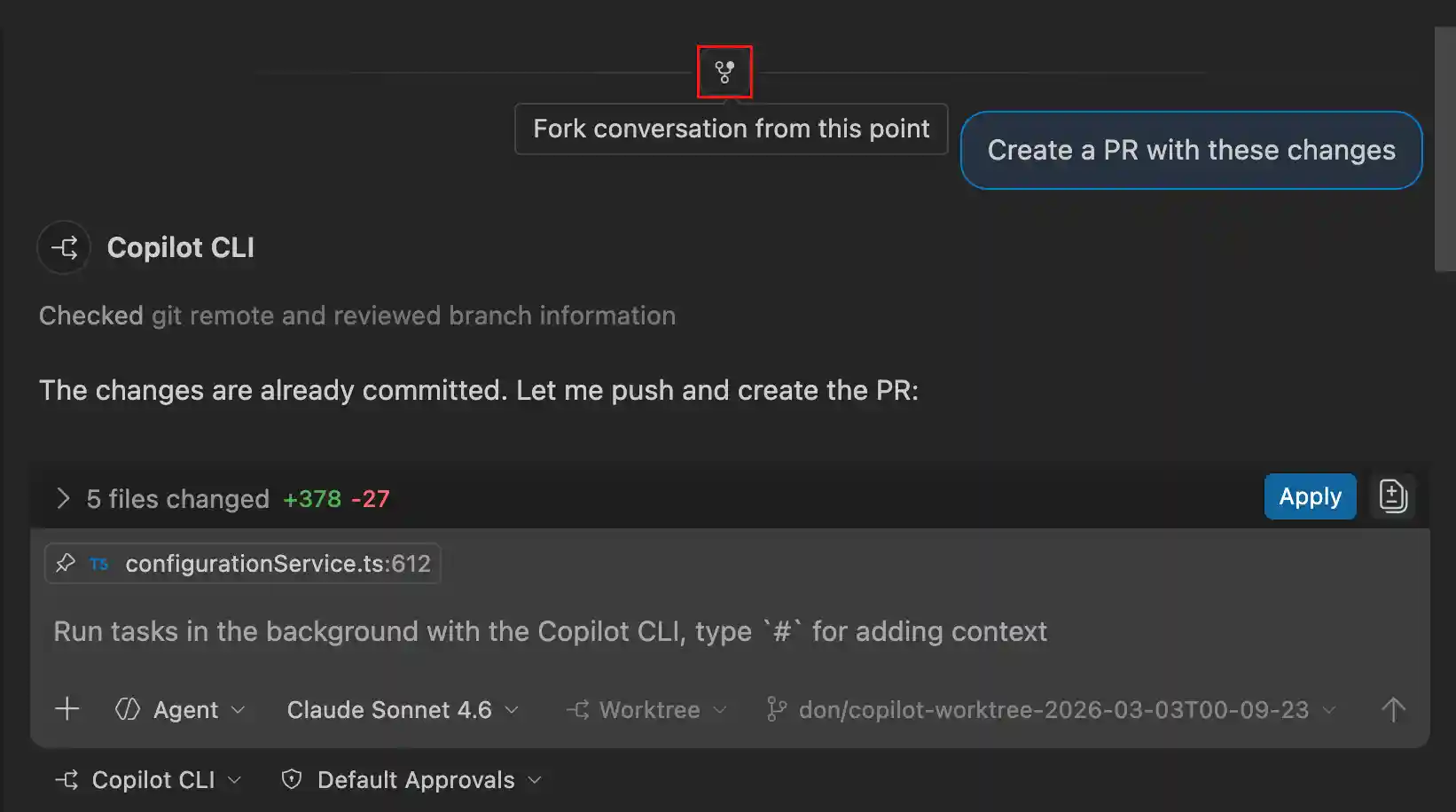
As of this release, you can now also fork sessions in both Copilot CLI (Experimental) and Claude agents. To enable forking for Copilot CLI, enable the github.copilot.chat.cli.forkSessions.enabled setting.
Learn more about forking a chat session in the documentation.
Agent debug logs for Copilot CLI and Claude CLI sessions (Preview)
The Agent Debug Log panel is the primary tool for understanding what happens when you send a prompt. It shows a chronological event log of agent interactions during a chat session. You can now use the Agent Debug Log panel for Copilot CLI and Claude agent sessions. Support for local agent sessions was already available.

Learn more about the Agent Debug Log panel in our documentation.
Claude session listing powered by SDK APIs
VS Code now adopts the official API from the Claude agent SDK to list out sessions and their messages. Previously, we relied on parsing Claude JSONL files on disk, which had a risk of being out of sync if Claude changed their structure. If you experienced issues with the Claude agent not showing all your sessions or messages, this should now be resolved.
Nested subagents
Setting: chat.subagents.allowInvocationsFromSubagents
Subagents can now invoke other subagents, enabling more complex multi-step workflows. Previously, subagents were restricted from calling other subagents to prevent infinite recursion. With the new chat.subagents.allowInvocationsFromSubagents setting, you can enable this capability when needed.
Learn more about using subagents in the documentation.
Manage plugin marketplaces
We added a new command Chat: Manage Plugin Marketplaces that lists all configured plugin marketplaces. For each marketplace, you can browse the plugins, open their local directory, and remove them.
Learn more about using agent plugins in the documentation.
URL handlers for plugin installation
You can trigger VS Code plugin installation via URL handlers. To install a marketplace, you can trigger a link with the format:
vscode://chat-plugin/add-marketplace?ref=<source>
Where "source" is a Github repo/owner or a base64-encoded Git URI. To install an extension, you can use the following format:
vscode://chat-plugin/install?source=<source>
To target VS Code Insiders, replace vscode with vscode-insiders in the URL.
Chat experience
Tailor the AI to your project from a single editor, control how much a model reasons before responding, and review visual context without leaving chat.
Chat Customizations editor (Preview)
The Chat Customizations editor provides a centralized UI for creating and managing all your chat customizations in one place. The editor organizes customization types into separate tabs, such as custom instructions, prompt files, custom agents, and agent skills. It also provides an embedded code editor with syntax highlighting and validation.
You can create new customizations from scratch or use AI to generate initial content based on your project. To add MCP servers and agent plugins, browse the corresponding marketplace directly from the editor.
To open the editor, select the Configure Chat (gear icon) in the Chat view or run Chat: Open Chat Customizations from the Command Palette (⇧⌘P (Windows, Linux Ctrl+Shift+P)).
Learn more about the Chat Customizations editor in the documentation.
Configurable thinking effort in model picker
Models that support reasoning, such as Claude Sonnet 4.6 and GPT-5.4, now show a Thinking Effort submenu directly in the model picker. You can use this to control how much reasoning the model applies to each request without navigating to VS Code settings. VS Code retains the selected effort level per model across conversations.
Choose a reasoning model in the picker and select the arrow to reveal the available effort levels. The available effort levels might vary by model. Non-reasoning models do not show the submenu.

The model picker label now also displays the selected effort level, for example "GPT-5.3-Codex · Medium", to make it easier to see which effort level is currently active for each model.
Learn more about thinking effort and reasoning in the documentation.
Note: The github.copilot.chat.anthropic.thinking.effort and github.copilot.chat.responsesApiReasoningEffort settings have been deprecated. Reasoning effort is now configured directly through the model picker.
Images preview for chat attachments
Setting: imageCarousel.chat.enabled , imageCarousel.explorerContextMenu.enabled
When you work with images in chat, whether you attached screenshots to your request or the agent generated images via tool calls, you can now select any image attachment to open it in a full image viewer experience.
The viewer opens as a modal overlay and supports:
- Navigation: Browse all images from the current chat session by using arrow buttons, keyboard arrows, or the thumbnail strip at the bottom.
- Sections: Images are grouped by conversation turn, so you can see which images came from a particular request or response.
- Zoom & pan: Click to zoom in, use Option+Click (Mac) or Ctrl+Click (Windows/Linux) to zoom out, or scroll/pinch to zoom continuously. At high zoom levels, scroll to pan around the image.
The image viewer is now also available from the Explorer view context menu for image files. When you select Open in Images Preview, the viewer opens with all images from the current folder.
Both features are enabled by default. To configure them independently, use imageCarousel.chat.enabled and imageCarousel.explorerContextMenu.enabled .
Editor experience
Develop and test web apps more confidently in the integrated browser, and enjoy a refreshed default look for the editor.
Use self-signed certificates in the integrated browser
When you are developing web applications that depend on secure HTTPS connections, it's usually necessary to use a self-signed certificate during testing.
Under normal circumstances, such certificates shouldn't be trusted. Previously, any site that presented an untrusted certificate would simply fail to load in the integrated browser, without any option to bypass.
Now, similar to most browsers, you can choose to temporarily trust a certificate that can't be verified, to unblock development in these scenarios.
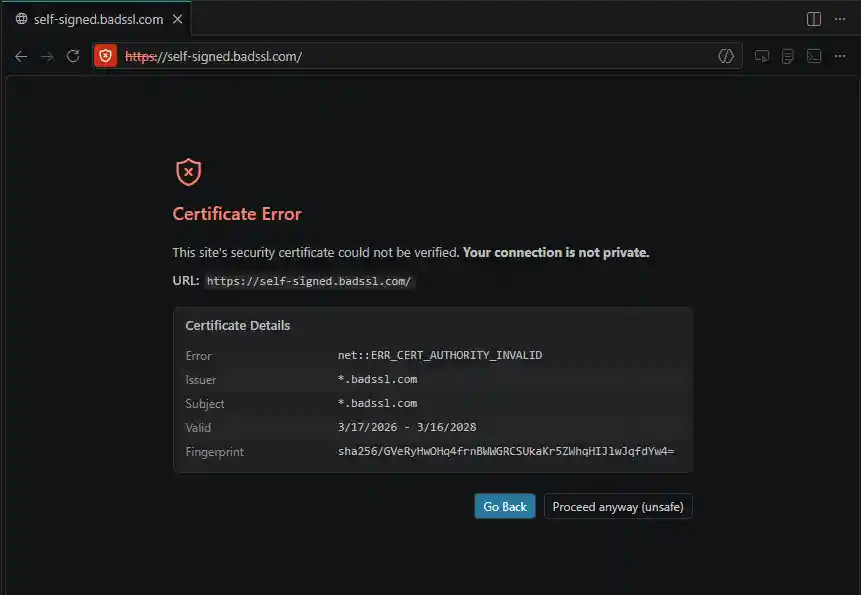
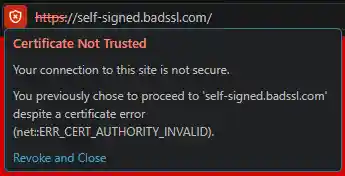
When you proceed, connections to the current host using that certificate are allowed for one week. The URL bar will show that the connection isn't secure, with the option to revoke trust at any time.
Learn more about the integrated browser in the documentation.
Improved browser tab management
Setting: workbench.browser.showInTitleBar
Managing open tabs can already be difficult. As we encourage more use of integrated browser tabs, we are also adding more controls to easily manage them.
-
Quick Open Browser Tab
This command opens a Quick Pick that displays all open browser tabs and allows them to be quickly filtered, focused, and closed.
The command can also be triggered with the ⇧⌘A (Windows, Linux Ctrl+Shift+A) keyboard shortcut while a browser is currently focused, or via a new shortcut button in the VS Code title bar, visible when a browser tab is open.

The visibility of this button is configurable via the workbench.browser.showInTitleBar setting.
-
Close All Browser Tabs
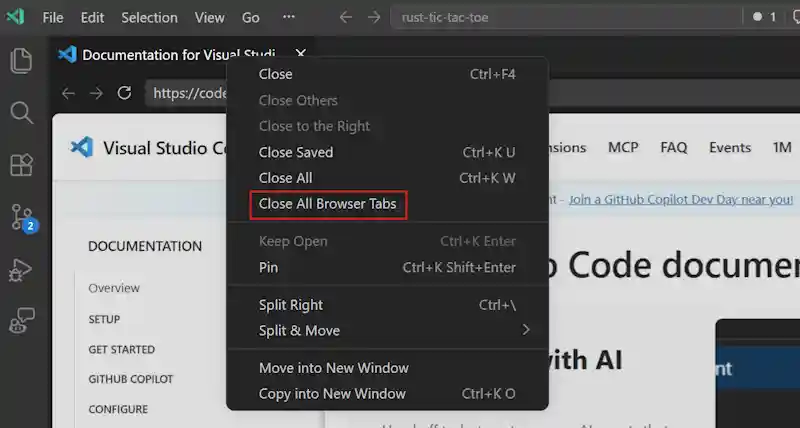
Browser tab context menus now have an option to close all browser tabs in the same group, similar to the existing "Close All" item. Browser tabs across all groups can also be closed via the Command Palette.
New default themes
VS Code now ships with new default themes: "VS Code Light" and "VS Code Dark". These themes are designed to provide a fresh, modern look while maintaining the familiarity and usability of the previous default "Modern" themes. In addition, OS theme syncing will default to the new themes for new users, so that VS Code will automatically match the light/dark mode of your operating system with the new themes.
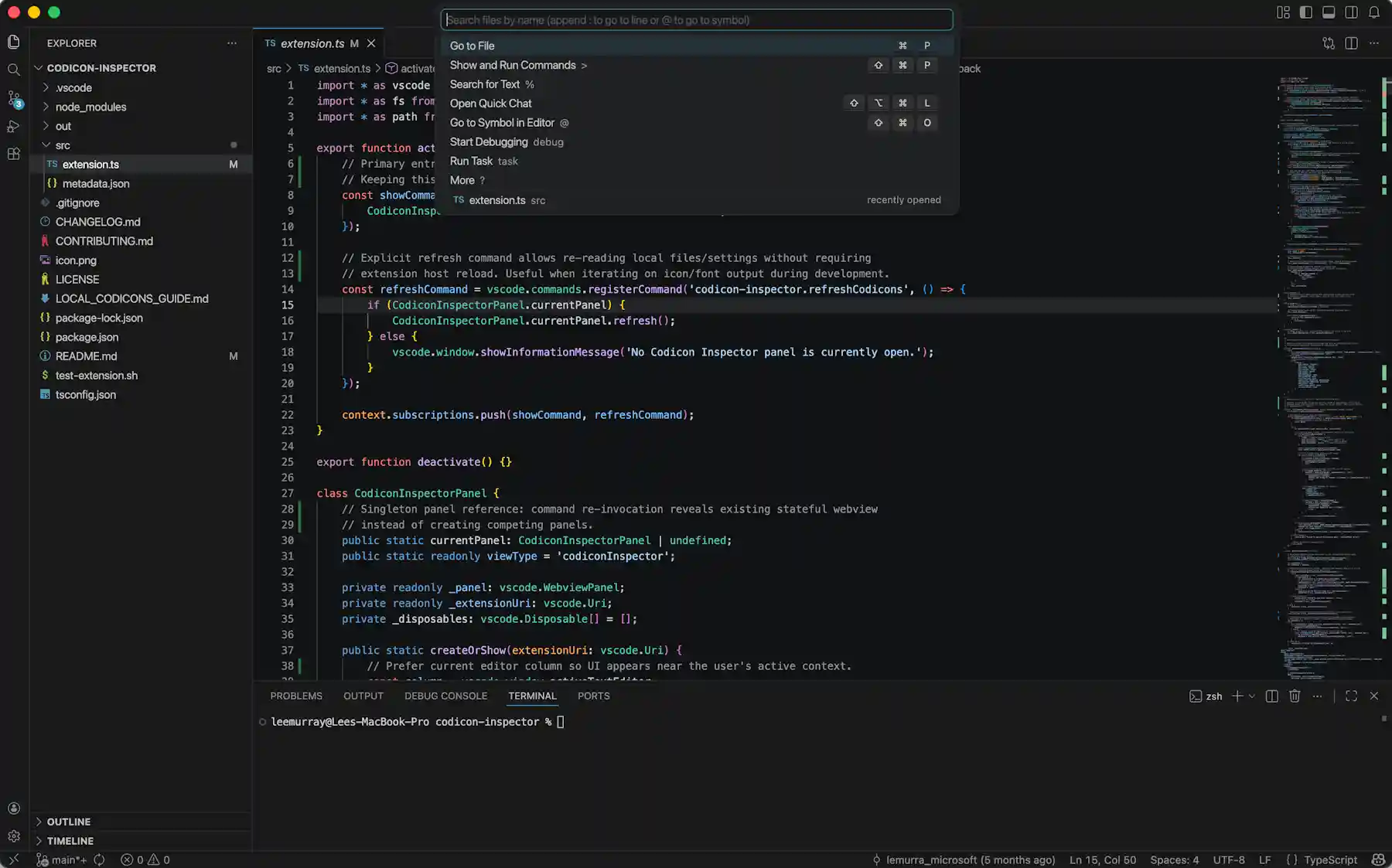 VS Code Dark
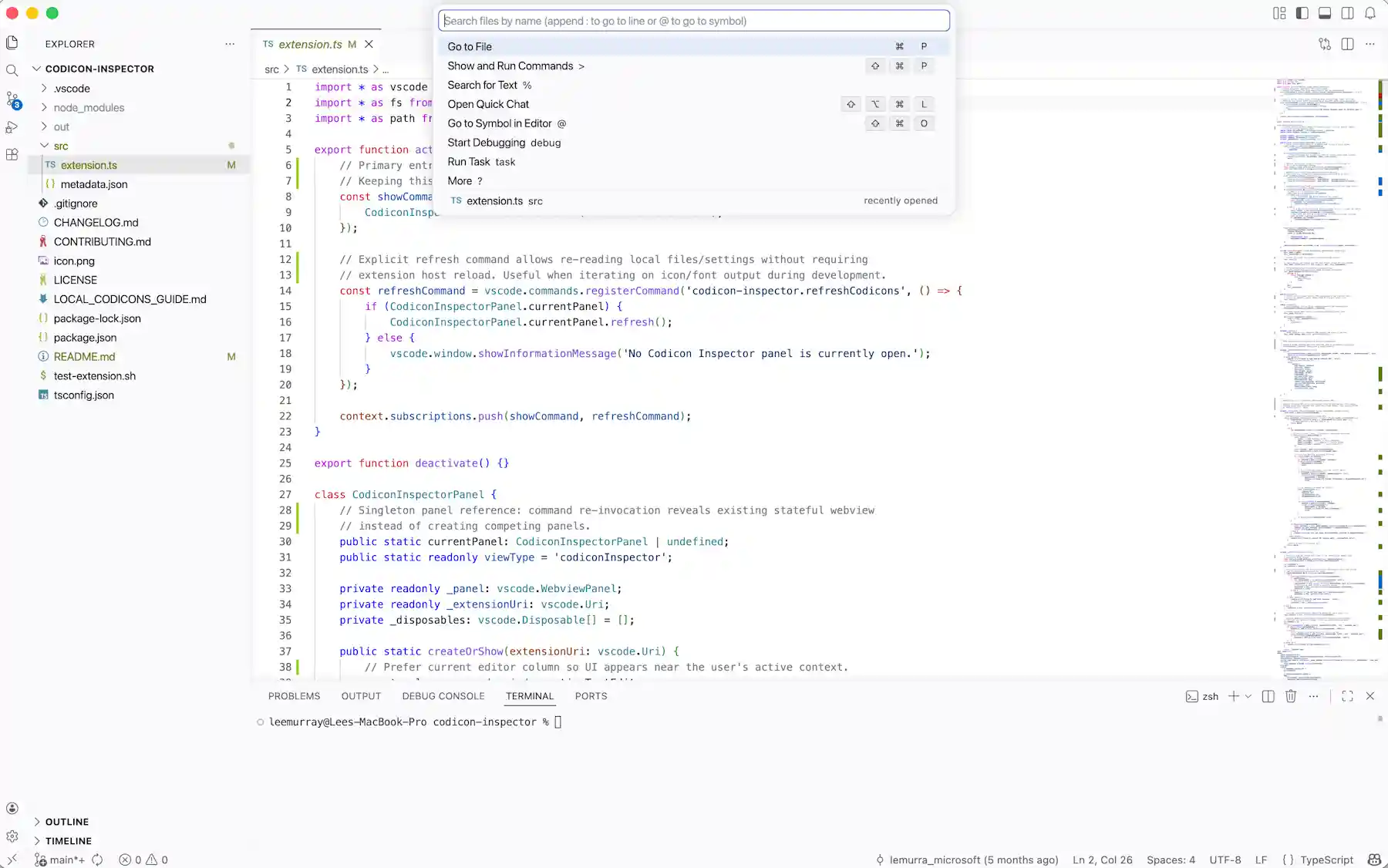 VS Code Light
Deprecated features and settings
New deprecations in this release
None
Upcoming deprecations
- Edit Mode is officially deprecated as of VS Code version 1.110. Users can temporarily re-enable Edit Mode via VS Code setting chat.editMode.hidden . This setting will remain supported through version 1.125. Beginning with version 1.125, Edit Mode will be fully removed and can no longer be enabled via settings.
Thank you
Issue tracking
Contributions to our issue tracking:
- @gjsjohnmurray (John Murray)
- @RedCMD (RedCMD)
- @IllusionMH (Andrii Dieiev)
- @albertosantini (Alberto Santini)
Contributions to vscode:
- @jcansdale (Jamie Cansdale): Use bracketed paste for multiline executed terminal text PR #302526
- @jeevaratnamputla: Replace child_process.exec with execFile to prevent potential command injection PR #291825
- @kbhujbal (Kunal Bhujbal): Fix code quality issues: error logging and JSDoc typo PR #297893
- @sathvikc (Sathvik C): fix: prevent duplicate tip nodes on re-entrant renderGettingStartedTipIfNeeded PR #302317
- @ShehabSherif0 (Shehab Sherif): Fix missing global flag in sanitizeId regex PR #303603
- @xingsy97 (xingsy97): Git - optimize worktree ignored-path computation PR #303955
Contributions to vscode-copilot-chat:
- @24anisha (Anisha Agarwal)
- @etvorun (ET): Fix: NES debounce and language context fetch do not honor cancellation token PR #4384
Contributions to vscode-python-environments:
- @00zayn: Fix spurious unresolved interpreter warning from ${workspaceFolder}-scoped global defaultInterpreterPath PR #1334
- @StellaHuang95 (Stella Huang): Add telemetry for manager registration failures PR #1365
Contributions to vscode-windows-process-tree:
We really appreciate people trying our new features as soon as they are ready, so check back here often and learn what's new.
If you'd like to read release notes for previous VS Code versions, go to Updates on code.visualstudio.com.