Python Program to Append Text to a File
In this article, you will learn and get code to append some content (text) into a file using a Python program. Here is a list of programs:
- Append text to a file
- Append Text to a File and Display the Content of the File
Things to do Before the Program
Because the program given below appends text (string or content) entered by the user to a file, say codescracker.txt. Therefore, before executing the program, we've got to create a file named codescracker.txt with some content, say:
Hello Python,
I'm a File
My Name is codescracker.txt
Save this file in the current directory. The current directory is the directory where you are saving your Python source code. That is, the file and the Python program (to append text to the file) must be available in the same folder. Here is a snapshot of the folder where we've saved this file:
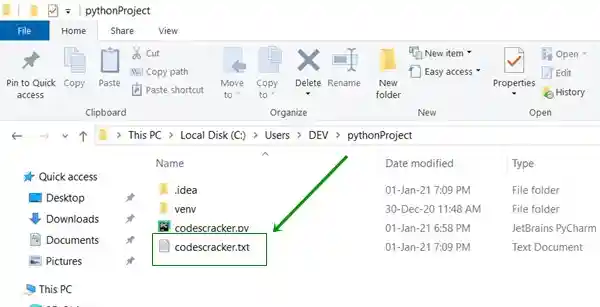
And here is a snapshot of the opened file, codescracker.txt:
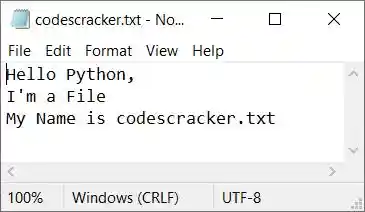
Now let's create a Python program to append new content to the end of this file.
Append Text to a File in Python
This Python program asks the user to enter the name of the file and then asks them to enter the text (in one or more lines) to append it to the given file, as shown in the program given here:
print("Enter the Name of File: ")
fileName = str(input())
fileHandle = open(fileName, "a")
print("Enter the Text to Append in Given File: ")
while True:
    text = str(input())
    if len(text)>0:
        fileHandle.write("\n")
        fileHandle.write(text)
    else:
        break
fileHandle.close()
Here is its sample run:
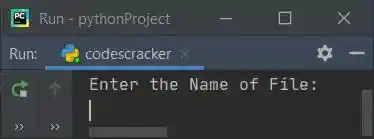
Now enter the name of the file, say, codescracker.txt, and press ENTER. Here is the output you will see:
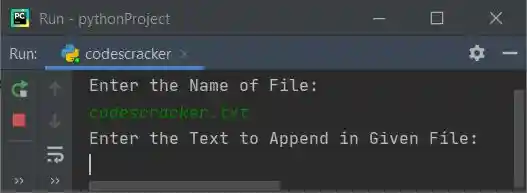
Then enter some texts (contents), say:
- This is first append's first line
- This is first append's second line
- This is first append's third line
These three lines are entered in such a way that you enter the first line of text, press ENTER, then enter the second line of text, press the ENTER key, and so on. Finally, press the ENTER key without typing anything to stop appending the content to the file. Here is the sample run with exactly the same user inputs (as given above):
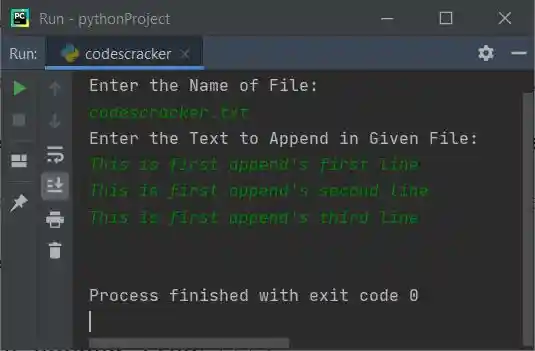
Now if you open the same file, codescracker.txt, then this content gets appended (added) to the file. Here is a snapshot of the opened file, codescracker.txt:
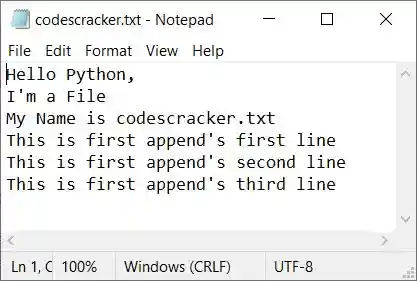
Note: The open() function is used to open a file. It returns a file object. It takes two arguments. The first argument is the name of the file, and the second argument is its opening mode.
Note: The break keyword is used (in the above program) to exit from the while loop.
Note: The write() function is used to write content to a file using its object, say fileHandle.
Note: Don't forget to close the file's object using the close() function.
Append Text to the File and Display the File
This program is similar to the previous one with an extra feature. The extra feature is that this program appends the content entered by the user to the given file and then asks he user whether they want to see the new content of the file or not.
print(end="Enter the Name of File: ")
fileName = str(input())
try:
    fileHandle = open(fileName, "r")
    print("This File is Available!")
    fileHandle.close()
    fileHandle = open(fileName, "a")
    print(end="\nEnter Texts to Append: ")
    while True:
        text = str(input())
        if len(text)>0:
            fileHandle.write("\n")
            fileHandle.write(text)
        else:
            break
    fileHandle.close()
    print("Texts Appended to the File Successfully!")
    print(end="Want to see the Content of File (y/n): ")
    ch = input()
    if ch=='y':
        fileHandle = open(fileName, "r")
        for content in fileHandle:
            print(end=content)
    else:
        print("Exiting...")
except IOError:
    try:
        fileHandle = open(fileName, "a")
        print("File Created Successfully!")
        print(end="\nEnter Texts to Append (Add): ")
        while True:
            text = str(input())
            if len(text)>0:
                fileHandle.write(text)
                fileHandle.write("\n")
            else:
                break
        fileHandle.close()
        print("Texts Appended to the File Successfully!")
        print(end="Want to see the Content of File (y/n): ")
        ch = input()
        if ch=='y':
            fileHandle = open(fileName, "r")
            for content in fileHandle:
                print(end=content)
        else:
            print("Exiting...")
    except IOError:
        print("Error Occurred!")
print()
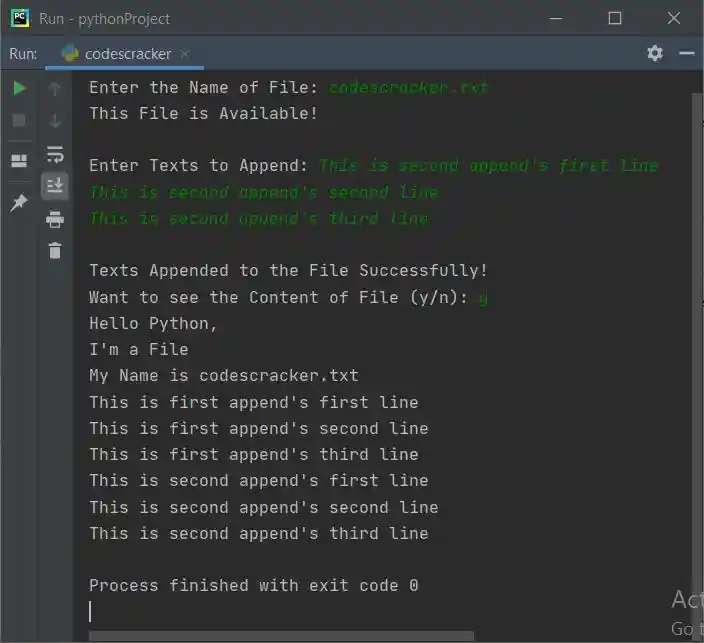
Now enter the name of the same file, which is codescracker.txt, and press ENTER. Here is the output:
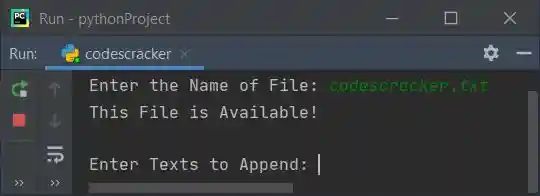
Enter the following text, one by one:
- This is second append's first line
- This is second append's second line
- This is second append's third line
Supply exactly these inputs and press the ENTER key without typing any text. Here is the output you will see:
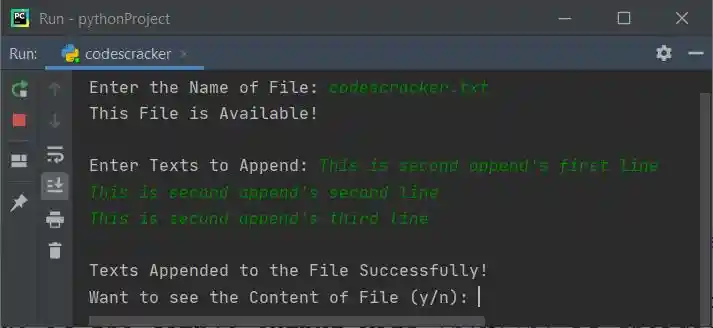
Now type y and press the ENTER key to see the content of the file, codescracker.txt. Otherwise, press n to exit from the program. Here is the sample output with y as a choice:
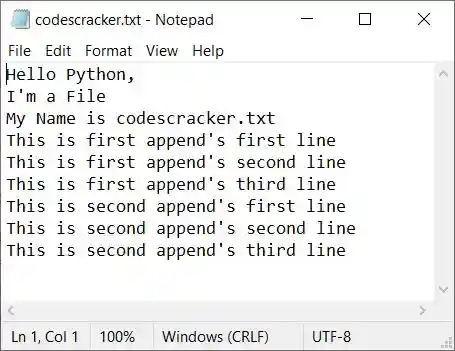
And here is the file, codescracker.txt, after executing all the things given above:
Here is another sample run with user input, say codescracker.html, the file that doesn't exist in the current directory, with some content, and then y as a choice to see the content of the file:
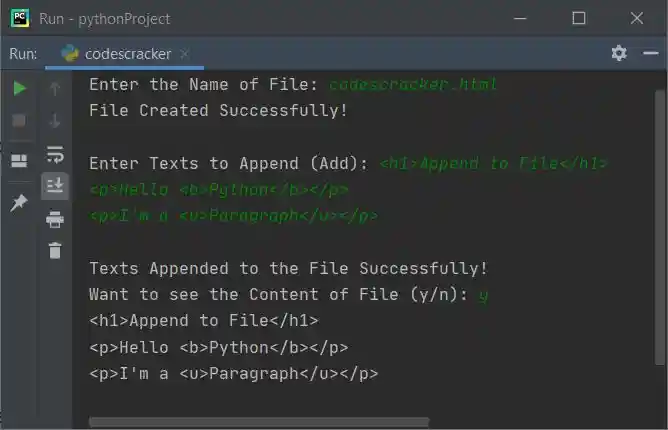
Note: The a (append) file opening mode opens a file. If the file doesn't exist, then a new file with the same name gets created automatically.
Now if you open this newly created file, say codescracker.html, through the previous program's sample run in a web browser like Google Chrome, here is the output you will see:
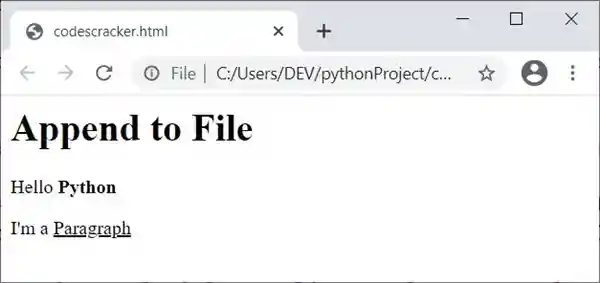
Note: Because the file is of the HTML type, this output is produced. To learn more about it, refer to the HTML Tutorial for in-depth details.
« Previous Program Next Program »
Liked this post? Share it!