DeepLabCut User Guide (for single animal projects)#
This document covers single/standard DeepLabCut use. If you have a complicated multi-animal scenario (i.e., they look the same), then please see our maDLC user guide.
To get started, you can use the GUI, or the terminal. See below.
DeepLabCut Project Manager GUI (recommended for beginners)#
GUI:
To begin, navigate to Anaconda Prompt Terminal and right-click to “open as admin “(Windows), or simply launch
“Terminal” (unix/MacOS) on your computer. We assume you have DeepLabCut installed (if not, see
install docs!). Next, launch your conda env (i.e., for example conda activate DEEPLABCUT). Then,
simply run python -m deeplabcut. The below functions are available to you in an easy-to-use graphical user interface.
While most functionality is available, advanced users might want the additional flexibility that command line interface
offers. Read more below.
Hint
🚨 If you use Windows, please always open the terminal with administrator privileges! Right click, and “run as administrator”.

As a reminder, the core functions are described in our Nature Protocols paper (published at the time of 2.0.6). Additional functions and features are continually added to the package. Thus, we recommend you read over the protocol and then please look at the following documentation and the doctrings. Thanks for using DeepLabCut!
DeepLabCut in the Terminal/Command line interface:#
To begin, navigate to Anaconda Prompt Terminal and right-click to “open as admin “(Windows), or simply launch
“Terminal” (unix/MacOS) on your computer. We assume you have DeepLabCut installed (if not, see Install docs!). Next,
launch your conda env (i.e., for example conda activate DEEPLABCUT) and then type ipython. Then type:
Hint
🚨 If you use Windows, please always open the terminal with administrator privileges! Right click, and “run as administrator”.
(A) Create a New Project#
The function create_new_project creates a new project directory, required subdirectories, and a basic project
configuration file. Each project is identified by the name of the project (e.g. Reaching), name of the experimenter
(e.g. YourName), as well as the date at creation.
Thus, this function requires the user to input the name of the project, the name of the experimenter, and the full path of the videos that are (initially) used to create the training dataset.
Optional arguments specify the working directory, where the project directory will be created, and if the user wants
to copy the videos (to the project directory). If the optional argument working_directory is unspecified, the
project directory is created in the current working directory, and if copy_videos is unspecified symbolic links
for the videos are created in the videos directory. Each symbolic link creates a reference to a video and thus
eliminates the need to copy the entire video to the video directory (if the videos remain at the original location).
deeplabcut.create_new_project(
    "Name of the project",
    "Name of the experimenter",
    ["Full path of video 1", "Full path of video2", "Full path of video3"],
    working_directory="Full path of the working directory",
    copy_videos=True/False,
    multianimal=False
)
Important path formatting note
Windows users, you must input paths as: r'C:\Users\computername\Videos\reachingvideo1.avi' or
'C:\\Users\\computername\\Videos\\reachingvideo1.avi'
TIP: you can also place config_path in front of deeplabcut.create_new_project to create a variable that holds
the path to the config.yaml file, i.e. config_path=deeplabcut.create_new_project(...)
This set of arguments will create a project directory with the name ++ in the Working directory and creates the symbolic links to videos in the videos directory. The project directory will have subdirectories: dlc-models, dlc-models-pytorch, labeled-data, training-datasets, and videos. All the outputs generated during the course of a project will be stored in one of these subdirectories, thus allowing each project to be curated in separation from other projects. The purpose of the subdirectories is as follows:
dlc-models and dlc-models-pytorch have a similar structure; the first contains files for the TensorFlow engine while the second contains files for the PyTorch engine. At the top level in these directories, there are directories referring to different iterations of label refinement (see below): iteration-0, iteration-1, etc. The iteration directories store shuffle directories, where each shuffle directory stores model data related to a particular experiment: trained and tested on a particular training and testing sets, and with a particular model architecture. Each shuffle directory contains the subdirectories test and train, each of which holds the meta information with regard to the parameters of the feature detectors in configuration files. The configuration files are YAML files, a common human-readable data serialization language. These files can be opened and edited with standard text editors. The subdirectory train will store checkpoints (called snapshots) during training of the model. These snapshots allow the user to reload the trained model without re-training it, or to pick-up training from a particular saved checkpoint, in case the training was interrupted.
labeled-data: This directory will store the frames used to create the training dataset. Frames from different videos are stored in separate subdirectories. Each frame has a filename related to the temporal index within the corresponding video, which allows the user to trace every frame back to its origin.
training-datasets: This directory will contain the training dataset used to train the network and metadata, which contains information about how the training dataset was created.
videos: Directory of video links or videos. When copy_videos is set to False, this directory contains
symbolic links to the videos. If it is set to True then the videos will be copied to this directory. The default is
False. Additionally, if the user wants to add new videos to the project at any stage, the function
add_new_videos can be used. This will update the list of videos in the project’s configuration file.
deeplabcut.add_new_videos(
    "Full path of the project configuration file*",
    ["full path of video 4", "full path of video 5"],
    copy_videos=True/False
)
*Please note, Full path of the project configuration file will be referenced as config_path throughout this
protocol.
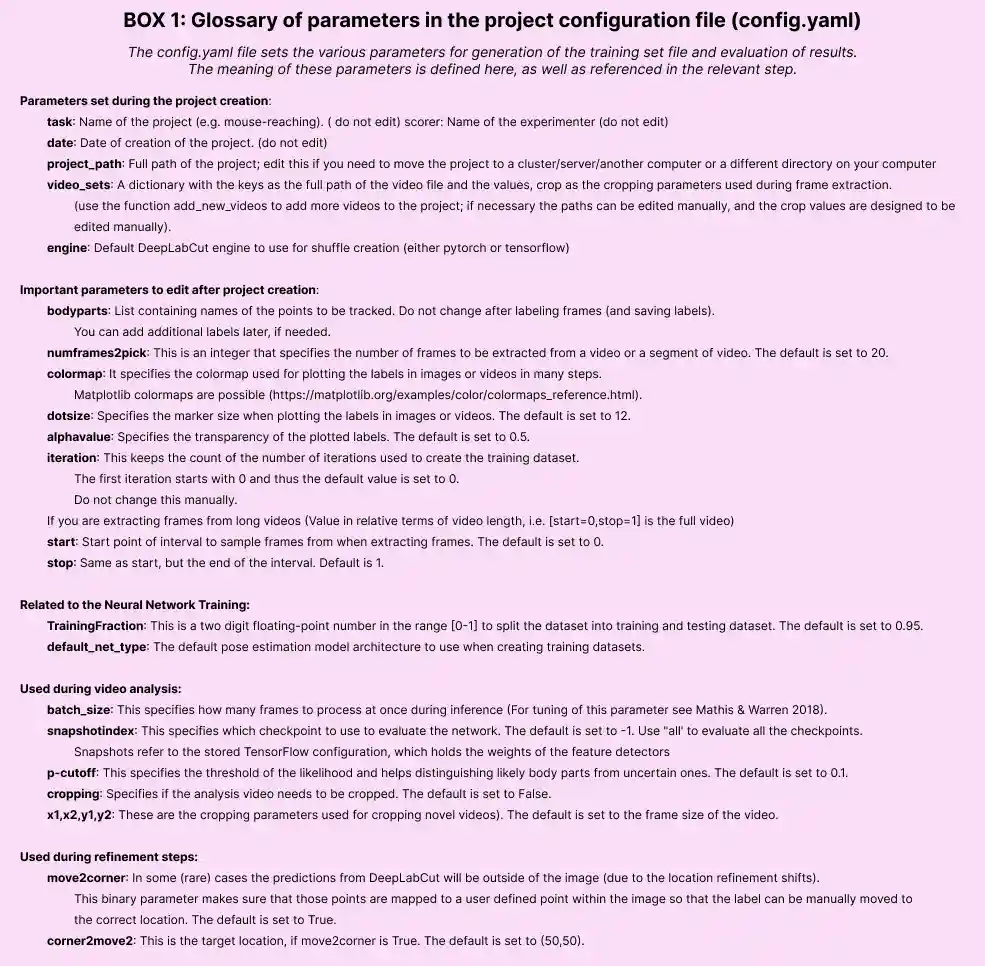
The project directory also contains the main configuration file called config.yaml. The config.yaml file contains many important parameters of the project. A complete list of parameters including their description can be found in Box1.
The create_new_project step writes the following parameters to the configuration file: Task, scorer, date,
project_path as well as a list of videos video_sets. The first three parameters should not be changed. The
list of videos can be changed by adding new videos or manually removing videos.
API Docs#
Click the button to see API Docs
- deeplabcut.create_project.new.create_new_project(project: str, experimenter: str, videos: list[str], working_directory: str | None = None, copy_videos: bool = False, videotype: str = '', multianimal: bool = False, individuals: list[str] | None = None)#
Create the necessary folders and files for a new project.
Creating a new project involves creating the project directory, sub-directories and a basic configuration file. The configuration file is loaded with the default values. Change its parameters to your projects need.
- Parameters:
- projectstring
The name of the project.
- experimenterstring
The name of the experimenter.
- videoslist[str]
A list of strings representing the full paths of the videos to include in the project. If the strings represent a directory instead of a file, all videos of
videotypewill be imported.- working_directorystring, optional
The directory where the project will be created. The default is the
current working directory.- copy_videosbool, optional, Default: False.
If True, the videos are copied to the
videosdirectory. If False, symlinks of the videos will be created in theproject/videosdirectory; in the event of a failure to create symbolic links, videos will be moved instead.- multianimal: bool, optional. Default: False.
For creating a multi-animal project (introduced in DLC 2.2)
- individuals: list[str]|None = None,
Relevant only if multianimal is True. list of individuals to be used in the project configuration. If None - defaults to [‘individual1’, ‘individual2’, ‘individual3’]
- Returns:
- str
Path to the new project configuration file.
Examples
Linux/MacOS:
>>> deeplabcut.create_new_project(
        project='reaching-task',
        experimenter='Linus',
        videos=[
            '/data/videos/mouse1.avi',
            '/data/videos/mouse2.avi',
            '/data/videos/mouse3.avi'
        ],
        working_directory='/analysis/project/',
    )
>>> deeplabcut.create_new_project(
        project='reaching-task',
        experimenter='Linus',
        videos=['/data/videos'],
        videotype='.mp4',
    )
Windows:
>>> deeplabcut.create_new_project(
        'reaching-task',
        'Bill',
        [r'C:\yourusername\rig-95\Videos\reachingvideo1.avi'],
        copy_videos=True,
    )
Users must format paths with either: r’C:OR ‘C:\ <- i.e. a double backslash )
(B) Configure the Project#

Next, open the config.yaml file, which was created during create_new_project. You can edit this file in any text editor. Familiarize yourself with the meaning of the parameters (Box 1). You can edit various parameters, in particular you must add the list of bodyparts (or points of interest) that you want to track. You can also set the colormap here that is used for all downstream steps (can also be edited at anytime), like labeling GUIs, videos, etc. Here any matplotlib colormaps will do! Please DO NOT have spaces in the names of bodyparts.
bodyparts: are the bodyparts of each individual (in the above list).
(C) Select Frames to Label#
CRITICAL: A good training dataset should consist of a sufficient number of frames that capture the breadth of the behavior. This ideally implies to select the frames from different (behavioral) sessions, different lighting and different animals, if those vary substantially (to train an invariant, robust feature detector). Thus for creating a robust network that you can reuse in the laboratory, a good training dataset should reflect the diversity of the behavior with respect to postures, luminance conditions, background conditions, animal identities,etc. of the data that will be analyzed. For the simple lab behaviors comprising mouse reaching, open-field behavior and fly behavior, 100−200 frames gave good results Mathis et al, 2018. However, depending on the required accuracy, the nature of behavior, the video quality (e.g. motion blur, bad lighting) and the context, more or less frames might be necessary to create a good network. Ultimately, in order to scale up the analysis to large collections of videos with perhaps unexpected conditions, one can also refine the data set in an adaptive way (see refinement below).
The function extract_frames extracts frames from all the videos in the project configuration file in order to create
a training dataset. The extracted frames from all the videos are stored in a separate subdirectory named after the video
file’s name under the ‘labeled-data’. This function also has various parameters that might be useful based on the user’s
need.
deeplabcut.extract_frames(
    config_path,
    mode="automatic/manual",
    algo="uniform/kmeans",
    crop=True/False,
    userfeedback=False
)
CRITICAL POINT: It is advisable to keep the frame size small, as large frames increase the training and inference time. The cropping parameters for each video can be provided in the config.yaml file (and see below). When running the function extract_frames, if the parameter crop=True, then you will be asked to draw a box within the GUI (and this is written to the config.yaml file).
userfeedback allows the user to specify which videos they wish to extract frames from. When set to "True", a dialog
will be initiated, where the user is asked for each video if (additional/any) frames from this video should be
extracted. Use this, e.g. if you have already labeled some folders and want to extract data for new videos.
The provided function either selects frames from the videos that are randomly sampled from a uniform distribution (uniform), by clustering based on visual appearance (k-means), or by manual selection. Random uniform selection of frames works best for behaviors where the postures vary across the whole video. However, some behaviors might be sparse, as in the case of reaching where the reach and pull are very fast and the mouse is not moving much between trials. In such a case, the function that allows selecting frames based on k-means derived quantization would be useful. If the user chooses to use k-means as a method to cluster the frames, then this function downsamples the video and clusters the frames using k-means, where each frame is treated as a vector. Frames from different clusters are then selected. This procedure makes sure that the frames look different. However, on large and long videos, this code is slow due to computational complexity.
CRITICAL POINT: It is advisable to extract frames from a period of the video that contains interesting behaviors, and not extract the frames across the whole video. This can be achieved by using the start and stop parameters in the config.yaml file. Also, the user can change the number of frames to extract from each video using the numframes2extract in the config.yaml file.
However, picking frames is highly dependent on the data and the behavior being studied. Therefore, it is hard to provide all purpose code that extracts frames to create a good training dataset for every behavior and animal. If the user feels specific frames are lacking, they can extract hand selected frames of interest using the interactive GUI provided along with the toolbox. This can be launched by using:
deeplabcut.extract_frames(config_path, "manual")
The user can use the Load Video button to load one of the videos in the project configuration file, use the scroll bar to navigate across the video and Grab a Frame (or a range of frames, as of version 2.0.5) to extract the frame(s). The user can also look at the extracted frames and e.g. delete frames (from the directory) that are too similar before reloading the set and then manually annotating them.

API Docs#
Click the button to see API Docs
Extracts frames from the project videos.
Frames will be extracted from videos listed in the config.yaml file.
The frames are selected from the videos in a randomly and temporally uniformly distributed way (
uniform), by clustering based on visual appearance (k-means), or by manual selection.After frames have been extracted from all videos from one camera, matched frames from other cameras can be extracted using
mode = "match". This is necessary if you plan to use epipolar lines to improve labeling across multiple camera angles. It will overwrite previously extracted images from the second camera angle if necessary.Please refer to the user guide for more details on methods and parameters https://www.nature.com/articles/s41596-019-0176-0 or the preprint: https://www.biorxiv.org/content/biorxiv/early/2018/11/24/476531.full.pdf
- Parameters:
- configstring
Full path of the config.yaml file as a string.
- modestring. Either
"automatic","manual"or"match". String containing the mode of extraction. It must be either
"automatic"or"manual"to extract the initial set of frames. It can also be"match"to match frames between the cameras in preparation for the use of epipolar line during labeling; namely, extract from camera_1 first, then run this to extract the matched frames in camera_2.WARNING: if you use
"match", and you previously extracted and labeled frames from the second camera, this will overwrite your data. This will require you to delete thecollectdata(.h5/.csv)files before labeling. Use with caution!- algostring, Either
"kmeans"or"uniform", Default: “kmeans”. String specifying the algorithm to use for selecting the frames. Currently, deeplabcut supports either
kmeansoruniformbased selection. This flag is only required forautomaticmode and the default iskmeans. For"uniform", frames are picked in temporally uniform way,"kmeans"performs clustering on downsampled frames (see user guide for details).NOTE: Color information is discarded for
"kmeans", thus e.g. for camouflaged octopus clustering one might want to change this.- cropbool or str, optional
If
True, video frames are cropped according to the corresponding coordinates stored in the project configuration file. Alternatively, if cropping coordinates are not known yet, crop=``”GUI”`` triggers a user interface where the cropping area can be manually drawn and saved.- userfeedback: bool, optional
If this is set to
Falseduring"automatic"mode then frames for all videos are extracted. The user can set this to"True", which will result in a dialog, where the user is asked for each video if (additional/any) frames from this video should be extracted. Use this, e.g. if you have already labeled some folders and want to extract data for new videos.- cluster_resizewidth: int, default: 30
For
"k-means"one can change the width to which the images are downsampled (aspect ratio is fixed).- cluster_step: int, default: 1
By default each frame is used for clustering, but for long videos one could only use every nth frame (set using this parameter). This saves memory before clustering can start, however, reading the individual frames takes longer due to the skipping.
- cluster_color: bool, default: False
If
"False"then each downsampled image is treated as a grayscale vector (discarding color information). If"True", then the color channels are considered. This increases the computational complexity.- opencv: bool, default: True
Uses openCV for loading & extractiong (otherwise moviepy (legacy)).
- slider_width: int, default: 25
Width of the video frames slider, in percent of window.
- config3d: string, optional
Path to the project configuration file in the 3D project. This will be used to match frames extracted from all cameras present in the field ‘camera_names’ to the frames extracted from the camera given by the parameter ‘extracted_cam’.
- extracted_cam: int, default: 0
The index of the camera that already has extracted frames. This will match frame numbers to extract for all other cameras. This parameter is necessary if you wish to use epipolar lines in the labeling toolbox. Only use if
mode='match'andconfig3dis provided.- videos_list: list[str], Default: None
A list of the string containing full paths to videos to extract frames for. If this is left as
Noneall videos specified in the config file will have frames extracted. Otherwise one can select a subset by passing those paths.
- Returns:
- None
Notes
Use the function
add_new_videosat any stage of the project to add new videos to the config file and extract their frames.The following parameters for automatic extraction are used from the config file
numframes2pickstartandstop
While selecting the frames manually, you do not need to specify the
cropparameter in the command. Rather, you will get a prompt in the graphic user interface to choose if you need to crop or not.Examples
To extract frames automatically with ‘kmeans’ and then crop the frames
>>> deeplabcut.extract_frames(
        config='/analysis/project/reaching-task/config.yaml',
        mode='automatic',
        algo='kmeans',
        crop=True,
    )
To extract frames automatically with ‘kmeans’ and then defining the cropping area using a GUI
>>> deeplabcut.extract_frames(
        '/analysis/project/reaching-task/config.yaml',
        'automatic',
        'kmeans',
        'GUI',
    )
To consider the color information when extracting frames automatically with ‘kmeans’
>>> deeplabcut.extract_frames(
        '/analysis/project/reaching-task/config.yaml',
        'automatic',
        'kmeans',
        cluster_color=True,
    )
To extract frames automatically with ‘uniform’ and then crop the frames
>>> deeplabcut.extract_frames(
        '/analysis/project/reaching-task/config.yaml',
        'automatic',
        'uniform',
        crop=True,
    )
To extract frames manually
>>> deeplabcut.extract_frames(
        '/analysis/project/reaching-task/config.yaml', 'manual'
    )
To extract frames manually, with a 60% wide frames slider
>>> deeplabcut.extract_frames(
        '/analysis/project/reaching-task/config.yaml', 'manual', slider_width=60,
    )
To extract frames from a second camera that match the frames extracted from the first
>>> deeplabcut.extract_frames(
        '/analysis/project/reaching-task/config.yaml',
        mode='match',
        extracted_cam=0,
    )
(D) Label Frames#
The toolbox provides a function label_frames which helps the user to easily label all the extracted frames using an interactive graphical user interface (GUI). The user should have already named the bodyparts to label (points of interest) in the project’s configuration file by providing a list. The following command invokes the napari-deeplabcut labelling GUI. Checkout the napari-deeplabcut docs for more information about the labelling workflow.
deeplabcut.label_frames(config_path)
HOT KEYS IN THE Labeling GUI (also see “help” in GUI):
Ctrl + C: Copy labels from previous frame.
Keyboard arrows: advance frames.
Delete key: delete label.

CRITICAL POINT: It is advisable to consistently label similar spots (e.g., on a wrist that is very large, try to label the same location). In general, invisible or occluded points should not be labeled by the user. They can simply be skipped by not applying the label anywhere on the frame.
OPTIONAL: In the event of adding more labels to the existing labeled dataset, the user need to append the new labels to the bodyparts in the config.yaml file. Thereafter, the user can call the function label_frames. As of 2.0.5+: then a box will pop up and ask the user if they wish to display all parts, or only add in the new labels. Saving the labels after all the images are labelled will append the new labels to the existing labeled dataset.
For more information, checkout the napari-deeplabcut docs for more information about the labelling workflow.
(E) Check Annotated Frames#
OPTIONAL: Checking if the labels were created and stored correctly is beneficial for training, since labeling is one of the most critical parts for creating the training dataset. The DeepLabCut toolbox provides a function ‘check_labels’ to do so. It is used as follows:
deeplabcut.check_labels(config_path, visualizeindividuals=True/False)
For each video directory in labeled-data this function creates a subdirectory with labeled as a suffix. Those
directories contain the frames plotted with the annotated body parts. The user can double check if the body parts are
labeled correctly. If they are not correct, the user can reload the frames (i.e. deeplabcut.label_frames), move them
around, and click save again.
API Docs#
Click the button to see API Docs
- deeplabcut.generate_training_dataset.trainingsetmanipulation.check_labels(config, Labels=['+', '.', 'x'], scale=1, dpi=100, draw_skeleton=True, visualizeindividuals=True)#
Check the labeled frames.
Double check if the labels were at the correct locations and stored in the proper file format.
This creates a new subdirectory for each video under the ‘labeled-data’ and all the frames are plotted with the labels.
Make sure that these labels are fine.
- Parameters:
- configstring
Full path of the config.yaml file as a string.
- Labels: list, default=’+’
List of at least 3 matplotlib markers. The first one will be used to indicate the human ground truth location (Default: +)
- scalefloat, default=1
Change the relative size of the output images.
- dpiint, optional, default=100
Output resolution in dpi.
- draw_skeleton: bool, default=True
Plot skeleton overlaid over body parts.
- visualizeindividuals: bool, default: True.
For a multianimal project, if True, the different individuals have different colors (and all bodyparts the same). If False, the colors change over bodyparts rather than individuals.
- Returns:
- None
Examples
>>> deeplabcut.check_labels('/analysis/project/reaching-task/config.yaml')
(F) Create Training Dataset#
CRITICAL POINT: Only run this step where you are going to train the network. If you label on your laptop but move your project folder to Google Colab or AWS, lab server, etc, then run the step below on that platform! If you labeled on a Windows machine but train on Linux, this is fine as of 2.0.4 onwards it will be done automatically (it saves file sets as both Linux and Windows for you).
If you move your project folder, you must only change the
project_path(which is done automatically) in the main config.yaml file - that’s it - no need to change the video paths, etc! Your project is fully portable.Be aware you select your neural network backbone at this stage. As of DLC3+ we support PyTorch (and TensorFlow, but this will be phased out).
OVERVIEW: This function combines the labeled datasets from all the videos and splits them to create train and test datasets. The training data will be used to train the network, while the test data set will be used for evaluating the network.
deeplabcut.create_training_dataset(config_path)
OPTIONAL: If the user wishes to benchmark the performance of the DeepLabCut, they can create multiple training datasets by specifying an integer value to the
num_shuffles; see the docstring for more details.
The function creates a new shuffle(s) directory in the dlc-models-pytorch directory
(dlc-models if using Tensorflow), in the current “iteration” directory.
The train and test directories each have a configuration file
(pytorch_config.yaml in train and pose_cfg.yaml in test for Pytorch models,
pose_cfg.yaml in train and test for Tensorflow models).
Specifically, the user can edit the pytorch_config.yaml (or pose_cfg.yaml) within the train subdirectory
before starting the training. These configuration files contain meta information with regard to the parameters
of the feature detectors. For more information about the pytorch_config.yaml file, see here
(for TensorFlow-based models, see key parameters
here).
CRITICAL POINT: At this step, for create_training_dataset you select the network you want to use, and any
additional data augmentation (beyond our defaults). You can set net_type, detector_type (if using a detector)
and augmenter_type when you call the function.
Networks: ImageNet pre-trained networks OR SuperAnimal pre-trained networks weights will be downloaded, as you select. You can decide to do transfer-learning (recommended) or “fine-tune” both the backbone and the decoder head. We suggest seeing our dedicated documentation on models for more information ( or the this page on selecting models for the TensorFlow engine).
Hint
🚨 If they do not download (you will see this downloading in the terminal), then you may not have permission to do so - be sure to open your terminal “as an admin” (This is only something we have seen with some Windows users - see the docs for more help!).
DATA AUGMENTATION: At this stage you can also decide what type of augmentation to
use. Once you’ve called create_training_dataset, you can edit the
pytorch_config.yaml file that was created (or for the
TensorFlow engine, the pose_cfg.yaml file).
PyTorch Engine: Albumentations is used for data augmentation. Look at the pytorch_config.yaml for more information about image augmentation options.
TensorFlow Engine: The default augmentation works well for most tasks (as shown on www.deeplabcut.org), but there are many options, more data augmentation, intermediate supervision, etc. Here are the available loaders:
imgaug: a lot of augmentation possibilities, efficient code for target map creation & batch sizes >1 supported. You can set the parameters such as thebatch_sizein thepose_cfg.yamlfile for the model you are training. This is the recommended default!crop_scale: our standard DLC 2.0 introduced in Nature Protocols variant (scaling, auto-crop augmentation)tensorpack: a lot of augmentation possibilities, multi CPU support for fast processing, target maps are created less efficiently than in imgaug, does not allow batch size>1deterministic: only useful for testing, freezes numpy seed; otherwise like default.
MODEL COMPARISON: You can also test several models by creating the same train/test split for different networks. You can easily do this in the Project Manager GUI (by selecting the “Use an existing data split” option), which also lets you compare PyTorch and TensorFlow models.
Added in version 3.0.0: You can now create new shuffles using the same train/test split as
existing shuffles with create_training_dataset_from_existing_split. This allows you to
compare model performance (between different architectures or when using different
training hyper-parameters) as the shuffles were trained on the same data, and evaluated
on the same test data!
Example usage - creating 3 new shuffles (with indices 10, 11 and 12) for a ResNet 50 pose estimation model, using the same data split as was used for shuffle 0:
deeplabcut.create_training_dataset_from_existing_split(
    config_path,
    from_shuffle=0,
    shuffles=[10, 11, 12],
    net_type="resnet_50",
)
Click the button to see API Docs for deeplabcut.create_training_dataset
- deeplabcut.generate_training_dataset.trainingsetmanipulation.create_training_dataset(config, num_shuffles=1, Shuffles=None, windows2linux=False, userfeedback=True, trainIndices=None, testIndices=None, net_type=None, detector_type=None, augmenter_type=None, posecfg_template=None, superanimal_name='', weight_init: WeightInitialization | None = None, engine: Engine | None = None, ctd_conditions: int | str | Path | tuple[int, str] | tuple[int, int] | None = None)#
Creates a training dataset.
Labels from all the extracted frames are merged into a single .h5 file. Only the videos included in the config file are used to create this dataset.
- Parameters:
- configstring
Full path of the
config.yamlfile as a string.- num_shufflesint, optional, default=1
Number of shuffles of training dataset to create, i.e.
[1,2,3]fornum_shuffles=3.- Shuffles: list[int], optional
Alternatively the user can also give a list of shuffles.
- userfeedback: bool, optional, default=True
If
False, all requested train/test splits are created (no matter if they already exist). If you want to assure that previous splits etc. are not overwritten, set this toTrueand you will be asked for each split.- trainIndices: list of lists, optional, default=None
List of one or multiple lists containing train indexes. A list containing two lists of training indexes will produce two splits.
- testIndices: list of lists, optional, default=None
List of one or multiple lists containing test indexes.
- net_type: list, optional, default=None
Type of networks. The options available depend on which engine is used. Currently supported options are:
- TensorFlow
resnet_50resnet_101resnet_152mobilenet_v2_1.0mobilenet_v2_0.75mobilenet_v2_0.5mobilenet_v2_0.35efficientnet-b0efficientnet-b1efficientnet-b2efficientnet-b3efficientnet-b4efficientnet-b5efficientnet-b6
PyTorch (call
deeplabcut.pose_estimation_pytorch.available_models()for a complete list)animaltokenpose_basecspnext_mcspnext_scspnext_xctd_coam_w32ctd_coam_w48ctd_prenet_cspnext_mctd_prenet_cspnext_xctd_prenet_rtmpose_x_humanctd_prenet_hrnet_w32ctd_prenet_hrnet_w48ctd_prenet_rtmpose_mctd_prenet_rtmpose_xctd_prenet_rtmpose_x_humandekr_w18dekr_w32dekr_w48dlcrnet_stride16_ms5dlcrnet_stride32_ms5hrnet_w18hrnet_w32hrnet_w48resnet_101resnet_50rtmpose_mrtmpose_srtmpose_xtop_down_cspnext_mtop_down_cspnext_stop_down_cspnext_xtop_down_hrnet_w18top_down_hrnet_w32top_down_hrnet_w48top_down_resnet_101top_down_resnet_50
- detector_type: string, optional, default=None
Only for the PyTorch engine. When passing creating shuffles for top-down models, you can specify which detector you want. If the detector_type is None, the
`ssdlite`will be used. The list of all available detectors can be obtained by callingdeeplabcut.pose_estimation_pytorch.available_detectors(). Supported options:ssdlitefasterrcnn_mobilenet_v3_large_fpnfasterrcnn_resnet50_fpn_v2
- augmenter_type: string, optional, default=None
Type of augmenter. The options available depend on which engine is used. Currently supported options are:
- TensorFlow
defaultscalecropimgaugtensorpackdeterministic
- PyTorch
albumentations
- posecfg_template: string, optional, default=None
Only for the TensorFlow engine. Path to a
pose_cfg.yamlfile to use as a template for generating the new one for the current iteration. Useful if you would like to start with the same parameters a previous training iteration. None uses the defaultpose_cfg.yaml.- superanimal_name: string, optional, default=””
Only for the TensorFlow engine. For the PyTorch engine, use the
weight_initparameter. Specify the superanimal name is transfer learning with superanimal is desired. This makes sure the pose config template uses superanimal configs as template.- weight_init: WeightInitialisation, optional, default=None
PyTorch engine only. Specify how model weights should be initialized. The default mode uses transfer learning from ImageNet weights.
- engine: Engine, optional
Whether to create a pose config for a Tensorflow or PyTorch model. Defaults to the value specified in the project configuration file. If no engine is specified for the project, defaults to
deeplabcut.compat.DEFAULT_ENGINE.- ctd_conditions: int | str | Path | tuple[int, str] | tuple[int, int] | None, default = None,
If using a conditional-top-down (CTD) net_type, this argument should be specified. It defines the conditions that will be used with the CTD model. It can be either:
- A shuffle number (ctd_conditions: int), which must correspond to a
bottom-up (BU) network type.
- A predictions file path (ctd_conditions: string | Path), which must
correspond to a .json or .h5 predictions file.
- A shuffle number and a particular snapshot
(ctd_conditions: tuple[int, str] | tuple[int, int]), which respectively correspond to a bottom-up (BU) network type and a particular snapshot name or index.
- Returns:
- list(tuple) or None
If training dataset was successfully created, a list of tuples is returned. The first two elements in each tuple represent the training fraction and the shuffle value. The last two elements in each tuple are arrays of integers representing the training and test indices.
Returns None if training dataset could not be created.
Notes
Use the function
add_new_videosat any stage of the project to add more videos to the project.Examples
Linux/MacOS: >>> deeplabcut.create_training_dataset(
‘/analysis/project/reaching-task/config.yaml’, num_shuffles=1,
)
>>> deeplabcut.create_training_dataset(
        '/analysis/project/reaching-task/config.yaml', Shuffles=[2], engine=deeplabcut.Engine.TF,
    )
Windows: >>> deeplabcut.create_training_dataset(
‘C:UsersUlflooming-taskconfig.yaml’, Shuffles=[3,17,5],
)
Click the button to see API Docs for deeplabcut.create_training_model_comparison
- deeplabcut.generate_training_dataset.trainingsetmanipulation.create_training_model_comparison(config, trainindex=0, num_shuffles=1, net_types=['resnet_50'], augmenter_types=['imgaug'], userfeedback=False, windows2linux=False)#
Creates a training dataset to compare networks and augmentation types.
The datasets are created such that the shuffles have same training and testing indices. Therefore, this function is useful for benchmarking the performance of different network and augmentation types on the same training/testdata.
- Parameters:
- config: str
Full path of the config.yaml file.
- trainindex: int, optional, default=0
Either (in case uniform = True) indexes which element of TrainingFraction in the config file should be used (note it is a list!). Alternatively (uniform = False) indexes which folder is dropped, i.e. the first if trainindex=0, the second if trainindex=1, etc.
- num_shufflesint, optional, default=1
Number of shuffles of training dataset to create, i.e. [1,2,3] for num_shuffles=3.
- net_types: list[str], optional, default=[“resnet_50”]
Currently supported networks are
"resnet_50""resnet_101""resnet_152""mobilenet_v2_1.0""mobilenet_v2_0.75""mobilenet_v2_0.5""mobilenet_v2_0.35""efficientnet-b0""efficientnet-b1""efficientnet-b2""efficientnet-b3""efficientnet-b4""efficientnet-b5""efficientnet-b6"
- augmenter_types: list[str], optional, default=[“imgaug”]
Currently supported augmenters are
"default""imgaug""tensorpack""deterministic"
- userfeedback: bool, optional, default=False
If
False, then all requested train/test splits are created, no matter if they already exist. If you want to assure that previous splits etc. are not overwritten, then set this to True and you will be asked for each split.- windows2linux
- ..deprecated::
Has no effect since 2.2.0.4 and will be removed in 2.2.1.
- Returns:
- shuffle_list: list
List of indices corresponding to the trainingsplits/models that were created.
Examples
On Linux/MacOS
>>> shuffle_list = deeplabcut.create_training_model_comparison(
        '/analysis/project/reaching-task/config.yaml',
        num_shuffles=1,
        net_types=['resnet_50','resnet_152'],
        augmenter_types=['tensorpack','deterministic'],
    )
On Windows
>>> shuffle_list = deeplabcut.create_training_model_comparison(
        'C:\Users\Ulf\looming-task\config.yaml',
        num_shuffles=1,
        net_types=['resnet_50','resnet_152'],
        augmenter_types=['tensorpack','deterministic'],
    )
See
examples/testscript_openfielddata_augmentationcomparison.pyfor an example of how to useshuffle_list.
Click the button to see API Docs for deeplabcut.create_training_dataset_from_existing_split
- deeplabcut.generate_training_dataset.trainingsetmanipulation.create_training_dataset_from_existing_split(config: str, from_shuffle: int, from_trainsetindex: int = 0, num_shuffles: int = 1, shuffles: list[int] | None = None, userfeedback: bool = True, net_type: str | None = None, detector_type: str | None = None, augmenter_type: str | None = None, ctd_conditions: int | str | Path | tuple[int, str] | tuple[int, int] | None = None, posecfg_template: dict | None = None, superanimal_name: str = '', weight_init: WeightInitialization | None = None, engine: Engine | None = None) → None | list[int]#
Labels from all the extracted frames are merged into a single .h5 file. Only the videos included in the config file are used to create this dataset.
- Args:
config: Full path of the
config.yamlfile as a string.from_shuffle: The index of the shuffle from which to copy the train/test split.
- from_trainsetindex: The trainset index of the shuffle from which to use the data
split. Default is 0.
- num_shuffles: Number of shuffles of training dataset to create, used if
shufflesis None.- shuffles: If defined,
num_shufflesis ignored and a shuffle is created for each index given in the list.
- userfeedback: If
False, all requested train/test splits are created (no matter if they already exist). If you want to assure that previous splits etc. are not overwritten, set this to
Trueand you will be asked for each existing split if you want to overwrite it.- net_type: The type of network to create the shuffle for. Currently supported
- options for engine=Engine.TF are:
resnet_50resnet_101resnet_152mobilenet_v2_1.0mobilenet_v2_0.75mobilenet_v2_0.5mobilenet_v2_0.35efficientnet-b0efficientnet-b1efficientnet-b2efficientnet-b3efficientnet-b4efficientnet-b5efficientnet-b6
Currently supported options for engine=Engine.TF can be obtained by calling
deeplabcut.pose_estimation_pytorch.available_models().- detector_type: string, optional, default=None
Only for the PyTorch engine. When passing creating shuffles for top-down models, you can specify which detector you want. If the detector_type is None, the
`ssdlite`will be used. The list of all available detectors can be obtained by callingdeeplabcut.pose_estimation_pytorch.available_detectors(). Supported options:ssdlitefasterrcnn_mobilenet_v3_large_fpnfasterrcnn_resnet50_fpn_v2
- augmenter_type: Type of augmenter. Currently supported augmenters for
- engine=Engine.TF are
defaultscalecropimgaugtensorpackdeterministic
The only supported augmenter for Engine.PYTORCH is
albumentations.- posecfg_template: Only for Engine.TF. Path to a
pose_cfg.yamlfile to use as a template for generating the new one for the current iteration. Useful if you would like to start with the same parameters a previous training iteration. None uses the default
pose_cfg.yaml.- superanimal_name: Specify the superanimal name is transfer learning with
superanimal is desired. This makes sure the pose config template uses superanimal configs as template.
- weight_init: Only for Engine.PYTORCH. Specify how model weights should be
initialized. The default mode uses transfer learning from ImageNet weights.
- engine: Whether to create a pose config for a Tensorflow or PyTorch model.
Defaults to the value specified in the project configuration file. If no engine is specified for the project, defaults to
deeplabcut.compat.DEFAULT_ENGINE.- ctd_conditions: int | str | Path | tuple[int, str] | tuple[int, int] | None, default = None,
If using a conditional-top-down (CTD) net_type, this argument should be specified. It defines the conditions that will be used with the CTD model. It can be either:
A shuffle number (ctd_conditions: int), which must correspond to a bottom-up (BU) network type.
A predictions file path (ctd_conditions: string | Path), which must correspond to a .json or .h5 predictions file.
A shuffle number and a particular snapshot (ctd_conditions: tuple[int, str] | tuple[int, int]), which respectively correspond to a bottom-up (BU) network type and a particular snapshot name or index.
- Returns:
If training dataset was successfully created, a list of tuples is returned. The first two elements in each tuple represent the training fraction and the shuffle value. The last two elements in each tuple are arrays of integers representing the training and test indices.
Returns None if training dataset could not be created.
- Raises:
ValueError: If the shuffle from which to copy the data split doesn’t exist.
(G) Train The Network#
The function ‘train_network’ helps the user in training the network. It is used as follows:
deeplabcut.train_network(config_path)
The set of arguments in the function starts training the network for the dataset created for one specific shuffle. Note that you can change training parameters in the pytorch_config.yaml file (or pose_cfg.yaml for TensorFlow models) of the model that you want to train (before you start training).
At user specified iterations during training checkpoints are stored in the subdirectory train under the respective iteration & shuffle directory.
Tips on training models with the PyTorch Engine
Example parameters that one can call:
deeplabcut.train_network(
    config_path,
    shuffle=1,
    trainingsetindex=0,
    device="cuda:0",
    max_snapshots_to_keep=5,
    displayiters=100,
    save_epochs=5,
    epochs=200,
)
Pytorch models in DeepLabCut 3.0 are trained for a set number of epochs, instead of a maximum number of iterations (which is what was used for TensorFlow models). An epoch is a single pass through the training dataset, which means your model has seen each training image exactly once. So if you have 64 training images for your network, an epoch is 64 iterations with batch size 1 (or 32 iterations with batch size 2, 16 with batch size 4, etc.).
By default, the pretrained networks are not in the DeepLabCut toolbox (as they can be more than 100MB), but they get downloaded automatically before you train.
If the user wishes to restart the training at a specific checkpoint they can specify the
full path of the checkpoint to the variable resume_training_from in the
pytorch_config.yaml file (checkout the “Restarting Training at a Specific Checkpoint”
section of the docs) under the train subdirectory.
CRITICAL POINT: It is recommended to train the networks until the loss plateaus (depending on the dataset, model architecture and training hyper-parameters this happens after 100 to 250 epochs of training).
The variables display_iters and save_epochs in the pytorch_config.yaml file allows the user to alter how often the loss is displayed
and how often the weights are stored. We suggest saving every 5 to 25 epochs.
Tips on training models with the TensorFlow Engine
Example parameters that one can call:
deeplabcut.train_network(
    config_path,
    shuffle=1,
    trainingsetindex=0,
    gputouse=None,
    max_snapshots_to_keep=5,
    autotune=False,
    displayiters=100,
    saveiters=25000,
    maxiters=300000,
    allow_growth=True,
)
By default, the pretrained networks are not in the DeepLabCut toolbox (as they are around 100MB each), but they get downloaded before you train. However, if not previously downloaded from the TensorFlow model weights, it will be downloaded and stored in a subdirectory pre-trained under the subdirectory models in Pose_Estimation_Tensorflow. At user specified iterations during training checkpoints are stored in the subdirectory train under the respective iteration directory.
If the user wishes to restart the training at a specific checkpoint they can specify the
full path of the checkpoint to the variable init_weights in the pose_cfg.yaml
file under the train subdirectory (see Box 2).
CRITICAL POINT: It is recommended to train the networks for thousands of iterations until the loss plateaus (typically around 500,000) if you use batch size 1. If you want to batch train, we recommend using Adam, see more here.
The variables display_iters and save_iters in the pose_cfg.yaml file allows
the user to alter how often the loss is displayed and how often the weights are stored.
maDeepLabCut CRITICAL POINT: For multi-animal projects we are using not only
different and new output layers, but also new data augmentation, optimization, learning
rates, and batch training defaults. Thus, please use a lower save_iters and
maxiters. I.e. we suggest saving every 10K-15K iterations, and only training until
50K-100K iterations. We recommend you look closely at the loss to not overfit on your
data. The bonus, training time is much less!!!
Click the button to see API Docs for train_network
- deeplabcut.compat.train_network(config: str | Path, shuffle: int = 1, trainingsetindex: int = 0, max_snapshots_to_keep: int | None = None, displayiters: int | None = None, saveiters: int | None = None, maxiters: int | None = None, epochs: int | None = None, save_epochs: int | None = None, allow_growth: bool = True, gputouse: str | None = None, autotune: bool = False, keepdeconvweights: bool = True, modelprefix: str = '', superanimal_name: str = '', superanimal_transfer_learning: bool = False, engine: Engine | None = None, device: str | None = None, snapshot_path: str | Path | None = None, detector_path: str | Path | None = None, batch_size: int | None = None, detector_batch_size: int | None = None, detector_epochs: int | None = None, detector_save_epochs: int | None = None, pose_threshold: float | None = 0.1, pytorch_cfg_updates: dict | None = None)#
Trains the network with the labels in the training dataset.
- Parameters:
- configstring
Full path of the config.yaml file as a string.
- shuffle: int, optional, default=1
Integer value specifying the shuffle index to select for training.
- trainingsetindex: int, optional, default=0
Integer specifying which TrainingsetFraction to use. Note that TrainingFraction is a list in config.yaml.
- max_snapshots_to_keep: int or None
Sets how many snapshots are kept, i.e. states of the trained network. Every saving iteration many times a snapshot is stored, however only the last
max_snapshots_to_keepmany are kept! If you change this to None, then all are kept. See: DeepLabCut/DeepLabCut#8- displayiters: optional, default=None
This variable is actually set in
pose_config.yaml. However, you can overwrite it with this hack. Don’t use this regularly, just if you are too lazy to dig out thepose_config.yamlfile for the corresponding project. IfNone, the value from there is used, otherwise it is overwritten!- saveiters: optional, default=None
Only for the TensorFlow engine (for the PyTorch engine see the
torch_kwargs: you can usesave_epochs). This variable is actually set inpose_config.yaml. However, you can overwrite it with this hack. Don’t use this regularly, just if you are too lazy to dig out thepose_config.yamlfile for the corresponding project. IfNone, the value from there is used, otherwise it is overwritten!- maxiters: optional, default=None
Only for the TensorFlow engine (for the PyTorch engine see the
torch_kwargs: you can useepochs). This variable is actually set inpose_config.yaml. However, you can overwrite it with this hack. Don’t use this regularly, just if you are too lazy to dig out thepose_config.yamlfile for the corresponding project. IfNone, the value from there is used, otherwise it is overwritten!- epochs: optional, default=None
Only for the PyTorch engine (equivalent to the maxiters parameter for the TensorFlow engine). The maximum number of epochs to train the model for. If None, the value will be read from the pytorch_config.yaml file. An epoch is a single pass through the training dataset, which means your model has seen each training image exactly once. So if you have 64 training images for your network, an epoch is 64 iterations with batch size 1 (or 32 iterations with batch size 2, 16 with batch size 4, etc.).
- save_epochs: optional, default=None
Only for the PyTorch engine (equivalent to the saveiters parameter for the TensorFlow engine). The number of epochs between each snapshot save. If None, the value will be read from the pytorch_config.yaml file.
- allow_growth: bool, optional, default=True.
Only for the TensorFlow engine. For some smaller GPUs the memory issues happen. If
True, the memory allocator does not pre-allocate the entire specified GPU memory region, instead starting small and growing as needed. See issue: https://forum.image.sc/t/how-to-stop-running-out-of-vram/30551/2- gputouse: optional, default=None
Only for the TensorFlow engine (for the PyTorch engine see the
torch_kwargs: you can usedevice). Natural number indicating the number of your GPU (see number in nvidia-smi). If you do not have a GPU put None. See: https://nvidia.custhelp.com/app/answers/detail/a_id/3751/~/useful-nvidia-smi-queries- autotune: bool, optional, default=False
Only for the TensorFlow engine. Property of TensorFlow, somehow faster if
False(as Eldar found out, see tensorflow/tensorflow#13317).- keepdeconvweights: bool, optional, default=True
Also restores the weights of the deconvolution layers (and the backbone) when training from a snapshot. Note that if you change the number of bodyparts, you need to set this to false for re-training.
- modelprefix: str, optional, default=””
Directory containing the deeplabcut models to use when evaluating the network. By default, the models are assumed to exist in the project folder.
- superanimal_name: str, optional, default =””
Only for the TensorFlow engine. For the PyTorch engine, you need to specify this through the
weight_initwhen creating the training dataset. Specified if transfer learning with superanimal is desired- superanimal_transfer_learning: bool, optional, default = False.
Only for the TensorFlow engine. For the PyTorch engine, you need to specify this through the
weight_initwhen creating the training dataset. If set true, the training is transfer learning (new decoding layer). If set false, and superanimal_name is True, then the training is fine-tuning (reusing the decoding layer)- engine: Engine, optional, default = None.
The default behavior loads the engine for the shuffle from the metadata. You can overwrite this by passing the engine as an argument, but this should generally not be done.
- device: str, optional, default = None.
Only for the PyTorch engine. The device to run the training on (e.g. “cuda:0”)
- snapshot_path: str or Path, optional, default = None.
Only for the PyTorch engine. The path to the pose model snapshot to resume training from.
- detector_path: str or Path, optional, default = None.
Only for the PyTorch engine. The path to the detector model snapshot to resume training from.
- batch_size: int, optional, default = None.
Only for the PyTorch engine. The batch size to use while training.
- detector_batch_size: int, optional, default = None.
Only for the PyTorch engine. The batch size to use while training the detector.
- detector_epochs: int, optional, default = None.
Only for the PyTorch engine. The number of epochs to train the detector for.
- detector_save_epochs: int, optional, default = None.
Only for the PyTorch engine. The number of epochs between each detector snapshot save.
- pose_threshold: float, optional, default = 0.1.
- Only for the PyTorch engine. Used for memory-replay. Pseudo-predictions with confidence lower
than this threshold are discarded for memory-replay
- pytorch_cfg_updates: dict, optional, default = None.
A dictionary of updates to the pytorch config. The keys are the dot-separated paths to the values to update in the config. For example, to update the gpus to run the training on, you can use:
`
pytorch_cfg_updates={"runner.gpus": [0,1,2,3]}
`
- Returns:
- None
Examples
To train the network for first shuffle of the training dataset
>>> deeplabcut.train_network('/analysis/project/reaching-task/config.yaml')
To train the network for second shuffle of the training dataset
>>> deeplabcut.train_network(
        '/analysis/project/reaching-task/config.yaml',
        shuffle=2,
        keepdeconvweights=True,
    )
To train the network for shuffle created with a PyTorch engine, while overriding the number of epochs, batch size and other parameters.
>>> deeplabcut.train_network(
        '/analysis/project/reaching-task/config.yaml',
        shuffle=1,
        batch_size=8,
        epochs=100,
        save_epochs=10,
        displayiters=50,
    )
(H) Evaluate the Trained Network#
It is important to evaluate the performance of the trained network. This performance is measured by computing the average root mean square error (RMSE) between the manual labels and the ones predicted by DeepLabCut. The RMSE is saved as a comma separated file and displayed for all pairs and only likely pairs (>p-cutoff). This helps to exclude, for example, occluded body parts. One of the strengths of DeepLabCut is that due to the probabilistic output of the scoremap, it can, if sufficiently trained, also reliably report if a body part is visible in a given frame. (see discussions of finger tips in reaching and the Drosophila legs during 3D behavior in [Mathis et al, 2018]). The evaluation results are computed by typing:
deeplabcut.evaluate_network(config_path, Shuffles=[1], plotting=True)
Setting plotting to true plots all the testing and training frames with the manual and predicted labels. The user
should visually check the labeled test (and training) images that are created in the ‘evaluation-results’ directory.
Ideally, DeepLabCut labeled unseen (test images) according to the user’s required accuracy, and the average train
and test errors are comparable (good generalization). What (numerically) comprises an acceptable RMSE depends on
many factors (including the size of the tracked body parts, the labeling variability, etc.). Note that the test error
can also be larger than the training error due to human variability (in labeling, see Figure 2 in Mathis et al, Nature
Neuroscience 2018).
Optional parameters:
Shuffles: list, optional- List of integers specifying the shuffle indices of the training dataset. The default is [1]plotting: bool, optional- Plots the predictions on the train and test images. The default isFalse; if provided it must be eitherTrueorFalseshow_errors: bool, optional- Display train and test errors. The default isTruecomparisonbodyparts: list of bodyparts, Default is all- The average error will be computed for those body parts only (Has to be a subset of the body parts).gputouse: int, optional- Natural number indicating the number of your GPU (see number in nvidia-smi). If you do not have a GPU, put None. See: https://nvidia.custhelp.com/app/answers/detail/a_id/3751/~/useful-nvidia-smi-queriespcutoff: float | list[float] | dict[str, float], optional(Only applicable when using the PyTorch engine. For TensorFlow, setpcutoffin theconfig.yamlfile.) Specifies the cutoff value(s) used to compute evaluation metrics.If
None(default), the cutoff will be loaded from the project configuration.To apply a single cutoff value to all bodyparts, provide a
float.To specify different cutoffs per bodypart, provide either:
A
list[float]: one value per bodypart, with an additional value for each unique bodypart if applicable.A
dict[str, float]: where keys are bodypart names and values are the corresponding cutoff values. If a bodypart is not included in the provided dictionary, a defaultpcutoffof0.6will be used for that bodypart.
The plots can be customized by editing the config.yaml file (i.e., the colormap, scale, marker size (dotsize), and
transparency of labels (alphavalue) can be modified). By default each body part is plotted in a different color
(governed by the colormap) and the plot labels indicate their source. Note that by default the human labels are
plotted as plus (‘+’), DeepLabCut’s predictions either as ‘.’ (for confident predictions with likelihood > p-cutoff) and
’x’ for (likelihood <= pcutoff).
The evaluation results for each shuffle of the training dataset are stored in a unique subdirectory in a newly created directory ‘evaluation-results-pytorch’ (‘evaluation-results’ for tensorflow models) in the project directory. The user can visually inspect if the distance between the labeled and the predicted body parts are acceptable. In the event of benchmarking with different shuffles of same training dataset, the user can provide multiple shuffle indices to evaluate the corresponding network. Note that with multi-animal projects additional distance statistics aggregated over animals or bodyparts are also stored in that directory. This aims at providing a finer quantitative evaluation of multi-animal prediction performance before animal tracking. If the generalization is not sufficient, the user might want to:
• check if the labels were imported correctly; i.e., invisible points are not labeled and the points of interest are labeled accurately
• make sure that the loss has already converged
• consider labeling additional images and make another iteration of the training data set
OPTIONAL: You can also plot the scoremaps, locref layers, and PAFs:
deeplabcut.extract_save_all_maps(config_path, shuffle=shuffle, Indices=[0, 5])
you can drop “Indices” to run this on all training/testing images (this is slow!)
API Docs#
Click the button to see API Docs
- deeplabcut.compat.evaluate_network(config: str | Path, Shuffles: Iterable[int] = (1,), trainingsetindex: int | str = 0, plotting: bool | str = False, show_errors: bool = True, comparisonbodyparts: str | list[str] = 'all', gputouse: str | None = None, rescale: bool = False, modelprefix: str = '', per_keypoint_evaluation: bool = False, snapshots_to_evaluate: list[str] | None = None, pcutoff: float | list[float] | dict[str, float] | None = None, engine: Engine | None = None, **torch_kwargs)#
Evaluates the network.
Evaluates the network based on the saved models at different stages of the training network. The evaluation results are stored in the .h5 and .csv file under the subdirectory ‘evaluation_results’. Change the snapshotindex parameter in the config file to ‘all’ in order to evaluate all the saved models.
- Parameters:
- configstring
Full path of the config.yaml file.
- Shuffles: list, optional, default=[1]
List of integers specifying the shuffle indices of the training dataset.
- trainingsetindex: int or str, optional, default=0
Integer specifying which “TrainingsetFraction” to use. Note that “TrainingFraction” is a list in config.yaml. This variable can also be set to “all”.
- plotting: bool or str, optional, default=False
Plots the predictions on the train and test images. If provided it must be either
True,False,"bodypart", or"individual". Setting toTruedefaults as"bodypart"for multi-animal projects. If a detector is used, the predicted bounding boxes will also be plotted.- show_errors: bool, optional, default=True
Display train and test errors.
- comparisonbodyparts: str or list, optional, default=”all”
The average error will be computed for those body parts only. The provided list has to be a subset of the defined body parts.
- gputouse: int or None, optional, default=None
Indicates the GPU to use (see number in
nvidia-smi). If you do not have a GPU put None`. See: https://nvidia.custhelp.com/app/answers/detail/a_id/3751/~/useful-nvidia-smi-queries- rescale: bool, optional, default=False
Evaluate the model at the
'global_scale'variable (as set in thepose_config.yamlfile for a particular project). I.e. every image will be resized according to that scale and prediction will be compared to the resized ground truth. The error will be reported in pixels at rescaled to the original size. I.e. For a [200,200] pixel image evaluated atglobal_scale=.5, the predictions are calculated on [100,100] pixel images, compared to 1/2*ground truth and this error is then multiplied by 2!. The evaluation images are also shown for the original size!- modelprefix: str, optional, default=””
Directory containing the deeplabcut models to use when evaluating the network. By default, the models are assumed to exist in the project folder.
- per_keypoint_evaluation: bool, default=False
Compute the train and test RMSE for each keypoint, and save the results to a {model_name}-keypoint-results.csv in the evaluation-results folder
- snapshots_to_evaluate: List[str], optional, default=None
List of snapshot names to evaluate (e.g. [“snapshot-5000”, “snapshot-7500”]).
- pcutoff: float | list[float] | dict[str, float] | None, default=None
Only for the PyTorch engine. For the TensorFlow engine, please set the pcutoff in the config.yaml file. The cutoff to use for computing evaluation metrics. When None (default), the cutoff will be loaded from the project config. If a list is provided, there should be one value for each bodypart and one value for each unique bodypart (if there are any). If a dict is provided, the keys should be bodyparts mapping to pcutoff values for each bodypart. Bodyparts that are not defined in the dict will have pcutoff set to 0.6.
- engine: Engine, optional, default = None.
The default behavior loads the engine for the shuffle from the metadata. You can overwrite this by passing the engine as an argument, but this should generally not be done.
- torch_kwargs:
You can add any keyword arguments for the deeplabcut.pose_estimation_pytorch evaluate_network function here. These arguments are passed to the downstream function. Available parameters are snapshotindex, which overrides the snapshotindex parameter in the project configuration file. For top-down models the detector_snapshot_index parameter can override the index of the detector to use for evaluation in the project configuration file.
- Returns:
- None
Examples
If you do not want to plot and evaluate with shuffle set to 1.
>>> deeplabcut.evaluate_network(
        '/analysis/project/reaching-task/config.yaml', Shuffles=[1],
    )
If you want to plot and evaluate with shuffle set to 0 and 1.
>>> deeplabcut.evaluate_network(
        '/analysis/project/reaching-task/config.yaml',
        Shuffles=[0, 1],
        plotting=True,
    )
If you want to plot assemblies for a maDLC project
>>> deeplabcut.evaluate_network(
        '/analysis/project/reaching-task/config.yaml',
        Shuffles=[1],
        plotting="individual",
    )
If you have a PyTorch model for which you want to set a different p-cutoff for “left_ear” and “right_ear” bodyparts, and keep the one set in the project config for other bodyparts:
>>> deeplabcut.evaluate_network(
>>>     "/analysis/project/reaching-task/config.yaml",
>>>     Shuffles=[0, 1],
>>>     pcutoff={"left_ear": 0.8, "right_ear": 0.8},
>>> )
Note: This defaults to standard plotting for single-animal projects.
(I) Analyze new Videos#
The trained network can be used to analyze new videos. Novel/new videos DO NOT have to be in the config file!. You can analyze new videos anytime by simply using the following line of code:
deeplabcut.analyze_videos(
    config_path, ["fullpath/analysis/project/videos/reachingvideo1.avi"],
    save_as_csv=True
)
There are several other optional inputs, such as:
deeplabcut.analyze_videos(
    config_path,
    videos,
    videotype="avi",
    shuffle=1,
    trainingsetindex=0,
    gputouse=None,
    save_as_csv=False,
    destfolder=None,
    dynamic=(True, .5, 10)
)
The user can choose a checkpoint for analyzing the videos. For this, the user can enter the corresponding index of the
checkpoint to the variable snapshotindex in the config.yaml file. By default, the most recent checkpoint (i.e. last) is
used for analyzing the video.
The labels are stored in a MultiIndex Pandas Array, which contains the name of the network,
body part name, (x, y) label position in pixels, and the likelihood for each frame per body part. These arrays are
stored in an efficient Hierarchical Data Format (HDF) in the same directory, where the video is stored.
However, if the flag save_as_csv is set to True, the data can also be exported in comma-separated values format
(.csv), which in turn can be imported in many programs, such as MATLAB, R, Prism, etc.; This flag is set to False
by default. You can also set a destination folder (destfolder) for the output files by passing a path of the folder
you wish to write to.
API Docs#
Click the button to see API Docs
- deeplabcut.compat.analyze_videos(config: str, videos: list[str], videotype: str = '', shuffle: int = 1, trainingsetindex: int = 0, gputouse: str | None = None, save_as_csv: bool = False, in_random_order: bool = True, destfolder: str | None = None, batchsize: int | None = None, cropping: list[int] | None = None, TFGPUinference: bool = True, dynamic: tuple[bool, float, int] = (False, 0.5, 10), modelprefix: str = '', robust_nframes: bool = False, allow_growth: bool = False, use_shelve: bool = False, auto_track: bool = True, n_tracks: int | None = None, animal_names: list[str] | None = None, calibrate: bool = False, identity_only: bool = False, use_openvino: str | None = None, engine: Engine | None = None, **torch_kwargs)#
Makes prediction based on a trained network.
The index of the trained network is specified by parameters in the config file (in particular the variable ‘snapshotindex’).
The labels are stored as MultiIndex Pandas Array, which contains the name of the network, body part name, (x, y) label position in pixels, and the likelihood for each frame per body part. These arrays are stored in an efficient Hierarchical Data Format (HDF) in the same directory where the video is stored. However, if the flag save_as_csv is set to True, the data can also be exported in comma-separated values format (.csv), which in turn can be imported in many programs, such as MATLAB, R, Prism, etc.
- Parameters:
- config: str
Full path of the config.yaml file.
- videos: list[str]
A list of strings containing the full paths to videos for analysis or a path to the directory, where all the videos with same extension are stored.
- videotype: str, optional, default=””
Checks for the extension of the video in case the input to the video is a directory. Only videos with this extension are analyzed. If left unspecified, videos with common extensions (‘avi’, ‘mp4’, ‘mov’, ‘mpeg’, ‘mkv’) are kept.
- shuffle: int, optional, default=1
An integer specifying the shuffle index of the training dataset used for training the network.
- trainingsetindex: int, optional, default=0
Integer specifying which TrainingsetFraction to use. By default the first (note that TrainingFraction is a list in config.yaml).
- gputouse: int or None, optional, default=None
Only for the TensorFlow engine (for the PyTorch engine see the
torch_kwargs: you can usedevice). Indicates the GPU to use (see number innvidia-smi). If you do not have a GPU putNone. See: https://nvidia.custhelp.com/app/answers/detail/a_id/3751/~/useful-nvidia-smi-queries- save_as_csv: bool, optional, default=False
Saves the predictions in a .csv file.
- in_random_order: bool, optional (default=True)
Whether or not to analyze videos in a random order. This is only relevant when specifying a video directory in videos.
- destfolder: string or None, optional, default=None
Specifies the destination folder for analysis data. If
None, the path of the video is used. Note that for subsequent analysis this folder also needs to be passed.- batchsize: int or None, optional, default=None
Currently not supported by the PyTorch engine. Change batch size for inference; if given overwrites value in
pose_cfg.yaml.- cropping: list or None, optional, default=None
List of cropping coordinates as [x1, x2, y1, y2]. Note that the same cropping parameters will then be used for all videos. If different video crops are desired, run
analyze_videoson individual videos with the corresponding cropping coordinates.- TFGPUinference: bool, optional, default=True
Only for the TensorFlow engine. Perform inference on GPU with TensorFlow code. Introduced in “Pretraining boosts out-of-domain robustness for pose estimation” by Alexander Mathis, Mert Yüksekgönül, Byron Rogers, Matthias Bethge, Mackenzie W. Mathis. Source: https://arxiv.org/abs/1909.11229
- dynamic: tuple(bool, float, int) triple containing (state, det_threshold, margin)
If the state is true, then dynamic cropping will be performed. That means that if an object is detected (i.e. any body part > detectiontreshold), then object boundaries are computed according to the smallest/largest x position and smallest/largest y position of all body parts. This window is expanded by the margin and from then on only the posture within this crop is analyzed (until the object is lost, i.e. <detectiontreshold). The current position is utilized for updating the crop window for the next frame (this is why the margin is important and should be set large enough given the movement of the animal).
- modelprefix: str, optional, default=””
Directory containing the deeplabcut models to use when evaluating the network. By default, the models are assumed to exist in the project folder.
- robust_nframes: bool, optional, default=False
Evaluate a video’s number of frames in a robust manner. This option is slower (as the whole video is read frame-by-frame), but does not rely on metadata, hence its robustness against file corruption.
- allow_growth: bool, optional, default=False.
Only for the TensorFlow engine. For some smaller GPUs the memory issues happen. If
True, the memory allocator does not pre-allocate the entire specified GPU memory region, instead starting small and growing as needed. See issue: https://forum.image.sc/t/how-to-stop-running-out-of-vram/30551/2- use_shelve: bool, optional, default=False
By default, data are dumped in a pickle file at the end of the video analysis. Otherwise, data are written to disk on the fly using a “shelf”; i.e., a pickle-based, persistent, database-like object by default, resulting in constant memory footprint.
- The following parameters are only relevant for multi-animal projects:
- auto_track: bool, optional, default=True
By default, tracking and stitching are automatically performed, producing the final h5 data file. This is equivalent to the behavior for single-animal projects.
If
False, one must runconvert_detections2trackletsandstitch_trackletsafterwards, in order to obtain the h5 file.- This function has 3 related sub-calls:
- identity_only: bool, optional, default=False
If
Trueand animal identity was learned by the model, assembly and tracking rely exclusively on identity prediction.- calibrate: bool, optional, default=False
If
True, use training data to calibrate the animal assembly procedure. This improves its robustness to wrong body part links, but requires very little missing data.- n_tracks: int or None, optional, default=None
Number of tracks to reconstruct. By default, taken as the number of individuals defined in the config.yaml. Another number can be passed if the number of animals in the video is different from the number of animals the model was trained on.
- animal_names: list[str], optional
If you want the names given to individuals in the labeled data file, you can specify those names as a list here. If given and n_tracks is None, n_tracks will be set to len(animal_names). If n_tracks is not None, then it must be equal to len(animal_names). If it is not given, then animal_names will be loaded from the individuals in the project config.yaml file.
- use_openvino: str, optional
Only for the TensorFlow engine. Use “CPU” for inference if OpenVINO is available in the Python environment.
- engine: Engine, optional, default = None.
The default behavior loads the engine for the shuffle from the metadata. You can overwrite this by passing the engine as an argument, but this should generally not be done.
- torch_kwargs:
Any extra parameters to pass to the PyTorch API, such as
devicewhich can be used to specify the CUDA device to use for training.
- Returns:
- DLCScorer: str
the scorer used to analyze the videos
Examples
Analyzing a single video on Windows
>>> deeplabcut.analyze_videos(
        'C:\myproject\reaching-task\config.yaml',
        ['C:\yourusername\rig-95\Videos\reachingvideo1.avi'],
    )
Analyzing a single video on Linux/MacOS
>>> deeplabcut.analyze_videos(
        '/analysis/project/reaching-task/config.yaml',
        ['/analysis/project/videos/reachingvideo1.avi'],
    )
Analyze all videos of type
aviin a folder>>> deeplabcut.analyze_videos( '/analysis/project/reaching-task/config.yaml', ['/analysis/project/videos'], videotype='.avi', )
Analyze multiple videos
>>> deeplabcut.analyze_videos(
        '/analysis/project/reaching-task/config.yaml',
        [
            '/analysis/project/videos/reachingvideo1.avi',
            '/analysis/project/videos/reachingvideo2.avi',
        ],
    )
Analyze multiple videos with
shuffle=2>>> deeplabcut.analyze_videos( '/analysis/project/reaching-task/config.yaml', [ '/analysis/project/videos/reachingvideo1.avi', '/analysis/project/videos/reachingvideo2.avi', ], shuffle=2, )
Analyze multiple videos with
shuffle=2, save results as an additional csv file>>> deeplabcut.analyze_videos( '/analysis/project/reaching-task/config.yaml', [ '/analysis/project/videos/reachingvideo1.avi', '/analysis/project/videos/reachingvideo2.avi', ], shuffle=2, save_as_csv=True, )
Dynamic-cropping of videos:#
As of 2.1+ we have a dynamic cropping option. Namely, if you have large frames and the animal/object occupies a smaller
fraction, you can crop around your animal/object to make processing speeds faster. For example, if you have a large open
field experiment but only track the mouse, this will speed up your analysis (also helpful for real-time applications).
To use this simply add dynamic=(True,.5,10) when you call analyze_videos.
dynamic: triple containing (state, detectiontreshold, margin)

    If the state is true, then dynamic cropping will be performed.
    That means that if an object is detected (i.e., any body part > detectiontreshold),
    then object boundaries are computed according to the smallest/largest x position and
    smallest/largest y position of all body parts. This window is expanded by the margin
    and from then on only the posture within this crop is analyzed (until the object is lost;
    i.e., < detectiontreshold). The current position is utilized for updating the crop window
    for the next frame (this is why the margin is important and should be set large enough
    given the movement of the animal).
(J) Filter Pose Data#
You can also filter the predictions with a median filter (default) or with a SARIMAX model, if you wish. This creates a new .h5 file with the ending _filtered that you can use in create_labeled_data and/or plot trajectories.
deeplabcut.filterpredictions(
    config_path,
    ["fullpath/analysis/project/videos/reachingvideo1.avi"]
)
An example call:
deeplabcut.filterpredictions(
    config_path,
    ["fullpath/analysis/project/videos"],
    videotype=".mp4",
    filtertype="arima",
    ARdegree=5,
    MAdegree=2
)
Here are parameters you can modify and pass:
deeplabcut.filterpredictions(
    config_path,
    ["fullpath/analysis/project/videos/reachingvideo1.avi"],
    shuffle=1,
    trainingsetindex=0,
    filtertype="arima",
    p_bound=0.01,
    ARdegree=3,
    MAdegree=1,
    alpha=0.01
)
Here is an example of how this can be applied to a video:

API Docs#
Click the button to see API Docs
- deeplabcut.post_processing.filtering.filterpredictions(config, video, videotype='', shuffle=1, trainingsetindex=0, filtertype='median', windowlength=5, p_bound=0.001, ARdegree=3, MAdegree=1, alpha=0.01, save_as_csv=True, destfolder=None, modelprefix='', track_method='', return_data=False, **kwargs)#
Fits frame-by-frame pose predictions.
The pose predictions are fitted with ARIMA model (filtertype=’arima’) or median filter (default).
- Parameters:
- configstring
Full path of the config.yaml file.
- videostring
Full path of the video to extract the frame from. Make sure that this video is already analyzed.
- shuffleint, optional, default=1
The shuffle index of training dataset. The extracted frames will be stored in the labeled-dataset for the corresponding shuffle of training dataset.
- trainingsetindex: int, optional, default=0
Integer specifying which TrainingsetFraction to use. Note that TrainingFraction is a list in config.yaml.
- filtertype: string, optional, default=”median”.
The filter type - ‘arima’, ‘median’ or ‘spline’.
- windowlength: int, optional, default=5
For filtertype=’median’ filters the input array using a local window-size given by windowlength. The array will automatically be zero-padded. https://docs.scipy.org/doc/scipy/reference/generated/scipy.signal.medfilt.html. The windowlenght should be an odd number. If filtertype=’spline’, windowlength is the maximal gap size to fill.
- p_bound: float between 0 and 1, optional, default=0.001
For filtertype ‘arima’ this parameter defines the likelihood below, below which a body part will be consided as missing data for filtering purposes.
- ARdegree: int, optional, default=3
For filtertype ‘arima’ Autoregressive degree of Sarimax model degree. see https://www.statsmodels.org/dev/generated/statsmodels.tsa.statespace.sarimax.SARIMAX.html
- MAdegree: int, optional, default=1
For filtertype ‘arima’ Moving Average degree of Sarimax model degree. See https://www.statsmodels.org/dev/generated/statsmodels.tsa.statespace.sarimax.SARIMAX.html
- alpha: float, optional, default=0.01
Significance level for detecting outliers based on confidence interval of fitted SARIMAX model.
- save_as_csv: bool, optional, default=True
Saves the predictions in a .csv file.
- destfolder: string, optional, default=None
Specifies the destination folder for analysis data. If
None, the path of the video is used by default. Note that for subsequent analysis this folder also needs to be passed.- modelprefix: str, optional, default=””
Directory containing the deeplabcut models to use when evaluating the network. By default, the models are assumed to exist in the project folder.
- track_method: string, optional, default=””
Specifies the tracker used to generate the data. Empty by default (corresponding to a single animal project). For multiple animals, must be either ‘box’, ‘skeleton’, or ‘ellipse’ and will be taken from the config.yaml file if none is given.
- return_data: bool, optional, default=False
If True, returns a dictionary of the filtered data keyed by video names.
- kwargs: additional arguments.
- For torch-based shuffles, can be used to specify:
snapshot_index
detector_snapshot_index
- Returns:
- video_to_filtered_df
Dictionary mapping video filepaths to filtered dataframes.
If no videos exist, the dictionary will be empty.
If a video is not analyzed, the corresponding value in the dictionary will be None.
Examples
Arima model:
>>> deeplabcut.filterpredictions(
        'C:\myproject\reaching-task\config.yaml',
        ['C:\myproject\trailtracking-task\test.mp4'],
        shuffle=3,
        filterype='arima',
        ARdegree=5,
        MAdegree=2,
    )
Use median filter over 10 bins:
>>> deeplabcut.filterpredictions(
        'C:\myproject\reaching-task\config.yaml',
        ['C:\myproject\trailtracking-task\test.mp4'],
        shuffle=3,
        windowlength=10,
    )
One can then use the filtered rather than the frame-by-frame predictions by calling:
>>> deeplabcut.plot_trajectories(
        'C:\myproject\reaching-task\config.yaml',
        ['C:\myproject\trailtracking-task\test.mp4'],
        shuffle=3,
        filtered=True,
    )
>>> deeplabcut.create_labeled_video(
        'C:\myproject\reaching-task\config.yaml',
        ['C:\myproject\trailtracking-task\test.mp4'],
        shuffle=3,
        filtered=True,
    )
(K) Plot Trajectories#
The plotting components of this toolbox utilizes matplotlib. Therefore, these plots can easily be customized by the end user. We also provide a function to plot the trajectory of the extracted poses across the analyzed video, which can be called by typing:
deeplabcut.plot_trajectories(config_path, [‘fullpath/analysis/project/videos/reachingvideo1.avi’])
It creates a folder called plot-poses (in the directory of the video). The plots display the coordinates of body parts
vs. time, likelihoods vs time, the x- vs. y- coordinate of the body parts, as well as histograms of consecutive
coordinate differences. These plots help the user to quickly assess the tracking performance for a video. Ideally, the
likelihood stays high and the histogram of consecutive coordinate differences has values close to zero (i.e. no jumps in
body part detections across frames). Here are example plot outputs on a demo video (left):


API Docs#
Click the button to see API Docs
- deeplabcut.utils.plotting.plot_trajectories(config, videos, videotype='', shuffle=1, trainingsetindex=0, filtered=False, displayedbodyparts='all', displayedindividuals='all', showfigures=False, destfolder=None, modelprefix='', imagetype='.png', resolution=100, linewidth=1.0, track_method='', pcutoff: float | None = None, **kwargs)#
Plots the trajectories of various bodyparts across the video.
- Parameters:
- config: str
Full path of the config.yaml file.
- videos: list[str]
Full paths to videos for analysis or a path to the directory, where all the videos with same extension are stored.
- videotype: str, optional, default=””
Checks for the extension of the video in case the input to the video is a directory. Only videos with this extension are analyzed. If left unspecified, videos with common extensions (‘avi’, ‘mp4’, ‘mov’, ‘mpeg’, ‘mkv’) are kept.
- shuffle: int, optional, default=1
Integer specifying the shuffle index of the training dataset.
- trainingsetindex: int, optional, default=0
Integer specifying which TrainingsetFraction to use. Note that TrainingFraction is a list in config.yaml.
- filtered: bool, optional, default=False
Boolean variable indicating if filtered output should be plotted rather than frame-by-frame predictions. Filtered version can be calculated with
deeplabcut.filterpredictions.- displayedbodyparts: list[str] or str, optional, default=”all”
This select the body parts that are plotted in the video. Either
all, then all body parts from config.yaml are used, or a list of strings that are a subset of the full list. E.g. [‘hand’,’Joystick’] for the demo Reaching-Mackenzie-2018-08-30/config.yaml to select only these two body parts.- showfigures: bool, optional, default=False
If
Truethen plots are also displayed.- destfolder: string or None, optional, default=None
Specifies the destination folder that was used for storing analysis data. If
None, the path of the video is used.- modelprefix: str, optional, default=””
Directory containing the deeplabcut models to use when evaluating the network. By default, the models are assumed to exist in the project folder.
- imagetype: string, optional, default=”.png”
Specifies the output image format - ‘.tif’, ‘.jpg’, ‘.svg’ and “.png”.
- resolution: int, optional, default=100
Specifies the resolution (in dpi) of saved figures. Note higher resolution figures take longer to generate.
- linewidth: float, optional, default=1.0
Specifies width of line for line and histogram plots.
- track_method: string, optional, default=””
Specifies the tracker used to generate the data. Empty by default (corresponding to a single animal project). For multiple animals, must be either ‘box’, ‘skeleton’, or ‘ellipse’ and will be taken from the config.yaml file if none is given.
- pcutoff: string, optional, default=None
Overrides the pcutoff set in the project configuration to plot the trajectories.
- kwargs: additional arguments.
- For torch-based shuffles, can be used to specify:
snapshot_index
detector_snapshot_index
- Returns:
- None
Examples
To label the frames
>>> deeplabcut.plot_trajectories(
        'home/alex/analysis/project/reaching-task/config.yaml',
        ['/home/alex/analysis/project/videos/reachingvideo1.avi'],
    )
(L) Create Labeled Videos#
Additionally, the toolbox provides a function to create labeled videos based on the extracted poses by plotting the labels on top of the frame and creating a video. There are two modes to create videos: FAST and SLOW (but higher quality!). One can use the command as follows to create multiple labeled videos:
deeplabcut.create_labeled_video(
    config_path,
    ["fullpath/analysis/project/videos/reachingvideo1.avi",
     "fullpath/analysis/project/videos/reachingvideo2.avi"],
    save_frames = True/False
)
Optionally, if you want to use the filtered data for a video or directory of filtered videos pass filtered=True,
i.e.:
deeplabcut.create_labeled_video(
    config_path,
    ["fullpath/afolderofvideos"],
    videotype=".mp4",
    filtered=True
)
You can also optionally add a skeleton to connect points and/or add a history of points for visualization. To set the
“trailing points” you need to pass trailpoints:
deeplabcut.create_labeled_video(
    config_path,
    ["fullpath/afolderofvideos"],
    videotype=".mp4",
    trailpoints=10
)
To draw a skeleton, you need to first define the pairs of connected nodes (in the config.yaml file) and set the
skeleton color (in the config.yaml file). There is also a GUI to help you do this, use by calling
deeplabcut.SkeletonBuilder(configpath)!
Here is how the config.yaml additions/edits should look (for example, on the Openfield demo data we provide):
# Plotting configuration
skeleton:
  - ["snout", "leftear"]
  - ["snout", "rightear"]
  - ["leftear", "tailbase"]
  - ["leftear", "rightear"]
  - ["rightear", "tailbase"]
skeleton_color: white
pcutoff: 0.4
dotsize: 4
alphavalue: 0.5
colormap: jet
Then pass draw_skeleton=True with the command:
deeplabcut.create_labeled_video(
    config_path,
    ["fullpath/afolderofvideos"],
    videotype=".mp4",
    draw_skeleton=True
)
NEW as of 2.2b8: You can create a video with only the “dots” plotted, i.e., in the
style of Johansson, by passing keypoints_only=True:
deeplabcut.create_labeled_video(
    config_path,["fullpath/afolderofvideos"],
    videotype=".mp4",
    keypoints_only=True
)
PRO TIP: that the best quality videos are created when fastmode=False is passed. Therefore, when
trailpoints and draw_skeleton are used, we highly recommend you also pass fastmode=False!

This function has various other parameters, in particular the user can set the colormap, the dotsize, and
alphavalue of the labels in config.yaml file.
API Docs#
Click the button to see API Docs
- deeplabcut.utils.make_labeled_video.create_labeled_video(config: str, videos: list[str], videotype: str = '', shuffle: int = 1, trainingsetindex: int = 0, filtered: bool = False, fastmode: bool = True, save_frames: bool = False, keypoints_only: bool = False, Frames2plot: list[int] | None = None, displayedbodyparts: list[str] | str = 'all', displayedindividuals: list[str] | str = 'all', codec: str = 'mp4v', outputframerate: int | None = None, destfolder: str | Path | None = None, draw_skeleton: bool = False, trailpoints: int = 0, displaycropped: bool = False, color_by: str = 'bodypart', modelprefix: str = '', init_weights: str = '', track_method: str = '', superanimal_name: str = '', pcutoff: float | None = None, skeleton: list = [], skeleton_color: str = 'white', dotsize: int = 8, colormap: str = 'rainbow', alphavalue: float = 0.5, overwrite: bool = False, confidence_to_alpha: bool | Callable[[float], float] = False, plot_bboxes: bool = True, bboxes_pcutoff: float | None = None, max_workers: int | None = None, **kwargs)#
Labels the bodyparts in a video.
Make sure the video is already analyzed by the function
deeplabcut.analyze_videos.- Parameters:
- configstring
Full path of the config.yaml file.
- videoslist[str]
A list of strings containing the full paths to videos for analysis or a path to the directory, where all the videos with same extension are stored.
- videotype: str, optional, default=””
Checks for the extension of the video in case the input to the video is a directory. Only videos with this extension are analyzed. If left unspecified, videos with common extensions (‘avi’, ‘mp4’, ‘mov’, ‘mpeg’, ‘mkv’) are kept.
- shuffleint, optional, default=1
Number of shuffles of training dataset.
- trainingsetindex: int, optional, default=0
Integer specifying which TrainingsetFraction to use. Note that TrainingFraction is a list in config.yaml.
- filtered: bool, optional, default=False
Boolean variable indicating if filtered output should be plotted rather than frame-by-frame predictions. Filtered version can be calculated with
deeplabcut.filterpredictions.- fastmode: bool, optional, default=True
If
True, uses openCV (much faster but less customization of video) instead of matplotlib ifFalse. You can also “save_frames” individually or not in the matplotlib mode (if you set the “save_frames” variable accordingly). However, using matplotlib to create the frames it therefore allows much more flexible (one can set transparency of markers, crop, and easily customize).- save_frames: bool, optional, default=False
If
True, creates each frame individual and then combines into a video. Setting this toTrueis relatively slow as it stores all individual frames.- keypoints_only: bool, optional, default=False
By default, both video frames and keypoints are visible. If
True, only the keypoints are shown. These clips are an hommage to Johansson movies, see https://www.youtube.com/watch?v=1F5ICP9SYLU and of course his seminal paper: “Visual perception of biological motion and a model for its analysis” by Gunnar Johansson in Perception & Psychophysics 1973.- Frames2plot: List[int] or None, optional, default=None
If not
Noneandsave_frames=Truethen the frames corresponding to the index will be plotted. For example,Frames2plot=[0,11]will plot the first and the 12th frame.- displayedbodyparts: list[str] or str, optional, default=”all”
This selects the body parts that are plotted in the video. If
all, then all body parts from config.yaml are used. If a list of strings that are a subset of the full list. E.g. [‘hand’,’Joystick’] for the demo Reaching-Mackenzie-2018-08-30/config.yaml to select only these body parts.- displayedindividuals: list[str] or str, optional, default=”all”
Individuals plotted in the video. By default, all individuals present in the config will be shown.
- codec: str, optional, default=”mp4v”
Codec for labeled video. For available options, see http://www.fourcc.org/codecs.php. Note that this depends on your ffmpeg installation.
- outputframerate: int or None, optional, default=None
Positive number, output frame rate for labeled video (only available for the mode with saving frames.) If
None, which results in the original video rate.- destfolder: Path, string or None, optional, default=None
Specifies the destination folder that was used for storing analysis data. If
None, the path of the video file is used.- draw_skeleton: bool, optional, default=False
If
Trueadds a line connecting the body parts making a skeleton on each frame. The body parts to be connected and the color of these connecting lines are specified in the config file.- trailpoints: int, optional, default=0
Number of previous frames whose body parts are plotted in a frame (for displaying history).
- displaycropped: bool, optional, default=False
Specifies whether only cropped frame is displayed (with labels analyzed therein), or the original frame with the labels analyzed in the cropped subset.
- color_bystring, optional, default=’bodypart’
Coloring rule. By default, each bodypart is colored differently. If set to ‘individual’, points belonging to a single individual are colored the same.
- modelprefix: str, optional, default=””
Directory containing the deeplabcut models to use when evaluating the network. By default, the models are assumed to exist in the project folder.
- init_weights: str,
Checkpoint path to the super model
- track_method: string, optional, default=””
Specifies the tracker used to generate the data. Empty by default (corresponding to a single animal project). For multiple animals, must be either ‘box’, ‘skeleton’, or ‘ellipse’ and will be taken from the config.yaml file if none is given.
- superanimal_name: str, optional, default=””
Name of the superanimal model.
- pcutoff: float, optional, default=None
Overrides the pcutoff set in the project configuration to plot the trajectories.
- skeleton: list, optional, default=[],
- skeleton_color: string, optional, default=”white”,
Color for the skeleton
- dotsize, int, optional, default=8,
Size of label dots tu use
- colormap: str, optional, default=”rainbow”,
Colormap to use for the labels
- alphavalue: float, optional, default=0.5,
- overwrite: bool, optional, default=False
If
Trueoverwrites existing labeled videos.- confidence_to_alpha: Union[bool, Callable[[float], float], default=False
If False, all keypoints will be plot with alpha=1. Otherwise, this can be defined as a function f: [0, 1] -> [0, 1] such that the alpha value for a keypoint will be set as a function of its score: alpha = f(score). The default function used when True is f(x) = max(0, (x - pcutoff)/(1 - pcutoff)).
- plot_bboxes: bool, optional, default=True
If using Pytorch and in Top-Down mode, setting this to true will also plot the bounding boxes
- bboxes_pcutoff, float, optional, default=None:
If plotting bounding boxes, this overrides the bboxes_pcutoff set in the model configuration.
- max_workers (int | None):
Maximum number of processes to use for multiprocessing. Set this parameter to limit the total RAM-usage of simultaneous processes. Default: no maximum (i.e. number of spawned processes is based on the number of cores and the number of input videos).
- kwargs: additional arguments.
- For torch-based shuffles, can be used to specify:
snapshot_index
detector_snapshot_index
- Returns:
- resultslist[bool]
Trueif the video is successfully created for each item invideos.
Examples
Create the labeled video for a single video
>>> deeplabcut.create_labeled_video(
        '/analysis/project/reaching-task/config.yaml',
        ['/analysis/project/videos/reachingvideo1.avi'],
    )
Create the labeled video for a single video and store the individual frames
>>> deeplabcut.create_labeled_video(
        '/analysis/project/reaching-task/config.yaml',
        ['/analysis/project/videos/reachingvideo1.avi'],
        fastmode=True,
        save_frames=True,
    )
Create the labeled video for multiple videos
>>> deeplabcut.create_labeled_video(
        '/analysis/project/reaching-task/config.yaml',
        [
            '/analysis/project/videos/reachingvideo1.avi',
            '/analysis/project/videos/reachingvideo2.avi',
        ],
    )
Create the labeled video for all the videos with an .avi extension in a directory.
>>> deeplabcut.create_labeled_video(
        '/analysis/project/reaching-task/config.yaml',
        ['/analysis/project/videos/'],
    )
Create the labeled video for all the videos with an .mp4 extension in a directory.
>>> deeplabcut.create_labeled_video(
        '/analysis/project/reaching-task/config.yaml',
        ['/analysis/project/videos/'],
        videotype='mp4',
    )
API Docs#
Click the button to see API Docs
- deeplabcut.post_processing.analyze_skeleton.analyzeskeleton(config, videos, videotype='', shuffle=1, trainingsetindex=0, filtered=False, save_as_csv=False, destfolder=None, modelprefix='', track_method='', return_data=False, **kwargs)#
Extracts length and orientation of each “bone” of the skeleton.
The bone and skeleton information is defined in the config file.
- Parameters:
- config: str
Full path of the config.yaml file.
- videos: list[str]
The full paths to videos for analysis or a path to the directory, where all the videos with same extension are stored.
- videotype: str, optional, default=””
Checks for the extension of the video in case the input to the video is a directory. Only videos with this extension are analyzed. If left unspecified, videos with common extensions (‘avi’, ‘mp4’, ‘mov’, ‘mpeg’, ‘mkv’) are kept.
- shuffleint, optional, default=1
The shuffle index of training dataset. The extracted frames will be stored in the labeled-dataset for the corresponding shuffle of training dataset.
- trainingsetindex: int, optional, default=0
Integer specifying which TrainingsetFraction to use. Note that TrainingFraction is a list in config.yaml.
- filtered: bool, optional, default=False
Boolean variable indicating if filtered output should be plotted rather than frame-by-frame predictions. Filtered version can be calculated with
deeplabcut.filterpredictions.- save_as_csv: bool, optional, default=False
Saves the predictions in a .csv file.
- destfolder: string or None, optional, default=None
Specifies the destination folder for analysis data. If
None, the path of the video is used. Note that for subsequent analysis this folder also needs to be passed.- modelprefix: str, optional, default=””
Directory containing the deeplabcut models to use when evaluating the network. By default, the models are assumed to exist in the project folder.
- track_method: string, optional, default=””
Specifies the tracker used to generate the data. Empty by default (corresponding to a single animal project). For multiple animals, must be either ‘box’, ‘skeleton’, or ‘ellipse’ and will be taken from the config.yaml file if none is given.
- return_data: bool, optional, default=False
If True, returns a dictionary of the filtered data keyed by video names.
- kwargs: additional arguments.
- For torch-based shuffles, can be used to specify:
snapshot_index
detector_snapshot_index
- Returns:
- video_to_skeleton_df
Dictionary mapping video filepaths to skeleton dataframes.
If no videos exist, the dictionary will be empty.
If a video is not analyzed, the corresponding value in the dictionary will be None.
API Docs#
Click the button to see API Docs
Extracts the outlier frames.
Extracts the outlier frames if the predictions are not correct for a certain video from the cropped video running from start to stop as defined in config.yaml.
Another crucial parameter in config.yaml is how many frames to extract
numframes2extract.- Parameters:
- config: str
Full path of the config.yaml file.
- videoslist[str]
The full paths to videos for analysis or a path to the directory, where all the videos with same extension are stored.
- videotype: str, optional, default=””
Checks for the extension of the video in case the input to the video is a directory. Only videos with this extension are analyzed. If left unspecified, videos with common extensions (‘avi’, ‘mp4’, ‘mov’, ‘mpeg’, ‘mkv’) are kept.
- shuffleint, optional, default=1
The shuffle index of training dataset. The extracted frames will be stored in the labeled-dataset for the corresponding shuffle of training dataset.
- trainingsetindex: int, optional, default=0
Integer specifying which TrainingsetFraction to use. Note that TrainingFraction is a list in config.yaml.
- outlieralgorithm: str, optional, default=”jump”.
String specifying the algorithm used to detect the outliers.
'fitting'fits an Auto Regressive Integrated Moving Average model to the data and computes the distance to the estimated data. Larger distances than epsilon are then potentially identified as outliers'jump'identifies larger jumps than ‘epsilon’ in any body part'uncertain'looks for frames with confidence below p_bound'manual'launches a GUI from which the user can choose the frames'list'looks for user to provide a list of frame numbers to use, ‘frames2use’. In this case,'extractionalgorithm'is forced to be'uniform.'
- frames2use: list[str], optional, default=None
If
'outlieralgorithm'is'list', provide the list of frames here.- comparisonbodyparts: list[str] or str, optional, default=”all”
This selects the body parts for which the comparisons with the outliers are carried out. If
"all", then all body parts from config.yaml are used. If a list of strings that are a subset of the full list E.g. [‘hand’,’Joystick’] for the demo Reaching-Mackenzie-2018-08-30/config.yaml to select only these body parts.- p_bound: float between 0 and 1, optional, default=0.01
For outlieralgorithm
'uncertain'this parameter defines the likelihood below which a body part will be flagged as a putative outlier.- epsilon: float, optional, default=20
If
'outlieralgorithm'is'fitting', this is the float bound according to which frames are picked when the (average) body part estimate deviates from model fit.If
'outlieralgorithm'is'jump', this is the float bound specifying the distance by which body points jump from one frame to next (Euclidean distance).- ARdegree: int, optional, default=3
For outlieralgorithm
'fitting': Autoregressive degree of ARIMA model degree. (Note we use SARIMAX without exogeneous and seasonal part) See https://www.statsmodels.org/dev/generated/statsmodels.tsa.statespace.sarimax.SARIMAX.html- MAdegree: int, optional, default=1
For outlieralgorithm
'fitting': Moving Average degree of ARIMA model degree. (Note we use SARIMAX without exogeneous and seasonal part) See https://www.statsmodels.org/dev/generated/statsmodels.tsa.statespace.sarimax.SARIMAX.html- alpha: float, optional, default=0.01
Significance level for detecting outliers based on confidence interval of fitted ARIMA model. Only the distance is used however.
- extractionalgorithmstr, optional, default=”kmeans”
String specifying the algorithm to use for selecting the frames from the identified putatative outlier frames. Currently, deeplabcut supports either
kmeansoruniformbased selection (same logic as for extract_frames).- automaticbool, optional, default=False
If
True, extract outliers without being asked for user feedback.- cluster_resizewidth: number, default=30
If
"extractionalgorithm"is"kmeans", one can change the width to which the images are downsampled (aspect ratio is fixed).- cluster_color: bool, optional, default=False
If
False, each downsampled image is treated as a grayscale vector (discarding color information). IfTrue, then the color channels are considered. This increases the computational complexity.- opencv: bool, optional, default=True
Uses openCV for loading & extractiong (otherwise moviepy (legacy)).
- savelabeled: bool, optional, default=False
If
True, frame are saved with predicted labels in each folder.- copy_videos: bool, optional, default=False
If True, newly-added videos (from which outlier frames are extracted) are copied to the project folder. By default, symbolic links are created instead.
- destfolder: str or None, optional, default=None
Specifies the destination folder that was used for storing analysis data. If
None, the path of the video is used.- modelprefix: str, optional, default=””
Directory containing the deeplabcut models to use when evaluating the network. By default, the models are assumed to exist in the project folder.
- track_method: str, optional, default=””
Specifies the tracker used to generate the data. Empty by default (corresponding to a single animal project). For multiple animals, must be either ‘box’, ‘skeleton’, or ‘ellipse’ and will be taken from the config.yaml file if none is given.
- kwargs: additional arguments.
- For torch-based shuffles, can be used to specify:
snapshot_index
detector_snapshot_index
- Returns:
- None
Examples
Extract the frames with default settings on Windows.
>>> deeplabcut.extract_outlier_frames(
        'C:\myproject\reaching-task\config.yaml',
        ['C:\yourusername\rig-95\Videos\reachingvideo1.avi'],
    )
Extract the frames with default settings on Linux/MacOS.
>>> deeplabcut.extract_outlier_frames(
        '/analysis/project/reaching-task/config.yaml',
        ['/analysis/project/video/reachinvideo1.avi'],
    )
Extract the frames using the “kmeans” algorithm.
>>> deeplabcut.extract_outlier_frames(
        '/analysis/project/reaching-task/config.yaml',
        ['/analysis/project/video/reachinvideo1.avi'],
        extractionalgorithm='kmeans',
    )
Extract the frames using the “kmeans” algorithm and
"epsilon=5"pixels.>>> deeplabcut.extract_outlier_frames( '/analysis/project/reaching-task/config.yaml', ['/analysis/project/video/reachinvideo1.avi'], epsilon=5, extractionalgorithm='kmeans', )
(N) Refine Labels: Augmentation of the Training Dataset#
Based on the performance of DeepLabCut, four scenarios are possible:
(A) Visible body part with accurate DeepLabCut prediction. These labels do not need any modifications.
(B) Visible body part but wrong DeepLabCut prediction. Move the label’s location to the actual position of the body part.
(C) Invisible, occluded body part. Remove the predicted label by DeepLabCut with a middle click. Every predicted label is shown, even when DeepLabCut is uncertain. This is necessary, so that the user can potentially move the predicted label. However, to help the user to remove all invisible body parts the low-likelihood predictions are shown as open circles (rather than disks).
(D) Invalid images: In the unlikely event that there are any invalid images, the user should remove such an image and their corresponding predictions, if any. Here, the GUI will prompt the user to remove an image identified as invalid.
The labels for extracted putative outlier frames can be refined by opening the GUI:
deeplabcut.refine_labels(config_path)
This will launch a GUI where the user can refine the labels.
Please refer to the napari-deeplabcut docs for more information about the labelling workflow.
After correcting the labels for all the frames in each of the subdirectories, the users should merge the data set to create a new dataset. In this step the iteration parameter in the config.yaml file is automatically updated.
deeplabcut.merge_datasets(config_path)
Once the dataset is merged, the user can test if the merging process was successful by plotting all the labels (Step E).
Next, with this expanded training set the user can now create a novel training set and train the network as described
in Steps F and G. The training dataset will be stored in the same place as before but under a different iteration-#
subdirectory, where the # is the new value of iteration variable stored in the project’s configuration file
(this is automatically done).
Now you can run create_training_dataset, then train_network, etc. If your original labels were adjusted at all,
start from fresh weights (the typically recommended path anyhow), otherwise consider using your already trained network
weights (see Box 2).
If after training the network generalizes well to the data, proceed to analyze new videos. Otherwise, consider labeling more data.
API Docs for deeplabcut.refine_labels#
Click the button to see API Docs
- deeplabcut.gui.tabs.label_frames.refine_labels(config_path: str | Path | None = None, image_folder: str | None = None)#
Launches the napari-deeplabcut labelling GUI.
- For more information on labelling data with napari-deeplabcut, see our docs:
If no parameters are given, the napari-deeplabcut labelling GUI is simply open, and the folder containing the images to label can be dropped into the GUI.
If the config_path and the image_folder are given as arguments, the given image_folder for the project is opened in the napari-deeplabcut GUI to be labeled. If only the config_path is given, the first image folder is opened.
- Parameters:
- config_path: str, Path, None
Full path of the project config.yaml file.
- image_folder: str, None
Name of the image folder to open for labelling.
Examples
Opening the napari-deeplabcut annotation GUI without opening a specific folder of images to label. You then need to drag-and-drop your image folder into the GUI. See the napari-deeplabcut docs linked above for more information about labelling in napari-deeplabcut. >>> import deeplabcut >>> deeplabcut.label_frames()
Opening the images extracted from the “2025-01-01-experiment7” video in napari-deeplabcut on Windows. The project’s folder structure should look as follows: reaching-task/ # project root directory ├── config.yaml # project configuration file └── labeled-data/ # folder containing all extracted image folders
├── … ├── 2025-01-01-experiment7 # folder containing the images to label └── …
>>> deeplabcut.label_frames(
>>>     "C:\myproject\reaching-task\config.yaml",
>>>     "2025-01-01-experiment7",
>>> )
Opening the images extracted from the first video listed in the project configuration in napari-deeplabcut on a Unix system. >>> deeplabcut.label_frames(“/users/john/project/config.yaml”)
API Docs for deeplabcut.merge_datasets#
Click the button to see API Docs
- deeplabcut.refine_training_dataset.outlier_frames.merge_datasets(config, forceiterate=None)#
Merge the original training dataset with the newly refined data.
Checks if the original training dataset can be merged with the newly refined training dataset. To do so it will check if the frames in all extracted video sets were relabeled.
If this is the case then the
"iteration"variable is advanced by 1.- Parameters:
- config: str
Full path of the config.yaml file.
- forceiterate: int or None, optional, default=None
If an integer is given the iteration variable is set to this value This is only done if all datasets were labeled or refined.
Examples
>>> deeplabcut.merge_datasets('/analysis/project/reaching-task/config.yaml')
Jupyter Notebooks for Demonstration of the DeepLabCut Workflow#
We also provide two Jupyter notebooks for using DeepLabCut on both a pre-labeled dataset, and on the end user’s own dataset. Firstly, we prepared an interactive Jupyter notebook called Demo_yourowndata.ipynb that can serve as a template for the user to develop a project. Furthermore, we provide a notebook for an already started project with labeled data. The example project, named as Reaching-Mackenzie-2018-08-30 consists of a project configuration file with default parameters and 20 images, which are cropped around the region of interest as an example dataset. These images are extracted from a video, which was recorded in a study of skilled motor control in mice. Some example labels for these images are also provided. See more details here.
3D Toolbox#
Please see 3D overview for information on using the 3D toolbox of DeepLabCut (as of 2.0.7+).
Other functions, some are yet-to-be-documented:#
We suggest you check out these additional helper functions, that could be useful (they are all optional).