Table | Pajamas Design System
Examples
Add column sorting example. Create an issue Add pagination example. Create an issue Add responsive table examples. Create an issue
Structure
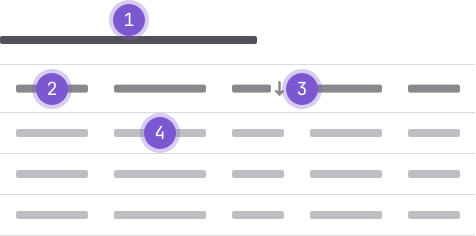
- Caption: Provides a meaningful description for a table. A caption should only be optional when a heading directly precedes the table and provides clear enough context for it.
- Header cell: Can be used to sort table content.
- Icon: Indicates sort direction:
- arrow-up icon for sorting ascending.
- arrow-down icon for sorting descending.
- Body cell: Supports text, buttons, links, and text accompanied by other common elements like an avatar or icon.
Guidelines
When to use
- Display tabular data for comparison.
- Display structured content, where each entry has the same attributes.
- Let users review, enter, edit, or filter granular data sets.
- Display a data set that will continue to grow (e.g. Issues, Environments, and User Profile pages).
When not to use
- Create page layout or design structure.
- Display a list of continuous, vertical indexes of text or images. Use a semantic HTML list instead.
- Display contained content and actions on a single topic. Use Cards instead.
- For hierarchical structures. Use the Tree view instead.
Variants
- Basic: A basic table is the default option for this component, however, additional functionality can be added to enhance the table for different use cases.
- Striped: A striped table adds zebra-striping to the entire table, starting with the the header row. The alternating row background colors can be helpful to differentiate row content.
- Condensed: A condensed table cuts the body cell padding in half. Use a condensed table when the content presented is data heavy and text only. For example, displaying log files.
Appearance
- Tables work across multiple screen sizes and conform to responsive guidelines.
- Tables take up the full width of their container element. However, it is important to note that wide tables make it difficult to read and scan small amounts of content, because the data is widely separated. For legibility, ensure content is laid out and aligned properly.
- Don’t simply shrink an entire table to fit the viewport or apply a fixed width to a table to the point that it compromises legibility. The same way stretching tables 100% to the width of the viewport is not recommended, a small, shrunken table view can create a cluttered interface. Use a responsive table view instead.
- Order the table content by importance, based on the information needs of your users.
- Text in tables tends to end up in narrow columns. Left-align text content, rather than justifying or centering it, to avoid confusion or readability issues.
- The label text styles are used for product tables since the content is more data rich and requires less line height.
- The paragraph text styles are used for Markdown tables in GitLab issues, merge requests, and documentation.
- In some circumstances, right-aligning the text content helps with readability. For example, right-align the numeric data with a consistent number of decimal places to improve scannability.
- Tables may switch their alignment for right-to-left audiences when designing for internationalization.
- Use white space in tables to improve scannability, visually separating data elements so that each can be individually identified and read as separate from the others.
- To help with styling, use horizontal lines between rows to visually separate content, including the last row item. Avoid any border or frame surrounding the table. Do not style tables to look like nets, with every number enclosed.
- Do not apply vertical lines between columns. In general, tables without vertical lines look better and are easier to scan and read.
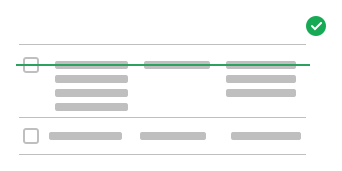
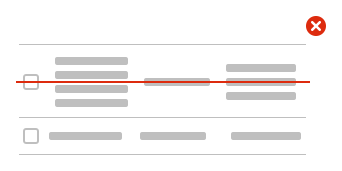
- By default, row content is vertically
topaligned. However, in some cases it does makes sense to verticallycenteralign content. Use your best judgement on when this is an exception. - As general rule, consider that alignment within a table is more important than consistency from table to table.
Do
Don’t
Behavior
Search & filter
Any filtering controls that manipulate the data set should be placed directly above the table with the option to clear all data. See filter guidelines.
New row
When a new row is dynamically added by the system, the background color of the row should be set to feedback.success.background.color in order to highlight the addition.
Ordering & sorting
- Sorting is designed as a native functionality of tables. Tables use column sorting rather than list sorting.
- The default sort direction of a table is usually ordered by one specific column attribute, such as status, last updated, or priority. Sorting is indicated in the table header using the arrow down and arrow up icons.
- Clicking the column header will sort the rows based on the selected column, in ascending order first, and subsequently toggling between ascending and descending order.
- Sorting can be disabled to prevent users from changing the sorting order of a column. The default order will utilize one specific attribute.
- The sorting icon and functionality should not be visible on responsive tables.
- To enable sorting for a particular table column, add
sortableas a property in yourfieldsdata, like so:
fields: [
  {
    key: 'first_name',
    label: 'First name',
    sortable: true,
  },
  ...
]
Null values should appear at the end of a sorted table in any sort direction. For example:
- Ascending order:
0, 1, 2, 20, — - Descending order:
20, 2, 1, 0, —
This keeps null values separate from the order and matches user expectations set by common data tools.
- Tables displaying data sets with more than 20 items should use pagination. See pagination guidelines
- If a condensed table is used, data sets with more than 40 items should use pagination.
Additional actions
- A table row can include additional actions in the far-right column.
- Ensure that the column has a header with "Actions" as the visible text.
- These actions should be visible at all times rather than showing on-hover.
- If there are two or more actions in a table row, consider using a button group or a more actions dropdown.
Responsiveness
At smaller breakpoints, tables can either maintain a tabular layout and scroll horizontally to view the overflow without breaking the page layout, or each row can be transformed into its own group where header content is present within each group.
- If the data in each row needs to be compared to data in other rows then maintain the tabular layout.
- If the content simply shares headers and can live on its own without comparison, transform each row into its own group.
- If a row has embedded actions that could be missed when overflowing in the default tabular layout, transform each row into its own group so the actions can always be visible.
Interactive tables
If table cells needs to be navigable (not just some of the content within), consider extending the table as a grid composite widget.
Selecting rows
Add behavior guidelines for selectable rows. Create an issue
Content
Caption
A <caption> provides a meaningful description for a table.
- A table header is the row at the top of the table that helps identify the columns below. The header provides clarity if data is non-descriptive or ambiguous.
- Tables should always include table headers. For short tables and for tables whose data are self explanatory, column headers are sufficient. For long tables or tables where data may be confusing, it is best to include row and column headers.
- Headers should be short, descriptive, and relevant. Avoid headers that are too long for the content in the rows below, and use sentence case. There may be exceptions where title case is preferred from a design standpoint.
Columns
Columns should be ordered by priority or in a way that tells a story with the data. Size columns according to the data they contain rather than making them all an even width. For example, columns of small content should be narrow, while columns of paragraphs should be relatively wide. Allow the browser to lay out the tables according to the viewport size.
Rows
Rows can have a mix of read-only and editable cells with content populated by users. See additional actions on table rows.
Empty state
A table's empty state displays when there is no data, yet. See empty states guidelines
Null values
Decide how to represent null values on a case-by-case basis, but prefer approaches that communicate why data is missing rather than just that it's missing. Make sure null values are significantly different from 0 values.
Use descriptive text when possible
A text label is the most accessible and informative option. Use a text label when the absence of data is meaningful to the user's workflow.
For example:
- Items without a designated assignee display "Unassigned" in the assignee field.
- Items for which the field does not apply display "Not applicable" in that column.
- Items with no existing data for the field display "No value" in that column.
Use an em dash as a fallback
An em dash (—) is appropriate for dense data tables where descriptive text would create too much visual noise, especially in numeric columns.
Accompany the em dash with a tooltip that explains why the data is unavailable. For example:
- "Insufficient data to calculate median"
- "Tracking not enabled for this flow"
- "No activity in this time period"
Use empty cells as a last resort
If a cell must appear empty, pair it with visually hidden text so a screen reader can announce the state. Without this, a screen reader might skip over an empty cell entirely, which can disorient a user navigating the table.
Always provide screen reader context
A screen reader might skip an empty cell or not voice certain characters like a dash, which can disorient a user navigating the table. When using an em dash or leaving a cell visually empty, pair it with visually hidden text so the screen reader can announce the state.
<!-- Em dash with screen reader context -->
<td>
  <span aria-hidden="true">—</span>
  <span class="gl-sr-only">No data</span>
</td>

<!-- Visually empty cell with screen reader context -->
<td>
  <span class="gl-sr-only">No data</span>
</td>
Long content
Lengthy content should be truncated according to the layout guidelines.
Accessibility
Use proper semantic markup, so that users of screen readers can navigate through the table one cell at a time, hearing column and row headers spoken to them.
<th>should not contain heading elements.<th>should be descriptive and relevant.<th>should have a definedscopeattribute to establish relationships between the table headings and rows/columns; for example,<th scope="col">.<caption>must be used to provide a title for a table.<caption>must be an immediate child element of<table>.
Code reference
GlTable
The gl-table component wraps BootstrapVue b-table component. b-table provides a variety of
slots for custom data rendering. You can learn more about them in the
component documentation.
When using the component, pass in the fields prop as part of the $options, and give each table
data and table head its own styles if necessary.
Internationalization
To ensure we internationalize field labels, always pass an array of objects for the fields prop,
like mentioned in the implementation example.
Learn more about the field prop.
To align a given TH element's text to the right, set the thAlignRight property to true in
the fields definition. This will ensure that proper styling is applied, including when the column
is sortable.
const fields = [
  {
    key: 'column_one',
    label: __('First column'),
    sortable: true,
    thAlignRight: true,
  },
];
Use GlTableLite when possible
If you don't need all the features of GlTable, like filtering, sorting, or
pagination, use GlTableLite which offers a subset of GlTable features.
Implementation Example
<script>
  export default {
    fields: [
      {
        key: 'column_one',
        label: __('First column'),
        thClass: 'w-60p',
        tdClass: 'table-col d-flex'
      },
      {
        key: 'col_2',
        label: __('Second column'),
        thClass: 'w-15p',
        tdClass: 'table-col d-flex'
      },
    ];
  }
</script>
<template>
  <gl-table :items="items" :fields="$options.fields">
    <template #head(column_one)>
      <div>First column</div>
      <!-- This is the column head for the first object in `fields` -->
    </template>

    <template #cell(column_one)>
      This is the template for column data belonging to the first object
    </template>
  </gl-table>
</template>
GlTableLite
The GlTableLite component wraps BootstrapVue BTableLite component.
BTableLite provides a variety of slots for custom data rendering. You can learn
more about them in the
component documentation.
GlTable vs. GlTableLite
GlTableLite adds less payload to the pagebundle than GlTable.
When possible GlTableLite should be preferred over GlTable.
The GlTableLite component provides all of the styling and formatting features of
GlTable (including row details and stacked support), while excluding the following features:
- Filtering
- Sorting
- Pagination
- Items provider support
- Selectable rows
- Busy table state and styling
- Fixed top and bottom rows
- Empty row support
Internationalization
To ensure we internationalize field labels, always pass an array of objects for the fields prop,
like mentioned in the implementation example.
Learn more about the field prop.
Implementation example
<script>
  export default {
    fields: [
      {
        key: 'column_one',
        label: __('First column'),
        thClass: 'w-60p',
        tdClass: 'table-col d-flex'
      },
      {
        key: 'col_2',
        label: __('Second column'),
        thClass: 'w-15p',
        tdClass: 'table-col d-flex'
      },
    ];
  }
</script>
<template>
  <gl-table-lite :items="items" :fields="$options.fields">
    <template #head(column_one)>
      <div>First column</div>
      <!-- This is the column head for the first object in `fields` -->
    </template>

    <template #cell(column_one)>
      This is the template for column data belonging to the first object
    </template>
  </gl-table-lite>
</template>