Window: devicePixelRatio property - Web APIs | MDN
Value
A double-precision floating-point value indicating the ratio of the display's resolution in physical pixels to the resolution in CSS pixels. A value of 1 indicates a classic 96 DPI display, while a value of 2 is expected for HiDPI/Retina displays.
Other values may be returned in the case of unusually low resolution displays or, more often, when a screen has a higher pixel density than double the standard resolution of 96 DPI.
Modern mobile device screens - which offer high display resolutions at small physical sizes - often yield a devicePixelRatio value greater than 2.
Examples
Correcting resolution in a <canvas>
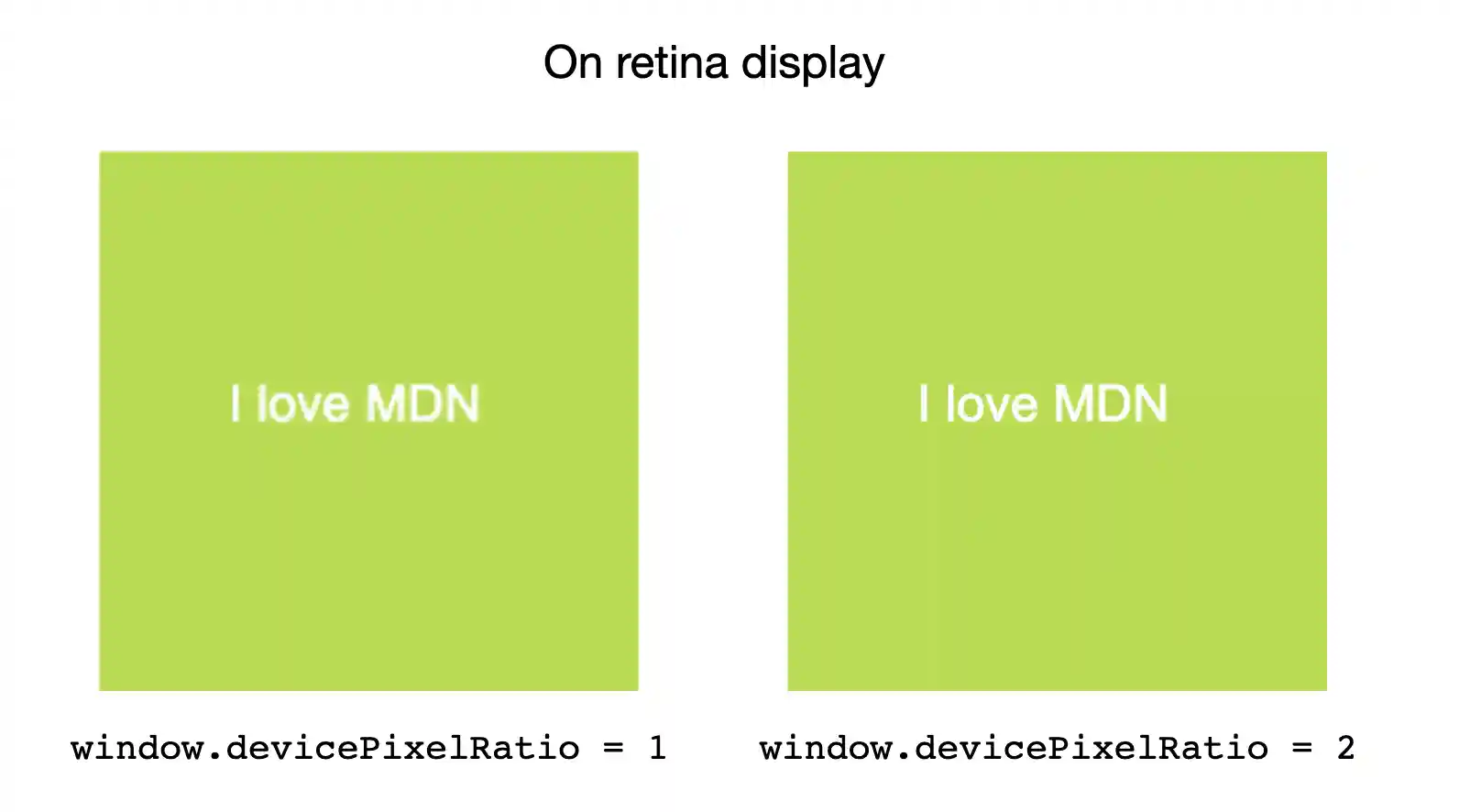
A <canvas> can appear too blurry on retina screens.
Use window.devicePixelRatio to determine how much extra pixel density should be added to allow for a sharper image.
HTML
html
<canvas id="canvas"></canvas>
JavaScript
js
const canvas = document.getElementById("canvas");
const ctx = canvas.getContext("2d");

// Set display size (css pixels).
const size = 200;
canvas.style.width = `${size}px`;
canvas.style.height = `${size}px`;

// Set actual size in memory (scaled to account for extra pixel density).
const scale = window.devicePixelRatio; // Change to 1 on retina screens to see blurry canvas.
canvas.width = Math.floor(size * scale);
canvas.height = Math.floor(size * scale);

// Normalize coordinate system to use CSS pixels.
ctx.scale(scale, scale);

ctx.fillStyle = "#bada55";
ctx.fillRect(10, 10, 300, 300);
ctx.fillStyle = "white";
ctx.font = "18px Arial";
ctx.textAlign = "center";
ctx.textBaseline = "middle";

const x = size / 2;
const y = size / 2;

const textString = "I love MDN";
ctx.fillText(textString, x, y);
Monitoring screen resolution or zoom level changes
In this example, we'll set up a media query and watch it to see when the device resolution changes, logging the new resolution.
HTML
html
<div id="container">
  <p>
    This example demonstrates the effect of zooming the page in and out (or
    moving it to a screen with a different scaling factor) on the value of the
    <code>devicePixelRatio</code> property.
  </p>
  <p>Try it and watch what happens!</p>
</div>
<div id="output"></div>
CSS
css
body {
  font:
    22px "Arial",
    sans-serif;
}

#container {
  border: 2px solid #2222dd;
  margin: 1rem auto;
  padding: 1rem;
  background-color: #aa99ff;
}
JavaScript
The string mqString is set to a media query which checks to see if the current display resolution matches a specific number of device dots per px.
The media variable is a MediaQueryList object that's initialized with the media query string. When the result of running mqString against the document changes, the media object's change event fires, and the code logs the new resolution.
Note that every time the resolution changes, the example has to create a new media query, based on the new resolution, and a new MediaQueryList instance.
js
let remove = null;
const output = document.querySelector("#output");

const updatePixelRatio = () => {
  remove?.();
  const mqString = `(resolution: ${window.devicePixelRatio}dppx)`;
  const media = matchMedia(mqString);
  media.addEventListener("change", updatePixelRatio);
  remove = () => {
    media.removeEventListener("change", updatePixelRatio);
  };

  output.textContent = `devicePixelRatio: ${window.devicePixelRatio}`;
};

updatePixelRatio();
Result
To test the example, try zooming the page in and out, and note the difference in the logged value of devicePixelRatio.
Specifications
| Specification |
|---|
| CSSOM View Module # dom-window-devicepixelratio |
Browser compatibility
See also
- Media queries
- Using media queries
resolution- The
image-resolutionproperty