Record time & activities in Calendar & Sheets
-
This solution is a beginner-level automation project that takes 15 minutes to set up, using a custom menu to sync Google Calendar events with Google Sheets to create a timesheet or import activities.
-
The script uses a sidebar to configure sync settings, including selecting calendars and time periods, and optionally overwriting event details with information from the spreadsheet.
-
Key Apps Script services utilized are the HTML service for the sidebar, Properties service for storing settings, Calendar service for retrieving events, and Spreadsheet service for managing data in the sheet and updating Calendar.
-
Prerequisites include a Google Account and internet access, and the setup involves creating a Google Calendar and making a copy of the provided sample spreadsheet with the attached Apps Script project.
-
The script allows you to categorize time by customer, project, and task in the Sheets file, providing a dashboard view of total time spent by these categories.
Coding level: Beginner
Duration: 15 minutes
Project type: Automation with a custom menu
Objectives
- Understand what the solution does.
- Understand what the Apps Script services do within the solution.
- Set up your environment.
- Set up the script.
- Run the script.
About this solution
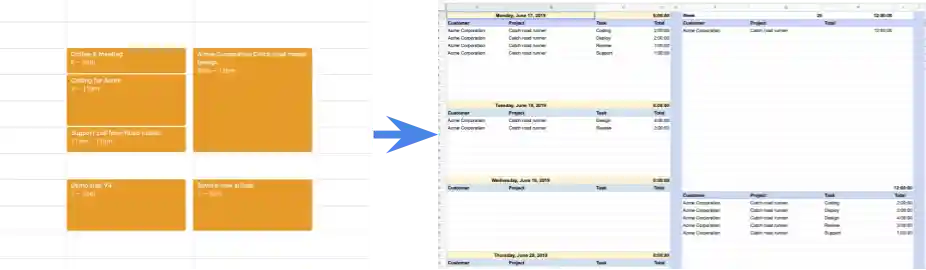
Keep track of time spent on projects for customers. You can record your project-related time in Google Calendar, then sync it with Google Sheets to create a timesheet or import your activity into another timesheet management system. You can categorize your time by customer, project, and task.
How it works
The script provides a sidebar that lets you select the calendars to sync, the time period to sync with, and whether to overwrite event titles and descriptions with information entered in the spreadsheet. Once those settings are configured, you can sync events and view your activities on a dashboard.
The script brings in events from the calendars and time period you specify from Calendar to the spreadsheet. You can add customers, projects, and tasks to the categories sheet and then tag the events accordingly in the hours sheet. This way, when you view the dashboard sheet, you can view total time by customer, project, and task.
Apps Script services
This solution uses the following services:
- HTML service–Builds the sidebar used to configure synchronization settings.
- Properties service–Stores the settings the user selects on the sidebar.
- Calendar service–Sends the event information to the spreadsheet.
- Spreadsheet service–Writes the events to the spreadsheet, and if configured, sends updated title and description information to Calendar.
Prerequisites
To use this sample, you need the following prerequisites:
- A Google Account (Google Workspace accounts might require administrator approval).
- A web browser with access to the internet.
Set up your environment
If you plan to use an existing calendar, you can skip this step.
- Go to calendar.google.com.
- Next to Other calendars, click Add other calendars > Create new calendar.
- Name your calendar and click Create calendar.
- Add some events to the calendar.
Set up the script
Click the following button to make a copy of the Record time and activities
sample spreadsheet. The Apps Script project for this
solution is attached to
the spreadsheet.
Make a copy
Run the script
Sync calendar events
- Click myTime > Settings. You might need to refresh the page for this custom menu to appear.
When prompted, authorize the script. If the OAuth consent screen displays the warning, This app isn't verified, continue by selecting Advanced > Go to {Project Name} (unsafe).
Click myTime > Settings again.
From the list of available calendars, select the calendar you created and any other calendars you want to sync.
Configure the rest of the settings and click Save.
Click myTime > Sync calendar events.
Set up the dashboard
- Go to the Categories sheet.
- Add customers, projects, and tasks.
- Go to the Hours sheet.
- For each synced event, select the customer, project, and task.
- Go to the Dashboard sheet.
- The first section provides daily totals. To update the list of dates for
the daily totals, change the date in cell
A1. - The next section provides weekly totals and corresponds to the date
selected in
A1. - The last three sections provide overall totals by task, project, and customer.
- The first section provides daily totals. To update the list of dates for
the daily totals, change the date in cell
Review the code
To review the Apps Script code for this solution, click View source code below:
View source code
Code.gs
Page.html
Contributors
This sample was created by Jasper Duizendstra, Google Cloud Architect and Google Developer Expert. Find Jasper on Twitter @Duizendstra.
This sample is maintained by Google with the help of Google Developer Experts.