Quickstart Guide
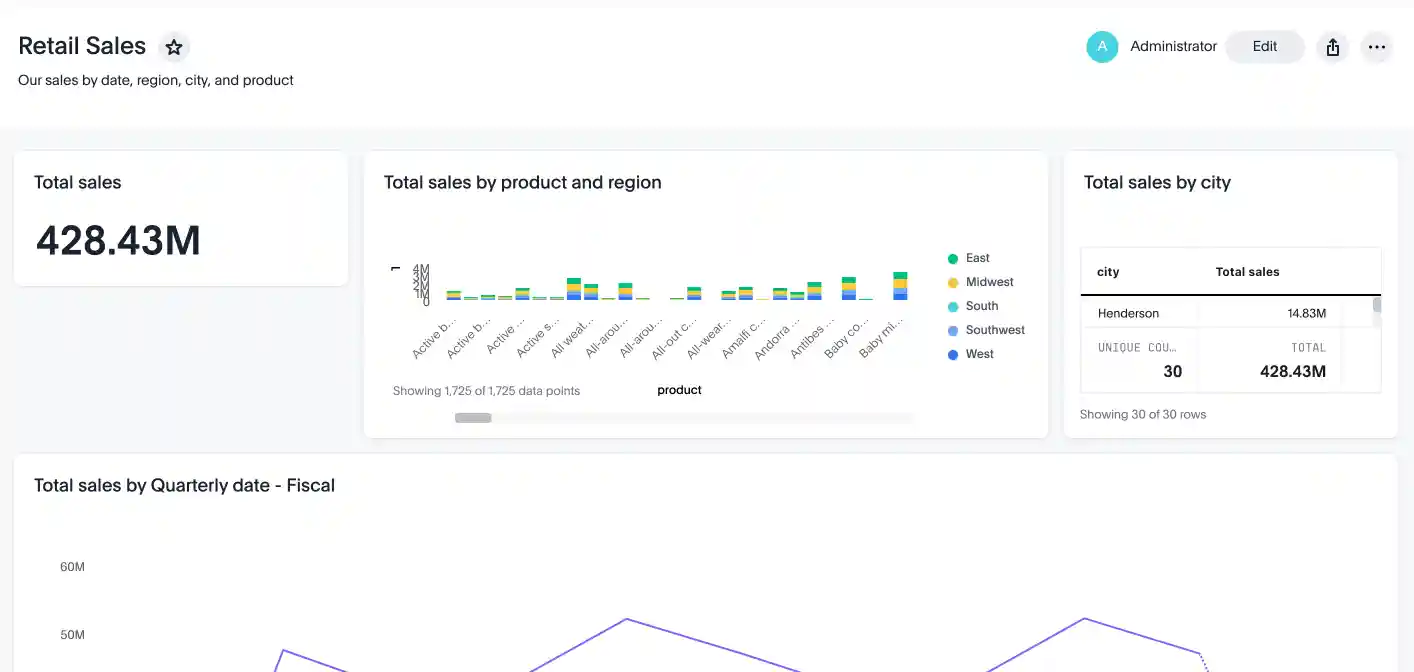
This section provides a set of steps to quickly embed a Liveboard from the Free Trial or your own ThoughtSpot application instance. The following figure shows a sample Liveboard with charts and a table:
If you want to embed other ThoughtSpot components and explore the additional capabilities of the Visual Embed SDK, see the embedding components guide or the resources listed in the Explore more section.
Step 1: Import the Visual Embed SDK🔗
The Visual Embed SDK is available as both ES Module (ESM) and Universal Module Definition (UMD) modules, allowing you to use it in a variety of environments.
In this example, we’ll import the LiveboardEmbed SDK package to embed a Liveboard.
npm
import {
    LiveboardEmbed,
    AuthType,
    init,
    prefetch,
    EmbedEvent
}
from '@thoughtspot/visual-embed-sdk';
ES6
<script type = 'module'>
    import {
        LiveboardEmbed,
        AuthType,
        init,
        prefetch
    }
from 'https://cdn.jsdelivr.net/npm/@thoughtspot/visual-embed-sdk/dist/tsembed.es.js';
Step 2: Initialize the SDK🔗
To initialize the SDK, the following information is required:
-
thoughtSpotHost
The hostname of your ThoughtSpot application instance. For example,team2.thoughtspot.cloud. See FAQs to know how to find the hostname of your application instance. -
authType
Authentication type. ThoughtSpot supports a variety of Authentication types. For testing purposes, you can useAuthType.None. For other authentication options, see Authentication.
init({
    thoughtSpotHost: '<%=tshost%>',
    authType: AuthType.None,
});
Ensure that you call init before render().
Step 3: Add the component🔗
Each embedding option requires you to define the properties of the component you want to embed. For example, to embed a Liveboard, you must specify the GUID of the Liveboard.
import {
    LiveboardEmbed, // Import the class to embed a ThoughtSpot Liveboard
    AuthType,       // Import authentication type constants
    init,           // Import the SDK initialization function
} from '@thoughtspot/visual-embed-sdk';

// Initialize the ThoughtSpot Visual Embed SDK with the host and authentication type.

init({
    thoughtSpotHost: '<%=tshost%>', // Replace <%=tshost%> with your ThoughtSpot instance URL.
    authType: AuthType.None, // no authentication (for testing purposes only).
});

// Create a new LiveboardEmbed instance.
// '#container' is the selector for the DOM element where the Liveboard will be rendered.

const lb = new LiveboardEmbed('#container', {
// frameParams sets the iframe width and height to fill the container.
    frameParams: {
        width: '100%',
        height: '100%',
    },
    liveboardId: '22e79c21-eec4-40bf-997b-7454c6e3a2a5', // GUID of the Liveboard to embed.
});

// Render the embedded Liveboard inside the specified container.
// This step is required to display the Liveboard.
lb.render();
The #container in the above example is a selector for the DOM node which the code assumes is already attached to DOM. The SDK will render the ThoughtSpot component inside this container element.
|
Note |
|
// Import the LiveboardEmbed React component from the ThoughtSpot Visual Embed SDK
import { LiveboardEmbed } from '@thoughtspot/visual-embed-sdk/react';

const App = () => {
    // Create a ref to interact with the embedded Liveboard instance
    const embedRef = useEmbedRef();

    // Event handler called when the Liveboard has finished rendering
    const onLiveboardRendered = () => {
        // Trigger a HostEvent to update runtime filters on the embedded Liveboard
        // This filter sets the 'item type' column to only show rows where the value is 'Jackets'
        embedRef.current.trigger(HostEvent.UpdateRuntimeFilters, [
            {
                columnName: 'item type',
                operator: RuntimeFilterOp.EQ,
                values: ['Jackets'],
            },
        ]);
    };

    // Render the LiveboardEmbed component with the specified Liveboard ID and event handler
    return (
        <LiveboardEmbed
            ref={embedRef} // Attach the ref for programmatic control
            liveboardId="22e79c21-eec4-40bf-997b-7454c6e3a2a5" // The GUID of the Liveboard to embed
            onLiveboardRendered={onLiveboardRendered} // Register the event handler
        />
    );
};
Step 4: Verify the embedded object🔗
Load the application page with the embedded object in your app.
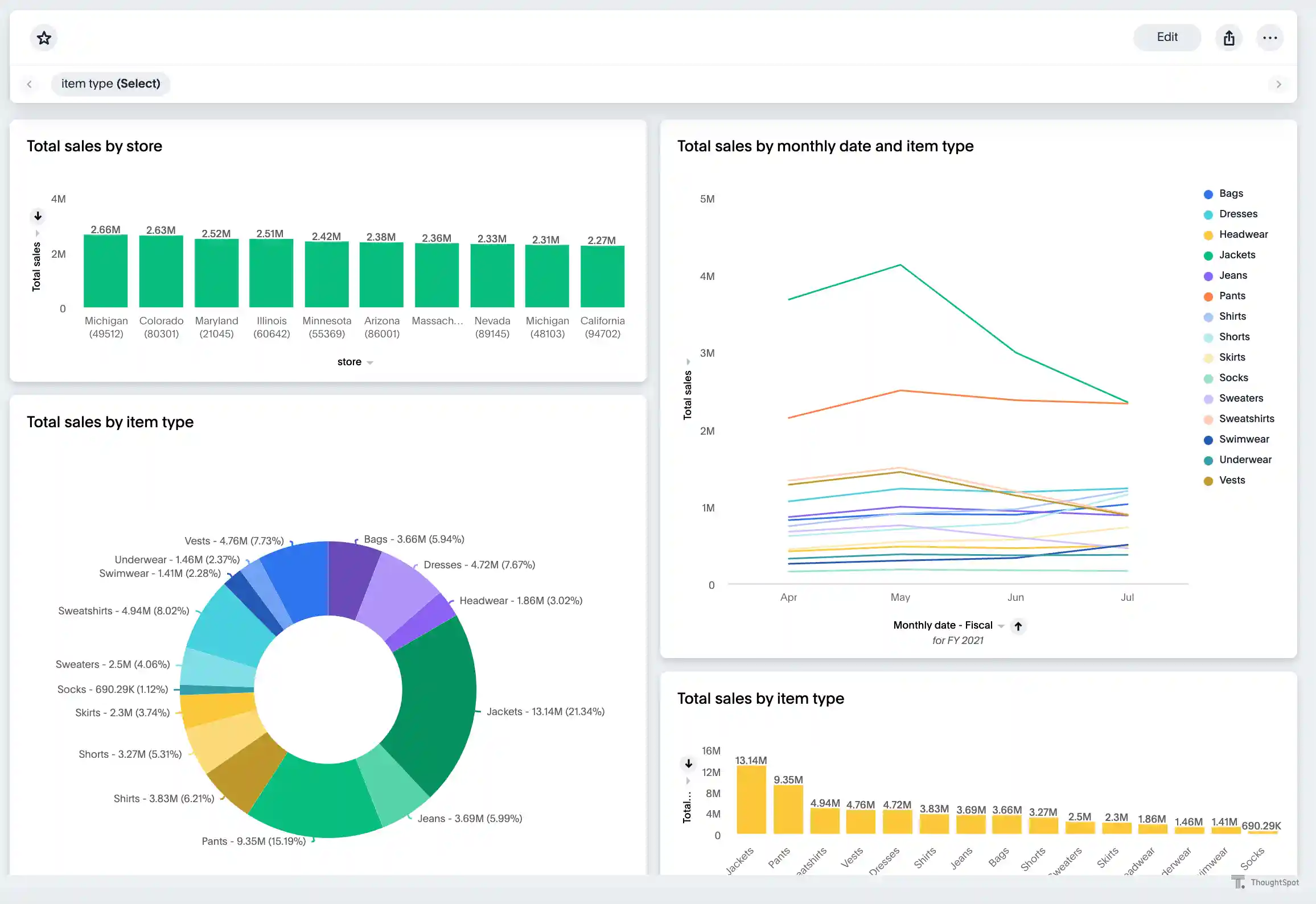
The following figure shows an embedded view of the Liveboard object.