Learn how to launch and use DevTools from VS Code.
Add the VS Code extensions
To use the DevTools from VS Code, you need the Dart extension. If you're debugging Flutter applications, you should also install the Flutter extension.
Start an application to debug
Start a debug session for your application by opening the root
folder of your project (the one containing pubspec.yaml)
in VS Code and clicking Run > Start Debugging (F5).
Once the debug session is active and the application has started,
the Open DevTools commands become available in the
VS Code command palette (F1):
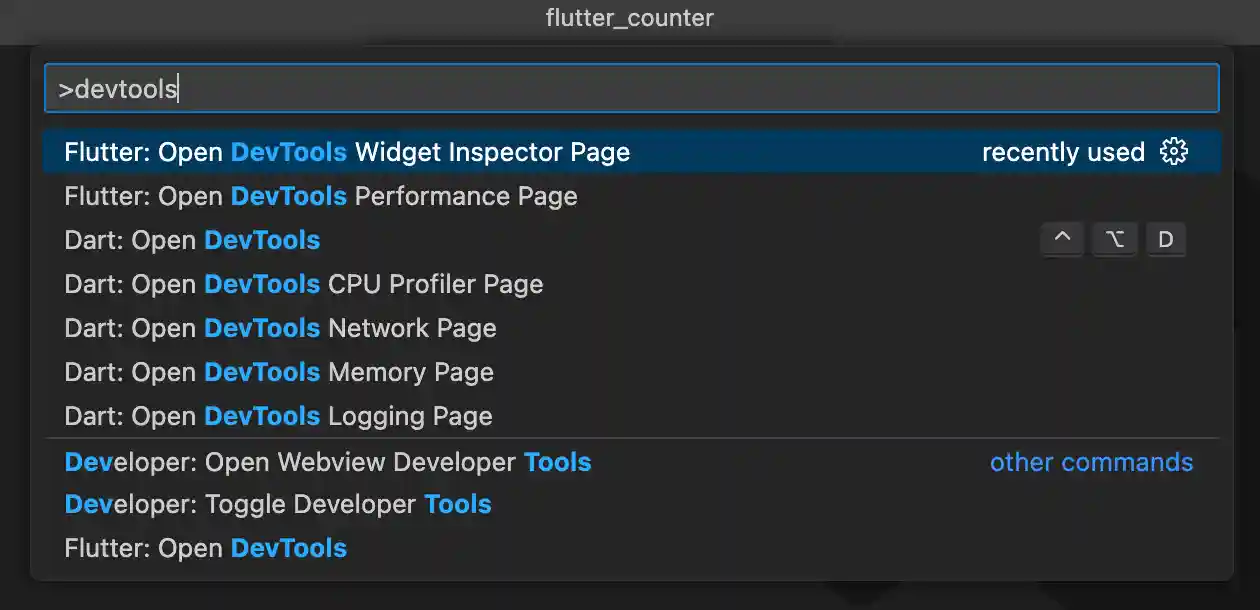
The chosen tool will be opened embedded inside VS Code.

You can choose to have DevTools always opened
in a browser with the dart.embedDevTools setting,
and control whether it opens as a full window or
in a new column next to your current editor with the
dart.devToolsLocation setting.
A full list of Dart/Flutter settings are available on dartcode.org or in the VS Code settings editor. Some recommendation settings for Dart/Flutter in VS Code can also be found on dartcode.org.
You can also see whether DevTools is running
and launch it in a browser from the language status area
(the {} icon next to Dart in the status bar).

Was this page's content helpful?
Unless stated otherwise, the documentation on this site reflects Flutter 3.41.2. Page last updated on 2025-06-28. View source or report an issue.