Tutorials | Pixie 101 | Continuous Application Profiling
This tutorial will demonstrate how to use Pixie's Always-On Profiling feature to investigate a spike in CPU utilization, using a flamegraph to identify a performance issue within the application code.
Pixie's continuous profiler currently supports Go, C++, Rust and Java. For best results, run Java applications with -XX:+PreserveFramePointer. Other language support coming soon.
Prerequisites
You will need a Kubernetes cluster with Pixie installed. If you do not have a cluster, you can create a minikube cluster and install Pixie using one of our install guides.
Java Support
Support for Java profiling is included by default in Pixie.
For best results, run Java applications with -XX:+PreserveFramePointer.
Setup
We are going to be working with GCP's Online Boutique, a microservices demo application for a web-based e-commerce app where users can browse and purchase items.
- Install Pixie's modified version of Online Boutique on your cluster using Pixie's CLI. If you already have
px-online-boutiquerunning on your cluster, please re-deploy, as recent modifications have been made to this demo.
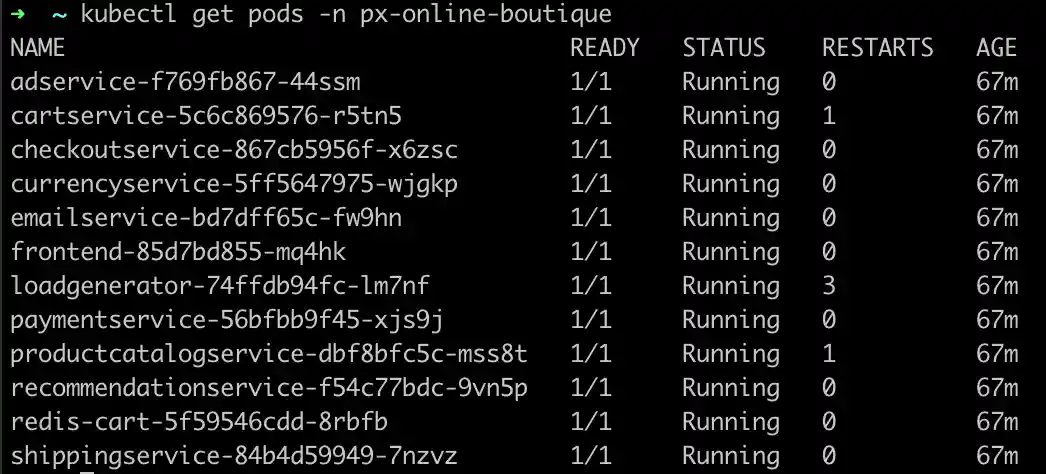
- Check to see that the pods are ready and available:
You should see something similar to the following:
Monitoring the Demo Application
We are going to use Pixie to check the health of a specific pod.
Open Pixie's Live UI
Select your cluster and the
px/namespacesscript from the drop-down menus in the top bar.
The px/namespaces script lists the namespaces on the current cluster with their pod and service counts. You should see both Pixie's namespace (pl) as well as the Online Boutique namespace (px-online-boutique).

- Click on
px-online-boutiquein the list of namespaces to be taken to thepx/namespacescript.
This script lists the services and pods within the selected namespace.
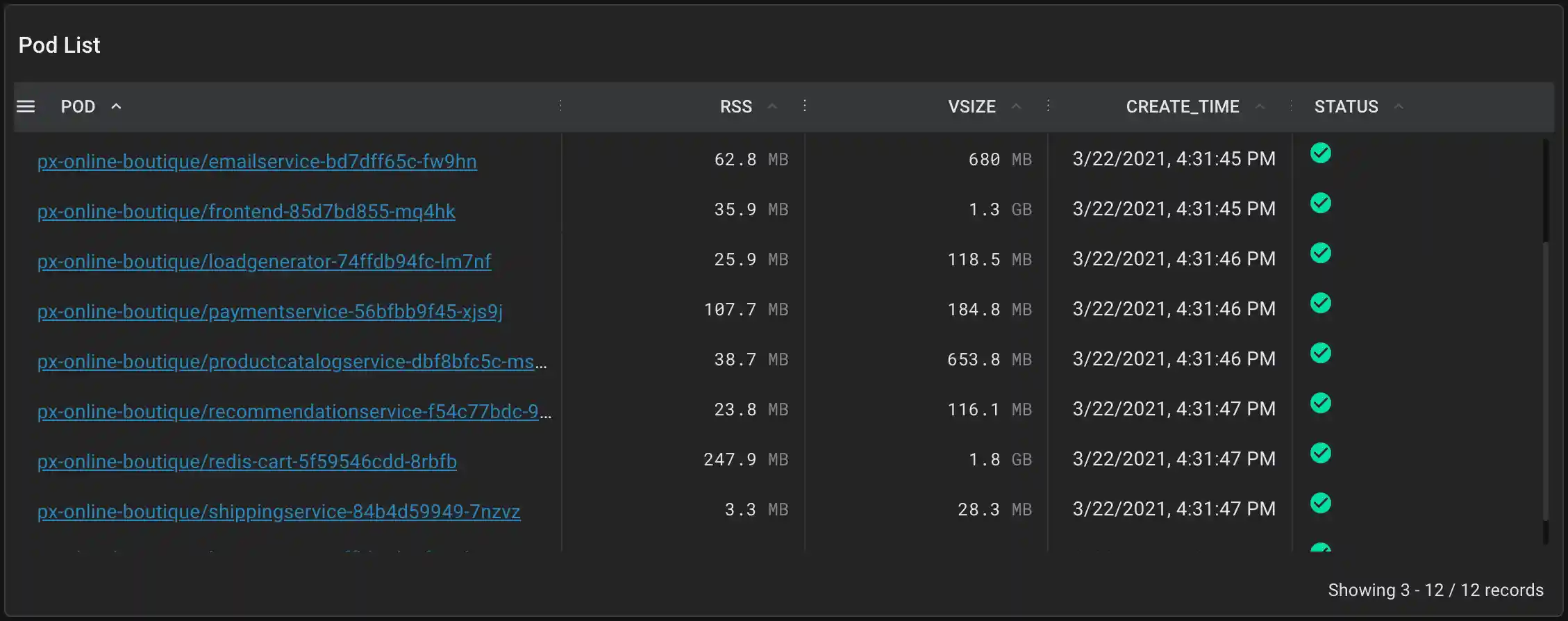
- Scroll down to the "Pod List" table and click on the
px-online-boutique/poductcatalogservice-...pod.
Selecting the pod name takes us to the px/pod script which shows an overview of the high level application metrics (latency, error, throughput) and resource utilization for the selected pod. This pod's metrics look normal based on our knowledge of the app.

Switching on a New Feature
Our friends on the Product Catalog team have built a feature to dynamically reload the product catalog. Let's help them turn on this new feature.
- Turn on Dynamic Catalog Reloading by sending a USR1 signal to the
productcatalogservicepod:
- After waiting a minute or two for these changes to take effect, switch back to the Live UI and re-run the
px/podscript using the RUN button in the top right.
This chart shows some concerning information. Our HTTP throughput has plummeted from ~140 rps to ~10 rps ("HTTP Requests" graph), the request latency has spiked to 16s ("HTTP Latency" graph), and our CPU usage has spiked from ~8% to ~18% ("CPU Usage" graph).
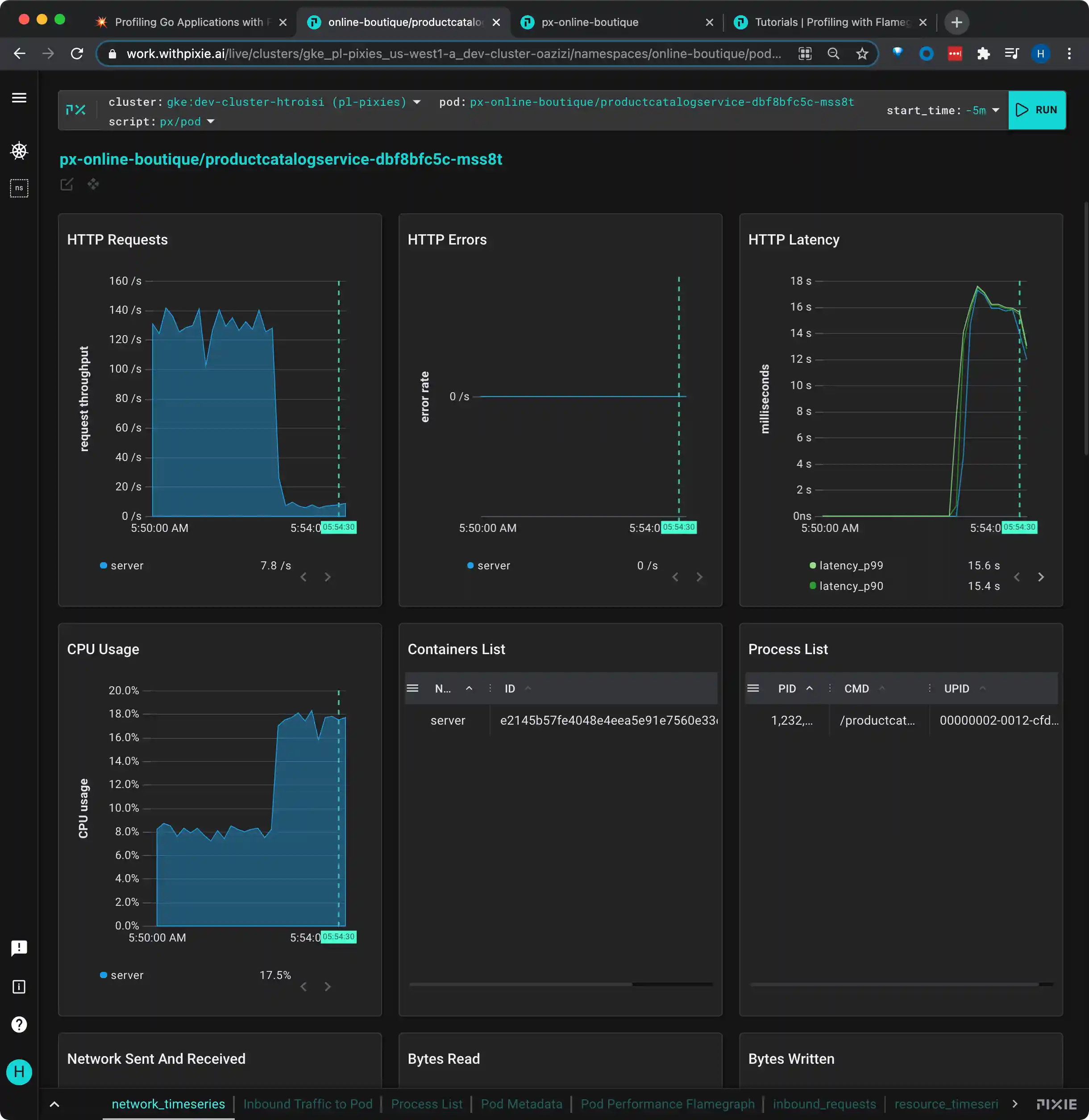
Note: if your graph does not show similar changes to those shown above, try waiting another minute and re-running the script.
Reading the Flamegraph
Let's take a look at the flamegraph for this pod and see if it can help us identify the root cause of this performance issue.
Scroll down to the bottom of the px/pod page, to take a look at the "Pod Performance Flamegraph".
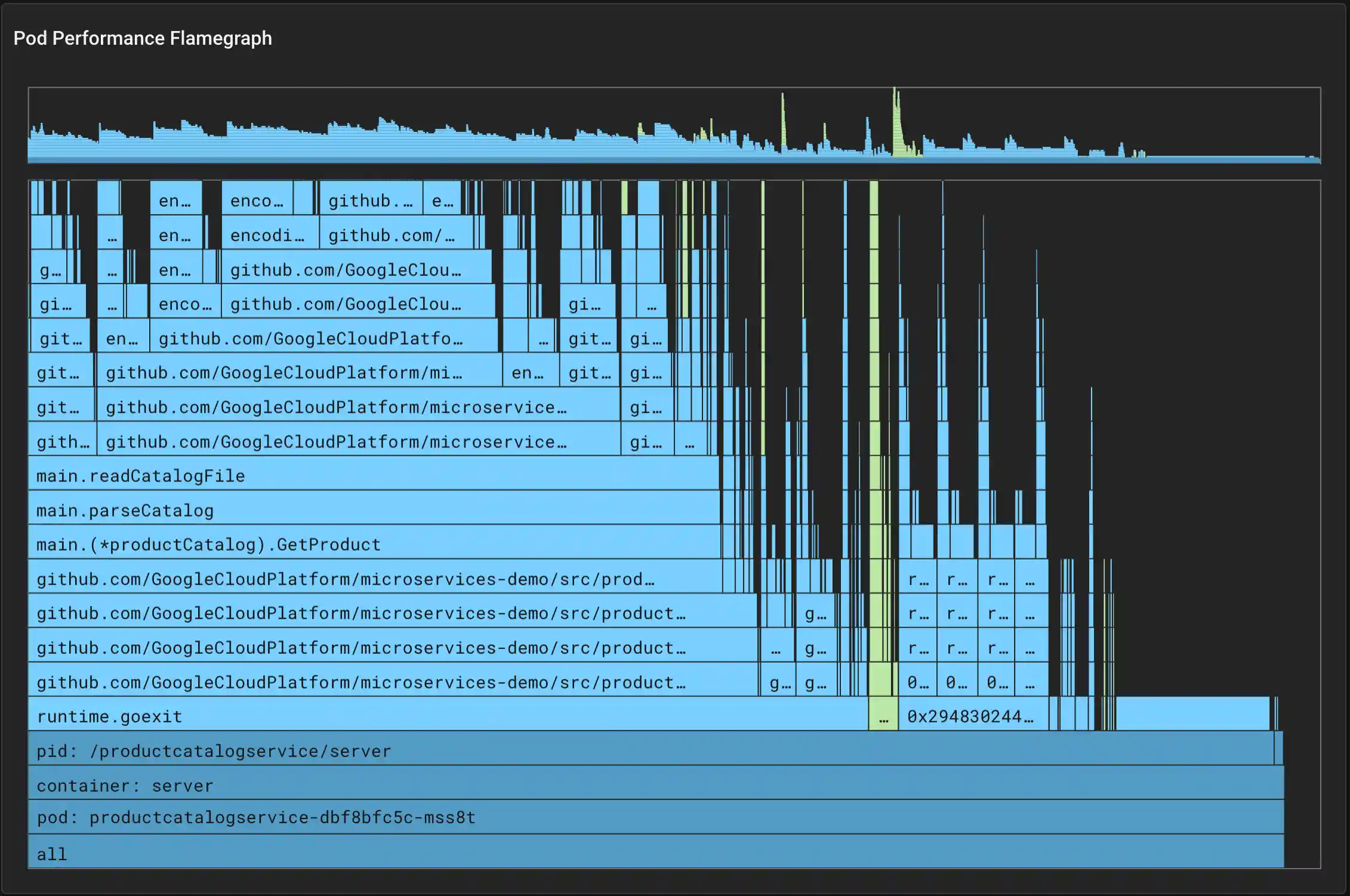
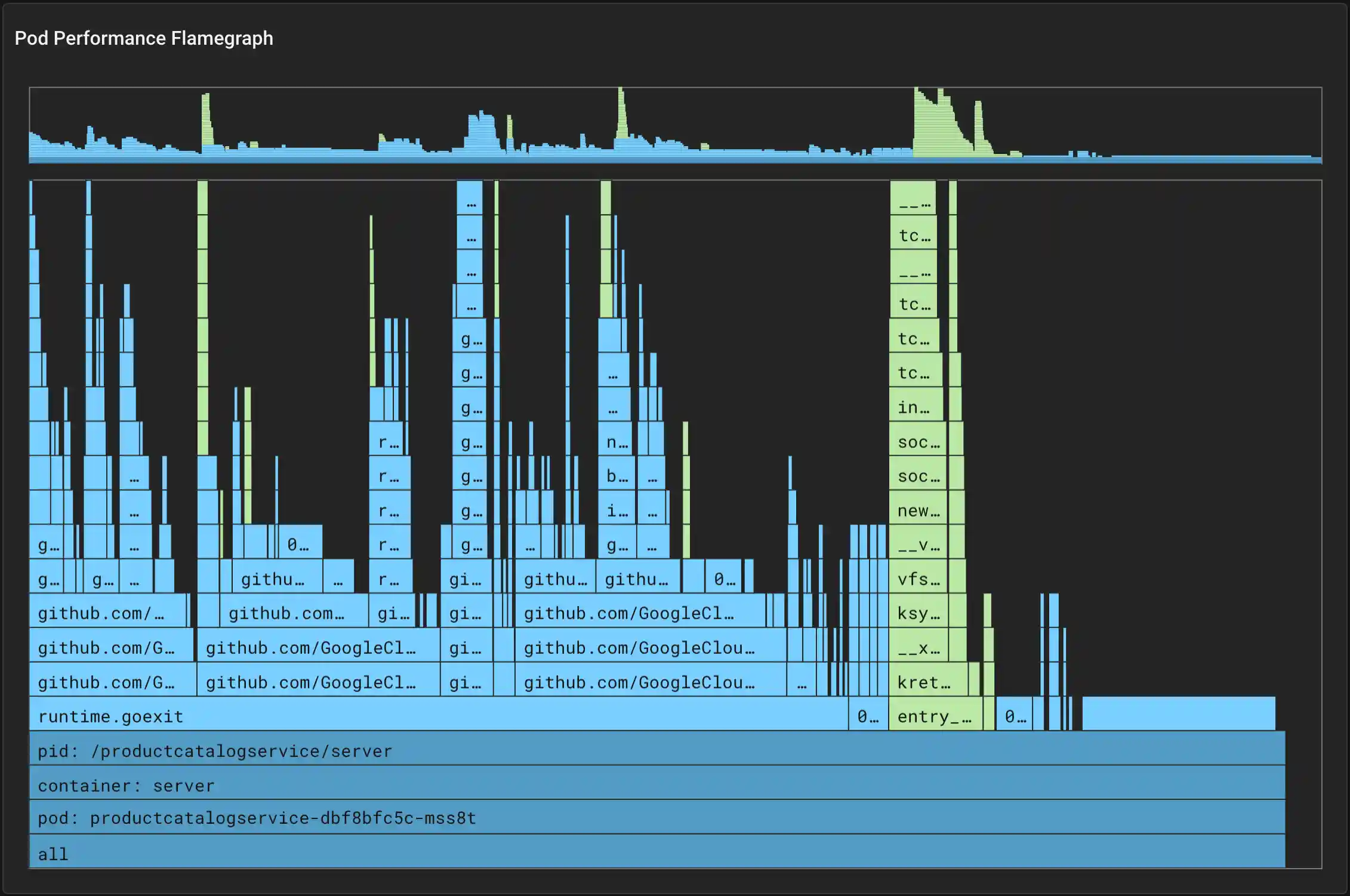
Every ~10ms, the Pixie profiler samples the current stack trace on each CPU. The stack trace includes the function that was executing at the time of the sample, along with the ancestor functions that were called to get to this point in the code.
The collected samples are aggregated across a larger 30 second window that includes thousands of stack traces. These stack traces are then grouped by their common ancestors. At any level, the wider the stack, the more often that function appeared in the stack traces. Wider stack traces are typically of more interest as it indicates a significant amount of the application time being spent in that function.
Colors
The background color of each box in the flamegraph adds an extra dimension of data:
- Dark blue bars indicate K8s metadata info (node, namespace, pod, container).
- Light blue bars represent user space application code.
- Green bars represent kernel code.

Navigation
You can interact with Pixie's flamegraph widget in the following ways:
- Scroll to zoom.
- Click + drag to pan the view around (works for minimap & main view).
ctrl(Linux, Windows) /cmd(Mac) + click to center the view on the selected element. Click on the bottom most bar to reset the zoom.
Focus on Wider Stacks
Starting at the base of the application code (light blue), hover over the widest bar to read the function names and percentage of time spent in each function.
Working our way up the stack, we see that the ProductHandler() calls GetProduct(), which calls parseCatalog(), which in turn calls readCatalogFile(), which make calls to a JSON reader.
It certainly seems odd that we should be reading the catalog's json file every time we get a product.
Note: if your flamegraph does not show a very wide stack that includes the parseCatalog() function, try waiting another minute and re-running the script.
Examining the Application Code
Let's take a look at the productcatalog application code. parseCatalog() only calls readCatalogFile() if the reloadCatalog flag is set or if the catalog is empty.
Looking elsewhere in the code, we see that the reloadCatalog flag was set when we sent a USR1 signal to enable the catalog reloading feature.
The developers of this code have created a buggy feature - the reloadCatalog flag is not getting set to false after a reload. Instead, the catalog is read from file every single time the catalog is accessed.
Fixing the Bug
To turn off the buggy "dynamic catalog reloading" feature, send a USR2 signal:
New Flamegraph
Change the start_time script argument (next to the RUN button) to -1m and re-run the script.
You should see CPU usage drop and HTTP request throughput increase. Scroll down to the flamegraph at the bottom of the page and you should see that considerably less time is spent in the parseCatalog() function. This "flame" on the graph is now much more narrow.