Unity - Scripting API: EditorGUI.FloatField
Success!
Thank you for helping us improve the quality of Unity Documentation. Although we cannot accept all submissions, we do read each suggested change from our users and will make updates where applicable.
Submission failed
For some reason your suggested change could not be submitted. Please <a>try again</a> in a few minutes. And thank you for taking the time to help us improve the quality of Unity Documentation.
Declaration
public static float FloatField(Rect position, float value, GUIStyle style = EditorStyles.numberField);
Declaration
public static float FloatField(Rect position, string label, float value, GUIStyle style = EditorStyles.numberField);
Declaration
public static float FloatField(Rect position, GUIContent label, float value, GUIStyle style = EditorStyles.numberField);
Parameters
| Parameter | Description |
|---|---|
| position | Rectangle on the screen to use for the float field. |
| label | Optional label to display in front of the float field. |
| value | The value to edit. |
| style | Optional GUIStyle. |
Returns
float The value entered by the user.
Description
Makes a text field for entering floats.
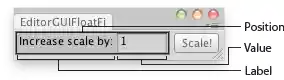
Float Field in an Editor Window.
using UnityEngine;
using UnityEditor;public class EditorGUIFloatField : EditorWindow
{
    float sizeMultiplier = 1;    [MenuItem("Examples/Scale selected Object")]
    static void Init()
    {
        var window = GetWindow<EditorGUIFloatField>();
        window.position = new Rect(0, 0, 210, 30);
        window.Show();
    }    void OnGUI()
    {
        sizeMultiplier = EditorGUI.FloatField(new Rect(3, 3, 150, 20),
            "Increase scale by:",
            sizeMultiplier);        if (GUI.Button(new Rect(160, 3, 45, 20), "Scale!"))
        {
            Selection.activeTransform.localScale = Selection.activeTransform.localScale * sizeMultiplier;
        }
    }
}