Unity - Scripting API: Handles.Slider2D
Success!
Thank you for helping us improve the quality of Unity Documentation. Although we cannot accept all submissions, we do read each suggested change from our users and will make updates where applicable.
Submission failed
For some reason your suggested change could not be submitted. Please <a>try again</a> in a few minutes. And thank you for taking the time to help us improve the quality of Unity Documentation.
Parameters
| Parameter | Description |
|---|---|
| id | (optional) override the default ControlID for this Slider2D instance. |
| handlePos | The position of the current point in the space of Handles.matrix. |
| offset | (optional) renders the Slider2D at handlePos, but treats the Slider2D's origin as handlePos + offset. Useful for Slider2D instances that are placed/rendered relative to another object or handle. |
| handleDir | The direction of the handle in the space of Handles.matrix, only used for rendering of the handle. |
| slideDir1 | The first axis of the slider's plane of movement in the space of Handles.matrix. |
| slideDir2 | The second axis of the slider's plane of movement in the space of Handles.matrix. |
| handleSize | The size of the handle in the space of Handles.matrix. Use HandleUtility.GetHandleSize if you want a constant screen-space size. |
| snap | (float or Vector2) The snap increment along both axes, either uniform or per-axis. See Handles.SnapValue. |
| drawHelper | (default: false) render a rectangle around the handle when dragging. |
| capFunction | The function to call for doing the actual drawing. |
Returns
Vector3 The new value modified by the user's interaction with the handle. If the user has not moved the handle, it will return the position value passed into the function.
Description
Make a 3D slider that moves along a plane defined by two axes.
This method will draw a 3D-draggable handle on the screen. The handle is constrained to sliding along a plane in 3D space.
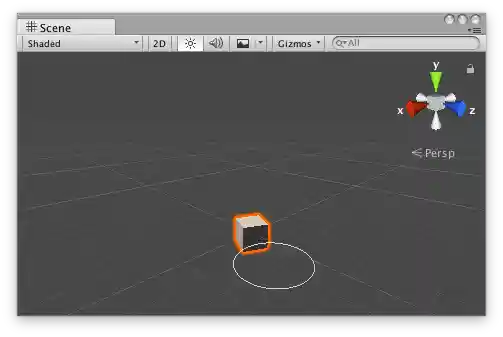
2D slider handle in the Scene View.
Add the following script to your Assets folder as Slider2DExample.cs and add the Slider2DExample component to an object in a Scene.
Add the following script to Assets/Editor as Slider2DExampleEditor.cs and select the object with the Slider2DExample component.