Towards Conversational AI with TigerGraph + RASA + ConceptNet5
This is a complete solution package for representing ConceptNet5, WordNet as TigerGraphs' and building a Dictionary application using the RASA platform.
Technical Blog
A detailed overview of the project is presented in the below technical article:
- https://medium.com/@sudha.vijayakumar_74093/a-common-sense-word-network-with-tigergraph-573745e4504d
Hands-On Video Tutorial
==COMING SOON==
Steps to run this solution:
Prerequisites: Before, getting started install the following,
- Python 3 => https://docs.python-guide.org/starting/install3/osx/
- Jupyter notebook/ MS Visual Studio Code => https://jupyter.org/install
- RASA => https://rasa.com/docs/rasa/installation/
- Create tgcloud solution => https://www.tigergraph.com/blog/taking-your-first-steps-in-learning-tigergraph-cloud/
- keep the solution url, username, password handy to plug-in to the backend APIs in RASA at Step-4.
Step-0: Clone the repository
Step-1: Data Gathering - ConceptNet5, WordNet
- Run 1_WordNet.ipynb

- Run 2_MergeWordNet-ConceptNet.ipynb

Step-2: Data Preprocessing - ConceptNet5, WordNet
- Run 3_Preprocess.ipynb

Step-3: Load ConceptNet5 As TigerGraph (for Wiki demo chatbot)
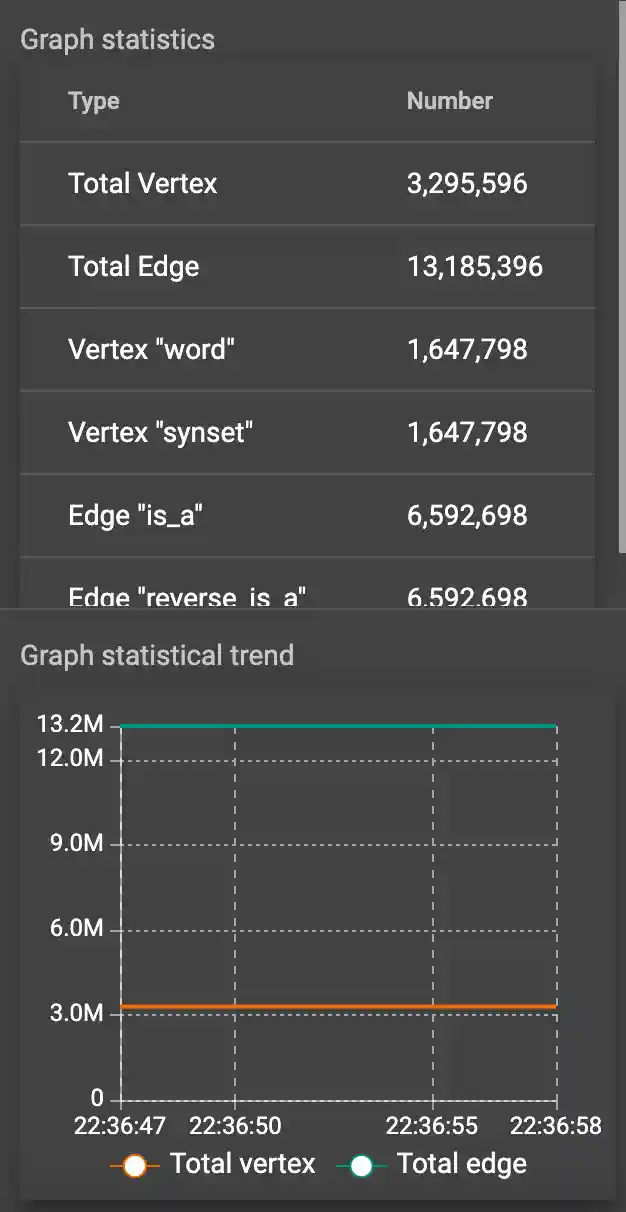
Unique Edge: WordNet
-
Run 5_LanguageModel_WN_UniqueEdge.ipynb
Step-4: Building Dictionary Bot with RASA + TigerGraph ConceptNet5
- cd WIKI_Chatbot
Terminal-1:
- $ rasa train
- $ rasa run -m models --enable-api --cors "*" --debug
Terminal-2:
- $ rasa run actions
Time to chat with TigerGraph.
- Unzip ChatBot_Widget folder.
- Hit open ChatBot_Widget/index.html to start interacting with the TG WIKI Bot!
NOTE: This help page will not go into the depth of RASA, TigerGraph functionalities. This help page will touch base and demo how ConceptNet5 can be loaded into TigerGraph and integrated with RASA to implement a dictionary bot.
Detailed Steps
NOTE: Step-1, 2 are same as above
Step-3: (TigerGraph) Load ConceptNet5, WordNet As TigerGraph
There are 3 different variations of the language graphs. Run the corresponding jupyter notebook to generatee the desired language graphs.
Step-3a: WordNet, ConceptNet5 with Single edge
- Run 4_LanguageModel_SingleEdge.ipynb

Step-3b: WordNet with Unique edges (used as backend for Wiki demo chatbot)
- Run 5_LanguageModel_WN_UniqueEdge.ipynb

Step-3c: ConceptNet5 with Unique edges
- Run 6_LanguageModel_CN_UniqueEdge.ipynb

Step-4: (RASA) Building Dictionary Bot with RASA + TigerGraph ConceptNet5
Step-4a: Install RASA
Open a new terminal and setup RASA using the below commands:
- $ python3 -m virtualenv -p python3 .
- $ source bin/activate
- $ pip install rasa
Step-4q: Create new RASA project
- $ rasa init
After the execution of the above command, you will be prompted to enter project directory and name as desired. In this case, project named 'WIKI_Chatbot' will be created in the current directory as shown below,


Step-4b: Define intents, stories, action triggers
Now, navigate to the project folder WIKI_Chatbot/data and modify the default nlu.yml and rules.yml files by adding intents, rules for our dictionary usecase as show below,


Step-4c: Install the TigerGraph python library using pip with the below command,
- pip install pyTigerGraph
Step-4d: Define action endpoints
Now, navigate to the project folder WIKI_Chatbot/actions and modify the actions.py file to include TigerGraph connection parameters and action definitions with the respective GSQL querying endpoints as show below,
- Update the solution name and credentials to your data. Refer: Create tgcloud solution => https://www.tigergraph.com/blog/taking-your-first-steps-in-learning-tigergraph-cloud/

Step-4e: Set domain.yml
Add the defined action method to the domain.yml as shown below,

With this step, we are done with the installation and configuration of the RASA chatbot.
Step-5: (gSql Queries) Create & Install gsql queries
Recreate the below queries in tgcloud.io => Check gsql folder in the repository
Steps to create: https://docs-legacy.tigergraph.com/v/2.3/dev/gsql-ref/querying/query-operations
- Create
- Install

Step-6: (Web UI) Setting up a web ui for the RASA chatbot
- In this work, we are using an open-source javascript-based chatbot UI to interact with the RASA solution we implemented in Step-1.
- The RASA server endpoint is configured in the widget/static/js/components/Chat.js as shown below,

All right, we are one step close to seeing the working of the TigerGraph and RASA integration.
Step-7: (RASA+TigerGraph) Start RASA and run Actions
Run the below commands in separate terminals,
Terminal-1:
- $ rasa train
- $ rasa run -m models --enable-api --cors "*" --debug
Terminal-2:
- $ rasa run actions

Step-8: (ChatBot UI) Open Chatbot User interface
- Unzip ChatBot_Widget folder.
- Hit open ChatBot_Widget/index.html to start interacting with the TG WIKI Bot!

Yes, we are DONE!
I hope this source is informative and helpful.
References:
https://medium.com/analytics-vidhya/integrating-rasa-chatbot-with-django-web-framework-f6cb71c58467 https://github.com/JiteshGaikwad/Chatbot-Widget/