Getting started with .NET Core 2 Console application
⚠️ ASP.NET Core users should use the ASP.NET Core tutorial
Description
Explains how to setup NLog as logging provider for .NET Core and Microsoft Extension Logging (MEL).
ℹ️ See also example in GitHub
Notice that NLog can be used on .NET Core without help from Microsoft Extension Logging and NLog.Extension.Hosting. See standard NLog Tutorial.
0. Create a new .NET Core console project
In Visual Studio 2017, using .NET 4.6.1+ or .NET Core 2
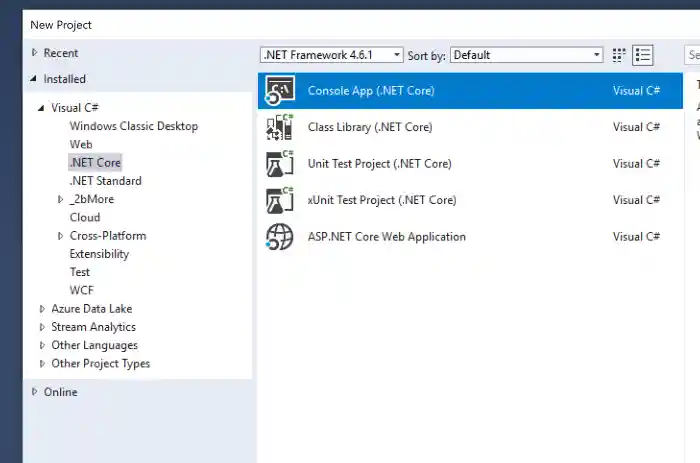
1. Add dependency in csproj manually or using NuGet
Install:
- The package NLog.Extensions.Logging
- Update the NLog package if possible
e.g.
  <ItemGroup>
    <PackageReference Include="NLog" Version="5.4.0" />
    <PackageReference Include="NLog.Extensions.Logging" Version="5.4.0" />
  </ItemGroup>
2. Create a nlog.config file.
Create nlog.config (lowercase all) file in the root of your application project (File Properties: Copy Always)
We use this example:
<?xml version="1.0" encoding="utf-8" ?>
<!-- XSD manual extracted from package NLog.Schema: https://www.nuget.org/packages/NLog.Schema-->
<nlog xmlns="http://www.nlog-project.org/schemas/NLog.xsd" xmlns:xsi="http://www.w3.org/2001/XMLSchema-instance"
      xsi:schemaLocation="http://www.nlog-project.org/schemas/NLog.xsd NLog.xsd"
      autoReload="true"
      internalLogFile="c:\temp\console-example-internal.log"
      internalLogLevel="Info" >

  <!-- the targets to write to -->
  <targets>
    <!-- write logs to file -->
    <target xsi:type="File" name="logfile" fileName="c:\temp\console-example.log"
            layout="${longdate}|${level}|${message} |${all-event-properties} ${exception:format=tostring}" />
    <target xsi:type="Console" name="logconsole"
            layout="${longdate}|${level}|${message} |${all-event-properties} ${exception:format=tostring}" />
  </targets>

  <!-- rules to map from logger name to target -->
  <rules>
    <logger name="*" minlevel="Trace" writeTo="logfile,logconsole" />
  </rules>
</nlog>
For an introduction to the NLog.config-file then see the NLog Tutorial, and for more detailed information then see here.
Ensure to configure your project-file to copy NLog.config to the output directory:
 <ItemGroup>
     <None Update="nlog.config" CopyToOutputDirectory="Always" />
 </ItemGroup>
3. Update your program
3.1 Create your runner class
 public class Runner
 {
     private readonly ILogger<Runner> _logger;

     public Runner(ILogger<Runner> logger)
     {
         _logger = logger;
     }

     public void DoAction(string name)
     {
         _logger.LogDebug(20, "Doing hard work! {Action}", name);
     }
 }
3.2 Setup Microsoft Logging with Dependency Injection
using Microsoft.Extensions.Logging;
using NLog;
using NLog.Extensions.Logging;

static void Main(string[] args)
{
   // Disposing the ServiceProvider will also flush / dispose / shutdown the NLog Logging Provider
   using var servicesProvider = new ServiceCollection()
      .AddTransient<Runner>() // Runner is the custom class
      .AddLogging(loggingBuilder =>
      {
         // Setup NLog for logging
         loggingBuilder.ClearProviders();
         loggingBuilder.AddNLog();
      }).BuildServiceProvider();

   var runner = servicesProvider.GetRequiredService<Runner>();
   runner.DoAction("Action1");

   Console.WriteLine("Press ANY key to exit");
   Console.ReadKey();
}
4 Example output
On screen:

In file:
2017/10/16 23:08:46.479|DEBUG|Doing hard work! Action1 |ConsoleExample.Runner|Action=Action1, EventId_Id=20, EventId_Name=, EventId=20
A minimal example
If you need a minimal solution, e.g. for a simple console application, and there is no need to use dependency injection, you can create a Microsoft Extensions Logging compatible logger with a single line of code. For example, this is useful in cases where you call existing libraries that take such a logger as a parameter, and you still want to use the power of NLog.
using Microsoft.Extensions.Logging;
using NLog.Extensions.Logging;

namespace ConsoleExample
{
    internal static class Program
    {
        private static void Main()
        {
            var logger = LoggerFactory.Create(builder => builder.AddNLog()).CreateLogger<Program>();
            logger.LogInformation("Program has started.");
            Console.ReadKey();
        }
    }
}
See also: NLog GetCurrentClassLogger and Microsoft ILogger
Configure NLog Targets for output
Next step, see Configure NLog with nlog.config