In this project, let's build a Gallery App by applying the concepts we have learned till now.
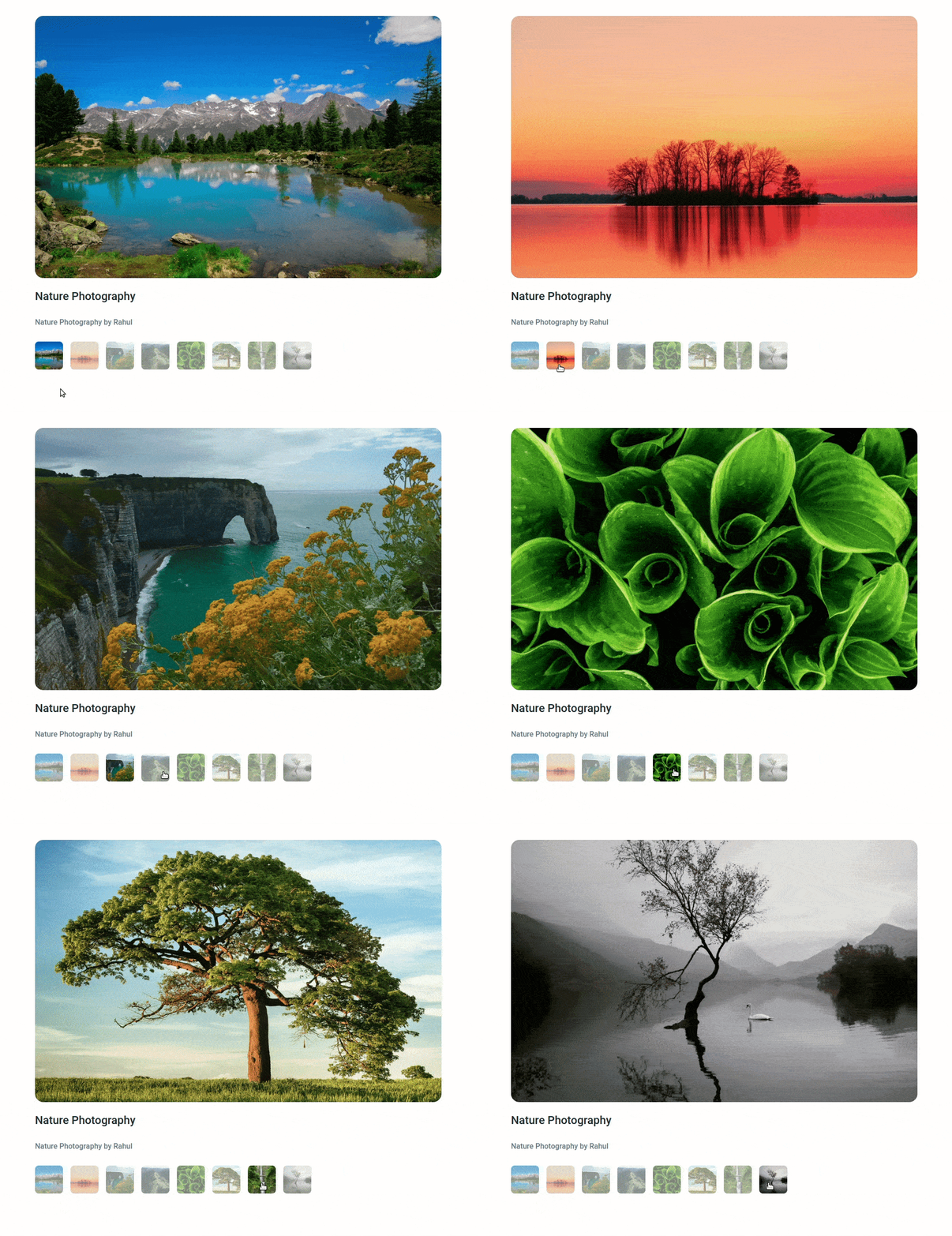
Refer to the image below:
Design Files
Click to view


Set Up Instructions
Click to view
- Download dependencies by running
npm install - Start up the app using
npm start
Completion Instructions
Functionality to be added
The app must have the following functionalities
-
Initially, the first image in the list should be displayed
-
When the user clicks on a thumbnail, then the corresponding image should be displayed
-
The
Gallerycomponent is provided withimagesList. It consists of a list of image details objects with the following properties in each objectKey Data Type id Number imageUrl String thumbnailUrl String imageAltText String thumbnailAltText String
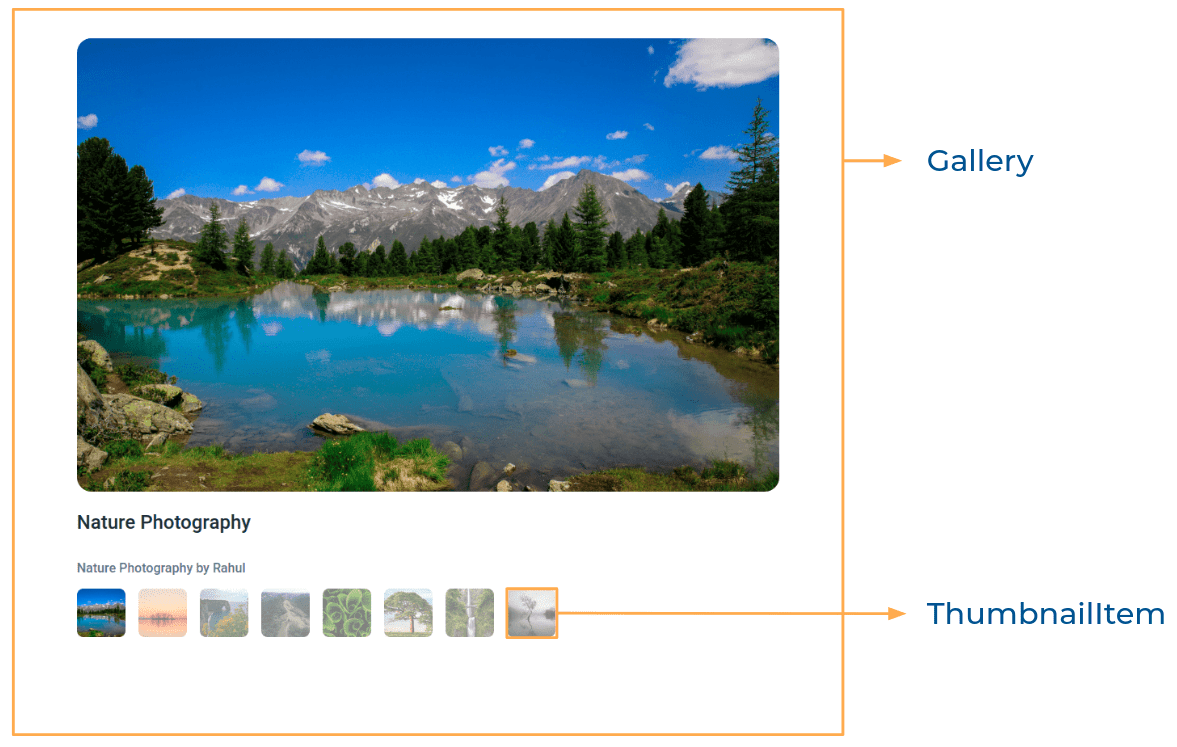
Components Structure
Implementation Files
Use these files to complete the implementation:
src/components/Gallery/index.jssrc/components/Gallery/index.csssrc/components/ThumbnailItem/index.jssrc/components/ThumbnailItem/index.css
Quick Tips
Click to view
-
You can use the CSS
opacityproperty to set the degree to which content behind an element is hidden. It accepts a value in the range of 0.0 to 1.0 inclusive
Important Note
Click to view
The following instructions are required for the tests to pass
- The selected image should have the alt as the value of the key
imageAltTextfrom each image details object provided - The thumbnail images should have the alt as values of the key
thumbnailAltTextfrom each image details object provided
Resources
Colors
Hex: #1e293b
Hex: #ffffff
Hex: #64748b
Font-families
- Roboto
Things to Keep in Mind
- All components you implement should go in the
src/componentsdirectory.- Don't change the component folder names as those are the files being imported into the tests.
- Do not remove the pre-filled code
- Want to quickly review some of the concepts you’ve been learning? Take a look at the Cheat Sheets.