
Simple selection for busy scenes in Unity.
Plus other simple additions towards editor usability.
Usage:
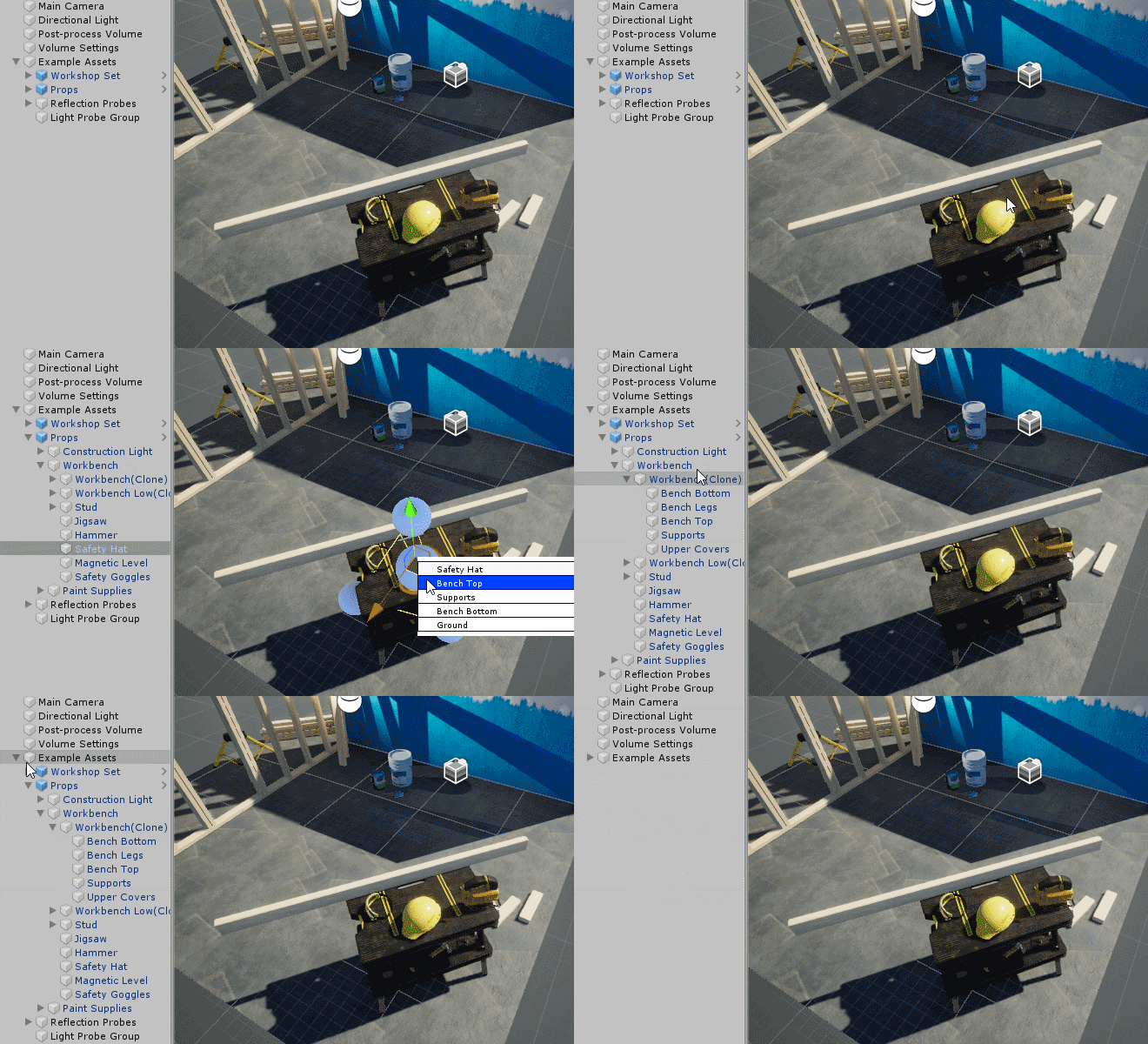
Deep Scene view picking
Note
There is a built-in implementation as of 2023.3.0a16+.
v1.3.0 provides shortcut resolution to allow use of either.
CtrlRight-click to activate.
Hold Ctrl or Shift during selection to select or deselect multiple objects.
Press Escape or click outside the menu to end the current selection.
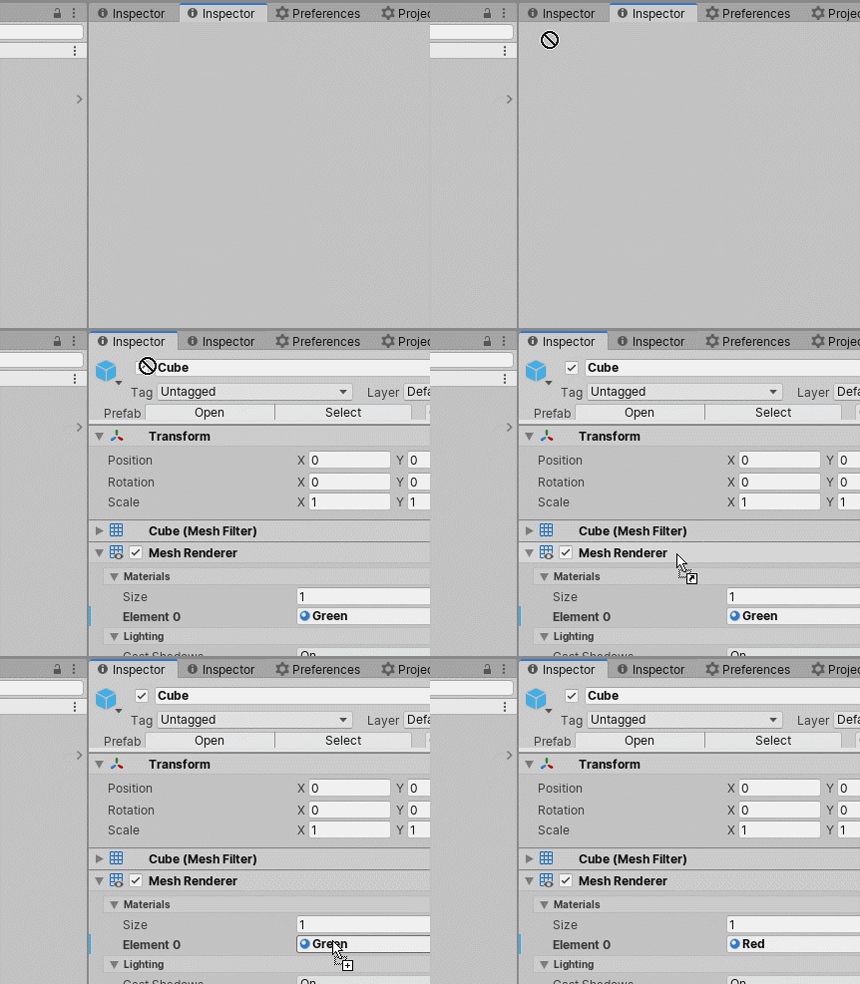
Drag and drop between tabs
Note
This is now built-in as of Unity 2023.2+!
Focus hierarchy to selection
AltShiftF sets the hierarchy's expanded state to only contain the current selection.
You can rebind this in the Shortcut Manager (Edit/Shortcuts/Window).
The supported windows are:
- Hierarchy view
- Project browser
- Profiler window
- Timeline window
- Animation window
- Audio Mixer
- UI Builder
- UIToolkit debugger
- Frame debugger
Collapse Hierarchy
Assign the Collapse Hierarchy shortcuts in the Shortcut Manager (Edit/Shortcuts/Hierarchy View).
- Collapse Hierarchy will collapse anything but expanded Scenes and the selection.
- Collapse Hierarchy Completely will collapse everything.
Project Browser Create/Script
A shortcut for creating scripts in the project browser. Assign in (Edit/Shortcuts/Project Browser).
Scene View/Toggle Gizmos
A shortcut for to toggle gizmos in the scene view. G by default. Assign in (Edit/Shortcuts/Scene View).
Installation
Add the OpenUPM registry
- Open
Edit/Project Settings/Package Manager - Add a new Scoped Registry (or edit the existing OpenUPM entry):
Name: OpenUPM URL: https://package.openupm.com/ Scope(s): com.vertx - Save
Add the package
- Open the Package Manager via
Window/Package Manager. - Select the + from the top left of the window.
- Select Add package by Name or Add package from Git URL.
- Enter
com.vertx.nselection. - Select Add.
If you find this resource helpful:
