
Administration Web UI for Cloud Foundry NG
The Administration Web UI provides metrics and operations data for Cloud Foundry NG. It gathers data from the varz providers for the various Cloud Foundry components as well as from the Cloud Controller and UAA REST APIs.
See the Using the Administration UI section for more information on using it and for sample screen shots.
Placement
In order to execute, the Administration UI needs to be able to access the following resources:
- NATS
- Cloud Controller REST API
- UAA REST API
Installation of the Administration UI and its prerequisites requires access to the Internet to access GitHub.com, RubyGems.org, Ubuntu software repositories, etc.
Installation Steps
Ubuntu 10.04.4 64 bit
This has been tested on Ubuntu 10.04.4 64 bit, Ubuntu 12.04.3 64 bit and Ubuntu 13.04 64 bit.
Ubuntu Prerequisite Libraries
sudo apt-get install -f -y --no-install-recommends git-core build-essential libssl-dev
Ruby
Ruby is required to run the Administration UI. This has been tested with Ruby 1.9.3-p484. Here is a sample installation of ruby using rbenv:
git clone https://github.com/sstephenson/rbenv.git ~/.rbenv
git clone https://github.com/sstephenson/ruby-build.git ~/.rbenv/plugins/ruby-build
echo 'export PATH="$HOME/.rbenv/bin:$PATH"' >> ~/.profile
echo 'eval "$(rbenv init -)"' >> ~/.profile
. ~/.profile
rbenv install 1.9.3-p484
rbenv global 1.9.3-p484
Ruby Bundler Gem
The bundler gem is required to install prerequisite gems for the Administration UI.
gem install bundler --no-rdoc --no-ri
If you are using rbenv you need to refresh the rbenv shims:
Retrieve the Administration UI code
git clone https://github.com/cloudfoundry-incubator/admin-ui.git
Install Administration UI
cd admin-ui
bundle install
Administration UI Configuration
Default configuration found in config/default.yml
Values that must be changed for your environment are marked in bold.
-
bind_address -
The network address on which the server listens for web requests.
Example:0.0.0.0 -
cloud_controller_discovery_interval -
Seconds between cloud controller REST API discoveries
Example:300 -
cloud_controller_ssl_verify_none -
If connection to cloud_controller is https, true to ignore SSL verification
Example:true
Example:false -
cloud_controller_uri - The URI used to connect to the Cloud Controller REST API. This is also used as a title for the web UI header as well as email notification.
-
component_connection_retries -
The number of times to try to talk to a varz component before considered failing.
Example:2 -
data_file -
Relative path location to store the Administration UI data file.
Example:data/data.json -
log_file -
Relative path locaton to the Administration UI log file
Example:admin_ui.log -
log_file_page_size -
Size of each log file page in bytes.
Example:51200 -
log_file_sftp_keys -
Key files in a comma-delimited array to use to access logs using SFTP.
Example:[/some_directory/some_key.pem] -
log_files -
Log files in a comma-delimited array being exposed through the Administration UI. Note that these files must be accessible by the user that started the Administration UI. These files can either be found on a file system accessible by the local system or as an SFTP URI. In the case of SFTP, both
user:password and user with pem files are supported. If the SFTP password is not specified, the key files specified in log_file_sftp_keys will be used.
Example[/var/vcap/sys/log/cloud_controller_ng/cloud_controller_ng.log]
Example[/var/vcap/sys/log/cloud_controller_ng/*.log]
Example[/var/vcap/sys/log/**/*.log]
Example[sftp://someuser:somepassword@10.10.10.10/path/file.log]
Example[sftp://someuser@10.10.10.10/path/*.log]
Example[sftp://someuser:somepassword@10.10.10.10/path/**/*.log] -
mbus -
URL to the NATS.
Example:nats://nats:c1oudc0w@10.10.10.10:4222 -
monitored_components -
Components in a comma-delimited array which when down will result in notification.
Example of multiple components:[NATS, CloudController, DEA, HealthManager, Router]
Example of a wildcard:[-Provisioner]
Example for all components:[ALL] -
nats_discovery_interval -
Seconds between NATS discoveries
Example:30 -
nats_discovery_timeout -
The number of seconds to wait for the NATS to respond to
vcap.component.discover.
Example:10 -
port -
Port for the Administration UI web server.
Example:8070 -
receiver_emails -
The receiving email(s) in a comma-delimited array.
Example:[ ]
Example:[bar@10.10.10.10, baz@10.10.10.10] -
sender_email -
Email server and account used when sending an email notifying receivers of down components.
-
server -
The email server.
Example:10.10.10.10 -
account -
The email account.
Example:system@10.10.10.10
-
-
stats_file -
Relative path location to store the Administration UI statistics.
Example:data/stats.json -
stats_refresh_time -
Deprecated. See stats_refresh_schedules for details.
A daily schedule which starts at specified minutes from midnight for automatic stats collection
Example:300. This results in stats collection starting at 5 AM. -
stats_refresh_schedules -
Schedules of automatic stats collection expressed in an array of strings. Each string represents a schedule and follows a syntax very similar to crontab. It consists of five fields, for specifying time, date, days of a week and etc, as follow.
* * * * * - - - - - | | | | | | | | | +----- day of week (0 - 6)(Sunday=0) | | | +------- month (1 - 12) | | +--------- day of month (1 - 31) | +----------- hour (0 - 23) +------------- minute (0 - 59)where * denotes an expression using legal values shown inside the parenthesis for the column.-
Fields are separated by spaces.
-
Fields can be expressed by a wildcard * symbol which means every occurance of the fields.
Example:['0 * * * *'] means the collection starts once every hour at the beginning of the hour.- Field value can be expressed in form of a range, which consists of two legal values connected by a hyphen (-).
Example:['0 0 * * 1-5'] means the collection starts at midnight 12:00AM, Monday to Friday.- Field value can also be a sequence of legal values separated by comma. Sequence doesn't need to be monitonic.
Example:['0 1,11,12,13 * * *'] means the collection process starts at 1:00AM, 11:00AM, 12:00PM and 1:00PM every day.- Mixed uses of sequence and ranges are permitted.
Example:The example above can expressed this way as well: ['0 1,11-13 * * *']
-
Step based repeat pattern like /4 is currently not supported.
-
stats_refresh_schedules supports multiple schedules.
Example:[ '0 1 * * *', '0 12-13 * * 1-5' ] means the collection starts at 1:00AM everyday; on Monday to Friday, the collection process will also start at 12:00PM and 1:00PM.This property supports the following predefined schedules
Predefined Schedule Description ----------------------------------------------------------------------------- ['@hourly'] runs at the beginning of every hour ['@daily'] runs at the 12:00AM everyday ['@midnight'] runs at the 12:00AM everyday ['@weekly'] runs at the 12:00AM every Sunday ['@monthly'] runs at the 12:00AM on first day of the month ['@yearly'] runs at the 12:00AM on every Jan 1st ['@annually'] runs at the 12:00AM on every Jan 1st. It is the same as @yearly.
- When stats_refresh_schedules and stats_refresh_time are both present in the default.yml file, admin-ui will error out with an error message which reads
Two mutally exclusive properties, stats_refresh_time and stats_refresh_schedules, are present in the configuration file. Please remove one of the two properties. - When neither stats_refresh_schedules supports nor stats_refresh_time is present in the default.yml file, admin-ui disables stats collection.
- The default value of stats_refresh_schedules in default.yml file is
stats_refresh_schedules: ['0 5 * * *']. This value translates to a schedule that starts daily at 5:00AM.
-
-
stats_retries -
Number of stats retries.
Example:5 -
stats_retry_interval -
Seconds between stats collection saving.
Example:300 -
uaa_admin_credentials -
UAA credentials to access the Cloud Controller REST API as an admin user
-
username -
User for UAA login.
Example:admin -
password -
Password for UAA login.
Example:c1oudc0w
-
-
ui_credentials -
Credentials to access the Administration UI as a standard user.
-
username -
User for standard login.
Example:user -
password -
Password for standard login.
Example:passw0rd
-
-
ui_admin_credentials -
Credentials to access the Administration UI as an admin user
-
username -
User for admin login.
Example:admin -
password -
Password for admin login.
Example:passw0rd
-
-
varz_discovery_interval -
Seconds between VARZ discoveries
Example:30
Execute Administration UI
You can provide an option to reference the configuration file when you execute the administration ui or you
can let it default to config/default.yml
ruby bin/admin [-c <configuration file>]
Using the Administration UI
To access the Administration UI, go to:
http://<admin ui host>:8070
You will be prompted for the credentials. Once there, by default, you will be
taken to the DEA tab:
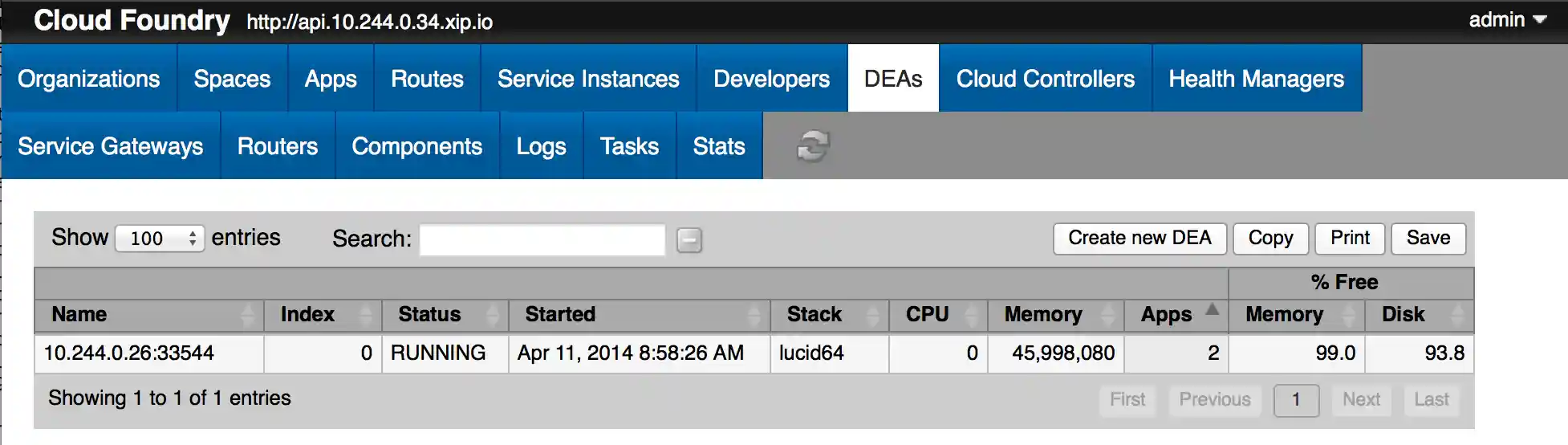
From there you will see the list of DEAs running in the environment, along with
some basic statistics. Selecting one from the list will bring up another
table below the DEA table showing even more details about the DEA you selected:
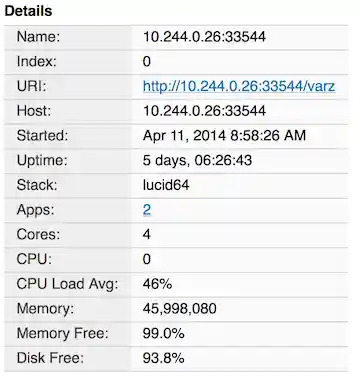
One important thing to note is that some of the items in the secondary
table are hyperlinks. Clicking on that link will take you to the appropriate
tab with a query already filled in, allowing you to see just the data
related to what you clicked on. For example, in the table above if you
clicked on the Apps link, meaning the 2,
you'll be taken to the Apps tab and the query will be
filled in such that you will only see the apps running on this DEA,
as shown here:
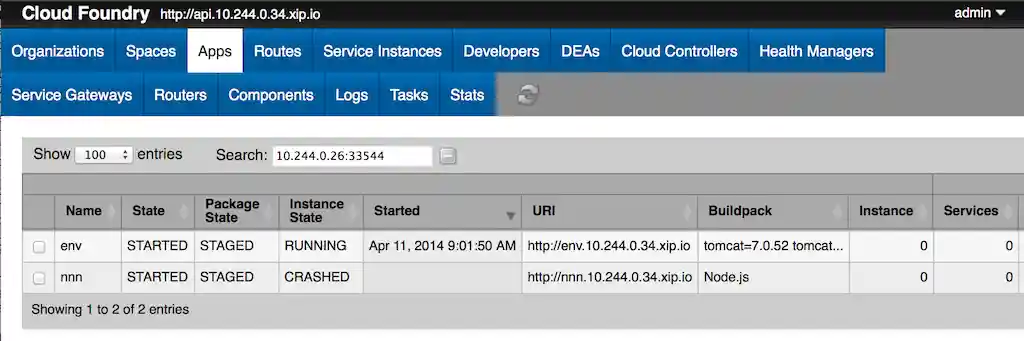
Notice the Search entry field is pre-populated with a string
and the table is filtered to show just those rows that contain that string
in any column.
Also, note that each row in the table has a checkbox. While not all tables
will have those, by selecting a set of rows an action can be performed on
them. For example, in this case, by selecting one or more apps you can then
use the buttons on the right side of the main table:

to start, stop, restart, etc. those apps.
All of the tabs will follow the same interaction pattern as described above.
There are however a few other tabs that worth calling out.
The Logs tab will display the contents of the log files that the
Administration UI has access to - these need to be local to the application:
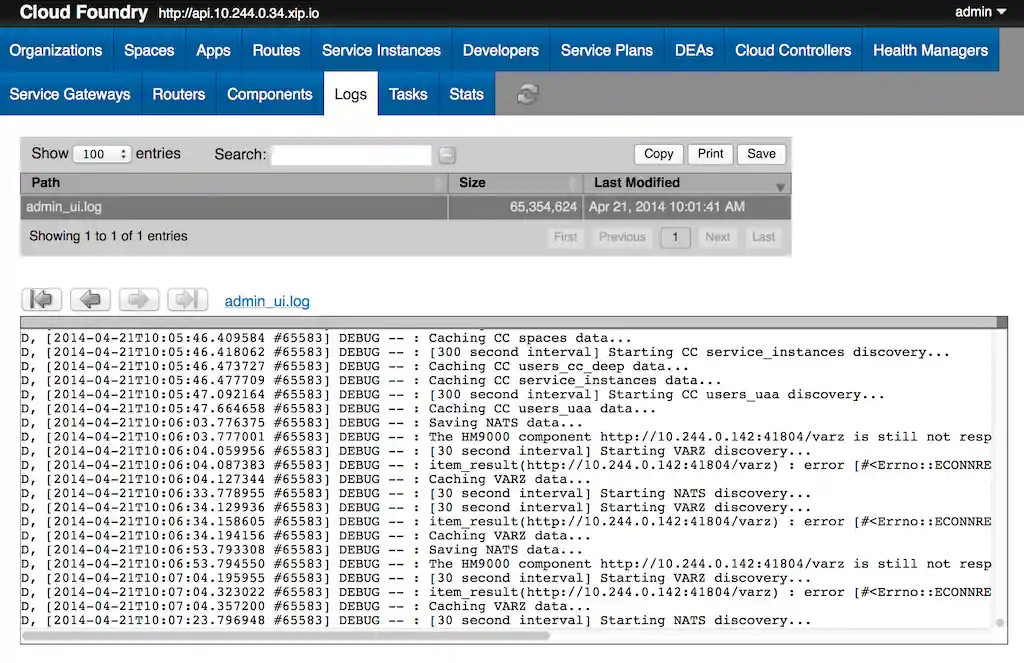
On this tab, once a particular log file is selected, you can examine its
contents in the text area. Use the buttons to iterate through the file
one page at a time, or use horizontal scroll bar at the top of the text area
to quickly move to one section of the file.
The Stats tab:
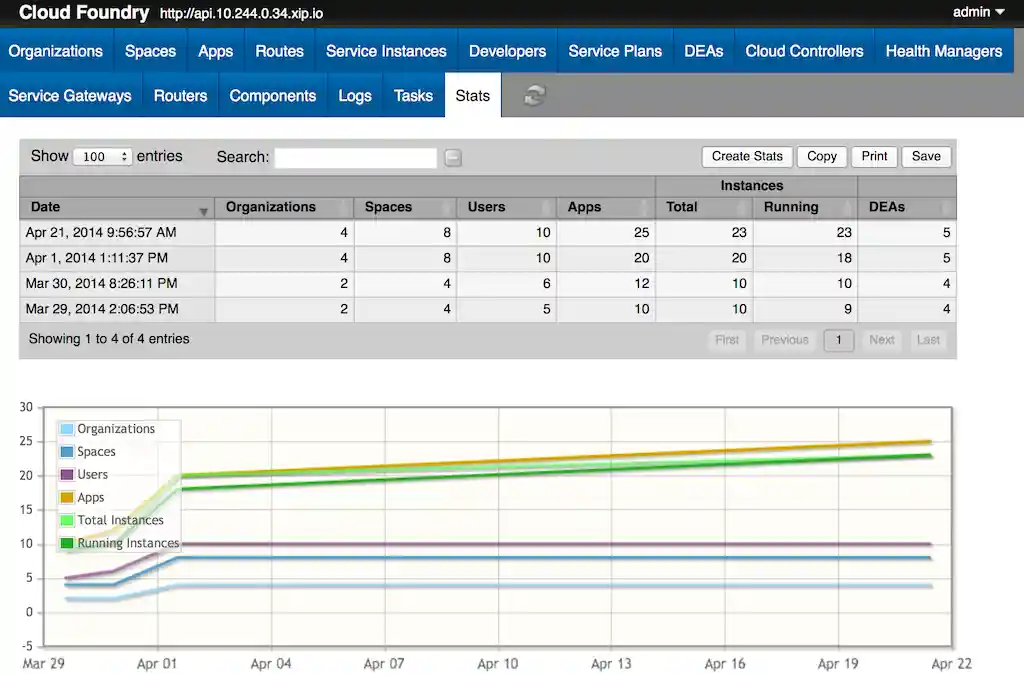
can be used to view basic history data about the environment. Normally,
a snapshot of the statitics are taken once a day, but you can force a new
set of data points to be taken by using the Create Stats
button.


