
cheat
cheat allows you to create and view interactive cheatsheets on the
command-line. It was designed to help remind *nix system administrators of
options for commands that they use frequently, but not frequently enough to
remember.
Use cheat with cheatsheets.
Example
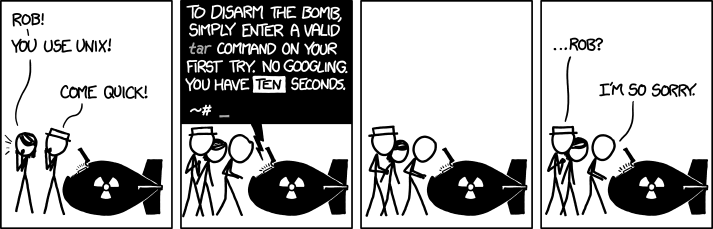
The next time you're forced to disarm a nuclear weapon without consulting Google, you may run:
You will be presented with a cheatsheet resembling the following:
# To extract an uncompressed archive:
tar -xvf '/path/to/foo.tar'

# To extract a .gz archive:
tar -xzvf '/path/to/foo.tgz'

# To create a .gz archive:
tar -czvf '/path/to/foo.tgz' '/path/to/foo/'

# To extract a .bz2 archive:
tar -xjvf '/path/to/foo.tgz'

# To create a .bz2 archive:
tar -cjvf '/path/to/foo.tgz' '/path/to/foo/'
Installing
For installation and configuration instructions, see INSTALLING.md.
Usage
To view a cheatsheet:
cheat tar      # a "top-level" cheatsheet
cheat foo/bar  # a "nested" cheatsheet
To edit a cheatsheet:
cheat -e tar     # opens the "tar" cheatsheet for editing, or creates it if it does not exist
cheat -e foo/bar # nested cheatsheets are accessed like this
To view the configured cheatpaths:
To list all available cheatsheets:
To briefly list all cheatsheets (names and tags only):
To list all cheatsheets that are tagged with "networking":
To list all cheatsheets on the "personal" path:
To search for the phrase "ssh" among cheatsheets:
To search (by regex) for cheatsheets that contain an IP address:
cheat -r -s '(?:[0-9]{1,3}\.){3}[0-9]{1,3}'Flags may be combined in intuitive ways. Example: to search sheets on the "personal" cheatpath that are tagged with "networking" and match a regex:
cheat -p personal -t networking --regex -s '(?:[0-9]{1,3}\.){3}[0-9]{1,3}'Cheatsheets
Cheatsheets are plain-text files with no file extension, and are named according to the command used to view them:
cheat tar     # file is named "tar"
cheat foo/bar # file is named "bar", in a "foo" subdirectory
Cheatsheet text may optionally be preceded by a YAML frontmatter header that assigns tags and specifies syntax:
---
syntax: javascript
tags: [ array, map ]
---
// To map over an array:
const squares = [1, 2, 3, 4].map(x => x * x);
Syntax highlighting is provided by Chroma, and the syntax value may be
set to any lexer name that Chroma supports. See Chroma's supported
languages for a complete list.
The cheat executable includes no cheatsheets, but community-sourced
cheatsheets are available. You will be asked if you would like to
install the community-sourced cheatsheets the first time you run cheat.
Cheatpaths
Cheatsheets are stored on "cheatpaths", which are directories that contain
cheatsheets. Cheatpaths are specified in the conf.yml file.
It can be useful to configure cheat against multiple cheatpaths. A common
pattern is to store cheatsheets from multiple repositories on individual
cheatpaths:
# conf.yml:
# ...
cheatpaths:
  - name: community                   # a name for the cheatpath
    path: ~/documents/cheat/community # the path's location on the filesystem
    tags: [ community ]               # these tags will be applied to all sheets on the path
    readonly: true                    # if true, `cheat` will not create new cheatsheets here

  - name: personal
    path: ~/documents/cheat/personal  # this is a separate directory and repository than above
    tags: [ personal ]
    readonly: false                   # new sheets may be written here
# ...
The readonly option instructs cheat not to edit (or create) any cheatsheets
on the path. This is useful to prevent merge-conflicts from arising on upstream
cheatsheet repositories.
If a user attempts to edit a cheatsheet on a read-only cheatpath, cheat will
transparently copy that sheet to a writeable directory before opening it for
editing.
Directory-scoped Cheatpaths
At times, it can be useful to closely associate cheatsheets with a directory on
your filesystem. cheat facilitates this by searching for a .cheat directory
in the current working directory and its ancestors (similar to how git locates
.git directories). The nearest .cheat directory found will (temporarily) be
added to the cheatpaths. This means you can place a .cheat directory at your
project root and it will be available from any subdirectory within that project.
Autocompletion
cheat can generate shell completion scripts for bash, zsh, fish, and
powershell via the --completion flag:
cheat --completion bash
cheat --completion zsh
cheat --completion fish
cheat --completion powershell
Pipe the output to the appropriate location for your shell. For example:
# bash (user-local)
mkdir -p ~/.local/share/bash-completion/completions
cheat --completion bash > ~/.local/share/bash-completion/completions/cheat

# bash (system-wide)
cheat --completion bash > /etc/bash_completion.d/cheat

# zsh (ensure the directory is on your fpath)
cheat --completion zsh > "${fpath[1]}/_cheat"

# fish
cheat --completion fish > ~/.config/fish/completions/cheat.fish
Completions are dynamically generated and include cheatsheet names, tags, and cheatpath names.