jome 😏



jome (joh·mee) is a ⌨️ centric emoji picker 🖥️ application.
You can also pick an emoji with the 🖱️, don’t worry.
jome has all the emojis of ⬆️ to Emoji 16.0, including with skin tones.
I’m not a fan of the usual very broad categories of emojis which do not intersect so I made my own categories. A given emoji can be found in more than 1️⃣ category. For example, 🦈 is found in both the animals (no faces) and water categories. I find that it’s easier to 🔍 by theme than by very general category. Feel 🆓 to suggest more categories.
jome is currently only tested on 🐧.
Preview
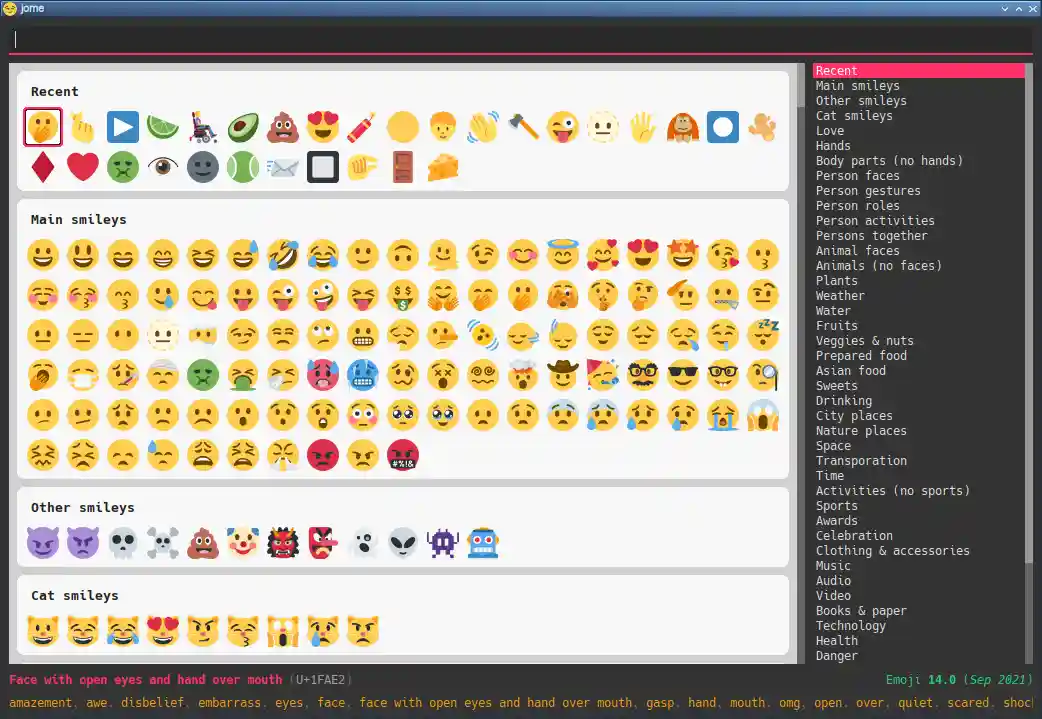
- Default view
-
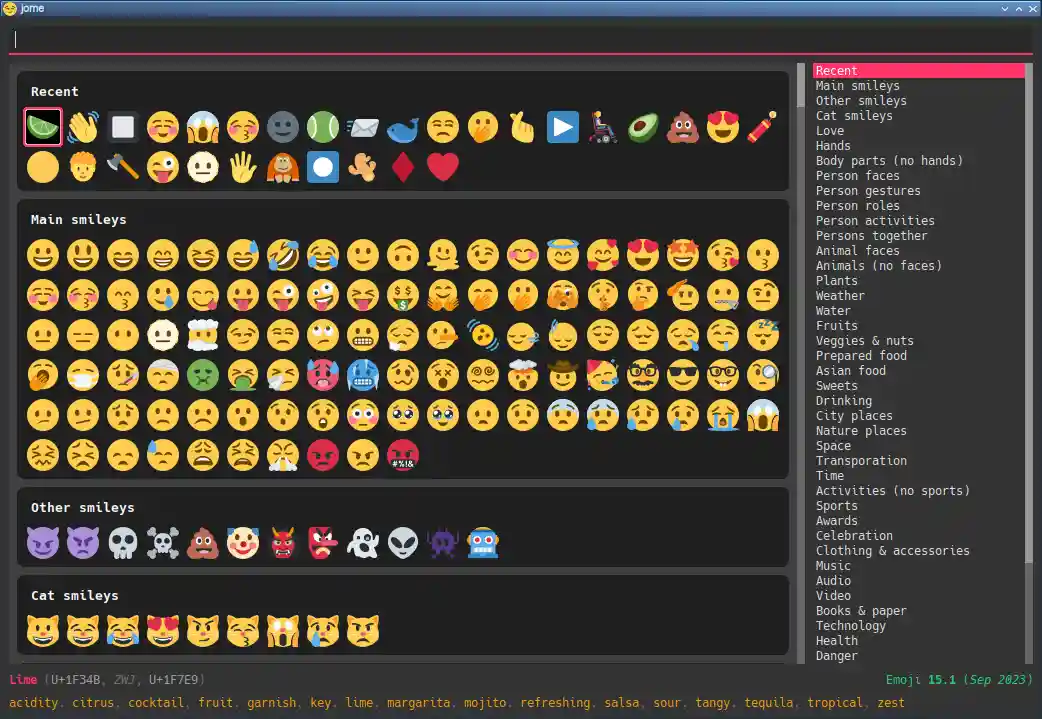
- 🌚 mode
-
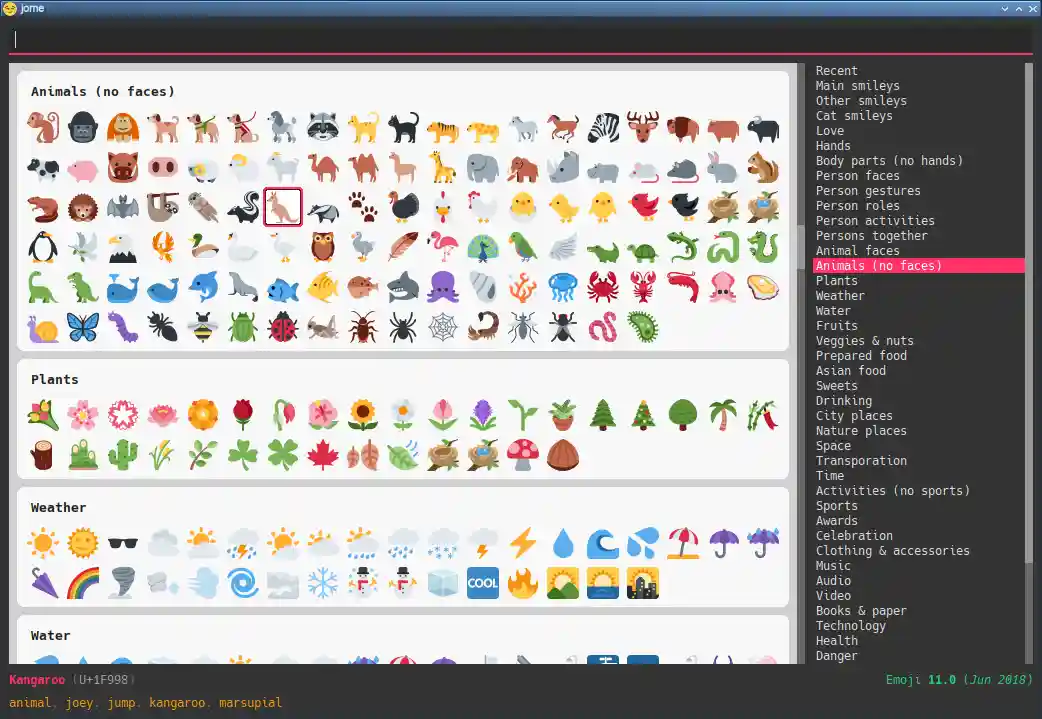
- Specific category
-
- 🔍 emojis matching “palm”
-

- 🔍 emojis matching “wom”
-

- 🔍 emojis matching “wom” and “fact”
-

- 🔍 all emojis of the transportation category
-
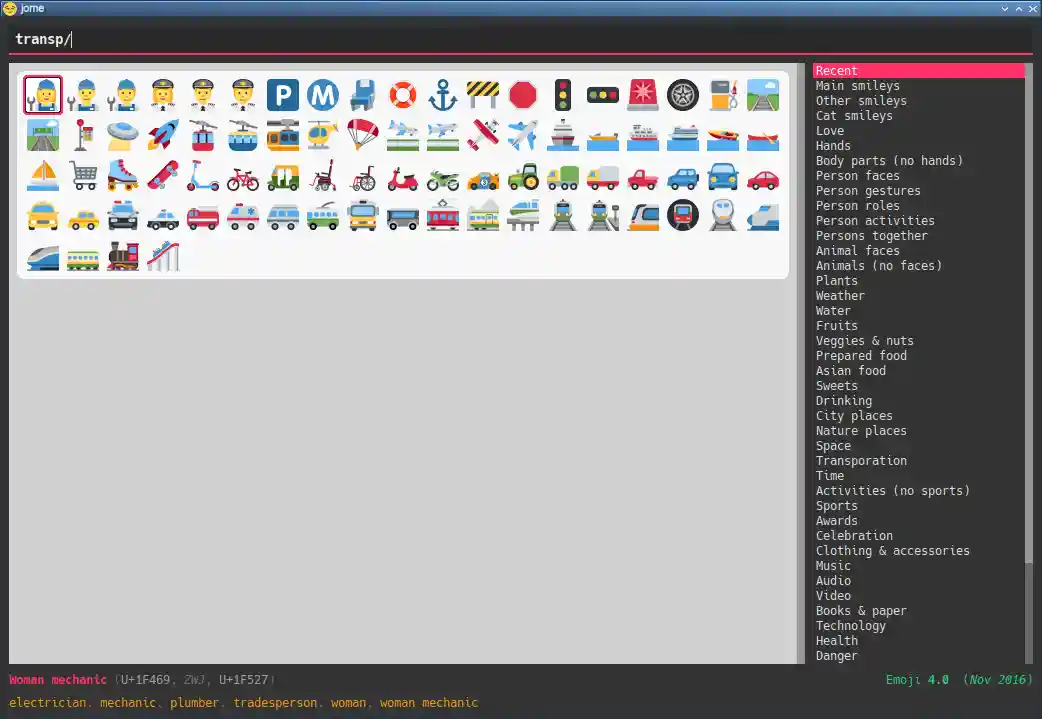
- 🔍 emojis matching “boa” within the transportation category
-
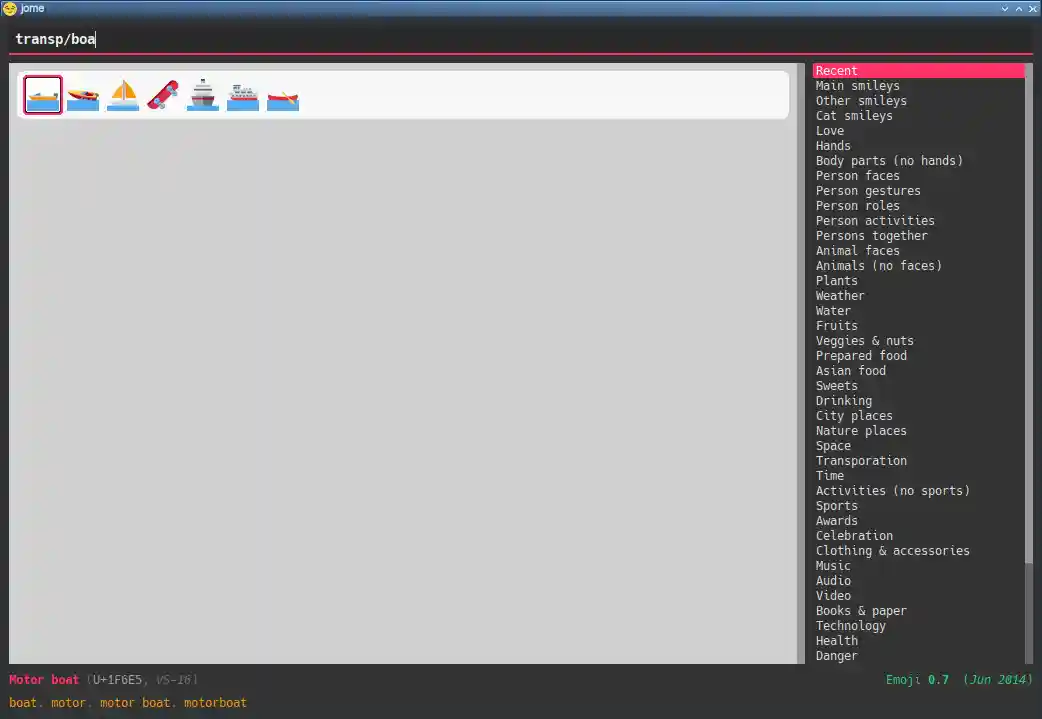
- 🔍 emojis matching “boa” and “sa” within the transportation category
-

- If you prefer a minimal look
-
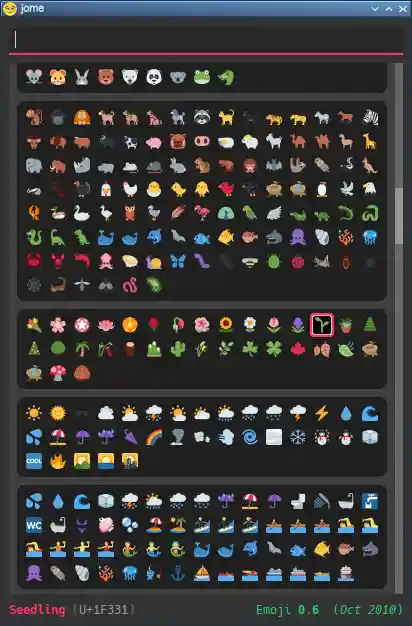
This is


🏗 jome
You need:
-
CMake ≥ 3.30.0
-
A C++14 compiler
-
Boost ≥ 1.70 (only to 🏗)
-
JSON for Modern C++ (only to 🏗, automatically 📥 by CMake if not found locally)
-
{fmt} (only to 🏗, automatically 📥 by CMake if not found locally)
-
Qt 5 (Core, GUI, Widgets, and Network modules)
🏗 jome
$ mkdir build && cd build && cmake -DCMAKE_BUILD_TYPE=release .. && make -j$(nproc)
|
Note |
You need to install jome for it to find the correct data 📄. If you
don’t want to install it on your system, use
-DCMAKE_INSTALL_PREFIX=path/to/install/directory when you run cmake.
|
Usage
jome’s purpose is to help you pick an emoji. In other words, it
doesn’t really care what you do with the chosen emoji afterwards: you
can leverage 🛠️ such as xdotool(1) to “type” it or xsel(1)
to copy it to the 📋. See ⌨️ the ✅ emoji
and the -c option for a starting point.
When you ✅ an emoji (with the ⌨️ or with the 🖱️),
jome 🖨️ the UTF-8 emoji or the Unicode codepoints (👀 the
-f option), with an optional prefix (👀 the
-p option) for each codepoint, to the standard output.
Additionally, jome can:
-
Copy the UTF-8 emoji or the Unicode codepoints to the 📋. 👀 the
-boption. -
Execute a custom command which 📨 the UTF-8 emoji or the Unicode codepoints, with an optional prefix for each codepoint, as its last argument(s). 👀 the
-coption. -
Send the UTF-8 emoji or the Unicode codepoints, with an optional prefix for each codepoint, in response to a client which requested picking an emoji. 👀 the
-soption.
If you close the 🪟 (you can 👇 Escape or Ctrl+C to do this), then jome 🖨️ nothing to the standard output and executes nothing.
If you don’t start jome in server mode
(-s option) and you don’t specify the
-q option, then jome immediately 👋 after you ✅
an emoji or close the 🪟.
Graphical interface

There are 4️⃣ sections:
- 🔍 box (⬆️)
-
Input box where you can ⌨️ a query to 🔍 emojis.
- Emoji grid
-
All emojis (with an empty 🔍 box) or 🔍 results.
When there’s at least 1️⃣ emoji, there’s always a selected emoji with a 🔲 box around it.
🖱️ an emoji to ✅ it. Press Shift when clicking to don’t 🖨️ VS-16 codepoints (see the
-Voption).Hover an emoji to update the ⬇️ emoji info text temporarily.
Make the background behind emojis 🌚 with the
-doption.🙈 the category 🏷️ with the
-Loption.🙈 the “Recent” category with the
-Roption. - Category 📜
-
📜 of available categories.
When all emojis are 👁️ (the 🔍 box is empty), 🖱️ a category name to scroll to this emoji category.
The first category, “Recent”, is a special category with the recently ✅ emojis.
Use the
-Hoption to override the maximum number of recently ✅ emojis.🙈 the “Recent” category with the
-Roption.🙈 the whole category 📜 with the
-Coption. - Emoji info text (⬇️)
-
Name, Unicode codepoints, Emoji standard version, and keywords of the selected or hovered emoji.
🙈 the keyword list 📜 with the
-koption.
🔍 emojis
The power of jome is its 🔍 box.
When you launch jome, the 🔍 box is focused, and it should stay focused unless you browse emojis manually with the intention of ✅ one with the 🖱️.
The format of a query is 1️⃣ of:
-
TERMS -
CAT/ -
CAT/TERMS -
CODEPOINT -
CAT/CODEPOINT
where:
CAT-
Partial name of categories in which to 🔍.
TERMS-
Space-separated 📜 of 🔍 terms.
For an emoji to be part of the results, its name and keywords must contain all the 🔍 terms.
CODEPOINT-
A single Unicode codepoint using the standard
U+ABCDnotation.
Everything is 💼-insensitive.
Select and ✅ an emoji
To select an emoji, use the following ⌨️:
- ⬅️, ➡️, ⬆️, ⬇️
-
Go ⬅️/➡️/⬆️/⬇️.
- Ctrl+⬅️, Ctrl+➡️
-
Go ⬅️/➡️ 5️⃣ emojis.
- Page ⬆️, Page ⬇️
-
Go ⬆️/⬇️ 10 rows.
- Home
-
Go to the first emoji.
- End
-
Go to the last emoji.
- Enter
-
✅ the selected emoji with, if applicable:
- Without the
-toption -
No skin tone (🟡).
- With the
-toption -
The default skin tone (value of
-t).
- Without the
- Shift+Enter
-
Like Enter, but do not 🖨️ VS-16 codepoints.
See the
-Voption option. - F1
- F2
- F3
- F4
- F5
-
If the selected emoji supports skin tones, ✅ the selected emoji with a light, medium-light, medium, medium-dark, or dark skin tone, overriding the
-toption (if any). - Shift+F1
- Shift+F2
- Shift+F3
- Shift+F4
- Shift+F5
-
Like F1 to F5, but do not 🖨️ VS-16 codepoints.
See the
-Voption option.
To ❌, 👇 Escape or Ctrl+C, or close the 🪟.
Go to Emojipedia page
To go to the Emojipedia 🌐 of the selected emoji, 👇 F12.
To go to the Emojipedia 🌐 of any emoji with the 🖱️, right-click it and click “Go to Emojipedia page”.
👤-defined emoji keywords
You can either replace or ➕ the built-in 📜 of keywords which jome searches when 🔍 emojis.
To set 👤-defined keywords, create an emojis.json 📄 within:
| On 🐧 |
|
| On 🍎 |
|
| On 🪟 |
|
emojis.json must contain a JSON object where 🔑 are emojis and
values are objects. Each value may contain one of:
keywords-
An array of keywords which replaces the built-in keywords entirely for this emoji.
extra-keywords-
An array of keywords which ➕ either the built-in keywords or the keywords of the
keywordsentry for this emoji.
Example:
{
  "🍁": {
    "extra-keywords": ["canada", "laurentides"]
  },
  "😃": {
    "keywords": ["yay", "hourra"]
  },
  "🚬": {
    "extra-keywords": ["claude poirier"]
  },
  "🫚": {
    "extra-keywords": ["canada dry", "martin deschamps"]
  }
}
Server mode
jome features a server mode to avoid creating a process (a Qt 🪟 can be quite long to create) every ⌚ you need to pick an emoji. With this mode, you can 👁️ the jome 🪟 instantaneously.
To start jome in server mode, use the -s option to
specify the server name:
This creates a local server named mein-server. On Unix, it creates the
socket 📄 /tmp/mein-server.
|
Important |
On Unix, the server mode won’t work if the socket 📄 already exists. Remove the 📄 before you start jome in server mode: $ rm -f /tmp/mein-server $ jome -s mein-server |
When jome starts in server mode, it doesn’t 👁️ its 🪟. Instead,
it ⌛ for a command sent by the client, jome-ctl. To 👁️ the
🪟:
When you ✅ an emoji, jome-ctl 🖨️ what jome
also 🖨️ to the standard output and 👋 with exit code 0️⃣.
Therefore, the output format of jome-ctl is 🎛 by the
options passed to jome.
If you ❌ jome (👇 Escape or Ctrl+C, or
close the 🪟), jome-ctl 🖨️ nothing and returns with exit code 1️⃣.
In server mode, jome doesn’t 👋 once you ✅ an emoji or ❌: it 🙈 the 🪟 and keeps 👂. To make it 👋 gracefully, which also removes the socket 📄:
$ jome-ctl mein-server quit
You don’t need to use what jome-ctl 🖨️ to the standard output. You can
use jome in server mode with the -c option to make jome
execute a command itself. For example:
$ rm -f /tmp/mein-server $ jome -s mein-server -c 'xdotool type'
Then, bind a ⌨️ shortcut to:
Command-line options
| Option | Description | ||||||||||
|---|---|---|---|---|---|---|---|---|---|---|---|
|
|
||||||||||
|
|||||||||||
|
Do not 🖨️ a newline after 🖨️ the emoji or codepoints. |
||||||||||
|
Do not 🖨️ Variation Selector-16 (VS-16) codepoints. VS-16 is a suffix codepoint which specifies that the preceding character should be displayed with emoji presentation. For example, ♥ (which predates Unicode emojis) followed with VS-16 becomes ♥️. There are applications/fonts which don’t like VS-16. |
||||||||||
|
Set the default skin tone to
The F1 to F5 keys still ✅ an emoji with a specific skin tone. |
||||||||||
|
When you ✅ an emoji, execute the command jome interprets
Examples with xdotool: $ jome -c 'xdotool type' $ jome -f cp -p U -c 'xdotool key --delay 20' |
||||||||||
|
When you ✅ an emoji, copy the UTF-8 emoji or the Unicode
codepoints (depending on the
|
||||||||||
|
Do not 👋 when you ✅ an emoji. By default, when you ✅ an emoji (with the ⌨️ or with the 🖱️), jome: With the You cannot specify the |
||||||||||
|
Start jome in server mode and set the server name
to On Unix, this creates the socket 📄 You cannot specify the |
||||||||||
|
|||||||||||
|
|||||||||||
|
|||||||||||
|
|||||||||||
|
|||||||||||
|
|||||||||||
|
|||||||||||
|
|||||||||||
|
⌨️ the ✅ emoji
Here are Bash 📜 to ⌨️ the ✅ emoji with xdotool.
Direct mode
- With
xdotool key -
#!/usr/bin/bash

codepoints=$(jome -f cp -p U)

if (($? != 0)); then
    exit 1
fi

xdotool key --delay 20 "$codepoints"
- With
xdotool type -
#!/usr/bin/bash

emoji=$(jome)

if (($? != 0)); then
    exit 1
fi

xdotool type "$emoji"
Server mode
- With
xdotool key -
#!/usr/bin/bash

socket_name=jome.socket.$(id -u)

if [[ ! -e "/tmp/$socket_name" ]]; then
    jome -s "$socket_name" -n -w48 -f cp -p U & disown

    until [[ -e "/tmp/$socket_name" ]]; do
        sleep .1
    done
fi

codepoints=$(jome-ctl "$socket_name")

if (($? == 0)); then
    sleep .02
    xdotool key --delay 20 "$codepoints"
fi
- With
xdotool type -
#!/usr/bin/bash

socket_name=jome.socket.$(id -u)

if [[ ! -e "/tmp/$socket_name" ]]; then
    jome -s "$socket_name" -n -w48 & disown

    until [[ -e "/tmp/$socket_name" ]]; do
        sleep .1
    done
fi

emoji=$(jome-ctl "$socket_name")

if (($? == 0)); then
    sleep .02
    xdotool type "$emoji"
fi