Deploy on Google Cloud
This tutorial shows you how to deploy code-server to a single node running on Google Cloud.
If you're just starting out, we recommend installing code-server locally. It takes only a few minutes and lets you try out all of the features. You can also try out the IDE on a container hosted by Coder
Deploy to Google Cloud VM
Pre-requisite: Please set up Google Cloud SDK on your local machine
- Open your Google Cloud console to create a new VM instance and click Create Instance
- Choose an appropriate machine type (we recommend 2 vCPU and 7.5 GB RAM, more depending on team size and number of repositories/languages enabled)
- Choose Ubuntu 16.04 LTS as your boot disk
- Check the boxes for Allow HTTP traffic and Allow HTTPS traffic in the Firewall section
- Create your VM, and take note of its public IP address.
- Copy the link to download the latest Linux binary from our releases page
Final Steps
- SSH into your Google Cloud VM
gcloud compute ssh --zone [region] [instance name]
- Find the latest Linux release from this URL:
https://github.com/codercom/code-server/releases/latest
- Replace {version} in the following command with the version found on the releases page and run it (or just copy the download URL from the releases page):
wget https://github.com/codercom/code-server/releases/download/{version}/code-server-{version}-linux-x64.tar.gz
- Extract the downloaded tar.gz file with this command, for example:
tar -xvzf code-server-{version}-linux-x64.tar.gz
- Navigate to extracted directory with this command:
cd code-server-{version}-linux-x64
- Make the binary executable if you run into any errors regarding permission:
To ensure the connection between you and your server is encrypted view our guide on securing your setup
- Start the code-server
For instructions on how to keep the server running after you end your SSH session please checkout how to use systemd to start linux based services if they are killed
- Access code-server from the public IP of your Google Cloud instance we noted earlier in your browser.
example: 32.32.32.234
-
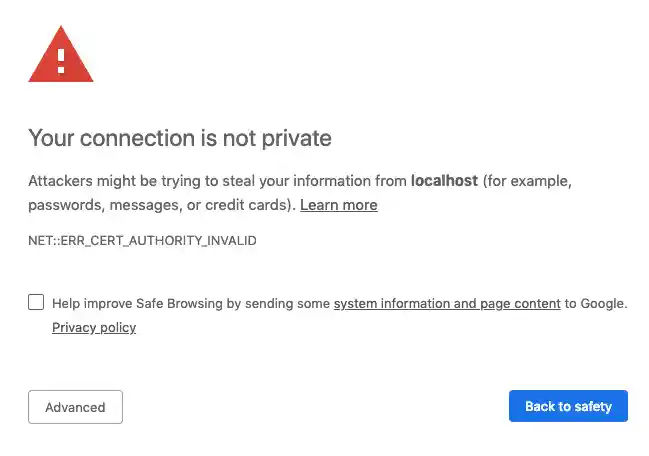
You will be greeted with this page. Code-server is using a self-signed SSL certificate for easy setup. To proceed to the IDE, click "Advanced"
-
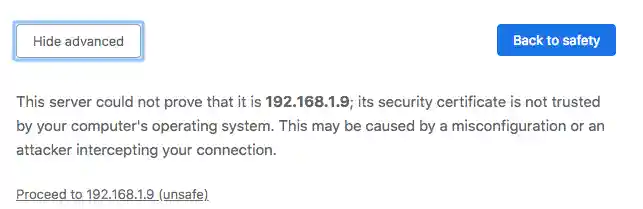
Then click "proceed anyway"


NOTE: If you get stuck or need help, file an issue, tweet (@coderhq) or email.