Vertical Style
Vertical Stepper View
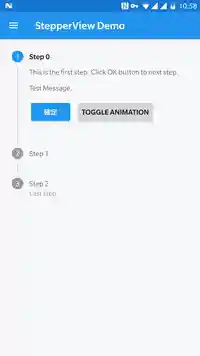
We provide two ways to use Stepper View:
- Place VerticalStepperItemView in LinearLayout by yourself
- Or use VerticalStepperView with StepperAdapter (Better Animation)
Use ItemView directly
Placing VerticalStepperItemView in XML directly means that you can add custom views as like FrameLayout.
But you need to set attrs & states for each item views.
For example:
<LinearLayout android:orientation="vertical" ...>

  <moe.feng.common.stepperview.VerticalStepperItemView
    android:id="@+id/stepper_0"
    android:layout_width="match_parent"
    android:layout_height="wrap_content"
    android:layout_marginTop="24dp"
    app:step_index="1"
    app:step_title="Step 1"
    app:step_summary="Summarized if needed"
    app:step_state="selected">

    <!-- Your custom view (Step 1) -->

  </moe.feng.common.stepperview.VerticalStepperItemView>

  <moe.feng.common.stepperview.VerticalStepperItemView
    android:id="@+id/stepper_1"
    ...>

    <!-- Your custom view (Step 2) -->

  </moe.feng.common.stepperview.VerticalStepperItemView>

  <!-- Place more if you need -->

</LinearLayout>
Usually, when app navigates to next step, you need to set states for each changed item view.
To simplify operation, you can call VerticalStepperItemView.bindSteppers(itemViews) to bind them as a list.
Then use VerticalStepperItemView#nextStep() or VerticalStepperItemView#prevStep() to control stepper.
!! Notices !!
Margin (Read more in specs)
The margins among items WILL NOT be set automatically.
Generally:
- the top margin of first step item should be 24dp.
- the vertical margin between two step item should be 8dp.
Layout Transition Animation
If you want a transition animation for switching steps, you can set android:animateLayoutChanges="true" in parent view (LinearLayout).
For example:
<LinearLayout
    android:orientation="vertical"
    android:layout_width="match_parent"
    android:layout_height="match_parent"
    android:animateLayoutChanges="true">

    <moe.feng.common.stepperview.VerticalStepperItemView .../>
    <moe.feng.common.stepperview.VerticalStepperItemView .../>
    ...

</LinearLayout>
Use VerticalStepperView with Adapter
Using VerticalStepperView may be a easier way and you can see a better animation when switching steps.
First, place VerticalStepperView in your layout XML.
<moe.feng.common.stepperview.VerticalStepperView
    android:id="@+id/vertical_stepper_view"
    android:layout_width="match_parent"
    android:layout_height="match_parent"/>
Then set a StepperAdapter for VerticalStepperView.
mVerticalStepperView.setStepperAdapter(mStepperAdapter);
StepperView obtains steps and details (Title, summary (nullable), custom view) from Adapter. It will also notify Adapter when custom view is showed/hidden.
You can implement the simplest interface IStepperAdapter (Example Code) or use ViewBasedStepperAdapter.