It doesn't matter which operating system you use because Python runs great on Windows, Mac OSX, Linux and many other operating systems. However, installing and launching Python are done differently on different operating systems, so just follow your operating system's instructions.
Let's get started!
Downloading and installing Python
Windows
Installing Python on Windows is a lot like installing any other program.
-
Go to the official Python website.
-
Move your mouse over the blue Downloads button, but don't click it. Then click the button that downloads the latest version of Python.
-
Run the installer.
-
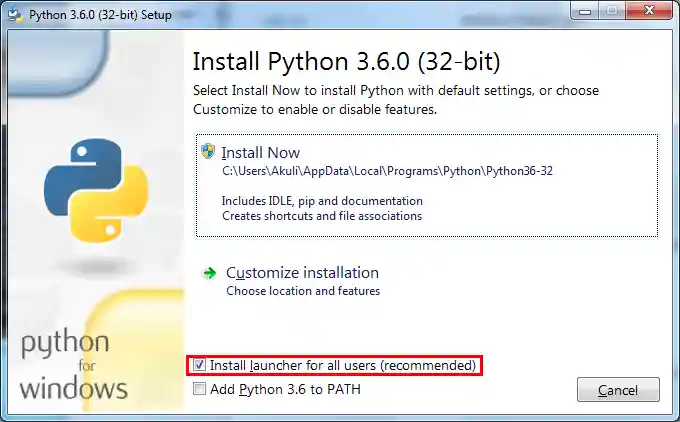
Make sure that the launcher gets installed and click Install Now.

Mac OSX
At the time of writing this, Macs don't come with a Python 3 and you need to install it yourself. To install python on your Mac please follow the instruction here.
Linux
If you have a recent Linux distribution you already have Python 3,
there's no need to install anything. To check if Python 3 is already on your operating
system run: python --version.
If you need to install python 3 please follow the istructions behind:
Ubuntu/Debian
sudo apt-get update
sudo apt-get install python3.7
If you’re using another version of Ubuntu (e.g. the latest LTS release), we recommend using the deadsnakes PPA to install Python 3.7:
$ sudo apt-get install software-properties-common
$ sudo add-apt-repository ppa:deadsnakes/ppa
$ sudo apt-get update
$ sudo apt-get install python3.7
Fedora/CentOS
Running Python
Next we'll learn to run Python on a PowerShell or terminal. There are several other ways to run Python, but if you learn this way now it's going to make things easier later.
Windows
-
Open a PowerShell from your start menu or start screen.
-
Type
pyand press Enter. You should see something like this: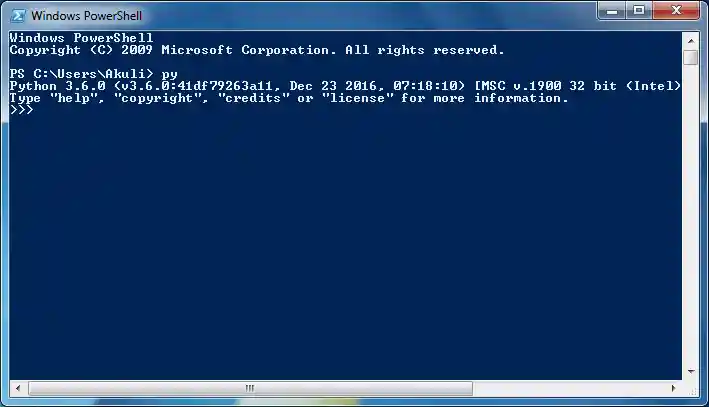

Other operating systems
-
Open a terminal. How exactly this is done depends on your operating system, but most operating systems have some way to search for programs. Search for a program called terminal and launch it.
-
Type
python3and press Enter. You should see something like this: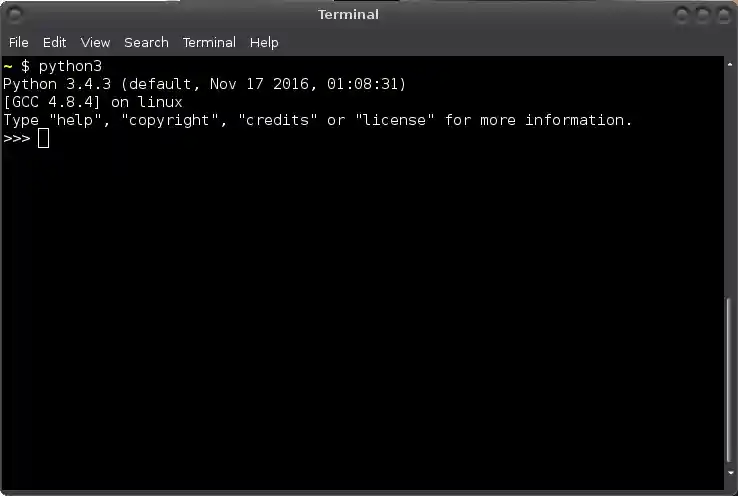
Your terminal probably looks different than mine, it's OK.

Now you can type exit() and press Enter to get out of Python. Or you
can just close the PowerShell or Terminal window.
Summary
Now you should have Python installed, and you should be able run it.