Configuring MSBuild projects to use NuGet
Note: The install script will remove the default import to the
Microsoft.TypeScript.targetsfile; if you have manually edited the import before, you will need to remove it yourself before proceeding. See Removing default imports for more details.
Note: The Nuget package depends on the x86 version of [Visual C++ Redistributable for Visual Studio 2015] (https://www.microsoft.com/en-us/download/details.aspx?id=48145). This is generally already installed on your computer, but you can verify that within Programs and Features.
For major releases (https://www.nuget.org)
-
Right-Click -> Manage NuGet Packages
-
Search for
Microsoft.TypeScript.MSBuild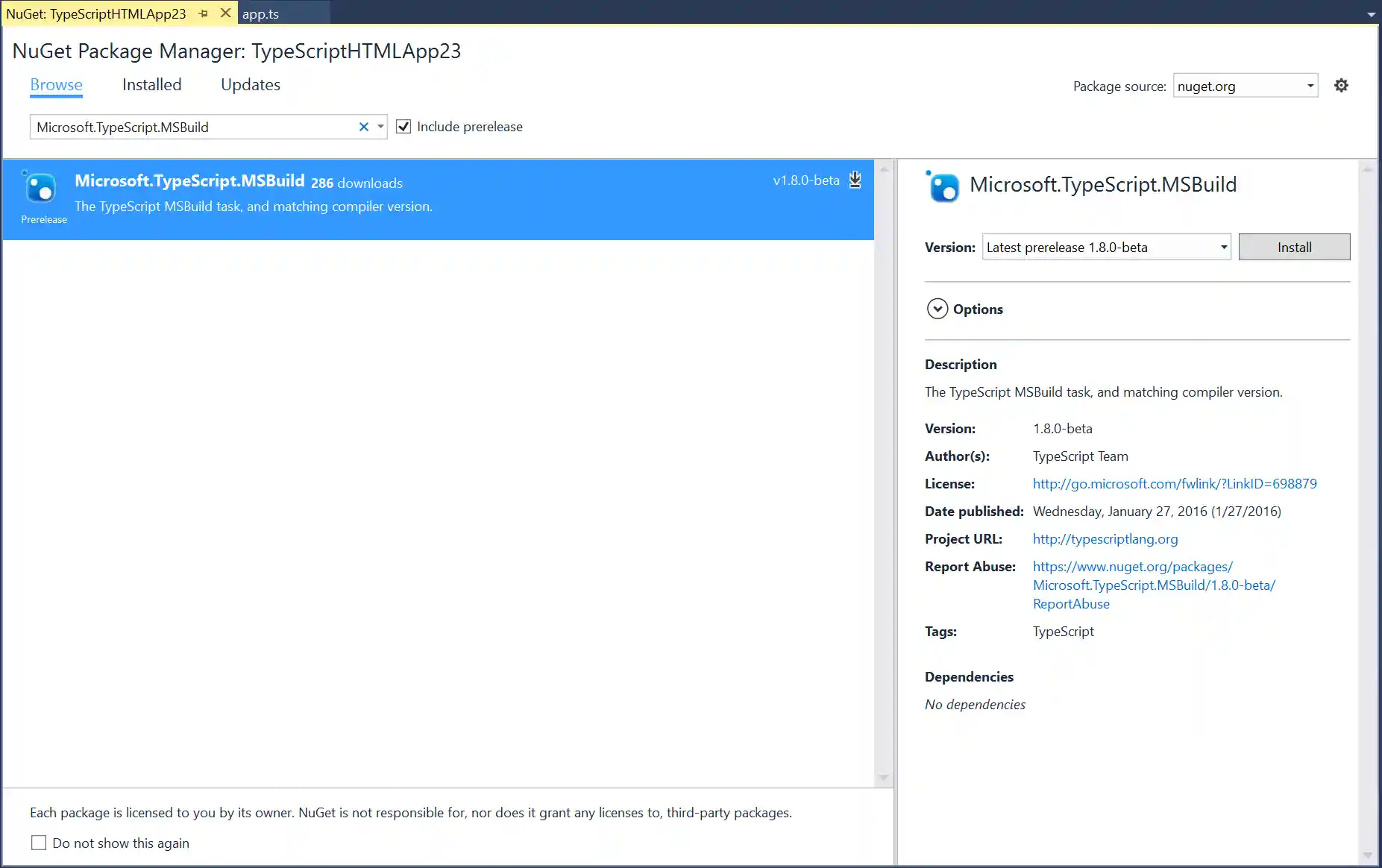
-
Hit
Install -
When install is complete, rebuild!
For Nightly drops (https://www.myget.org)
- Add a new Package Source
- Go to
Tools->Options->NuGet Package Manager->Package Sources - Create a new Source:
- Name:
TypeScript Nightly - Source:
https://www.myget.org/F/typescript-preview/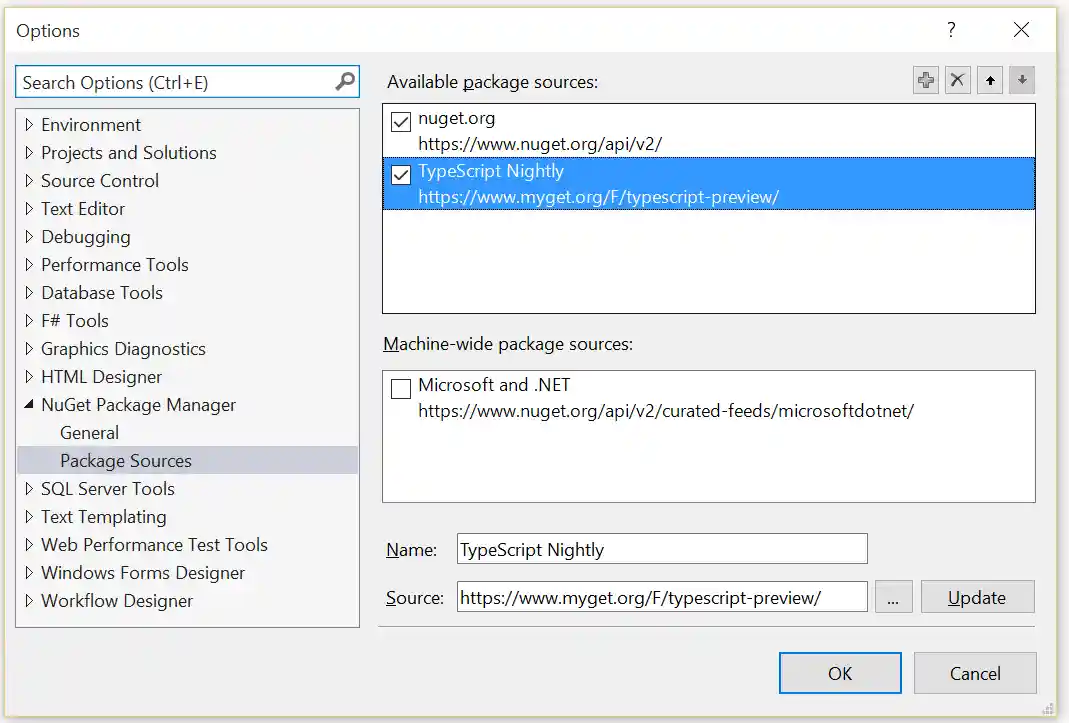
- Use the new Package Source
- On Project node Right-Click ->
Manage NuGet Packages - Search for
Microsoft.TypeScript.MSBuild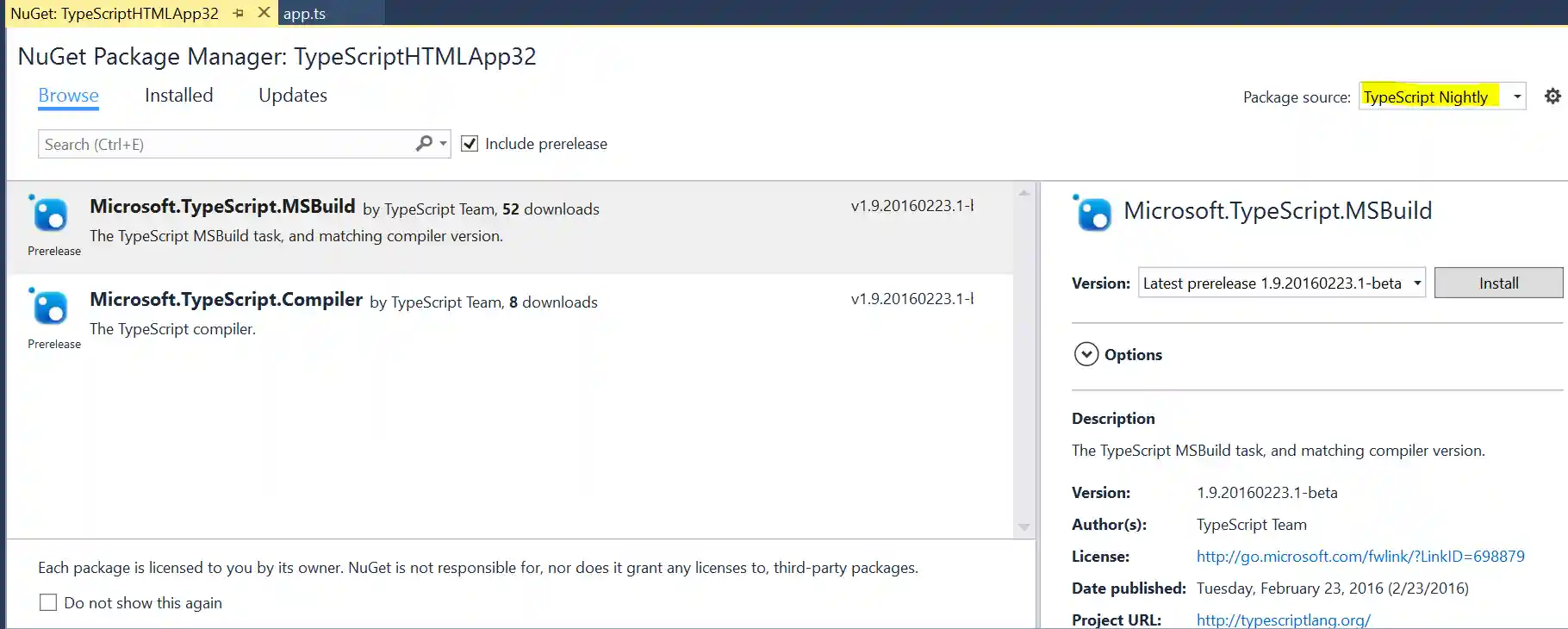
- Hit
Install - When install is complete, rebuild!
Removing default imports
-
Right-Click ->
Unload Project -
Right-Click ->
Edit <project file name> -
Remove references to
-
Microsoft.TypeScript.Default.propsThe import should look something like:
```
-
Microsoft.TypeScript.targetsThe import should look something like:
```