| theme | black |
|---|---|
| customTheme | orel |
| highlightTheme | zenburn |
| transition | none |
| center | false |
| slideNumber | true |
https://github.com/orel33/vscode ~ https://code.visualstudio.com ~ aurelien.esnard@u-bordeaux.fr pierre.ramet@u-bordeaux.fr

Introduction
How to improve the edit-compile-run cycle?
→ Use a good IDE (Integrated Development Environment)...
What should be the perfect IDE?
- source code editor
- build automation tools (Makefile, CMake)
- runner, debugger (gdb, valgrind)
- code formatting (clang-format)
- syntax highlighting
- code navigation
- intelligent code completion, code snippet
- advanced search/replace, refactoring
- version control (SVN, GIT)
- linting, static code analysis (Clang)
A poor workman blames his tools ;-)
Visual Studio Code (VSC)
Just another IDE & source code editor...
- Survey by Stack Overflow : rank #13 en 2016, rank #1 en 2018 (75 000 users)
- Provided by Microsoft under free & open-source license (MIT)
- Cross-Platform: Linux, Windows, MacOS
- Hundred of languages supported : overview
- First release in 2015 and latest release
- Vi & Emacs in 1976, Vim in 1991, Atom in 2014
- Written in TypeScript & JavaScript and based on Electron framework
- the Atom shell provided by GitHub (backend Node.js + frontend Chromium)
- Extensible: many extensions available on https://marketplace.visualstudio.com
- Rich editor features: smart completion (IntelliSense), linting, ...
Online-IDE: Visual Studio Online
Editor Overview
- Editors, Side Bar / Explorer (Ctrl+B), Actvity Bar, Status Bar, Panels (Ctrl+J)

See: https://code.visualstudio.com/docs/getstarted/userinterface
Editor Overview
- File Palette (quick open file, Ctrl+P)

select a file, then Enter to open it (or Ctrl+Enter to open it to the side)
Editor Overview
- Command Palette (access all commands, Ctrl+Shift+P)

type ?: to see all possible actions (> command, : go to line, ...)
Keyboard Shortcuts
| Shortcut | Description | |
|---|---|---|
| D | Ctrl+C / X / V | copy / cut / paste |
| D | Ctrl+Z / Y | undo / redo |
| D | Ctrl+Shift+↑/↓ | undo / redo |
| D | Ctrl+P | quick open file palette |
| D | Ctrl+Shift+P | quick open command palette |
| D | Ctrl+K Ctrl+T | change theme |
| D | Ctrl+K Z | zen mode (Esc Esc to escape) |
| D | Ctrl+J / Ctrl+B | toggle panel / side bar visibility |
| D | Ctrl+, | edit user & workspace settings |
| D | Ctrl+W | close current editor |
| D | Ctrl+N | new file |
| D | Ctrl+O | open file |
| D | Ctrl+S | save / save as file |
| U | Ctrl+! | split editor to right |
D: default shortcut on Linux; U: my user-defined shortcut.
See all keyboard shortcuts (setting button at bottom of activity bar) and add your own shortcuts...
Keyboard Shortcuts
| Shortcut | Description | |
|---|---|---|
| D | Ctrl+/ | toggle line(s) comment |
| D | Alt+↑/↓ | move line(s) up / down |
| D | Alt+Z | toggle line wrapping |
| D | Alt+Q | hard line wrapping (rewrap extension) |
| D | Ctrl+Shift+I | code formatting |
| D | Ctrl+K Ctrl+X | Trim all trailing spaces in file |
| D | Ctrl+Space | trigger suggestion for completion |
| D | F12 / Ctrl+F12 | go to function definition / declaration |
| D | Ctrl+Shift+F10 | peek definition |
| D | Ctrl+Shift+V | Markdown preview |
| D | Ctrl+⇟ / Ctrl+⇞ | move to next / previous editor |
| D | Ctrl+Shift+B | run build task |
| U | Ctrl+Shift+R | run task... |
| D | Ctrl+F | find in file |
| D | Ctrl+Shift+F | find in all files |
| D | Ctrl+T | go to program symbol in workspace |
| D | F3 / Shift+F3 | next / previous match (find) |
Note:
- Debug shortcuts: start debugging (F5), add breakpoints (F9), next (F10), build (F7), ...
- Refcards Linux, refcard MacOS, refcard Windows
Installation
- Install or update VSC on Debian Linux: install.sh
URL="https://vscode-update.azurewebsites.net/latest/linux-deb-x64/stable"
sudo apt-get install gdebi
wget $URL -O /tmp/vscode.deb
sudo gdebi /tmp/vscode.deb
Run VSC in your working directory as follow:
Install extensions using Integrated Extension Manager (side bar) or command line:
code --list-extensions
code --install-extension <extension name>
See my extensions.sh script to install (almost) all my favorite extensions...
Extensions
All extensions are available on Market Place... or directly from the Integrated Extension Manager (on side bar)

My recommandation:
- install extension provided by Microsoft or recommanded by VSC
- install very popular extensions (> 1M downloads)
My Favorite Extensions
- C/C++, Python, Jupyter
- CMake + CMake Tools + Makefile Tools
- GoogleTest Adapter
- Doxygen Documentation Generator
- GitLens + Git Graph + Git History (view git log, file history, compare branches or commits)
- Java, Fortran, Rust
- Code Runner (run code snippet or code file for multiple languages)
- Latex Workshop (LaTeX support, compile, preview, autocomplete, ...)
- Markdown All In One (toc, preview, lists, ...) + Markdown Lint (linting)
- Spell Right (multilingual spellchecker)
- Beautify (Beautify JavaScript, JSON, CSS, HTML, ...).
- NPM (JavaScript package manager) + ESLint (JavaScript linting, code formatting and more)
- Bash Beautify, Path IntelliSense, Bracket Pair Colorizer, Trailing Spaces, Todo Highlight, VSC icons ...
Additional Extensions
- GitHub Copilot
- Binding Emacs, Org-Mode
- GitLab Workflow, GitHub Workflow
- Mermaid
- Typst + Typst Preview
- Live Share (collaborative editing)
- Remote Development (Remote SSH, WSL, Docker)
See my extensions.txt list obtained using :
code --list-extensions > extensions.txtSettings
All settings are stored in json file format (setting button at bottom of the activity bar or Ctrl+,)
- Three levels: workspace settings (./.vscode/settings.json) > user settings (~/config/Code/User/settings.json) > default settings
- Other json files for some specific settings (e.g. extensions)
- Custom tasks for build & run (settings in tasks.json)
- Debug configuration (settings in launch.json)
My User Settings
For instance, my user settings:
{
    "editor.renderWhitespace": "all",
    "editor.minimap.enabled": true,
    "editor.renderIndentGuides": true,
    "git.confirmSync": false,
    "window.zoomLevel": 0,
    "gitlens.gitExplorer.files.layout": "tree",
    "editor.wordWrap": "on",
    "cmake.buildDirectory": "${workspaceRoot}/build",
    "editor.formatOnSave": true,
    "editor.formatOnType": true,
    "C_Cpp.clang_format_style": "file",
    "C_Cpp.clang_format_fallbackStyle": "Google",
    "C_Cpp.intelliSenseCacheSize": 0
}
Demo
Some demos are available in this repository:
- Code Runner (directory
demo/hello/) - C/C++ Programming
- Basic Example (directory
demo/fibonacci/) - Advanced Example (directory
demo/mandelbrot/) - CMake Project (directory
demo/cmake/) - Google Tests (directory
demo/gtest/)
- Basic Example (directory
- Python Programming (directory
demo/fibonacci/) - JavaScript Programming (directory
demo/fibonacci/) - GIT Support
- Writing in Markdown & LaTeX (directory
demo/writing/)
For each demo, launch VSC in the right directory:
Code Runner
- Quick run (Ctrl+Alt+N) using Code Runner extension...

C/C++ Programming
Just install the Extension C/C++ (provided by Microsoft)
- code navigation (F12), peek definition (Ctrl+Shift+F10), smart completion (Ctrl+Space), code formatting (Ctrl+Shift+I), linting and more...
Basic Example demo/fibonacci/fib.c
/* fib.c */
#include <stdio.h>
#include <assert.h>
#include <stdlib.h>

int fib(int n)
{
    if (n <= 1) return 1;
    else return fib(n - 1) + fib(n - 2);
}

int main(int argc, char const *argv[])
{
    int n = 10;
    if (argc == 2) n = atoi(argv[1]);
    assert(n > 0);
    int sum = fib(n);
    printf("%d\n", sum);
    return 0;
}
Note:
C/C++ Programming: Building & Running
- In menu Terminal > Configure Tasks... and add a build task and a run task (tasks.json)
{
    "label": "build fib C",
    "type": "shell",
    "command": "gcc -Wall -std=c99 -g fib.c -o fib",
    "group": { "kind": "build", "isDefault": true },
    "problemMatcher": [ "$gcc" ]
},
{
    "label": "run fib C",
    "type": "shell",
    "command": "./fib",
    "dependsOn": [ "build fib.c" ],
}- Use smart completion to learn about possible attributes (Ctrl+Space) and hover to view attribute descriptions...
- Then build, menu Terminal > Run Build Task... (or Ctrl+Shift+B)
- And run, menu Terminal > Run Task... (or Ctrl+Shift+R) and select the run task
Note:
- Set external console:
"options": { "cwd": "${workspaceFolder}", "external": true }
C/C++ Programming: Advanced Example
Example demo/mandelbrot: a simple Makefile project using SDL2 graphics library as external dependency...

TODO: explain how to configure Intellisense (code navigation, linting, ...)
Note:
- Advanced settings in file .vscode/c_ccp_properties.json
C/C++ Programming: Code Formatting
- Code formatting based on clang-format external command (Ctrl+Shift+I)
- Available styles in VSC: "LLVM", "Google", "Chromium", "Mozilla", "WebKit" and "Visual Studio" (default)
- Set the following user settings (Ctrl+,) and use your own file format (if it exists) or otherwise a fallback style
    "C_Cpp.clang_format_style": "file",
    "C_Cpp.clang_format_fallbackStyle": "Google"
- Generate your own clang format file (.clang-format) based on a default style and tune it... Then share it in your workspace on top of your GIT repository... To start, apply the command it by hand on your whole projet.
clang-format -style=Google -dump-config > .clang-format
clang-format -i *.c *.h
Note:
C/C++ Debugging
- In menu Debug > Add Configration... (or edit launch.json)
- select environment C++ (GDB) to get a template configuration
- edit the attributes: name, program, args, ...
- use smart completion to learn about possible attributes (Ctrl+Space) and hover to view attribute descriptions...
{
    "version": "0.2.0",
    "configurations": [
        {
            "name": "(gdb) Launch a.out",
            "type": "cppdbg",
            "request": "launch",
            "program": "${workspaceFolder}/a.out",
            "args": [ "20" ],
            "stopAtEntry": true,
            "cwd": "${workspaceFolder}",
            "environment": [],
            "externalConsole": false,
            "MIMode": "gdb",
            "setupCommands": [ ... ]
        }
    ]
}
Note:
- For more information, visit: https://go.microsoft.com/fwlink/?linkid=830387
C/C++ Debugging

Shortcuts: start debugging (F5), start debugging (F5), add breakpoints (F9), next (F10), ...
CMake Project
- Extensions: CMake & CMake Tools
- Project files:
main.c+ libraryfib.c fib.h - Add a CMake project file: CMakeLists.txt
cmake_minimum_required(VERSION 2.6)
project(Fibonacci C)

### build ###

set(CMAKE_C_FLAGS "-std=c99 -Wall")
add_library(fib fib.c fib.h)
add_executable(main  main.c)
target_link_libraries(main fib)

### tests ###

include(CTest)
enable_testing()
set(args "1" "5" "10" "20")
set(sols "1" "8" "89" "10946")
foreach(i RANGE ${len})
  list(GET args ${i} arg)
  list(GET sols ${i} sol)
  add_test(fib-${arg} ./main ${arg})
  set_tests_properties(fib-${arg} PROPERTIES PASS_REGULAR_EXPRESSION "${sol}" TIMEOUT 3)
endforeach()
And just open VSC... Easy!
CMake Project (Basics)
-
Extensions: CMake & CMake Tools
-
All CMake commands available from palette (Ctrl+Shift+P, type "cmake"...)
- Build All (F7), Clean, Run CTest, ...
- Build target (Shift+F7), Launch target (Shift+F5) or Quick Debug target (Ctrl+F5)
-
In Status Bar, configure your project:
- Select Build Variant: Debug, Release, MinSizeRel, ...
- Select Kit: Clang, GCC, or unspecified (Let CMake guess your compiler...)
- Select Targets : select both target to build (default [all]) and target to launch (or debug)
-
Then just click in status bar on:
- CMake to generate Makefiles
- Build to compile project
- Debug to debug the target to launch
- Tests to re-run tests... (use Palette for the first time)

CMake Debug
Quick Debugging: start it using the CMake: Debug Target command from the command palette (or Ctrl+F5). Change the Debug Target in the status bar, add a breakpoint and enjoy 😎
Classic Debugging: to get more flexibility (program arguments, working directory, ...), you need to define a debug configuration in the file .vscode/launch.json... Just press F5, and select C++ (GDB/LLDB) and edit the default configuration file with the following options:
{
    "version": "0.2.0",
    "configurations": [
        {
            "name": "(gdb) CMake Debug",
            "type": "cppdbg",
            "request": "launch",
            "program": "${workspaceFolder}/build/a.out", // <-- update this
            "args": [ "some", "args" ],                  // <-- update this
            "stopAtEntry": true,                         // <-- update this
            "cwd": "${workspaceFolder}",                 // <-- update this
            "environment": [],
            "externalConsole": false,
            "MIMode": "gdb",
            "setupCommands": [
                {
                    "description": "Enable pretty-printing for gdb",
                    "text": "-enable-pretty-printing",
                    "ignoreFailures": true
                }
            ]
        }
    ]
}
👉 Then, start debugging the program (F5) or start the program without debugging (Shift+F5)... See Debug menu.
To use the current CMake Debug/Launch Target (visible on status bar), you can change this key:
"program": "${command:cmake.launchTargetPath}"
CMake Project (Advanced)
- Set default CMake build directory in user settings:
"cmake.buildDirectory": "${workspaceRoot}/build"
- Optionnaly, you can set some CMake options in your workspace settings:
"cmake.configureSettings": {
 "CMAKE_C_FLAGS_DEBUG": "-g -fsanitize=address -fsanitize=leak -fsanitize=undefined",
 "CMAKE_VERBOSE_MAKEFILE": "ON"
}
Google Tests
- GoogleTest C++ framework (not pure C): https://github.com/abseil/googletest
- Extension GoogleTest Adapter
- run all tests, run & debug each test (just in one click), ...
- demo: launch the build task (Ctrl+Shift+B) and click the Test button in activity bar...

Python Programming
Sample demo/fibonacci/fib.py
import sys

def fib(n):
    if n <= 1:
        return 1
    else:
        return fib(n - 1) + fib(n - 2)

print(fib(10))
- Python extension (provided by Microsoft):
- code navigation (F12), smart completion (Ctrl+Space), code formatting (Ctrl+Shift+I), linting, debugging (F5), refactoring (F2), ...
Note:
Python Programming
- In menu Terminal > Configure Tasks... (or edit .vscode/tasks.json)
{
    "version": "2.0.0",
    "tasks": [
        {
            "label": "run fib.py",
            "type": "shell",
            "command": "python3 ",
            "args": [ "fib.py", "20" ]
        }
    ]
}- Then run it: menu Terminal > Run Task...
- Python Debugging : select your python file in editor, open Debug Mode (Ctrl+Shift+D) and select configuration "Python: Current File (integrated Terminal)", add breakpoint and run debug sesion...
Note:
JavaScript Programming
Sample demo/fibonacci/fib.js
var fib = function (n)
{
  if (n <= 1)
    return 1;
  else
    return fib(n - 1) + fib(n - 2);
};

 console.log(fib(10));
- Native support of JavaScript...
- Launch demo using terminal in panel:
node fib.jsor simply using Code Runner extension
> Executing task: node fib.js <

89
JavaScript Advanced Programming
Sample demo/express/express.js for Node.js
const express = require('express')
const app = express()

app.get('/', function (req, res) {
  res.send('Hello World!')
})

app.listen(3000, function () {
  console.log('Example app listening on port 3000!')
})
- Install extensions for package manager (NPM) and linting (ESLint)
- generate package.json for NPM and .eslintrc.json for ESLint
npm init
npm install express --save
eslint --init
Note:
- http://expressjs.com/fr/starter/hello-world.html
- More details on JavaScript programming: NPM, ESLint, ...
GIT (1/2)
- Amazing built-in support, enhanced with GitLens & Git History extensions: blame, diff, branch, log, ...

Note:
- extension GitLab Workflow: demo CI with Inria GitLab
GIT (2/2)
- Command Palette (Ctrl+Shift+P): Git View History or Git View File History... and performs advanced Git command (cherry-pick, revert, merge, rebase...)

Note: 2-ways vs 3-ways merge editor
GitHub Pull Requests
This extension allows you to review and manage GitHub pull requests in Visual Studio Code.
- Authenticating and connecting VS Code to GitHub.
- Listing and browsing PRs from within VS Code.
- Reviewing PRs from within VS Code with in-editor commenting.
- Validating PRs from within VS Code with easy checkouts.

Writing in MarkDown
- syntax highlighting, outline, preview on-the-fly (Ctrl+K V), ...
- formatting, list editing and more (extension Markdown All in One) + linting (extension mardownlint)
- show Markdown as slides (extension vscode-reveal)
- preview Mermaid diagrams (extension Markdown Preview Mermaid Support)

Note:
Writing in LaTeX
- highlighting, smart completion, building, view PDF, linting, ... (extension LaTeX Workshop)
- multilingual spell checker (extension Spell Right)

Working with GCC on Windows using WSL2
Tutorial: https://code.visualstudio.com/docs/cpp/config-wsl
-
Install VS Code on Windows
-
Install extension Remote WSL in VS Code
-
Install Linux inside Windows using WSL (Windows Subsystem for Linux)
- https://docs.microsoft.com/fr-fr/windows/wsl/install-win10
- Install WSL (version 2 recommanded) on Windows 10 (64 bits)
- Install Ubuntu (or Debian) from Microsoft Store: https://aka.ms/wslstore
- Install GCC on Ubuntu:
sudo apt-get update ; sudo apt-get install build-essential gdb
-
Launch VS Code on Windows and connect your Ubuntu using the Remote WSL extension... Green Button
-
Another solution consists to launch directly the command
code .from the WSL/Ubuntu...- It will automatically connect your VS Code @ Windows... (using VS Code server mechanism)
-
From Windows, you can access the Linux file system at
\\wsl$, and reciprocally you can access the Windows file system from Linux at/mnt/c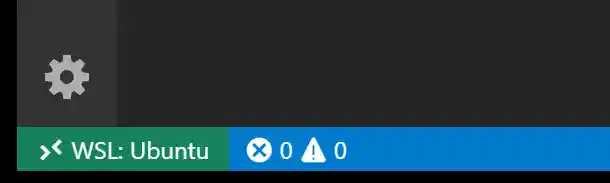

Remote Development
-
Remote Docker
- demo using image tthor/test.
- Install VSCode server with remote extensions defined in
.devcontainer/devcontainer.json
-
Remote SSH
- demo using Plafrim access.
- Install VSCode server with 'some' remote extensions
About this Document
This document is written in Markdown and converted into slides by the extension vscode-reveal (based on Reval.js).
This presentation and all demo are available on https://github.com/orel33/vscode:
git clone https://github.com/orel33/vscode.git
- Author(s) : Aurélien Esnard (aurelien.esnard@u-bordeaux.fr) and Pierre Ramet (pierre.ramet@u-bordeaux.fr)