The taskcreator Concurrency Example
The taskcreator example demonstrates how to use Concurrency Utilities
for Java EE to run tasks immediately, periodically, or after a fixed
delay. This example provides a JavaServer Faces interface that enables
users to submit tasks to be executed and displays information messages
for each task. The example uses the Managed Executor Service to run
tasks immediately and the Managed Scheduled Executor Service to run
tasks periodically or after a fixed delay. (See
Main Components of the
Concurrency Utilities for information about these services.)
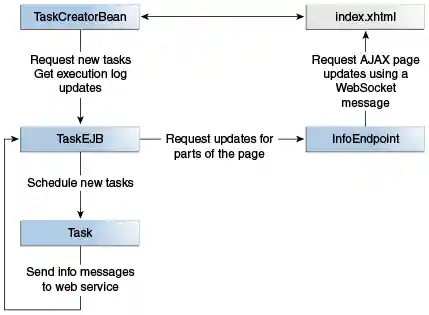
The taskcreator example consists of the following components.
-
A JavaServer Faces page (
index.xhtml) that contains three elements: a form to submit tasks, a task execution log, and a form to cancel periodic tasks. This page submits Ajax requests to create and cancel tasks. This page also receives WebSocket messages, using JavaScript code to update the task execution log. -
A CDI managed bean (
TaskCreatorBean) that processes the requests from the JavaServer Faces page. This bean invokes the methods inTaskEJBto submit new tasks and to cancel periodic tasks. -
An enterprise bean (
TaskEJB) that obtains executor service instances using resource injection and submits tasks for execution. This bean is also a JAX-RS web service endpoint. The tasks send information messages to this endpoint. -
A WebSocket endpoint (
InfoEndpoint) that the enterprise bean uses to send information messages to the clients. -
A task class (
Task) that implements theRunnableinterface. Therunmethod in this class sends information messages to the web service endpoint inTaskEJBand sleeps for 1.5 seconds.
Figure 59-1 shows the architecture of the taskcreator
example.
Figure 59-1 Architecture of the taskcreator Example
The TaskEJB class obtains the default executor service objects from
the application server as follows:
@Resource(name="java:comp/DefaultManagedExecutorService")
ManagedExecutorService mExecService;

@Resource(name="java:comp/DefaultManagedScheduledExecutorService")
ManagedScheduledExecutorService sExecService;
The submitTask method in TaskEJB uses these objects to submit tasks
for execution as follows:
public void submitTask(Task task, String type) {
    /* Use the managed executor objects from the app server */
    switch (type) {
        case "IMMEDIATE":
            mExecService.submit(task);
            break;
        case "DELAYED":
            sExecService.schedule(task, 3, TimeUnit.SECONDS);
            break;
        case "PERIODIC":
            ScheduledFuture<?> fut;
            fut = sExecService.scheduleAtFixedRate(task, 0, 8,
                    TimeUnit.SECONDS);
            periodicTasks.put(task.getName(), fut);
            break;
    }
}
For periodic tasks, TaskEJB keeps a reference to the ScheduledFuture
object, so that the user can cancel the task at any time.
Running the taskcreator Example
This section describes how to build, package, deploy, and run the
taskcreator example using NetBeans IDE or Maven.
The following topics are addressed here:
To Build, Package, and Deploy the taskcreator Example Using NetBeans IDE
-
Make sure that GlassFish Server has been started (see Starting and Stopping GlassFish Server).
-
From the File menu, choose Open Project.
-
In the Open Project dialog box, navigate to:
tut-install/examples/concurrency -
Select the
taskcreatorfolder. -
Click Open Project.
-
In the Projects tab, right-click the
taskcreatorproject and select Build.This command builds and deploys the application.
To Build, Package, and Deploy the taskcreator Example Using Maven
-
Make sure that GlassFish Server has been started (see Starting and Stopping GlassFish Server).
-
In a terminal window, go to:
tut-install/examples/concurrency/taskcreator -
Enter the following command to build and deploy the application:
To Run the taskcreator Example
-
Open the following URL in a web browser:
http://localhost:8080/taskcreator/The page contains a form to submit tasks, a task execution log, and a form to cancel periodic tasks.
-
Select the Immediate task type, enter a task name, and click the Submit button. Messages like the following appear in the task execution log:
12:40:47 - IMMEDIATE Task TaskA finished 12:40:45 - IMMEDIATE Task TaskA started -
Select the Delayed (3 sec) task type, enter a task name, and click the Submit button. Messages like the following appear in the task execution log:
12:43:26 - DELAYED Task TaskB finished 12:43:25 - DELAYED Task TaskB started 12:43:22 - DELAYED Task TaskB submitted -
Select the Periodic (8 sec) task type, enter a task name, and click the Submit button. Messages like the following appear in the task execution log:
12:45:25 - PERIODIC Task TaskC finished run #2
12:45:23 - PERIODIC Task TaskC started run #2
12:45:17 - PERIODIC Task TaskC finished run #1
12:45:15 - PERIODIC Task TaskC started run #1
You can add more than one periodic task. To cancel a periodic task, select it from the form and click Cancel Task.