Writing More Advanced JMS Applications
The following examples show how to use some of the more advanced features of the JMS API: durable subscriptions and transactions.
The following topics are addressed here:
Using Durable Subscriptions
The durablesubscriptionexample example shows how unshared durable
subscriptions work. It demonstrates that a durable subscription
continues to exist and accumulate messages even when there is no active
consumer on it.
The example consists of two modules, a durableconsumer application
that creates a durable subscription and consumes messages, and an
unsubscriber application that enables you to unsubscribe from the
durable subscription after you have finished running the
durableconsumer application.
The main client, DurableConsumer.java, is under the
_tut-install_/examples/jms/durablesubscriptionexample/durableconsumer/
directory.
The example uses a connection factory, jms/DurableConnectionFactory,
that has a client ID.
The DurableConsumer client creates a JMSContext using the connection
factory. It then stops the JMSContext, calls createDurableConsumer
to create a durable subscription and a consumer on the topic by
specifying a subscription name, registers a message listener, and starts
the JMSContext again. The subscription is created only if it does not
already exist, so the example can be run repeatedly:
try (JMSContext context = durableConnectionFactory.createContext();) {
    context.stop();
    consumer = context.createDurableConsumer(topic, "MakeItLast");
    listener = new TextListener();
    consumer.setMessageListener(listener);
    context.start();
    ...
To send messages to the topic, you run the producer client.
The unsubscriber example contains a very simple Unsubscriber client,
which creates a JMSContext on the same connection factory and then
calls the unsubscribe method, specifying the subscription name:
try (JMSContext context = durableConnectionFactory.createContext();) {
    System.out.println("Unsubscribing from durable subscription");
    context.unsubscribe("MakeItLast");
} ...
To Create Resources for the Durable Subscription Example
-
Make sure that GlassFish Server has been started (see Starting and Stopping GlassFish Server).
-
In a command window, go to the
durableconsumerexample.cd tut-install/jms/durablesubscriptionexample/durableconsumer -
Create the resources using the
asadmin add-resourcescommand:asadmin add-resources src/main/setup/glassfish-resources.xmlThe command output reports the creation of a connector connection pool and a connector resource.
-
Verify the creation of the resources:
asadmin list-jms-resourcesIn addition to the resources you created for the simple examples, the command lists the new connection factory:
jms/MyQueue
jms/MyTopic
jms/__defaultConnectionFactory
jms/DurableConnectionFactory
Command list-jms-resources executed successfully.
To Run the Durable Subscription Example
-
In a terminal window, go to the following directory:
tut-install/examples/jms/durablesubscriptionexample/ -
Build the
durableconsumerandunsubscriberexamples: -
Go to the
durableconsumerdirectory: -
To run the client, enter the following command:
appclient -client target/durableconsumer.jarThe client creates the durable consumer and then waits for messages:
Creating consumer for topic Starting consumer To end program, enter Q or q, then <return> -
In another terminal window, run the
Producerclient, sending some messages to the topic:cd tut-install/examples/jms/simple/producer appclient -client target/producer.jar topic 3 -
After the
DurableConsumerclient receives the messages, enterqorQto exit the program. At this point, the client has behaved like any other asynchronous consumer. -
Now, while the
DurableConsumerclient is not running, use theProducerclient to send more messages:appclient -client target/producer.jar topic 2If a durable subscription did not exist, these messages would be lost, because no consumer on the topic is currently running. However, the durable subscription is still active, and it retains the messages.
-
Run the
DurableConsumerclient again. It immediately receives the messages that were sent while it was inactive:Creating consumer for topic Starting consumer To end program, enter Q or q, then <return> Reading message: This is message 1 from producer Reading message: This is message 2 from producer Message is not a TextMessage -
Enter
qorQto exit the program.
To Run the unsubscriber Example
After you have finished running the DurableConsumer client, run the
unsubscriber example to unsubscribe from the durable subscription.
-
In a terminal window, go to the following directory:
tut-install/examples/jms/durablesubscriptionexample/unsubscriber -
To run the
Unsubscriberclient, enter the following command:appclient -client target/unsubscriber.jarThe client reports that it is unsubscribing from the durable subscription.
Using Local Transactions
The transactedexample example demonstrates the use of local
transactions in a JMS client application. It also demonstrates the use
of the request/reply messaging pattern described in
Creating Temporary Destinations,
although it uses permanent rather than temporary destinations. The
example consists of three modules, genericsupplier, retailer, and
vendor, which can be found under the
tut-install`/examples/jms/transactedexample/` directory. The source code
can be found in the src/main/java/javaeetutorial trees for each
module. The genericsupplier and retailer modules each contain a
single class, genericsupplier/GenericSupplier.java and
retailer/Retailer.java, respectively. The vendor module is more
complex, containing four classes: vendor/Vendor.java,
vendor/VendorMessageListener.java, vendor/Order.java, and
vendor/SampleUtilities.java.
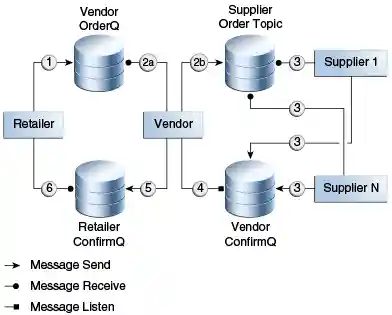
The example shows how to use a queue and a topic in a single transaction
as well as how to pass a JMSContext to a message listener’s
constructor function. The example represents a highly simplified
e-commerce application in which the following actions occur.
-
A retailer (
retailer/src/main/java/javaeetutorial/retailer/Retailer.java) sends aMapMessageto a vendor order queue, ordering a quantity of computers, and waits for the vendor’s reply:outMessage = context.createMapMessage(); outMessage.setString("Item", "Computer(s)"); outMessage.setInt("Quantity", quantity); outMessage.setJMSReplyTo(retailerConfirmQueue); context.createProducer().send(vendorOrderQueue, outMessage); System.out.println("Retailer: ordered " + quantity + " computer(s)"); orderConfirmReceiver = context.createConsumer(retailerConfirmQueue); -
The vendor (
vendor/src/main/java/javaeetutorial/retailer/Vendor.java) receives the retailer’s order message and sends an order message to the supplier order topic in one transaction. This JMS transaction uses a single session, so you can combine a receive from a queue with a send to a topic. Here is the code that uses the same session to create a consumer for a queue:vendorOrderReceiver = session.createConsumer(vendorOrderQueue);The following code receives the incoming message, sends an outgoing message, and commits the
JMSContext. The message processing has been removed to keep the sequence simple:inMessage = vendorOrderReceiver.receive(); // Process the incoming message and format the outgoing // message ... context.createProducer().send(supplierOrderTopic, orderMessage); ... context.commit();For simplicity, there are only two suppliers, one for CPUs and one for hard drives.
-
Each supplier (
genericsupplier/src/main/java/javaeetutorial/retailer/GenericSupplier.java) receives the order from the order topic, checks its inventory, and then sends the items ordered to the queue named in the order message’sJMSReplyTofield. If it does not have enough of the item in stock, the supplier sends what it has. The synchronous receive from the topic and the send to the queue take place in one JMS transaction:receiver = context.createConsumer(SupplierOrderTopic); ... inMessage = receiver.receive(); if (inMessage instanceof MapMessage) { orderMessage = (MapMessage) inMessage; } ... // Process message outMessage = context.createMapMessage(); // Add content to message context.createProducer().send( (Queue) orderMessage.getJMSReplyTo(), outMessage); // Display message contents context.commit(); -
The vendor receives the suppliers' replies from its confirmation queue and updates the state of the order. Messages are processed by an asynchronous message listener,
VendorMessageListener; this step shows the use of JMS transactions with a message listener:MapMessage component = (MapMessage) message; ... int orderNumber = component.getInt("VendorOrderNumber"); Order order = Order.getOrder(orderNumber).processSubOrder(component); context.commit(); -
When all outstanding replies are processed for a given order, the vendor message listener sends a message notifying the retailer whether it can fulfill the order:
Queue replyQueue = (Queue) order.order.getJMSReplyTo(); MapMessage retailerConfirmMessage = context.createMapMessage(); // Format the message context.createProducer().send(replyQueue, retailerConfirmMessage); context.commit(); -
The retailer receives the message from the vendor:
inMessage = (MapMessage) orderConfirmReceiver.receive();The retailer then places a second order for twice as many computers as in the first order, so these steps are executed twice.
Figure 49-1 illustrates these steps.
Figure 49-1 Transactions: JMS Client Example
All the messages use the MapMessage message type. Synchronous receives
are used for all message reception except when the vendor processes the
replies of the suppliers. These replies are processed asynchronously and
demonstrate how to use transactions within a message listener.
At random intervals, the Vendor client throws an exception to simulate
a database problem and cause a rollback.
All clients except Retailer use transacted contexts.
The example uses three queues named jms/AQueue, jms/BQueue, and
jms/CQueue, and one topic named jms/OTopic.
To Create Resources for the transactedexample Example
-
Make sure that GlassFish Server has been started (see Starting and Stopping GlassFish Server).
-
In a command window, go to the
genericsupplierexample:cd tut-install/jms/transactedexample/genericsupplier -
Create the resources using the
asadmin add-resourcescommand:asadmin add-resources src/main/setup/glassfish-resources.xml -
Verify the creation of the resources:
asadmin list-jms-resourcesIn addition to the resources you created for the simple examples and the durable subscription example, the command lists the four new destinations:
jms/MyQueue
jms/MyTopic
jms/AQueue
jms/BQueue
jms/CQueue
jms/OTopic
jms/__defaultConnectionFactory
jms/DurableConnectionFactory
Command list-jms-resources executed successfully.
To Run the transactedexample Clients
You will need four terminal windows to run the clients. Make sure that you start the clients in the correct order.
-
In a terminal window, go to the following directory:
tut-install/examples/jms/transactedexample/ -
To build and package all the modules, enter the following command:
-
Go to the
genericsupplierdirectory: -
Use the following command to start the CPU supplier client:
appclient -client target\genericsupplier.jar CPUAfter some initial output, the client reports the following:
-
In a second terminal window, go to the
genericsupplierdirectory:cd tut-install/examples/jms/transactedexample/genericsupplier -
Use the following command to start the hard drive supplier client:
appclient -client target\genericsupplier.jar HDAfter some initial output, the client reports the following:
Starting Hard Drive supplier -
In a third terminal window, go to the
vendordirectory:cd tut-install/examples/jms/transactedexample/vendor -
Use the following command to start the
Vendorclient:appclient -client target\vendor.jarAfter some initial output, the client reports the following:
-
In another terminal window, go to the
retailerdirectory:cd tut-install/examples/jms/transactedexample/retailer -
Use a command like the following to run the
Retailerclient. The argument specifies the number of computers to order:appclient -client target/retailer.jar 4After some initial output, the
Retailerclient reports something like the following. In this case, the first order is filled, but the second is not:Retailer: Quantity to be ordered is 4 Retailer: Ordered 4 computer(s) Retailer: Order filled Retailer: Placing another order Retailer: Ordered 8 computer(s) Retailer: Order not filledThe
Vendorclient reports something like the following, stating in this case that it is able to send all the computers in the first order, but not in the second:Vendor: Retailer ordered 4 Computer(s) Vendor: Ordered 4 CPU(s) and hard drive(s) Vendor: Committed transaction 1 Vendor: Completed processing for order 1 Vendor: Sent 4 computer(s) Vendor: committed transaction 2 Vendor: Retailer ordered 8 Computer(s) Vendor: Ordered 8 CPU(s) and hard drive(s) Vendor: Committed transaction 1 Vendor: Completed processing for order 2 Vendor: Unable to send 8 computer(s) Vendor: Committed transaction 2The CPU supplier reports something like the following. In this case, it is able to send all the CPUs for both orders:
CPU Supplier: Vendor ordered 4 CPU(s)
CPU Supplier: Sent 4 CPU(s)
  CPU Supplier: Committed transaction
CPU Supplier: Vendor ordered 8 CPU(s)
CPU Supplier: Sent 8 CPU(s)
  CPU Supplier: Committed transaction
The hard drive supplier reports something like the following. In this case, it has a shortage of hard drives for the second order:
Hard Drive Supplier: Vendor ordered 4 Hard Drive(s) Hard Drive Supplier: Sent 4 Hard Drive(s) Hard Drive Supplier: Committed transaction Hard Drive Supplier: Vendor ordered 8 Hard Drive(s) Hard Drive Supplier: Sent 1 Hard Drive(s) Hard Drive Supplier: Committed transaction -
Repeat steps 4 through 10 as many times as you wish. Occasionally, the vendor will report an exception that causes a rollback:
Vendor: JMSException occurred: javax.jms.JMSException: Simulated database concurrent access exception Vendor: Rolled back transaction 1 -
After you finish running the clients, you can delete the destination resources by using the following commands:
asadmin delete-jms-resource jms/AQueue
asadmin delete-jms-resource jms/BQueue
asadmin delete-jms-resource jms/CQueue
asadmin delete-jms-resource jms/OTopic