Image manipulation and processing using NumPy and SciPy#
Authors: Emmanuelle Gouillart, Gaël Varoquaux
Show code cell source
Hide code cell source
# Our usual imports.
import numpy as np
import matplotlib.pyplot as plt
This section addresses basic image manipulation and processing using the
core scientific modules NumPy and SciPy. Some of the operations covered
by this tutorial may be useful for other kinds of multidimensional array
processing than image processing. In particular, the submodule
scipy.ndimage provides functions operating on n-dimensional NumPy
arrays.
Image = 2-D numerical array
(or 3-D: CT, MRI, 2D + time; 4-D, …)
Here, image == NumPy array np.array
Tools used in this tutorial:
numpy: basic array manipulationscipy:scipy.ndimagesubmodule dedicated to image processing (n-dimensional images). See the documentation:
Common tasks in image processing:
Input/Output, displaying images
Basic manipulations: cropping, flipping, rotating, …
Image filtering: denoising, sharpening
Image segmentation: labeling pixels corresponding to different objects
Classification
Feature extraction
Registration
…
Opening and writing to image files#
Writing an array to an image file:
import scipy as sp
import imageio.v3 as iio

f = sp.datasets.face()
iio.imwrite("face.png", f)  # uses the Image module (PIL)

plt.imshow(f)
Downloading file 'face.dat' from 'https://raw.githubusercontent.com/scipy/dataset-face/main/face.dat' to '/home/runner/.cache/scipy-data'.
<matplotlib.image.AxesImage at 0x7fd461a2f4d0>

face = iio.imread('face.png')
type(face)
((768, 1024, 3), dtype('uint8'))
dtype is uint8 for 8-bit images (0-255)
Opening raw files (camera, 3-D images)
face.tofile('face.raw') # Create raw file
face_from_raw = np.fromfile('face.raw', dtype=np.uint8)
face_from_raw.shape
face_from_raw.shape = (768, 1024, 3)
Need to know the shape and dtype of the image (how to separate data bytes).
For large data, use np.memmap for memory mapping:
face_memmap = np.memmap('face.raw', dtype=np.uint8, shape=(768, 1024, 3))
(data are read from the file, and not loaded into memory)
Working on a list of image files
rng = np.random.default_rng(27446968)
for i in range(10):
    im = rng.integers(0, 256, 10000, dtype=np.uint8).reshape((100, 100))
    iio.imwrite(f'random_{i:02d}.png', im)
from glob import glob
filelist = sorted(glob('random*.png'))
filelist
['random_00.png',
 'random_01.png',
 'random_02.png',
 'random_03.png',
 'random_04.png',
 'random_05.png',
 'random_06.png',
 'random_07.png',
 'random_08.png',
 'random_09.png']
Displaying images#
Use matplotlib and imshow to display an image inside a
matplotlib figure:
f = sp.datasets.face(gray=True)  # retrieve a grayscale image
plt.imshow(f, cmap=plt.cm.gray)
<matplotlib.image.AxesImage at 0x7fd4612d7470>

Increase contrast by setting min and max values:
plt.imshow(f, cmap=plt.cm.gray, vmin=30, vmax=200)
# Remove axes and ticks.
# Semicolon ends line to suppress repr of Matplotlib objects.
plt.axis('off');

Draw contour lines:
plt.imshow(f, cmap=plt.cm.gray, vmin=30, vmax=200)
plt.contour(f, [50, 200])
plt.axis('off');

For smooth intensity variations, use interpolation='bilinear'. For fine inspection of intensity variations, use
interpolation='nearest':
fix, axes = plt.subplots(1, 2)
axes[0].imshow(f[320:340, 510:530], cmap=plt.cm.gray, interpolation='bilinear')
axes[0].axis('off')
axes[0].set_title('Bilinear interpolation')
axes[1].imshow(f[320:340, 510:530], cmap=plt.cm.gray, interpolation='nearest')
axes[1].set_title('Nearest interpolation')
axes[1].axis('off');

Basic manipulations#
Images are arrays: use the whole numpy machinery.
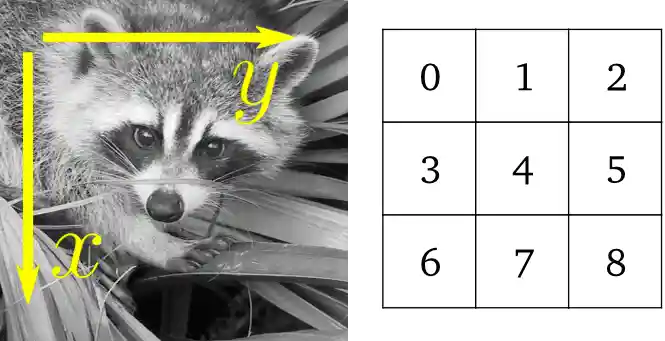
face = sp.datasets.face(gray=True)
face[0, 40]
# Slicing
face[10:13, 20:23]
array([[141, 153, 145],
       [133, 134, 125],
       [ 96,  92,  94]], dtype=uint8)
lx, ly = face.shape
X, Y = np.ogrid[0:lx, 0:ly]
mask = (X - lx / 2) ** 2 + (Y - ly / 2) ** 2 > lx * ly / 4
# Masks
face[mask] = 0
# Fancy indexing
face[range(400), range(400)] = 255
Show code cell source
Hide code cell source
plt.figure(figsize=(3, 3))
plt.axes((0, 0, 1, 1))
plt.imshow(face, cmap="gray")
plt.axis("off");

Statistical information#
face = sp.datasets.face(gray=True)
face.mean()
np.float64(113.48026784261067)
(np.uint8(250), np.uint8(0))
np.histogram
Exercise 51
Open as an array the
scikit-imagelogo (https://scikit-image.org/_static/img/logo.png), or an image that you have on your computer.Crop a meaningful part of the image, for example the python circle in the logo.
Display the image array using
matplotlib. Change the interpolation method and zoom to see the difference.Transform your image to greyscale
Increase the contrast of the image by changing its minimum and maximum values. Optional: use
scipy.stats.scoreatpercentile(read the docstring!) to saturate 5% of the darkest pixels and 5% of the lightest pixels.Save the array to two different file formats (png, jpg, tiff)


Geometrical transformations#
face = sp.datasets.face(gray=True)
lx, ly = face.shape
# Cropping
crop_face = face[lx // 4: - lx // 4, ly // 4: - ly // 4]
# up <-> down flip
flip_ud_face = np.flipud(face)
# rotation
rotate_face = sp.ndimage.rotate(face, 45)
rotate_face_noreshape = sp.ndimage.rotate(face, 45, reshape=False)
Show code cell source
Hide code cell source
# Plot the transformed face.
fig, axes = plt.subplots(1, 5, figsize=(12.5, 2.5))
for i, img_arr in enumerate([face, crop_face, flip_ud_face,
                             rotate_face, rotate_face_noreshape]):
    axes[i].imshow(img_arr, cmap="gray")
    axes[i].axis('off')

plt.subplots_adjust(wspace=0.02, hspace=0.3, top=1, bottom=0.1, left=0, right=1);

Image filtering#
Local filters: replace the value of pixels by a function of the values of neighboring pixels.
Neighbourhood: square (choose size), disk, or more complicated structuring element.

Blurring/smoothing#
Gaussian filter from scipy.ndimage:
face = sp.datasets.face(gray=True)
blurred_face = sp.ndimage.gaussian_filter(face, sigma=3)
very_blurred = sp.ndimage.gaussian_filter(face, sigma=5)
Uniform filter
local_mean = sp.ndimage.uniform_filter(face, size=11)
Show code cell source
Hide code cell source
# Plot the figures.
fig, axes = plt.subplots(1, 3, figsize=(9, 3))
for i, img_arr in enumerate([blurred_face, very_blurred, local_mean]):
    axes[i].imshow(blurred_face, cmap="gray")
    axes[i].axis("off")

plt.subplots_adjust(wspace=0, hspace=0.0, top=0.99, bottom=0.01, left=0.01, right=0.99);

Sharpening#
Sharpen a blurred image:
face = sp.datasets.face(gray=True).astype(float)
blurred_f = sp.ndimage.gaussian_filter(face, 3)
Increase the weight of edges by adding an approximation of the Laplacian:
filter_blurred_f = sp.ndimage.gaussian_filter(blurred_f, 1)
alpha = 30
sharpened = blurred_f + alpha * (blurred_f - filter_blurred_f)
Show code cell source
Hide code cell source
fig, axes = plt.subplots(1, 3, figsize=(12, 4))
for i, img_arr in enumerate([f, blurred_f, sharpened]):
    axes[i].imshow(blurred_face, cmap="gray")
    axes[i].axis("off")

plt.tight_layout();

Denoising#
Noisy face:
f = sp.datasets.face(gray=True)
f = f[230:290, 220:320]

rng = np.random.default_rng()
noisy = f + 0.4 * f.std() * rng.random(f.shape)
A Gaussian filter smoothes the noise out… and the edges as well:
gauss_denoised = sp.ndimage.gaussian_filter(noisy, 2)
Most local linear isotropic filters blur the image (scipy.ndimage.uniform_filter)
A median filter preserves better the edges:
med_denoised = sp.ndimage.median_filter(noisy, 3)
Show code cell source
Hide code cell source
fig, axes = plt.subplots(1, 3, figsize=(12, 2.8))
for i, (name, img_arr) in enumerate([
    ['noisy', noisy],
    ['Gaussian filter', gauss_denoised],
    ['Median filter', med_denoised]]):
    axes[i].imshow(img_arr, cmap="gray", vmin=40, vmax=220)
    axes[i].axis("off")
    axes[i].set_title(name, fontsize=20)

plt.subplots_adjust(wspace=0.02, hspace=0.02, top=0.9, bottom=0, left=0, right=1);

Median filter: better result for straight boundaries (low curvature):
im = np.zeros((20, 20))
im[5:-5, 5:-5] = 1
im = sp.ndimage.distance_transform_bf(im)
rng = np.random.default_rng()
im_noise = im + 0.2 * rng.standard_normal(im.shape)
im_med = sp.ndimage.median_filter(im_noise, 3)
Show code cell source
Hide code cell source
fig, axes = plt.subplots(1, 4, figsize=(16, 5))
for i, (name, img_arr) in enumerate([
    ['Original image', im],
    ['Noisy image', im_noise],
    ['Median filter', im_med]]):
    axes[i].imshow(img_arr, vmin=0, vmax=5)
    axes[i].axis("off")
    axes[i].set_title(name, fontsize=10)
axes[-1].imshow(np.abs(im - im_med), cmap="hot", interpolation="nearest")
axes[-1].axis("off")
axes[-1].set_title('Error', fontsize=10)

plt.subplots_adjust(wspace=0.02, hspace=0.02, top=0.9, bottom=0, left=0, right=1)

Other rank filter: scipy.ndimage.maximum_filter,
scipy.ndimage.percentile_filter
Other local non-linear filters: Wiener (scipy.signal.wiener), etc.
Non-local filters
Exercise 52
Create a binary image (of 0s and 1s) with several objects (circles, ellipses, squares, or random shapes).
Add some noise (e.g., 20% of noise)
Try two different denoising methods for denoising the image: gaussian filtering and median filtering.
Compare the histograms of the two different denoised images. Which one is the closest to the histogram of the original (noise-free) image?
Mathematical morphology#
See wikipedia for a definition of mathematical morphology.
Probe an image with a simple shape (a structuring element), and modify this image according to how the shape locally fits or misses the image.
Structuring element:
el = sp.ndimage.generate_binary_structure(2, 1)
el
array([[False,  True, False],
       [ True,  True,  True],
       [False,  True, False]])
array([[0, 1, 0],
       [1, 1, 1],
       [0, 1, 0]])

Erosion = minimum filter. Replace the value of a pixel by the minimal value covered by the structuring element.:
a = np.zeros((7,7), dtype=int)
a[1:6, 2:5] = 1
a
array([[0, 0, 0, 0, 0, 0, 0],
       [0, 0, 1, 1, 1, 0, 0],
       [0, 0, 1, 1, 1, 0, 0],
       [0, 0, 1, 1, 1, 0, 0],
       [0, 0, 1, 1, 1, 0, 0],
       [0, 0, 1, 1, 1, 0, 0],
       [0, 0, 0, 0, 0, 0, 0]])
sp.ndimage.binary_erosion(a).astype(a.dtype)
array([[0, 0, 0, 0, 0, 0, 0],
       [0, 0, 0, 0, 0, 0, 0],
       [0, 0, 0, 1, 0, 0, 0],
       [0, 0, 0, 1, 0, 0, 0],
       [0, 0, 0, 1, 0, 0, 0],
       [0, 0, 0, 0, 0, 0, 0],
       [0, 0, 0, 0, 0, 0, 0]])
# Erosion removes objects smaller than the structure
sp.ndimage.binary_erosion(a, structure=np.ones((5,5))).astype(a.dtype)
array([[0, 0, 0, 0, 0, 0, 0],
       [0, 0, 0, 0, 0, 0, 0],
       [0, 0, 0, 0, 0, 0, 0],
       [0, 0, 0, 0, 0, 0, 0],
       [0, 0, 0, 0, 0, 0, 0],
       [0, 0, 0, 0, 0, 0, 0],
       [0, 0, 0, 0, 0, 0, 0]])
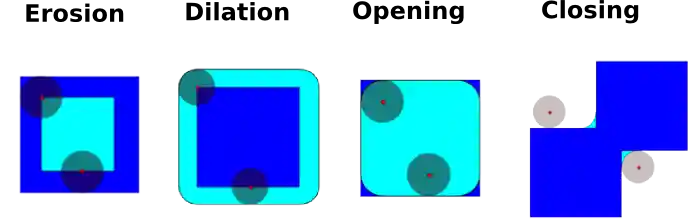
Dilation: maximum filter:
a = np.zeros((5, 5))
a[2, 2] = 1
a
array([[0., 0., 0., 0., 0.],
       [0., 0., 0., 0., 0.],
       [0., 0., 1., 0., 0.],
       [0., 0., 0., 0., 0.],
       [0., 0., 0., 0., 0.]])
sp.ndimage.binary_dilation(a).astype(a.dtype)
array([[0., 0., 0., 0., 0.],
       [0., 0., 1., 0., 0.],
       [0., 1., 1., 1., 0.],
       [0., 0., 1., 0., 0.],
       [0., 0., 0., 0., 0.]])
Also works for grey-valued images:
rng = np.random.default_rng(27446968)
im = np.zeros((64, 64))
x, y = (63*rng.random((2, 8))).astype(int)
im[x, y] = np.arange(8)
bigger_points = sp.ndimage.grey_dilation(im, size=(5, 5), structure=np.ones((5, 5)))
square = np.zeros((16, 16))
square[4:-4, 4:-4] = 1
dist = sp.ndimage.distance_transform_bf(square)
dilate_dist = sp.ndimage.grey_dilation(dist, size=(3, 3), \
        structure=np.ones((3, 3)))
Show code cell source
Hide code cell source
fig, axes = plt.subplots(1, 4, figsize=(12.5, 3))
for i, img_arr in enumerate([im, bigger_points, dist, dilate_dist]):
    axes[i].imshow(img_arr, interpolation='nearest', cmap='nipy_spectral')
    axes[i].axis("off")

plt.subplots_adjust(wspace=0, hspace=0.02, top=0.99, bottom=0.01, left=0.01, right=0.99)

Opening: erosion + dilation:#
a = np.zeros((5,5), dtype=int)
a[1:4, 1:4] = 1; a[4, 4] = 1
a
array([[0, 0, 0, 0, 0],
       [0, 1, 1, 1, 0],
       [0, 1, 1, 1, 0],
       [0, 1, 1, 1, 0],
       [0, 0, 0, 0, 1]])
# Opening removes small objects
sp.ndimage.binary_opening(a, structure=np.ones((3,3))).astype(int)
array([[0, 0, 0, 0, 0],
       [0, 1, 1, 1, 0],
       [0, 1, 1, 1, 0],
       [0, 1, 1, 1, 0],
       [0, 0, 0, 0, 0]])
# Opening can also smooth corners
sp.ndimage.binary_opening(a).astype(int)
array([[0, 0, 0, 0, 0],
       [0, 0, 1, 0, 0],
       [0, 1, 1, 1, 0],
       [0, 0, 1, 0, 0],
       [0, 0, 0, 0, 0]])
Application: remove noise:#
square = np.zeros((32, 32))
square[10:-10, 10:-10] = 1
rng = np.random.default_rng(27446968)
x, y = (32*rng.random((2, 20))).astype(int)
square[x, y] = 1
open_square = sp.ndimage.binary_opening(square)
eroded_square = sp.ndimage.binary_erosion(square)
reconstruction = sp.ndimage.binary_propagation(eroded_square, mask=square)
Show code cell source
Hide code cell source
fig, axes = plt.subplots(1, 3, figsize=(9.5, 3))
for i, img_arr in enumerate([square, open_square, reconstruction]):
    axes[i].imshow(img_arr, interpolation='nearest', cmap='gray')
    axes[i].axis("off")

plt.subplots_adjust(wspace=0, hspace=0.02, top=0.99, bottom=0.01, left=0.01, right=0.99)

Closing: dilation + erosion#
Many other mathematical morphology operations: hit and miss transform, tophat, etc.
Measuring object properties: scipy.ndimage.measurements#
Synthetic data:
n = 10
l = 256
im = np.zeros((l, l))
rng = np.random.default_rng(27446968)
points = l * rng.random((2, n**2))
im[(points[0]).astype(int), (points[1]).astype(int)] = 1
im = sp.ndimage.gaussian_filter(im, sigma=l/(4.*n))
mask = im > im.mean()
Analysis of connected components#
Label connected components: scipy.dimage.label:
label_im, nb_labels = sp.ndimage.label(mask)
nb_labels # how many regions?
Show code cell source
Hide code cell source
fig, axes = plt.subplots(1, 3, figsize=(9, 3))
for i, (img_arr, cmap) in enumerate([
    [im, 'viridis'],
    [mask, 'gray'],
    [label_im, 'nipy_spectral']]):
    axes[i].imshow(img_arr, cmap=cmap)
    axes[i].axis("off")

plt.subplots_adjust(wspace=0.02, hspace=0.02, top=1, bottom=0, left=0, right=1);

Compute size, mean_value, etc. of each region:
sizes = sp.ndimage.sum(mask, label_im, range(nb_labels + 1))
mean_vals = sp.ndimage.sum(im, label_im, range(1, nb_labels + 1))
Clean up small connect components:
mask_size = sizes < 1000
remove_pixel = mask_size[label_im]
remove_pixel.shape
label_im[remove_pixel] = 0
Now reassign labels with np.searchsorted:
labels = np.unique(label_im)
label_im = np.searchsorted(labels, label_im)
Show code cell source
Hide code cell source
fig, axes = plt.subplots(1, 2, figsize=(6, 3))
axes[0].imshow(label_im, cmap="nipy_spectral")
axes[0].axis("off")
axes[1].imshow(label_im, vmax=nb_labels, cmap="nipy_spectral")
axes[1].axis("off")

plt.subplots_adjust(wspace=0.01, hspace=0.01, top=1, bottom=0, left=0, right=1)

Find region of interest enclosing object:
slice_x, slice_y = sp.ndimage.find_objects(label_im)[3]
roi = im[slice_x, slice_y]
plt.imshow(roi);

Other spatial measures: scipy.ndimage.center_of_mass,
scipy.ndimage.maximum_position, etc.
Can be used outside the limited scope of segmentation applications.
Example: block mean:
f = sp.datasets.face(gray=True)
sx, sy = f.shape
X, Y = np.ogrid[0:sx, 0:sy]
regions = (sy//6) * (X//4) + (Y//6)  # note that we use broadcasting
block_mean = sp.ndimage.mean(f, labels=regions, index=np.arange(1,
    regions.max() +1))
block_mean.shape = (sx // 4, sy // 6)
Show code cell source
Hide code cell source
plt.figure(figsize=(5, 5))
plt.imshow(block_mean, cmap="gray")
plt.axis("off");

When regions are regular blocks, it is more efficient to use stride tricks (Example: fake dimensions with strides).
Non-regularly-spaced blocks: radial mean:
sx, sy = f.shape
X, Y = np.ogrid[0:sx, 0:sy]
r = np.hypot(X - sx/2, Y - sy/2)
rbin = (20* r/r.max()).astype(int)
radial_mean = sp.ndimage.mean(f, labels=rbin, index=np.arange(1, rbin.max() +1))
Show code cell source
Hide code cell source
plt.figure(figsize=(5, 5))
plt.axes((0, 0, 1, 1))
plt.imshow(rbin, cmap="nipy_spectral")
plt.axis("off");

Other measures#
Correlation function, Fourier/wavelet spectrum, etc.
One example with mathematical morphology: granulometry
def disk_structure(n):
    struct = np.zeros((2 * n + 1, 2 * n + 1))
    x, y = np.indices((2 * n + 1, 2 * n + 1))
    mask = (x - n)**2 + (y - n)**2 <= n**2
    struct[mask] = 1
    return struct.astype(bool)
def granulometry(data, sizes=None):
    s = max(data.shape)
    if sizes is None:
        sizes = range(1, s/2, 2)
    granulo = [sp.ndimage.binary_opening(data, \
        structure=disk_structure(n)).sum() for n in sizes]
    return granulo
rng = np.random.default_rng(27446968)
n = 10
l = 256
im = np.zeros((l, l))
points = l*rng.random((2, n**2))
im[(points[0]).astype(int), (points[1]).astype(int)] = 1
im = sp.ndimage.gaussian_filter(im, sigma=l/(4.*n))
mask = im > im.mean()
granulo = granulometry(mask, sizes=np.arange(2, 19, 4))
Show code cell source
Hide code cell source
# Do the plot.
plt.figure(figsize=(6, 2.2))
plt.subplot(121)
plt.imshow(mask, cmap="gray")
<matplotlib.image.AxesImage at 0x7fd441b77620>

opened = sp.ndimage.binary_opening(mask, structure=disk_structure(10))
opened_more = sp.ndimage.binary_opening(mask, structure=disk_structure(14))
Show code cell source
Hide code cell source
fig, axes = plt.subplots(1, 2, figsize=(6, 2.2))
axes[0].imshow(mask, cmap="gray")
axes[0].contour(opened, [0.5], colors="b", linewidths=2)
axes[0].contour(opened_more, [0.5], colors="r", linewidths=2)
axes[0].axis("off")
axes[1].plot(np.arange(2, 19, 4), granulo, "ok", ms=8)
[<matplotlib.lines.Line2D at 0x7fd45c4e94f0>]

See also
More on image-processing:
The chapter on Scikit-image
Other, more powerful and complete modules: OpenCV (Python bindings), CellProfiler, ITK with Python bindings