This tutorial demonstrates how to build a basic user management app. The app authenticates and identifies the user, stores their profile information in the database, and allows the user to log in, update their profile details, and upload a profile photo. The app uses:
- Supabase Database - a Postgres database for storing your user data and Row Level Security so data is protected and users can only access their own information.
- Supabase Auth - allow users to sign up and log in.
- Supabase Storage - allow users to upload a profile photo.

Before you start building you need to set up the Database and API. You can do this by starting a new Project in Supabase and then creating a "schema" inside the database.
Create a project#
- Create a new project in the Supabase Dashboard.
- Enter your project details.
- Wait for the new database to launch.
Set up the database schema#
Now set up the database schema. You can use the "User Management Starter" quickstart in the SQL Editor, or you can copy/paste the SQL from below and run it.
- Go to the SQL Editor page in the Dashboard.
- Click User Management Starter under the Community > Quickstarts tab.
- Click Run.
Get API details#
Now that you've created some database tables, you are ready to insert data using the auto-generated API.
To do this, you need to get the Project URL and key from the project Connect dialog.
Read the API keys docs for a full explanation of all key types and their uses.
Start with building the Angular app from scratch.
Initialize an Angular app#
You can use the Angular CLI to initialize an app called supabase-angular.
The command sets some defaults, that you change to suit your needs:
1
npx ng new supabase-angular --routing false --style css --standalone false --ssr false
2
cd supabase-angular
Then, install the only additional dependency: supabase-js
1
npm install @supabase/supabase-js
Finally, save the environment variables in a new src/environments/environment.ts file.
You need to create the src/environments directory first.
All you need are the API URL and the key that you copied earlier.
The application exposes these variables in the browser, and that's fine as you have Row Level Security enabled on the Database.
src/environments/environment.ts
1
export const = {
2
: false,
3
: 'YOUR_SUPABASE_URL',
4
: 'YOUR_SUPABASE_KEY',
5
}
With the API credentials in place, create a SupabaseService with ng g s supabase and add the following code to initialize the Supabase client and implement functions to communicate with the Supabase API.
This uses the getUser method to get the current user details if there is an existing session. This method performs a network request to the Supabase Auth server.
src/app/supabase.service.ts
1
import { Injectable } from '@angular/core'
2
import {
3
AuthChangeEvent,
4
createClient,
5
Session,
6
SupabaseClient,
7
User,
8
} from '@supabase/supabase-js'
9
import { environment } from '../environments/environment'
10
11
export interface Profile {
12
id?: string
13
username: string
14
website: string
15
avatar_url: string
16
}
17
18
@Injectable({
19
providedIn: 'root',
20
})
21
export class SupabaseService {
22
private supabase: SupabaseClient
23
24
constructor() {
25
this.supabase = createClient(environment.supabaseUrl, environment.supabaseKey)
26
}
27
28
async getUser(): Promise<User | null> {
29
const { data, error } = await this.supabase.auth.getUser()
30
if (error) {
31
return null
32
}
33
return data.user
34
}
35
36
profile(user: User) {
37
return this.supabase
38
.from('profiles')
39
.select(`username, website, avatar_url`)
40
.eq('id', user.id)
41
.single()
42
}
43
44
authChanges(callback: (event: AuthChangeEvent, session: Session | null) => void) {
45
return this.supabase.auth.onAuthStateChange(callback)
46
}
47
48
signIn(email: string) {
49
return this.supabase.auth.signInWithOtp({ email })
50
}
51
52
signOut() {
53
return this.supabase.auth.signOut()
54
}
55
56
updateProfile(profile: Profile) {
57
const update = {
58
...profile,
59
updated_at: new Date(),
60
}
61
62
return this.supabase.from('profiles').upsert(update)
63
}
64
65
downLoadImage(path: string) {
66
return this.supabase.storage.from('avatars').download(path)
67
}
68
69
uploadAvatar(filePath: string, file: File) {
70
return this.supabase.storage.from('avatars').upload(filePath, file)
71
}
72
}
Optionally, update src/styles.css to style the app. You can find the full contents of this file in the example repository.
Set up a login component#
Next, set up an Angular component to manage logins and sign ups. The component uses Magic Links, so users can sign in with their email without using passwords.
Create an AuthComponent with the ng g c auth Angular CLI command and add the following code.
1
import { Component } from '@angular/core'
2
import { FormBuilder, FormGroup } from '@angular/forms'
3
import { SupabaseService } from '../supabase.service'
4
5
@Component({
6
selector: 'app-auth',
7
templateUrl: './auth.component.html',
8
styleUrls: ['./auth.component.css'],
9
standalone: false,
10
})
11
export class AuthComponent {
12
signInForm!: FormGroup
13
constructor(
14
private readonly supabase: SupabaseService,
15
private readonly formBuilder: FormBuilder
16
) {}
17
18
loading = false
19
ngOnInit() {
20
this.signInForm = this.formBuilder.group({
21
email: '',
22
})
23
}
24
25
async onSubmit(): Promise<void> {
26
try {
27
this.loading = true
28
const email = this.signInForm.value.email as string
29
const { error } = await this.supabase.signIn(email)
30
if (error) throw error
31
alert('Check your email for the login link!')
32
} catch (error) {
33
if (error instanceof Error) {
34
alert(error.message)
35
}
36
} finally {
37
this.signInForm.reset()
38
this.loading = false
39
}
40
}
41
}
Account page#
Users also need a way to edit their profile details and manage their accounts after signing in.
Create an AccountComponent with the ng g c account Angular CLI command and add the following code.
1
import { Component, Input, OnInit } from '@angular/core'
2
import { FormBuilder, FormGroup } from '@angular/forms'
3
import { User } from '@supabase/supabase-js'
4
import { Profile, SupabaseService } from '../supabase.service'
5
6
@Component({
7
selector: 'app-account',
8
templateUrl: './account.component.html',
9
styleUrls: ['./account.component.css'],
10
standalone: false,
11
})
12
export class AccountComponent implements OnInit {
13
loading = false
14
profile!: Profile
15
updateProfileForm!: FormGroup
16
17
get avatarUrl() {
18
return this.updateProfileForm.value.avatar_url as string
19
}
20
21
async updateAvatar(event: string): Promise<void> {
22
this.updateProfileForm.patchValue({
23
avatar_url: event,
24
})
25
await this.updateProfile()
26
}
27
28
@Input()
29
user!: User
30
31
constructor(
32
private readonly supabase: SupabaseService,
33
private formBuilder: FormBuilder
34
) {
35
this.updateProfileForm = this.formBuilder.group({
36
username: '',
37
website: '',
38
avatar_url: '',
39
})
40
}
41
42
async ngOnInit(): Promise<void> {
43
await this.getProfile()
44
45
const { username, website, avatar_url } = this.profile
46
this.updateProfileForm.patchValue({
47
username,
48
website,
49
avatar_url,
50
})
51
}
52
53
async getProfile() {
54
try {
55
this.loading = true
56
const { data: profile, error, status } = await this.supabase.profile(this.user)
57
58
if (error && status !== 406) {
59
throw error
60
}
61
62
if (profile) {
63
this.profile = profile
64
}
65
} catch (error) {
66
if (error instanceof Error) {
67
alert(error.message)
68
}
69
} finally {
70
this.loading = false
71
}
72
}
73
74
async updateProfile(): Promise<void> {
75
try {
76
this.loading = true
77
78
const username = this.updateProfileForm.value.username as string
79
const website = this.updateProfileForm.value.website as string
80
const avatar_url = this.updateProfileForm.value.avatar_url as string
81
82
const { error } = await this.supabase.updateProfile({
83
id: this.user.id,
84
username,
85
website,
86
avatar_url,
87
})
88
if (error) throw error
89
} catch (error) {
90
if (error instanceof Error) {
91
alert(error.message)
92
}
93
} finally {
94
this.loading = false
95
}
96
}
97
98
async signOut() {
99
await this.supabase.signOut()
100
}
101
}
Every Supabase project is configured with Storage for managing large files like photos and videos.
Create an upload widget#
Create an avatar for the user so that they can upload a profile photo.
Create an AvatarComponent with ng g c avatar Angular CLI command and add the following code.
1
import { Component, EventEmitter, Input, Output } from '@angular/core'
2
import { SafeResourceUrl, DomSanitizer } from '@angular/platform-browser'
3
import { SupabaseService } from '../supabase.service'
4
5
@Component({
6
selector: 'app-avatar',
7
templateUrl: './avatar.component.html',
8
styleUrls: ['./avatar.component.css'],
9
standalone: false,
10
})
11
export class AvatarComponent {
12
_avatarUrl: SafeResourceUrl | undefined
13
uploading = false
14
15
@Input()
16
set avatarUrl(url: string | null) {
17
if (url) {
18
this.downloadImage(url)
19
}
20
}
21
22
@Output() upload = new EventEmitter<string>()
23
24
constructor(
25
private readonly supabase: SupabaseService,
26
private readonly dom: DomSanitizer
27
) {}
28
29
async downloadImage(path: string) {
30
try {
31
const { data } = await this.supabase.downLoadImage(path)
32
if (data instanceof Blob) {
33
this._avatarUrl = this.dom.bypassSecurityTrustResourceUrl(URL.createObjectURL(data))
34
}
35
} catch (error) {
36
if (error instanceof Error) {
37
console.error('Error downloading image: ', error.message)
38
}
39
}
40
}
41
42
async uploadAvatar(event: any) {
43
try {
44
this.uploading = true
45
if (!event.target.files || event.target.files.length === 0) {
46
throw new Error('You must select an image to upload.')
47
}
48
49
const file = event.target.files[0]
50
const fileExt = file.name.split('.').pop()
51
const filePath = `${Math.random()}.${fileExt}`
52
53
await this.supabase.uploadAvatar(filePath, file)
54
this.upload.emit(filePath)
55
} catch (error) {
56
if (error instanceof Error) {
57
alert(error.message)
58
}
59
} finally {
60
this.uploading = false
61
}
62
}
63
}
Launch!#
Now you have all the components in place, update AppComponent:
1
import { Component, OnInit } from '@angular/core'
2
import { User } from '@supabase/supabase-js'
3
import { SupabaseService } from './supabase.service'
4
5
@Component({
6
selector: 'app-root',
7
templateUrl: './app.component.html',
8
styleUrls: ['./app.component.css'],
9
standalone: false,
10
})
11
export class AppComponent implements OnInit {
12
constructor(private readonly supabase: SupabaseService) {}
13
14
title = 'angular-user-management'
15
user: User | null = null
16
17
async ngOnInit() {
18
this.user = await this.supabase.getUser()
19
this.supabase.authChanges(async () => {
20
this.user = await this.supabase.getUser()
21
})
22
}
23
}
You also need to change app.module.ts to include the ReactiveFormsModule from the @angular/forms package.
src/app/app.module.ts
1
import { NgModule } from '@angular/core'
2
import { BrowserModule } from '@angular/platform-browser'
3
import { ReactiveFormsModule } from '@angular/forms'
4
5
import { AppComponent } from './app.component'
6
import { AuthComponent } from './auth/auth.component'
7
import { AccountComponent } from './account/account.component'
8
import { AvatarComponent } from './avatar/avatar.component'
9
10
@NgModule({
11
declarations: [AppComponent, AuthComponent, AccountComponent, AvatarComponent],
12
imports: [BrowserModule, ReactiveFormsModule],
13
providers: [],
14
bootstrap: [AppComponent],
15
})
16
export class AppModule {}
Once that's done, run the application in a terminal:
Open the browser to localhost:4200 and you should see the completed app.
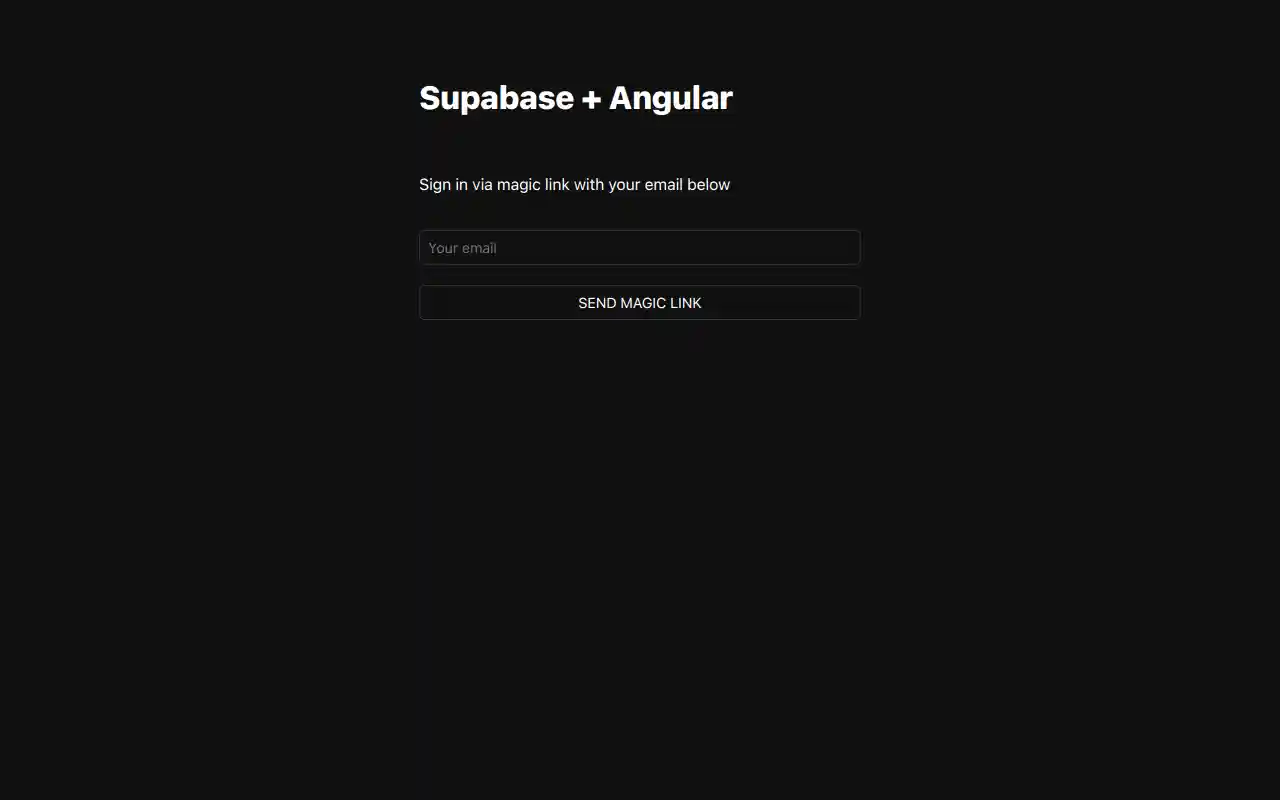
At this stage you have a fully functional application!