Using Apple Shortcuts - Things Support
You can use Things with Apple Shortcuts to create workflows that enhance your productivity. This page will help you get started.
Sometimes there are actions you want to perform which are repetitive, or complicated, or simply not possible in Things’ interface. Apple’s Shortcuts app makes it possible to automate these actions and perform them quickly.
Below, you can download some example shortcuts that demonstrate what’s possible, learn how to run them, and find information on how to get started building your own.
Shortcuts Gallery
We’ve built a few shortcuts to demonstrate some of the actions you can perform with Things. Tap one to add it to the Shortcuts app on your own device, then run it to see it in action.
These shortcuts require minimum versions: Things 3.17 and macOS 14, iPadOS 17, iOS 17, visionOS 26.
Create
Add an Errand
Create a new to-do with your Errand tag already applied.
Save My Location
Save your co-ordinates to revisit later. Handy when exploring new places.
Calendar Integration
Do Weekly Review
Split your screen between Things & Calendar for a weekly review.
Get Insights
Show Kicked Cans
Stop kicking cans down the road! These items in Today are super old.
Run Year Review
Generate an overview of all projects completed in a given year.
Modify
Actionize Inbox
Rewrite Inbox to-dos with actionable titles (uses ChatGPT).
Helpers
Help Me Do
Use ChatGPT to generate ideas about how to get something done.
Run Your Shortcuts
You can run a shortcut from directly inside the Shortcuts app, but there are more convenient ways to do it. Here are the best methods:
Widgets
On iPhone or iPad, you can add a Shortcuts widget to your Home Screen or Lock Screen. A widget can display a single shortcut, or the contents of one of your Shortcuts folders.
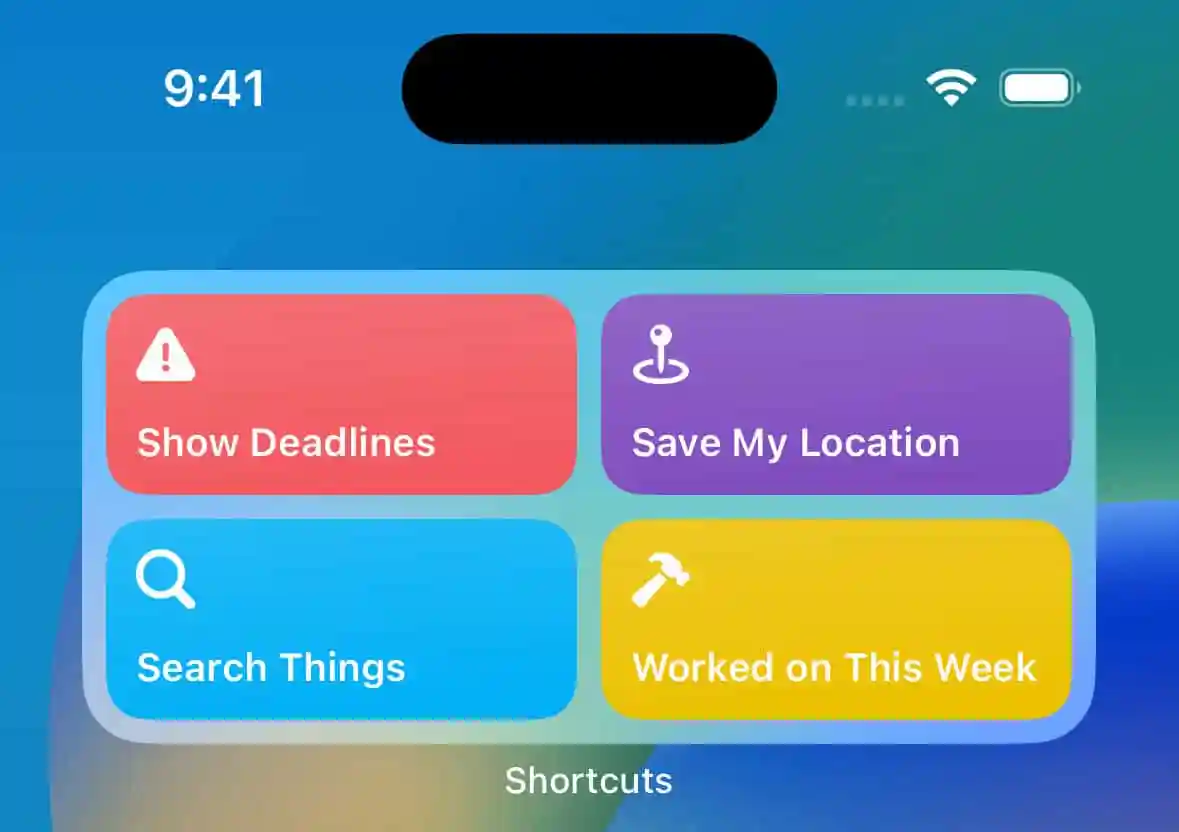
You can also add a Shortcuts widget to your Mac’s desktop or Notification Center if you’re running macOS 14 or later.
Menu Bar
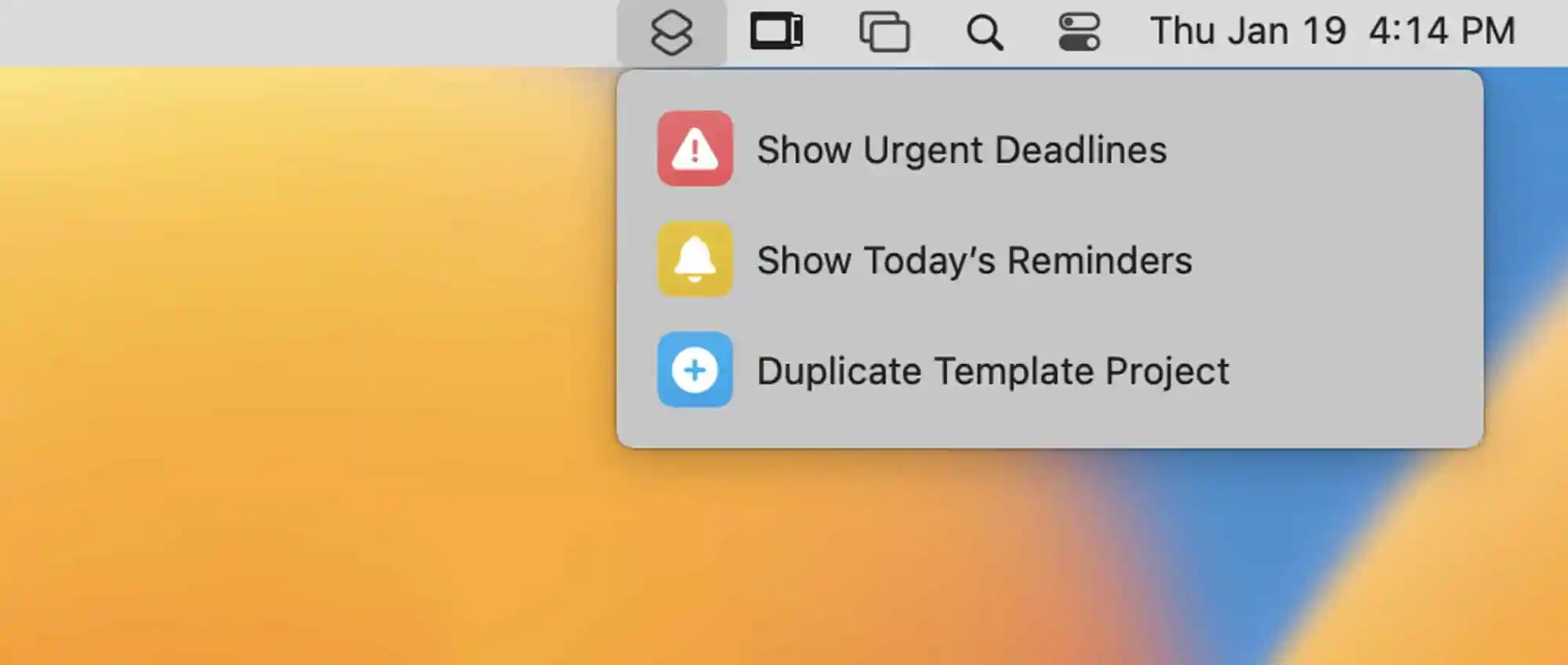
On Mac, one of the best ways to run a shortcut is via the menu bar. You can add a shortcut to your menu bar by adding a Shortcuts control and then choosing which shortcut it should run.
Dock
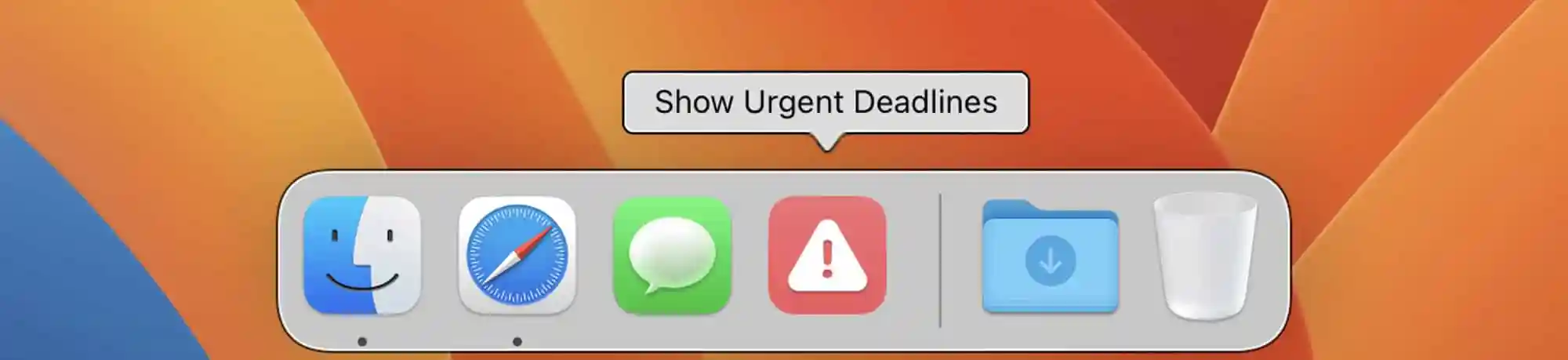
On Mac, you can add a shortcut to your Dock. Simply right-click the shortcut in the Shortcuts app, and choose Add to Dock.
Action Button
Some newer iPhones have an Action Button that can be customized to run commands. One option is to have it run an Apple Shortcut. You can configure this in your iPhone’s Settings → Action Button. Choose Shortcut and then define which shortcut you want it to run.
Keyboard
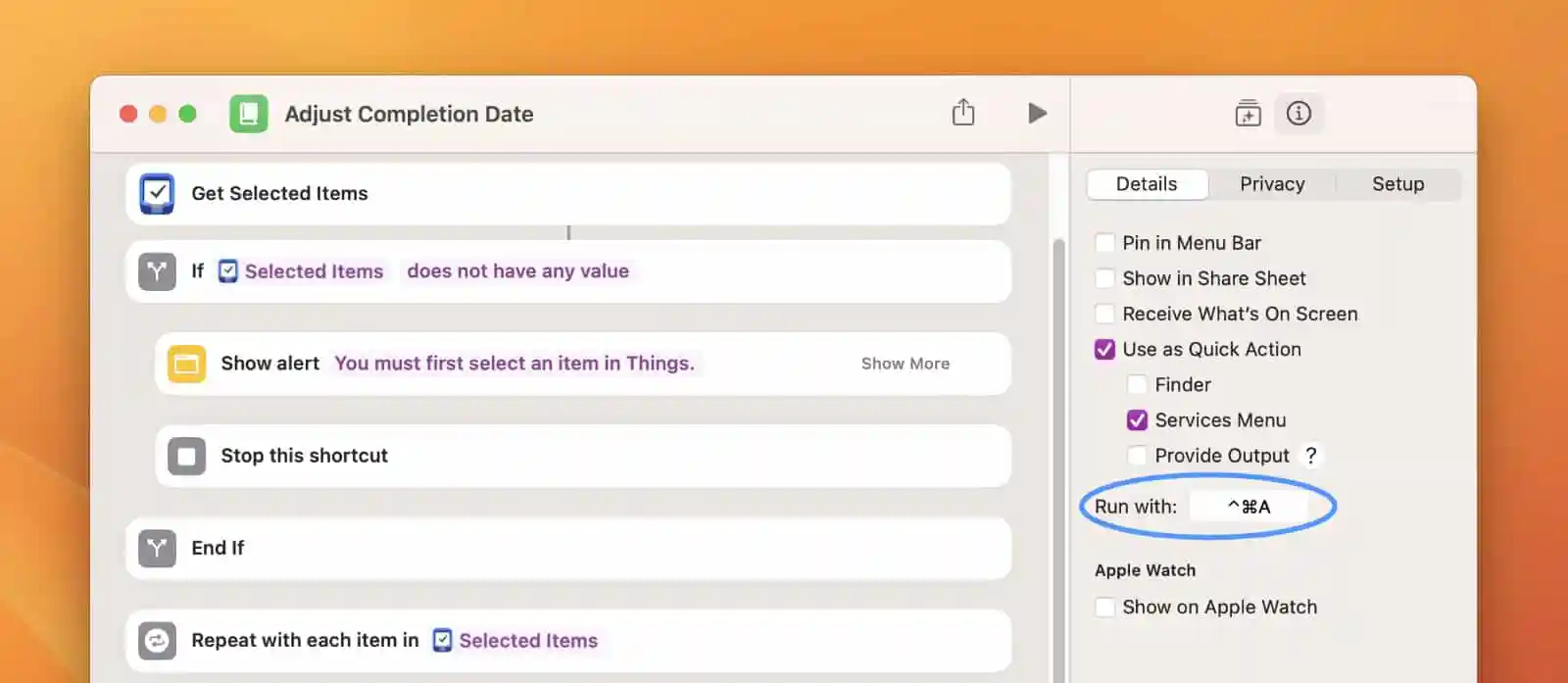
On Mac, you can give your shortcut a keyboard shortcut and use that to quickly run it. Set this up inside the Shortcuts app.
Spotlight
You can run shortcuts by searching for them in Spotlight. On iPhone or iPad, simply pull down on the Home Screen to start a search. On devices with a keyboard, hit ⌘ Cmd Space and then type the name of your shortcut.
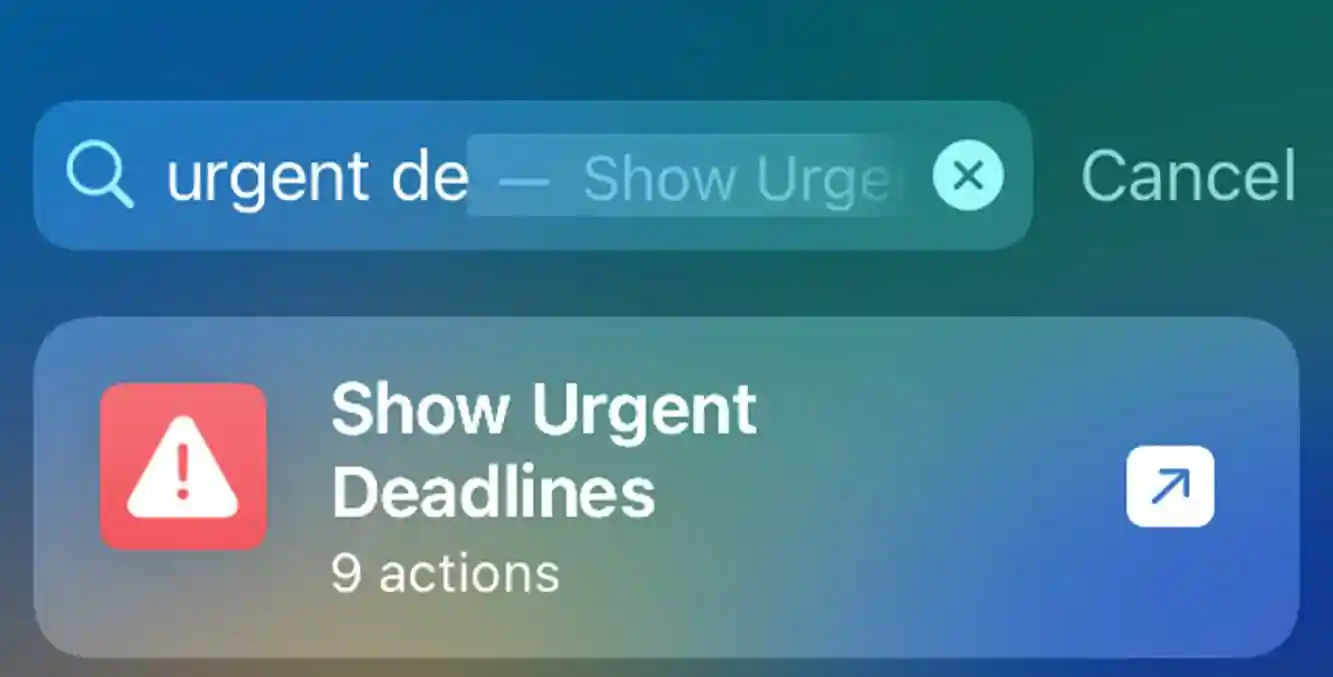
It’s a bit more complicated to invoke Spotlight while inside an app on your iPhone: Swipe down from the top left side of your screen, then swipe right, then swipe down again to reveal Spotlight and search for the shortcut. It’s clumsy, but it works!
Voice
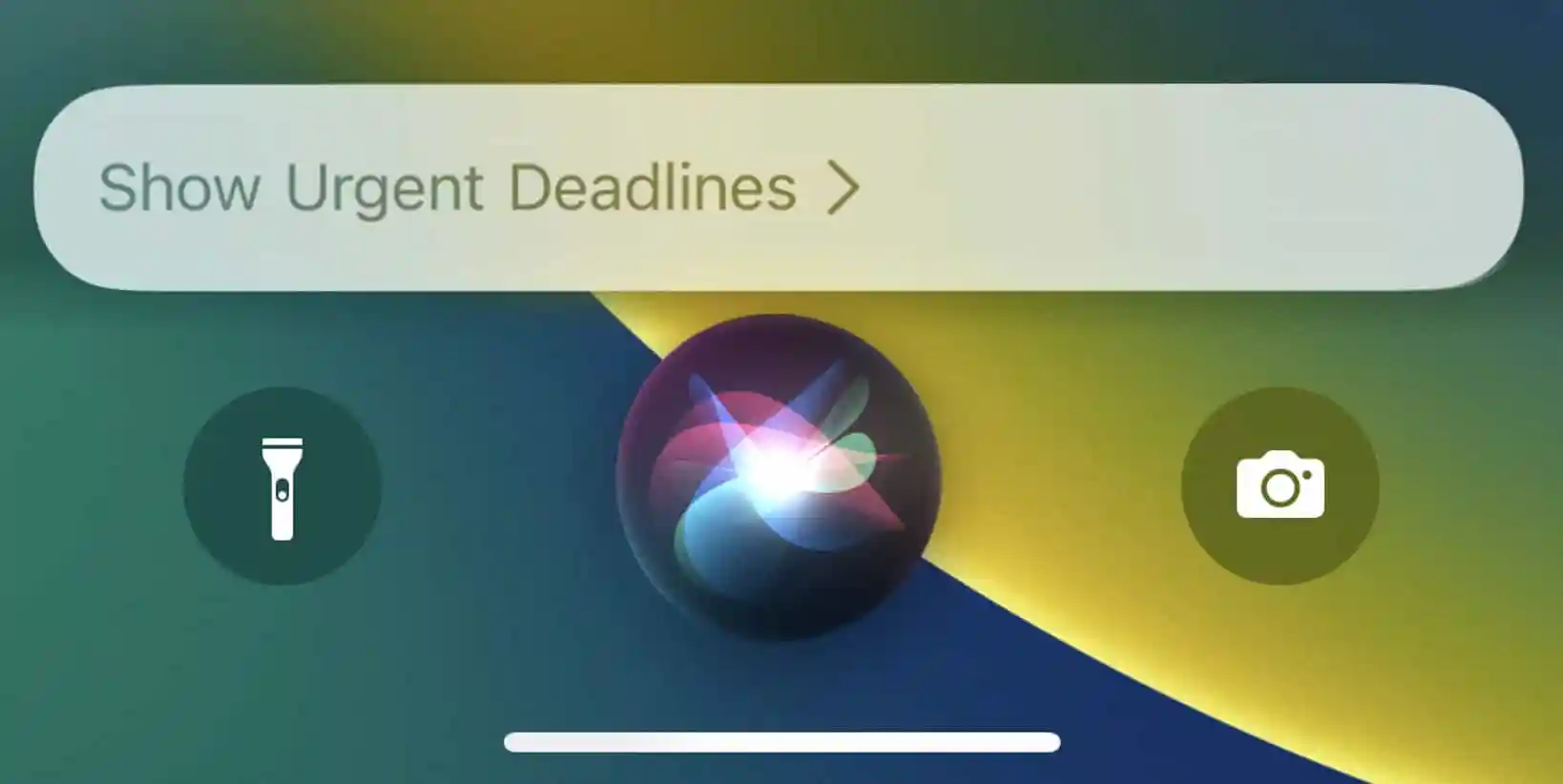
You can run shortcuts with your voice. Say “Hey Siri” followed by the name of your shortcut.
Note that you can also set up an Automation to have your shortcuts automatically run themselves. For example, every day at a specific time, when you wake up in the morning, when you get an email from a particular person, and so on.
Please note that Things doesn’t currently support running shortcuts directly on Apple Watch.
Build Your Own Shortcuts
Things’ integration with Shortcuts is quite powerful, providing more than a dozen actions for you to use in your own custom-built shortcuts.
If you’re entirely new to Shortcuts, the best way to get started is to download the example shortcuts from our gallery and peek inside them to see how they work. You can then dive deeper with our technical documentation. Be sure to also check Apple’s documentation for Mac, iPad, and iPhone.
Please note that Shortcuts is made by Apple. If you have any problems with that app, please contact Apple for assistance.