How to Uninstall Internet Explorer Completely (with Pictures)

This wikiHow teaches you how to prevent your PC from using Internet Explorer. Windows 10 computers can remove Internet Explorer as a usable feature, and Windows 10, 7, and 8 computers all can disable Internet Explorer from within the Control Panel. Keep in mind that Internet Explorer cannot be removed from your computer like other programs.
-

Click the Windows logo in the bottom-left corner of the screen.
-
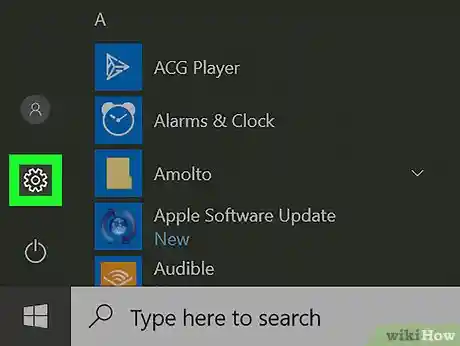
Click the gear-shaped icon in the lower-left side of the Start window.
Advertisement
-

You'll find this option in the Settings window.
-

It's a tab in the upper-left side of the window. Doing so opens a list of your currently installed programs.
-

This link is directly below the "Apps & features" heading near the top of the window. Clicking it opens a list of your currently installed optional features, one of which is Internet Explorer.
-

It's usually near the top of the page, though you may have to scroll down if you have several optional features (e.g., languages) installed.
-

It's below the "Internet Explorer 11" heading. Internet Explorer will begin removing itself from your computer.
-

This should only take a few seconds; once you see the "Internet Explorer 11" heading disappear from this page, you can proceed.
-

Click Start

, click Power

, and click Restart in the pop-up menu. Once your computer finishes restarting, Internet Explorer will be gone.


Advertisement
-

Click the Windows logo in the bottom-left corner of the screen to do so.
- On Windows 7, you'll click here instead.

- On Windows 8, place your mouse cursor in the upper-right corner of the screen, then click the magnifying glass icon that appears.
- On Windows 7, you'll click
-

Type in control panel, then click the blue Control Panel icon at the top of the Start window.
-

It's a heading near the bottom of the Control Panel window.
- If the "View by" heading in the upper-right side of the window has "Large icons" or "Small icons" to the right of it, you'll click Programs and Features instead.
-

This option is either below the "Programs and Features" heading at the top of the page or in the upper-left side of the page. Doing so opens a pop-up window.
-

You'll find this option near the top of the window. Clicking the checked box to the left of the "Internet Explorer 11" heading will uncheck it.
-

This confirms that you want to remove Internet Explorer from your computer.
-

It's at the bottom of the window. Doing so will prompt your computer to begin disabling Internet Explorer.
- This process can take several minutes to complete.
-

It's in the lower-left corner of the window. When your computer finishes restarting, Internet Explorer 11 will be gone from your computer.


Advertisement
-
Question
None of these instructions relate to my computer because Internet Explorer does not appear as a program in the list of installed programs. What can I do?

It's not going to be in there. Look to the left in the window and you'll see installed updates; search for the Explorer program, then you can uninstall from there.
-
Question
What should I do if my Windows feature is blank?
Go into Task Manager and end the Windows program, then restart. If this doesn't work, reboot the computer and try again.
-
Question
What if Internet Explorer doesn't pop up on Windows features?

If IE does not appear on Windows features, that means you do not have it installed. You can always reinstall it by searching for "Turn Windows features on or off" and checking "Internet Explorer 11."


Ask a Question
200 characters left
Include your email address to get a message when this question is answered.
Advertisement
-
While Internet Explorer cannot truly be uninstalled from your computer, disabling it will prevent it from opening things like HTML documents and PDFs.
-
Internet Explorer was replaced by Microsoft Edge as the default browser on Windows 10 computers. As such, Internet Explorer should rarely (if ever) open by default.
Thanks for submitting a tip for review!
Advertisement
You won't be able to disable Internet Explorer if you aren't on an administrator account.
Advertisement
About This Article
1. Open Start
2. Open Settings
3. Click Apps, then click the Apps & features tab.
4. Click Manage optional features
5. Click Internet Explorer 11, then click Uninstall.
6. Restart your computer when Internet Explorer 11 disappears.
Did this summary help you?
Thanks to all authors for creating a page that has been read 1,190,693 times.