Unity - Scripting API: Handles
class in UnityEditor
Success!
Thank you for helping us improve the quality of Unity Documentation. Although we cannot accept all submissions, we do read each suggested change from our users and will make updates where applicable.
Submission failed
For some reason your suggested change could not be submitted. Please <a>try again</a> in a few minutes. And thank you for taking the time to help us improve the quality of Unity Documentation.
Description
Custom 3D GUI controls and drawing in the Scene view.
Handles are the 3D controls that Unity uses to manipulate items in the Scene view. There are a number of built-in Handle GUIs, such as the familiar tools to position, scale and rotate an object via the Transform component. However, it is also possible to define your own Handle GUIs to use with custom component editors. Such GUIs can be a very useful way to edit procedurally-generated Scene content, "invisible" items and groups of related objects, such as waypoints and location markers.
You can also supplement the 3D Handle GUI in the Scene with 2D buttons and other controls overlaid on the Scene view. This is done by enclosing standard Unity GUI calls in a Handles.BeginGUI and Handles.EndGUI pair within the Editor.OnSceneGUI function. You can use HandleUtility.GUIPointToWorldRay and HandleUtility.WorldToGUIPoint to convert coordinates between 2D GUI and 3D world coordinates.
using UnityEngine;
using UnityEditor;
public class ExampleScript : MonoBehaviour
{
    public float value = 7.0f;
}// A tiny custom editor for ExampleScript component
[CustomEditor(typeof(ExampleScript))]
public class ExampleEditor : Editor
{
    // Custom in-scene UI for when ExampleScript
    // component is selected.
    public void OnSceneGUI()
    {
        var t = target as ExampleScript;
        var tr = t.transform;
        var pos = tr.position;
        // display an orange disc where the object is
        var color = new Color(1, 0.8f, 0.4f, 1);
        Handles.color = color;
        Handles.DrawWireDisc(pos, tr.up, 1.0f);
        // display object "value" in scene
        GUI.color = color;
        Handles.Label(pos, t.value.ToString("F1"));
    }
}
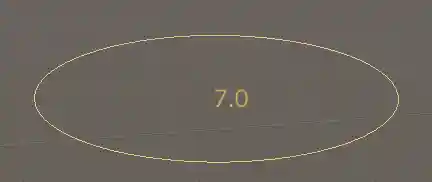 .
.
Static Properties
| Property | Description |
|---|---|
| centerColor | Color to use for handles that represent the center of something. |
| color | Sets the color of handles. Color is a persistent state and affects any handles drawn after it is set. Use DrawingScope to set the color for a block of handles without affecting the color of other handles. |
| elementColor | The default color of objects in an Edit Mode. |
| elementPreselectionColor | Color to use to highlight an unselected object currently under the mouse pointer in a custom Edit Mode. |
| elementSelectionColor | The color of selected objects in a Edit Mode. |
| inverseMatrix | The inverse of the matrix for all handle operations. |
| lighting | Are handles lit? |
| lineThickness | Retrieves the user preference setting that controls the thickness of tool handle lines. (Read Only) |
| matrix | Matrix for all handle operations. This is used by functions in HandleUtility and Handles to transform controls. |
| preselectionColor | Color to use to highlight an unselected handle currently under the mouse pointer. |
| secondaryColor | Soft color to use for for general things. |
| selectedColor | Color to use for the currently active handle. |
| UIColliderHandleColor | Color to use for the Unity UI's padding visualization. |
| xAxisColor | Color to use for handles that manipulates the X coordinate of something. |
| yAxisColor | Color to use for handles that manipulates the Y coordinate of something. |
| zAxisColor | Color to use for handles that manipulates the Z coordinate of something. |
| zTest | zTest of the handles. |
Properties
| Property | Description |
|---|---|
| currentCamera | Gets or sets the camera that is currently rendering. |
Delegates
| Delegate | Description |
|---|---|
| CapFunction | The function to use for drawing the handle e.g. Handles.RectangleCap. |
| SizeFunction | A delegate type for getting a handle's size based on its current position. |