Free RAR files opener and extractor utility
How to open and extract RAR files (unrar)
RAR format (Roshal archive, from the name of the author) is a popular archive type introduced by WinRAR
 for
Windows platform. Rar management routines were ported to Linux only for
extraction (unrar) by the same Author of WinRAR Eugene
Roshal.
for
Windows platform. Rar management routines were ported to Linux only for
extraction (unrar) by the same Author of WinRAR Eugene
Roshal. RAR is well known for the high compression ratio of archives, strong encryption and advanced data recovery capabilities (recovery records).
Free RAR alternative utilities
Due the huge popularity of the format many free alternatives to WinRar (even Open Source as 7-Zip, and PeaZip) were made available to work with rar files for decompression, while writing function for compression to RAR format is not allowed to third party applications by the original license of the file format.
How to use PeaZip as RAR
opener and extractor tool
PeaZip, freeware open source software, can open rar files and
supports by default RAR format browsing,
testing and extraction (decompress) on Linux and Windows,
through the open
source unrar implementation rewritten as Free Software by Igor Pavlov
in 7-Zip and
ported to Linux by p7zip project.
Manage RAR files with PeaZip
PeaZip is able to open and extract RAR archives out-of-the-box, and if WinRar is installed on the same machine PeaZip auto-configure itself to be able to create (and modify, and repair) RAR files, providing read & write support for RAR format from a single GUI.

Both legacy .rar files (up to RARv2.9 / RAR4 format standards) and new RAR5 files are fully supported for extraction (unrar) by PeaZip free archiver, effectively working with all standard rar files specifications.
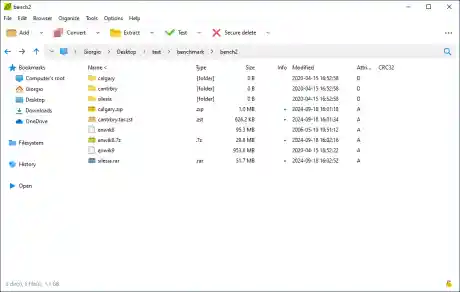
Open RAR files
PeaZip free rar software allows to open rar files free of charge, and to browse and search content inside the archive. To view the rar file's content:
- open rar file from system's explorer double clicking the rar archive, if file extension is associated with PeaZip as opener (default)
- if rar file extension is not associated with PeaZip as default opener, right-click on the archive and use system context menu "Open as archive" entry, that will attempt to read any user provided file type regardless file associations
Extract RAR files
To extract RAR files, one or multiple archive at time, through PeaZip free rar extractor you can:
- Use context menu
entry "Extract here" or
"Extract
here (to new folder)" to extract rar file to current location
- Use context menu entry "Extract..." to be asked for output path to extract the rar file to, and other extraction options
- Open rar archive in
PeaZip
and use
"Extract" button (you can chose output path, enter password and other
options before confirming with "Ok") to extract selected object, or
Ctrl+E for quick extraction simply specifying output path.
- Open
the rar archive in
PeaZip
and drag desired objects from the application to the system (the
opposite can be used to add objects to the archive)
- Open the rar the archive in PeaZip and doubleclick on an archived file to preview it
How to extract password-protected RAR files
To enter password in PeaZip free rar software utility, to decrypt encrypted rar files, click in the locker icon in the status bar (in the file/archive browser) or the locker icon below output address field in extraction or archiving interfaces, or click Tools > Enter password / keyfile in main menu, or press F9.

Read more about how to find, select and extract single file form RAR archives.
Convert
RAR files, i.e. rar to zip...
Convert files function extracts and then re-pack input archive files into any write-supported format (7z, arc, pea, rar, tar, zip...). This tool can i.e. convert rar to zip or 7z, as well as the inverse i.e. convert zip to rar.
7z, tar, zip archives can be converted to rar format if WinRar is installed on the same system, which allows PeaZip to fully support rar compression, otherwise PeaZip will support rar format rar-only, limited to rar opener (reader, viewer) and extractor operations.

How to extract multi-volume (spanned) RAR archives
Split (spanned) RAR files, archives splitted in multiple volumes, are usually named with extension .PART1.RAR (default naming for spanned rar volumes),.R00, .R01, .R02 etc... (old style volume names).. or even (infrequently) .001, or .001.RAR.
It is needed to save all the files of the set in the same folder, and to double click on the first volume (the one with the lowest number in the suffix), in order to open or extract the entire archive - the procedute will take care of merging the data spanned in the different volumes of the set as needed.Create RAR archives with PeaZip
Synopsis: How to use PeaZip free RAR software, opener and extractor utility. WinRar archives extraction: how to open, extract RAR files free. Work with Open Source Windows, Linux unrar application. Decrypt password protected (encrypted) RAR archives. Convert rar file to other formats, i.e. convert rar to zip, or rar to 7z. How to manage spanned rar archives.
Topics: free rar files extractor utility, how to open rar files, extract rar files, convert rar files to other archive formats
PeaZip > FAQ > Free RAR files opener and extractor utility.
 WORK WITH
SUPPORTED
FILE TYPES
WORK WITH
SUPPORTED
FILE TYPES
Create, open, extract 7Z files
Create, open, extract ARC files
Create, open, extract Brotli files
Compress, decompress Bzip2 files
Compress, decompress GZip files
Open and extract DMG, ISO, UDF disk images
Create, open, extract PAQ, LPAQ, ZPAQ files
PEA: Pack Encrypt Authenticate
Create, open, extract
TAR, TGZ, TBZ files
Create, open, extract WIM disk images
Create, open, extract ZIP files