PeaZip free archive manager app for Apple macOS
PeaZip archive manager utility for Darwin / Apple macOS
PeaZip is an Open Source cross-platform free archive manager application for Linux, macOS, and Windows, a freeware alternative to WinRar, WinZip and similar utilities, to create, open and extract 7z, rar, tar, zip files and many more archive formats.
PeaZip is now available as precompiled binary DMG packages for Darwin and Apple Macintosh systems (macOS operating system), built both for Apple Silicon chip, and for Intel architecture. Apple Silicon (M1, M2, M3, M4...) SoC can run both versions, aarch64 and Intel 64 bit using Rosetta 2 emulation layer.
How to install PeaZip archive manager on macOS
To install PeaZip archive manager utility on macOS machines, open the DMG package recommended for your architecture (Apple Silicon can run both), and simply (1) drag & drop peazip.app into your Mac's Application directory, (2) open the Terminal and run the command:
xattr -dr com.apple.quarantine /Applications/peazip.app
If the system shows the error message "peazip.app is damaged and can’t be opened. You should move it to the Trash" or "peazip.app cannot be opened because the developer cannot be verified" the first time you run PeaZip, it simply means Safari has applied the "quarantine" attribute to the downloaded app package. *
For legacy OSX systems which
are unable to mount compressed DMGs, the
Intel package is also available as plain ZIP package: after extraction,
the installation requires the aforementioned steps as for the DMG
packages  peazip for
Darwin, Intel (ZIP)
peazip for
Darwin, Intel (ZIP)

* Those warning messages are issue because the application's binaries are not signed (aarch64/Apple Silicon version is simply ad-hoc signed, x86_64/Intel version is not signed): to fix the error open the Terminal and run the aforementioned xattr command.
You can replace /Applications/peazip.app string in the script with the actual PeaZip's path if you prefer to use the application from a different position than Applications' folder.
Safari browser usually apply the "quarantine" flag to various file types when they are downloaded from the web (which is a common security practice for Safari), so apps downloaded from the web rather than from the Apple Store usually comes with this flag.
Learn more about Apple suggestions to Safely open apps on yor Mac
 .
.As PeaZip's compiled binaries are unsigned, they will ask for permission to access certain paths on your machine the first time.
On most macOS system versions it is sufficient to respond "OK" once to the system's permission request.
Add PeaZip to macOS context menu
To add PeaZip to macOS right-click context menu: in the root of DMG packages it is available a link to "macOS service menus" folder (inside the peazip.app package), which provides Automator .workflow scripts to (optionally) integrate main functions of PeaZip in the macOS context menu, such as Add to archive, Extract, Open file or folder with PeaZip.
Double
clicking on a service menu will install it in the system, and
make it available right-clicking files and folders on your Mac.
To uninstall a service menu, follow system's instruction from context
menu customization entry, or simply delete it from ˜/Library/Services/
directory.
Those scripts are fully customizable using Automator, and a copy of the
scripts is available in (peazip)/res/share/batch folder.
The "batch" folder also provides examples of .sh scripts to use PeaZip
from terminal and in scripts.
readme_macOS.txt file, also featured in root of DMG packages, provides additional information about installing PeaZip, compiling the application from sources, and integrating it with macOS right-click context menu.
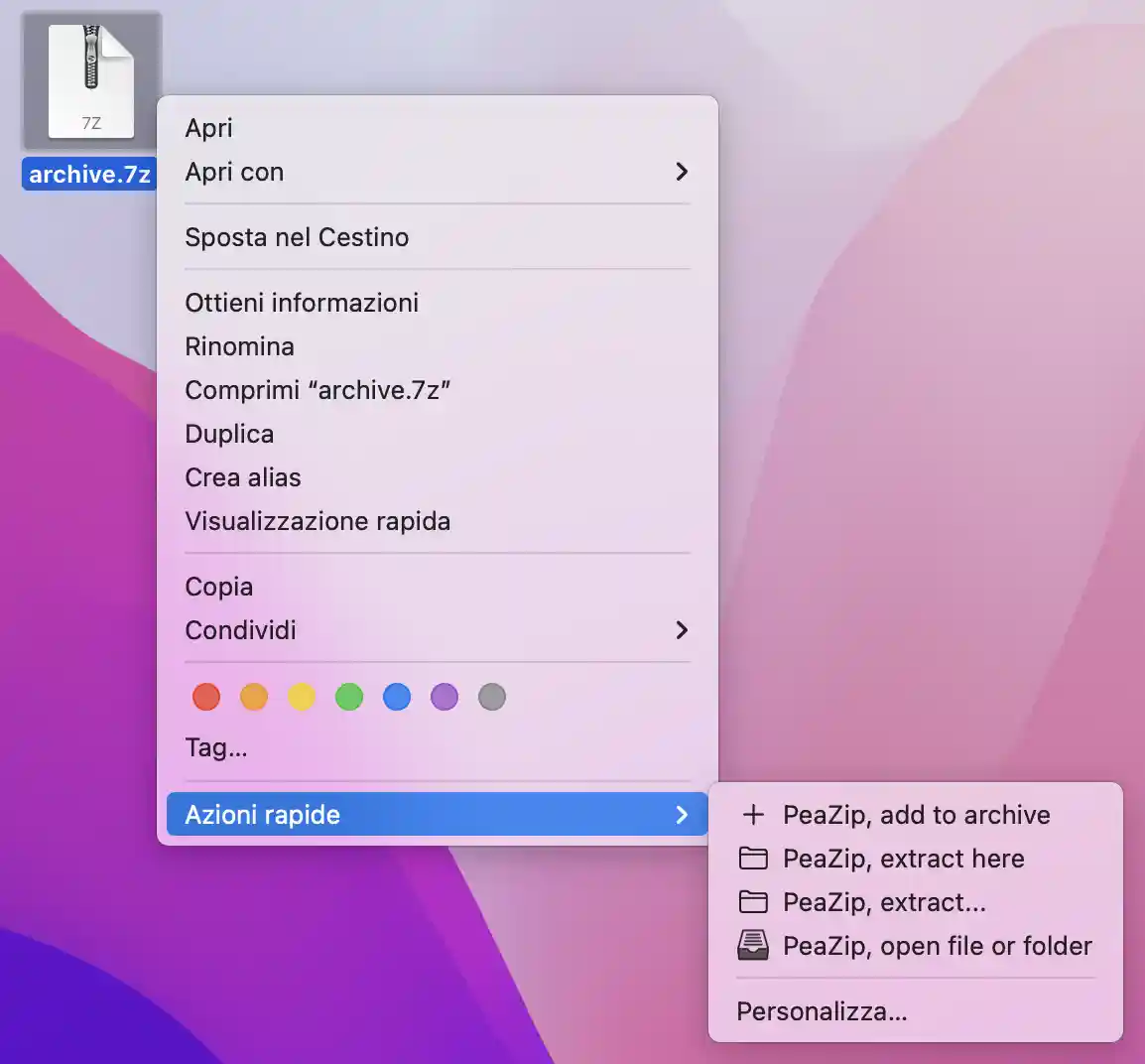
PeaZip entries in
macOS contextual menu
Alternative
compression algorithms for .7z format on macOS
From "Advanced" tab in the archive creation screen, it is possible to use alternative compression algorithms for .7z format, provided thorugh p7zip fork cielavenir/p7zip: Brotli, FLZMA2, Lizard, LZ4, LZ5, and Zstd.
Please note that resulting archives will not be compatible with vanilla 7-Zip standard, so using BZip2, LMZA, LZMA2 or PPMd algorithms is recommended if you intend to preserve interoperability with other archive managers.
On macOS, in order to enable support for those algorithms, it is currently needed to change “7z” binary alias to “7zalt” from Options > Settings, Advanced tab, “7z / p7zip alias” option - which redirects the commands to the alternative p7zip binary.
Features provided by PeaZip archive manager utility
PeaZip is a full featured file manager and archive manager application, providing and Open Source alternative to software like WinRar and WinZip on macOS, supporting creation of ZIP archives and of many more archive formats (7Z, BZ2, GZ, PEA, TAR, ZIPX, WIM), extraction of RAR archives and even many more archive types, as well as creation and extraction of encrypted archives (using AES, Twofish, and Serpent encryption algorithms) with optional two factor authentication, encryption of file names, and authenticated encryption (e.g. AES in EAX mode in PEA format).
PeaZip can also export tasks defined in the GUI as console script for later usage (e.g. backup tasks), split files, verify checksum and hash, etc.
Alternatively, to use PeaZip without installation (as a Portable app),
you can drag
peazip.app elsewhere on the system and run the application from the
preferred location, even a network path in order to share the
application with other users.
Another alternative not requiring installation is to simply double
click peazip.app and run it; in this way the DMG will be closed and
app's files automatically removed at next login.
In all of aforementioned cases, PeaZip configuration will be saved into
user's home/.config path.
Compile PeaZip on Darwin / macOS from sources
As alternative, PeaZip can be compiled and built from sources (Open Source, LGPLv3 license), with Lazarus/FPC IDE 2.2RC or more recent, as native application for Darwin / macOS, both for Intel x86_64 CPU (OSX up to macOS 10.15 Catalina), and for Apple Silicon M1, M2, M3, M4... family with aarch64 ARM SoC (for macOS 11 Big Sur, Monterey and more recent systems), targeting in both cases Cocoa widgetset.
Legacy Carbon widgetset is still supported by Lazarus, but untested regarding compiling and building PeaZip for legacy Apple systems.
For best results compiling project_peach.lpi and project_pea.lpi with Lazarus/FPC targeting Macintosh machines, open main menu, Project > Project Options, Configuration and Target, and set Darwin as destination OS, and aarch64 as destination CPU family if compiling for machines with Mx Apple Silicon chip family, or x86_64 if compiling for Intel-based Apple machines.
PeaZip binaries compiled on your own machine:
- will not have the quarantine flag attached so will run not requiring to remove the flag as needed for the downloaded app, but uploading and downloading them will have the quarantine flag automatically added to them
- will require to grant permission to access certain
paths on your machine the first time, exactly as the downloaded app
Running non-native PeaZip packages on macOS / OSX
It is
still also possible to run non-Darwin PeaZip packages on macOS as for
previous versions of the app; for example PeaZip for Windows packages
can run
through Wine for Mac,
and PeaZip for Linux packages can run on macOS employing tools like MacPorts and Homebrew.
Anyway, it is now recommended either to run the native packages or to
build PeaZip from sources.
Synopsis: Download page
of PeaZip for Darwin / macOS. Open Source archive manager app, freeware
WinRar and WinZip alternative utility for Apple macOS machines. Open
and extract 7Z, RAR, TAR, ZIP files on Mac systems. How to
install and run PeaZip on macOS. How to compile PeaZip for Darwin /
macOS, both Apple Silicon
aarch64 and Intel x86_64 architectures.
Topics: PeaZip DMG
packages for macOS and Darwin, install aarch64 Apple Silicon build,
install alternative x86_64 Intel build
PeaZip > macOS > PeaZip free archive manager app for Apple macOS
| RECOMMENDED PAGES | LINUX ARCHIVE MANAGER |
PORTABLE WINRAR ALTERNATIVE |
MANAGE 7Z FILES | TAR FILES UTILITY |