Screenshots | PeaZip context menu, drag and drop extraction
Drag
&
Drop extraction
Drag files form application to system
By default, PeaZip fully integrate an improved implementation of native drag and drop on Windows platform, and also implements an optional custom drag and drop mechanism. Both options are fine tuned for the needs of archive management task, and provides security, stability, and speed improvements over standard system's drag and drop mechanism.
Options > Settings > General, "Use native drag and drop on Windows" switches the application between native and custom drag &drop mode.
Opening an archive file in PeaZip's file manager / archive browser allows to select content to be extracted through full-featured extraction GUI, or simply dragged to the system which results in direct extraction without further interaction requests.
Un-checking this option makes PeaZip use custom drag and drop implementation (optional, default off) which shows its own drag and drop information box about destination target and content being handled by the operation.
Fast Drag and Drop extraction from archives
PeaZip drag and drop implementation is specifically fine tuned for extraction of large contents from archives, and substantially improvs the security, stability, and on certain circumstances the speed, over the standard, geneal purpose system's drag&drop implementation.
Standard Windows drag and drop implementation (taken as reference) needs the selected content to be firstly decompressed to a temporary system's path, then moved to the intended destination directory, which needs twice the data being written if the intended destination is not on system's disk.
Instead, PeaZip directly extracts the dragged content to the target path, so under any circumstance data gets written only once, and only to intended destination.
PeaZip's fast drag and drop extraction implementationbrings multiple advantages over standard drag and drop
- speed: extraction is nearly twice as fast when the destination directory is not on system's disk, i.e. extracting data to different partitions, removable disks or usb keys, network paths...
- stability: if large amount of data is involved, standard drag and drop will fail if system disk has not enough free space, while PeaZip's fast drag and drop extraction only requires sufficient free disk space on the intended destination
- security: if encryption is involved, no orphaned plain-text data could ever be left on system's temporary path, as the decompressed and decrypted data extracted from the encrypted archive is written only on the intended destination path
- ease of use: native drag&drop is consistent with standard behavior of system and other Windows applications, while custom drag and drop can target only desktop or open folders with address bar enabled (standard on all Windows systems)
- unnecessary levels of nesting of extracted files and folders are automatically removed when using native drag&drop
Drag files from system to application
PeaZip free archiver utility also supports dragging files
from system to application for archiving and extraction (if drag
and
drop source is detected being an archive
file i.e. 7Z, RAR, ZIP...), and for plain
drag&drop file copy.
Dragging files from
filesystem to an open archive leads to archive
update GUI for adding
dropped files to the current archive on all supported platforms
(Linux, macOS, Windows), if the archive format is
write supported (i.e. add to existing zip, but not to ace which is a
proprietary format supported only for decompression and test
operations).
PeaZip can extract items dragging from the file browser / archive
browser area
to the treeview / navigation side bar on the left of the application -
which acts
as a second pane in the scope of this operation.
This drag & drop
mechanism works
on all supported systems.
On drop action, the drag and drop
context menu is displayed, allowing to select the desired
function to perform on the dropped item(s): extract here, extract to smart / new
folder (entire archives, or selected items from archive), or copy / move files (when browsing the
filesystem).
This allows the internal drag and drop implementation to work like in a
dual pane file manager
- archive manager: drag & drop extract items directly to any path in bookmarks or history (navigation bar) or any path (tree view), and works even dropping to the minified compact side bar
- file manager: copy and move items from the file
browser to any aforementioned path visible in the treeview / navigation
area, automatically jumping to browse the destination path.
Following table recap drag and drop support from / to PeaZip on all supported operating systems:
| Operating
System |
Drag
and drop from system TO PeaZip Drag and drop within the app panes |
Drag
and drop FROM PeaZip to system |
| BSD |
Fully
supported |
Not
supported |
| Linux |
Fully
supported |
Not
supported |
| macOS |
Fully
supported |
Not
supported |
| Windows |
Fully
supported |
Full
support for
native Windows drag and drop interface, can drop to system and to any
application. Alternative custom drag and drop implementation able to drop to Windows file explorer only. In both cases drag & drop performances are optimized to best suit file extraction tasks. |
Compression and
extraction from context
menu
Context menu Extract... and Add to
archive entries brings to main extraction and
compression screens respectively, allowing to fine tune the action with
all supported options: select
best compression format and level for the intended task, provide encryption password, split
archive into multiple volumes, securely
delete original files after
operation, etc.
Extract here
and Add to .7Z / Add to
.ZIP simply starts immediate
extraction or archive creation in the selected format, applying default
options, without requiring further user's interaction after right click.
Add PeaZip to
Windows context menu and SendTo menu
On Windows platform PeaZip
installer automatically create customisable contextual menu and SendTo
menu entries, for performing straightforward archive creation,
extraction, format conversion, and
test operations, with minimal or no interaction
with main
program's GUI, simply right clicking on target 7z, rar, tar, zip...
archives.
and SendTo
menu entries, for performing straightforward archive creation,
extraction, format conversion, and
test operations, with minimal or no interaction
with main
program's GUI, simply right clicking on target 7z, rar, tar, zip...
archives.
Context menu
entries (and file extensions associations) can be
customized during
installation or from Options > System integration, to select
favourite
compression, decompression, testing, encryption entries.
Add PeaZip to Windows 11 mini-context menu
On Windows 11 PeaZip can be integrated with W11 mini-context menu using .reg scripts in (peazip)/res/share/batch folder, and full context menu entries are available from "Show more" submenu..
Add PeaZip to context menu in Linux and BSD desktop environments
On Linux and BSD operating systems, FreeDesktop_integration folder in (peazip)/res/share/batch folder contains sample scripts and .desktop files for integrating the application in system's contextual menus in all Desktop Environments and file managers following FreeDesktop initiative's standards, such as Gnome, KDE, XFCE, Mate, Cinnamon...

PeaZip context menu integration using KDE Service menus in KDE right click menu
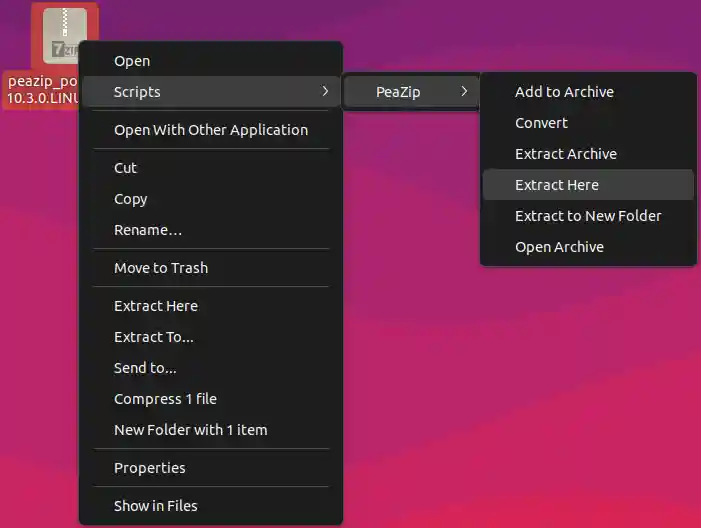
PeaZip context menu integration using Nautilus scripts in Gnome right click menu

PeaZip for Linux context
menu
entries using .desktop files in Open With menu (Mint, Cinnamon desktop)
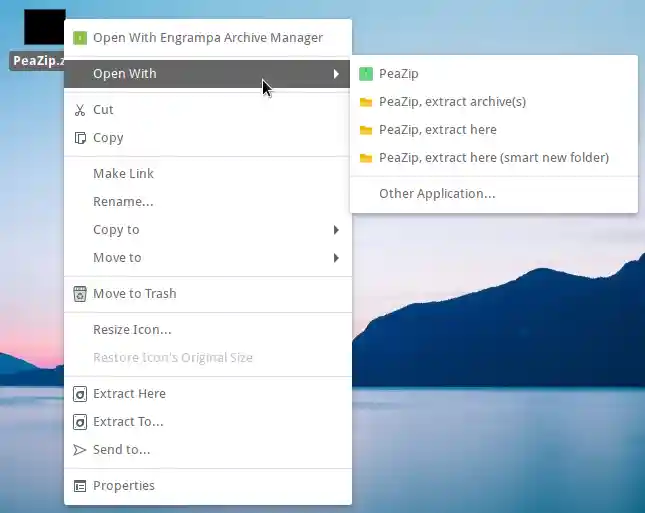
PeaZip on BSD (Mate desktop) context
menu integration using
.desktop files in Open With menu
Add PeaZip to macOS context menu
On macOS systems (peazip)/res/share/batch folder contains fully customisable sample Automator .workflow scripts to create service menus for main functions of PeaZip. A copy of those service menus is also available in the root of DMG installers, for ease of use.
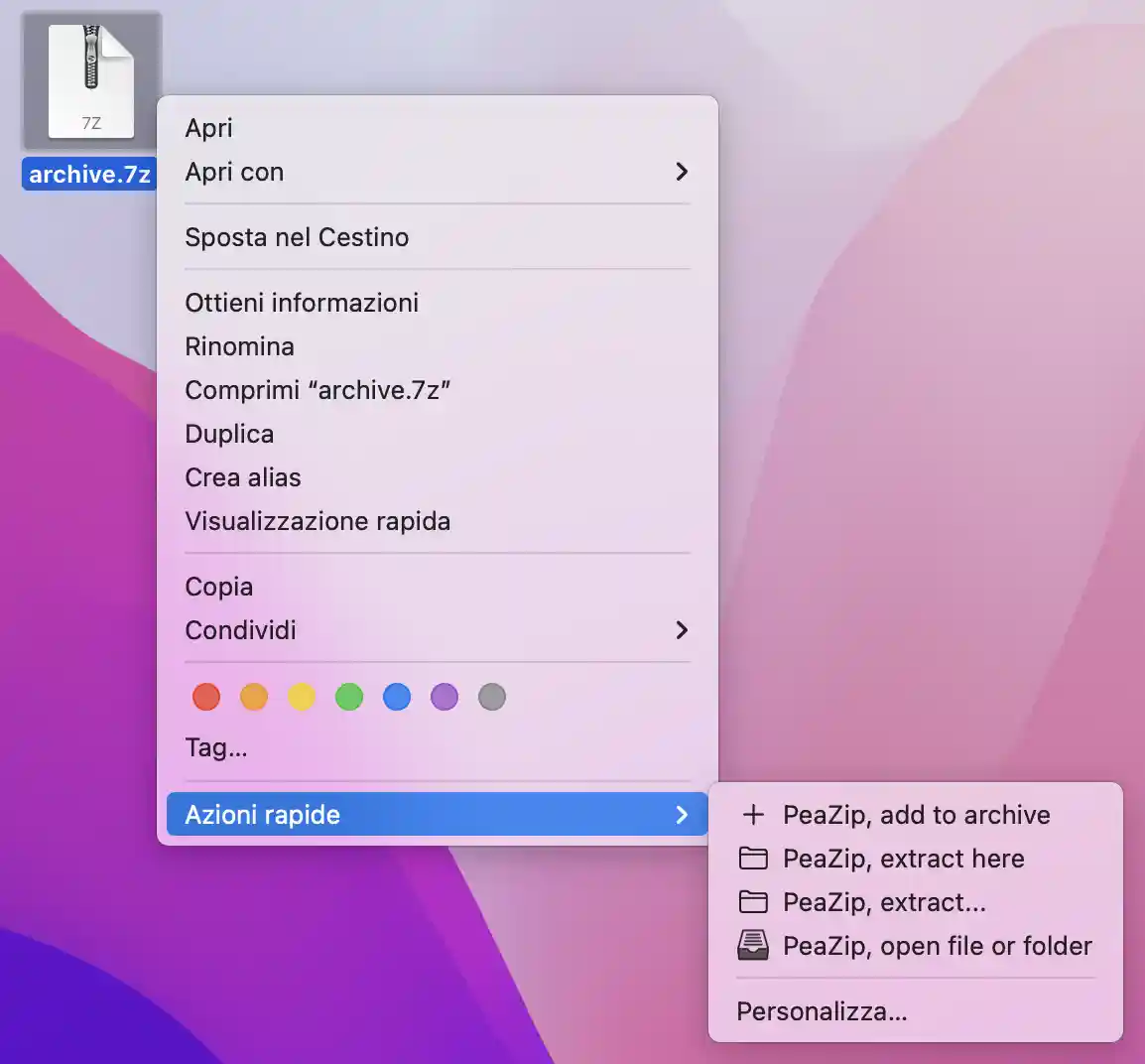
PeaZip context menu entries on macOS
Right-click menu integration on different operating systems
Following table recap PeaZip support of context menu on different operating systems:
| Operating
System |
Archirecture |
| Linux |
In (peazip)/res/share/batch folder are provided sample .desktop files to integrate PeaZip with most common Linux DE such Gnome, KDE, XFCE, Mate, Cinnamon... following the FreeDestop standard |
| macOS |
In
(peazip)/res/share/batch folder are provided sample Automator .workflow
scripts to integrate PeaZip with macOS context menu (linked in
packages' root) |
| Windows |
Installers
provide automatic integration with SendTo and Windows context menu. Not supported integration with drag and drop's system context menu. In (peazip)/res/share/batch folder are provided sample SendTo menu links, and sample .reg scripts to add eaZip to Windows 11 mini-context menu. |
Synopsis: Fast drag and
drop extraction from archives with PeaZip custom drag&drop extract
implementation, internal two pane -style drag and drop action. Context
menu integration on Windows (and Windows 11
mini context menu), Linux, and macOS to compress, test and extract
archives from system's context menu.
Topics: drag and drop
extraction, context menu extraction and compression, extract here menu
PeaZip >
Screenshots > Drag and drop extraction, context menu
| RECOMMENDED PAGES | FREE RAR EXTRACTION UTILITY |
CREATE SEPARATE ARCHIVES | EXTRACT ENCRYPTED ARCHIVES |
| REXTRACT FROM WINDOWS CONTEXT MENU | ADD PEAZIP TO MACOS SERVICE MENUS | LINUX CONTEXT MENU EXTRACTION |